
Free Internet Doesn't Always Come Without a Cost
Whether you're sitting in a coffee shop, waiting at the airport, or staying in a hotel, free public Wi-Fi can be incredibly convenient. However, just because a network is available doesn't mean it's entirely trustworthy, especially when you have no idea who else might be connected. Although modern encryption makes most everyday browsing relatively safe, unsecured networks, fake hotspots, and suspicious websites can still put your personal information at risk. Before connecting to the next available network, here are 20 things you should avoid doing on public Wi-Fi to keep your information secure.

1. Check Your Bank Account
Checking your bank balance while waiting for your coffee might seem harmless, but public Wi-Fi isn't the best place to handle sensitive financial information. Although legitimate banking apps generally encrypt their connections, fake hotspots and phishing pages can still put your information at risk. For extra peace of mind, switch to your mobile data whenever you need to manage your finances.

2. Make Expensive Online Purchases
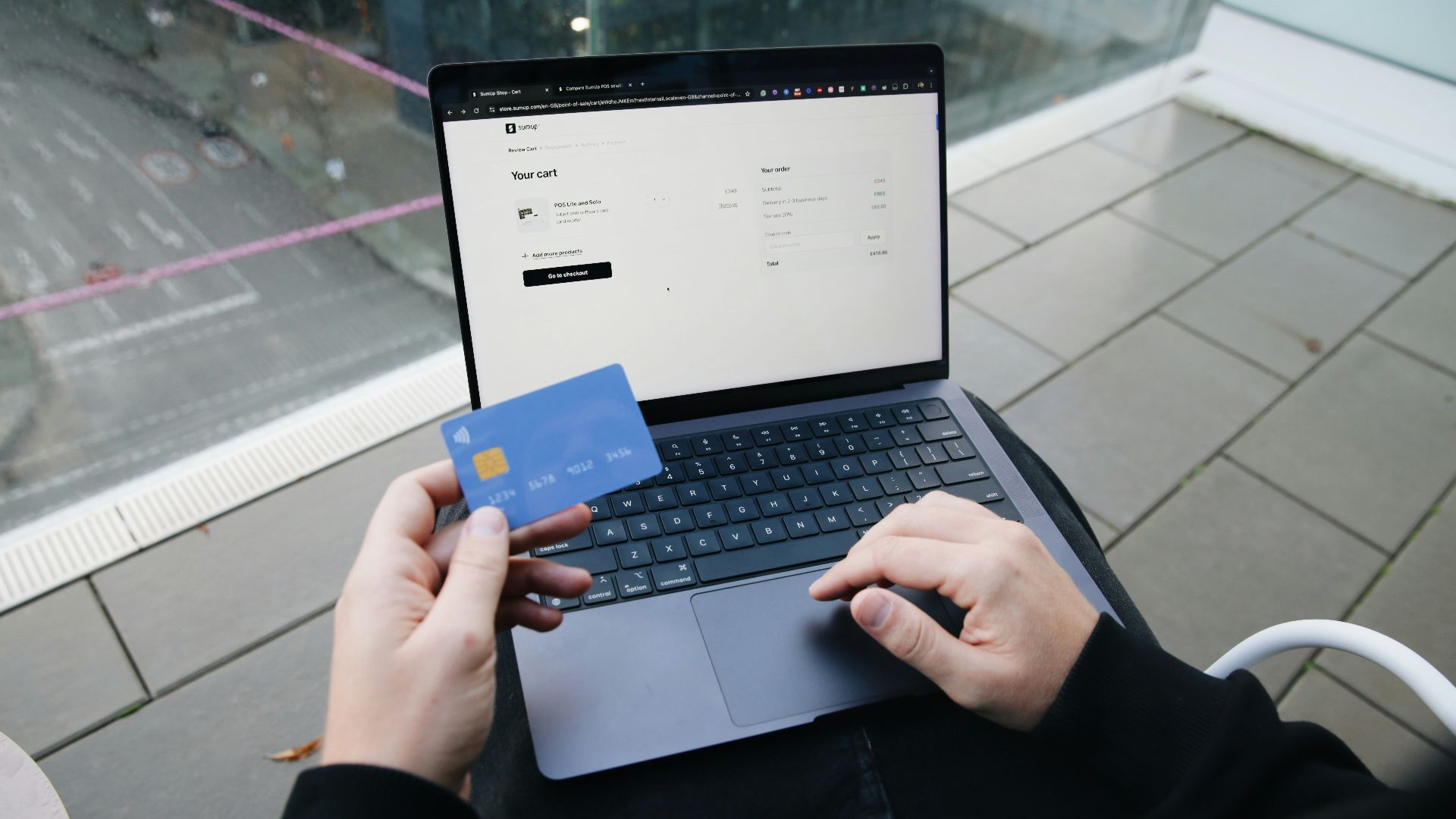
That expensive laptop you've been eyeing can probably wait until you're connected to a network you know is trustworthy. Online shopping often involves entering credit card numbers, billing addresses, and other personal details that you wouldn't want falling into the wrong hands. Secure websites encrypt this information, but fraudulent checkout pages can still collect it, making it a good idea to save major purchases for later.
3. Connect to Networks With Suspicious Names
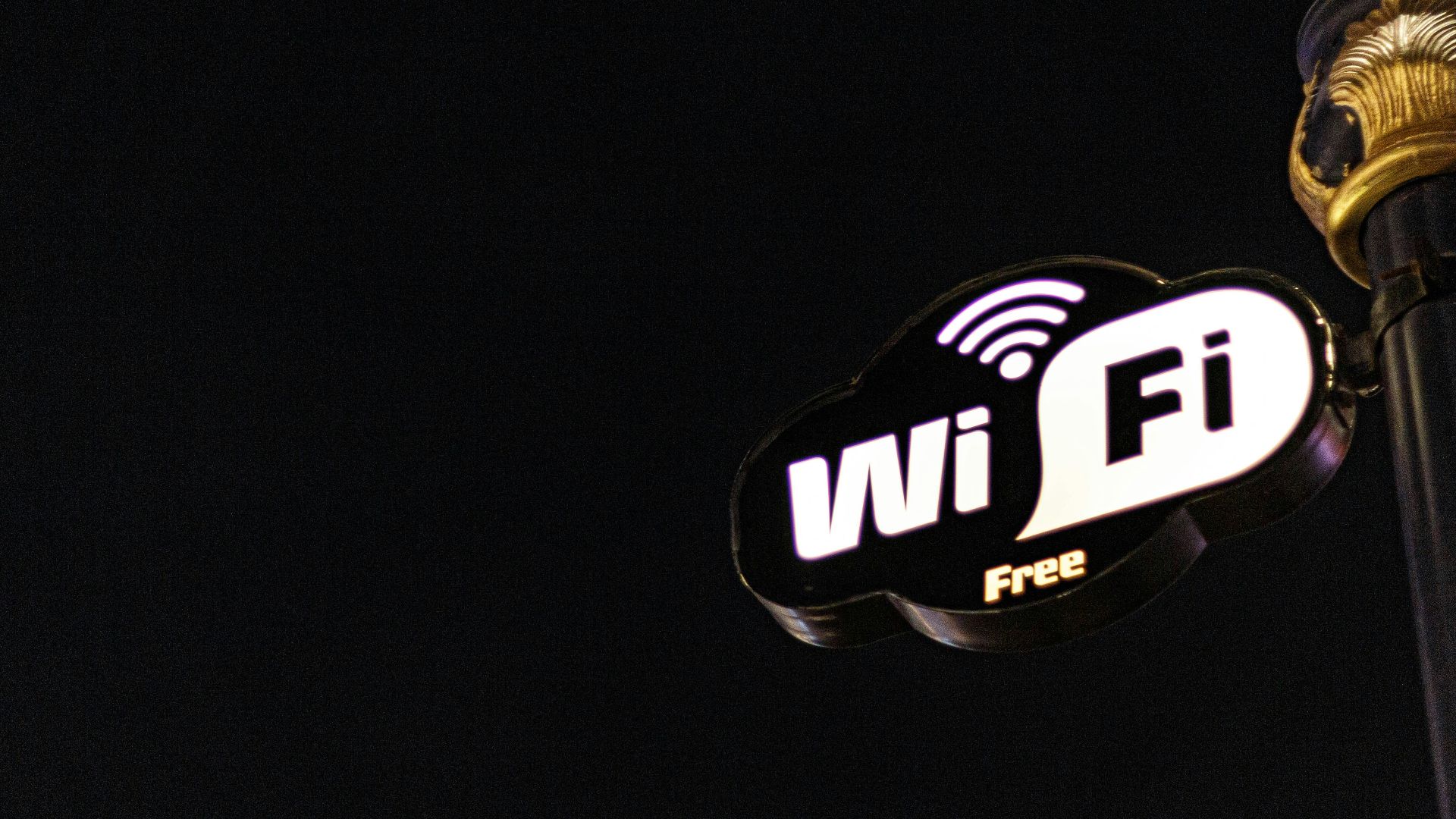
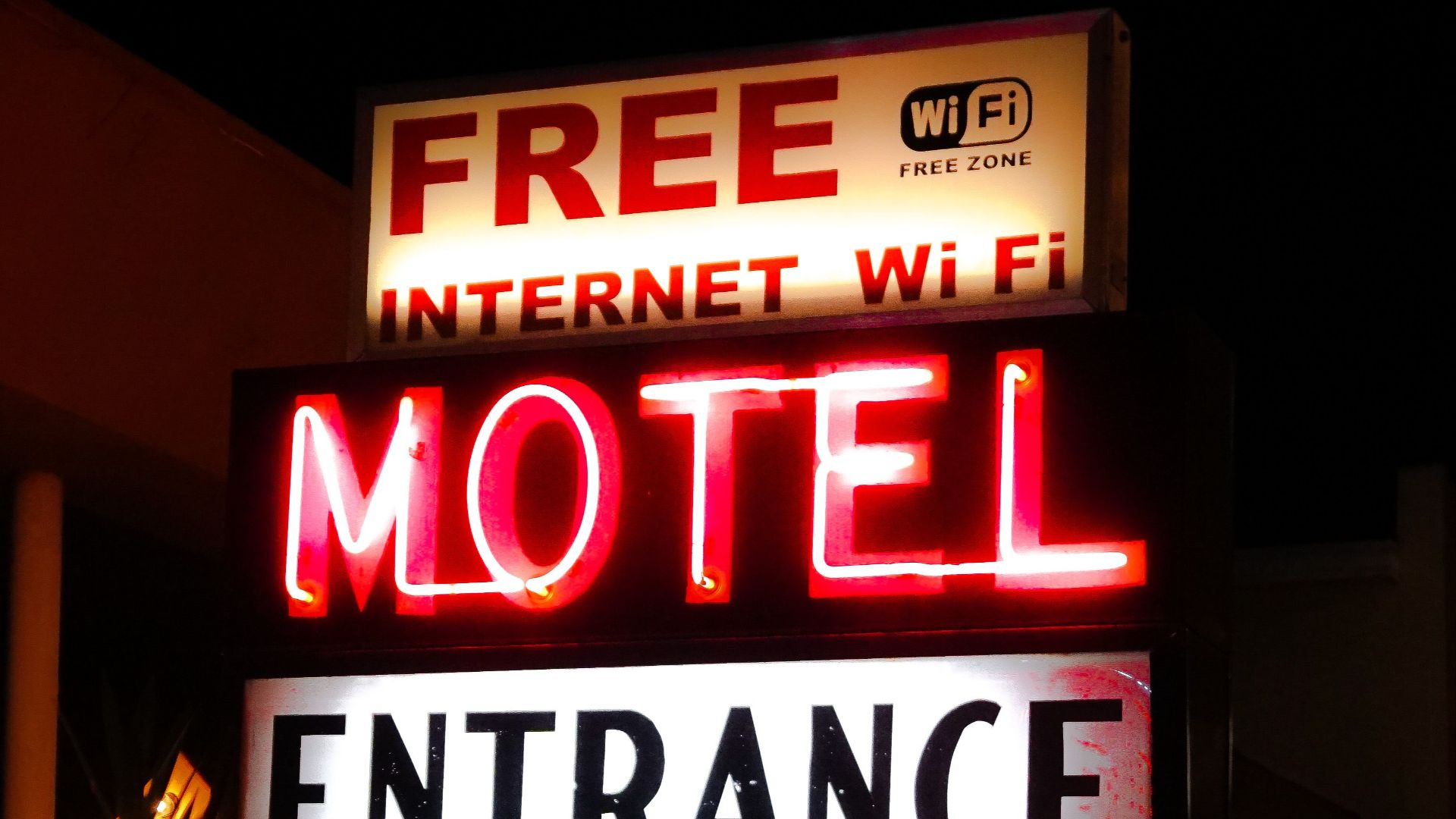
Not every Wi-Fi network advertising free internet actually belongs to the business you're visiting. Cybercriminals sometimes set up fake hotspots with names that closely resemble legitimate networks, hoping unsuspecting customers will connect without thinking twice. Before selecting something like "Airport_Free_WiFi_2," ask an employee for the official network name rather than guessing which one is genuine.
4. Ignore Website Security Warnings
When your browser displays a warning about an insecure connection or an invalid security certificate, don't just click through it. These alerts could mean that someone is interfering with your connection, although they're sometimes caused by ordinary technical problems. Whatever the explanation, entering personal information after dismissing a serious security warning simply isn't worth the risk.
5. Access Confidential Work Documents
Working remotely from a café certainly has its advantages, but handling confidential company information requires a little extra caution. Depending on your employer's security policies, accessing internal files through an unfamiliar network could introduce unnecessary risks. Stick to your company's approved VPN or secure remote-access tools, and consider using a personal hotspot when dealing with particularly sensitive material.
 Glenn Carstens-Peters on Unsplash
6. Leave File Sharing Turned On
Your laptop probably has file-sharing features that come in handy when you're connected to your home network. Unfortunately, leaving those features accessible on public Wi-Fi could potentially expose shared folders to devices belonging to strangers. Before settling in for a browsing session, make sure your computer recognizes the connection as a public network and has unnecessary sharing disabled.

7. Enter Passwords on Unencrypted Websites
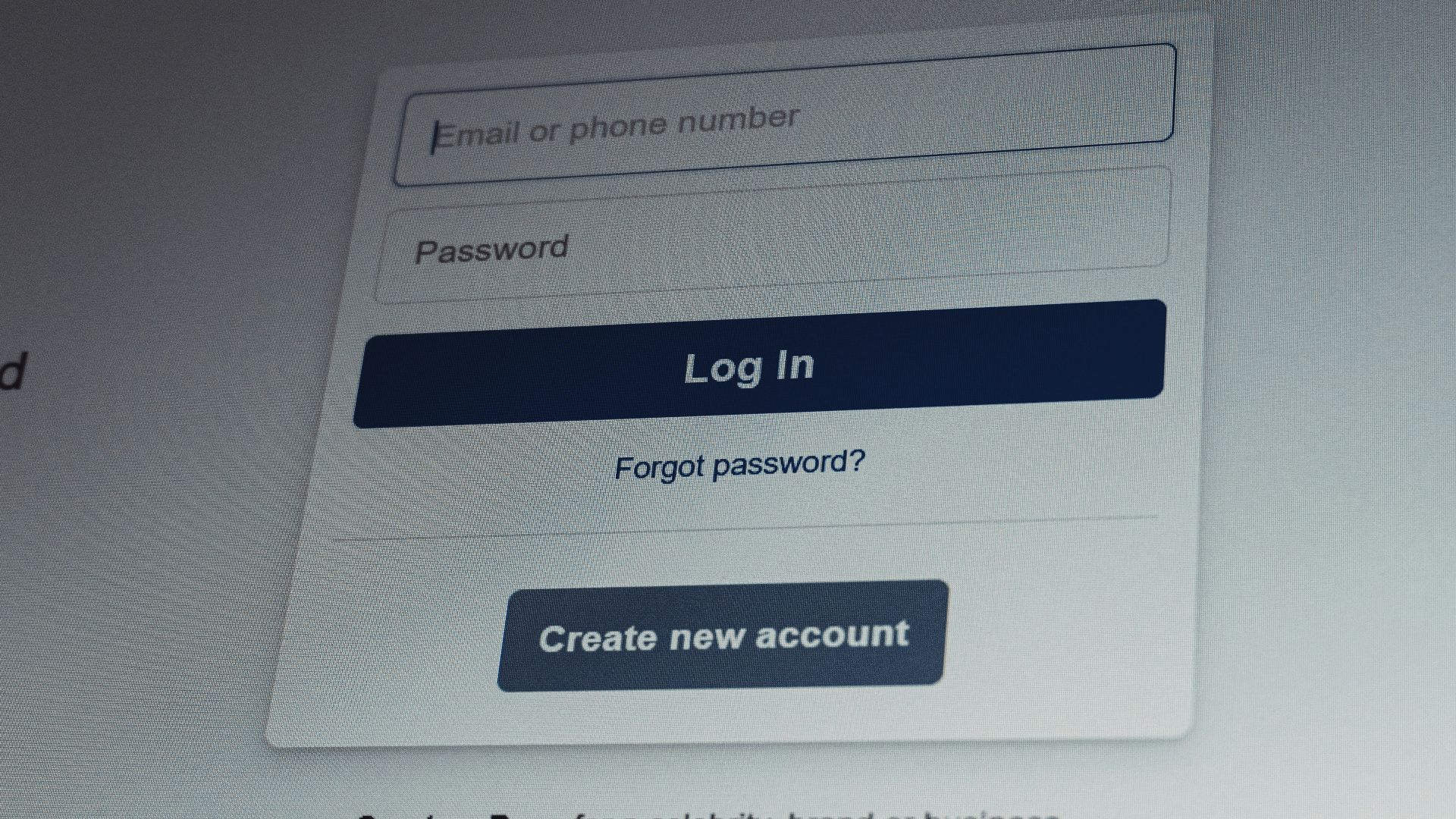
Websites that still use ordinary HTTP instead of HTTPS should make you cautious, especially if they're asking you to sign in. Without proper encryption, information sent through these connections could potentially be intercepted by someone monitoring the network. Most modern browsers flag insecure connections, so it's worth checking for those warnings before entering anything confidential.
8. Let Your Device Connect Automatically
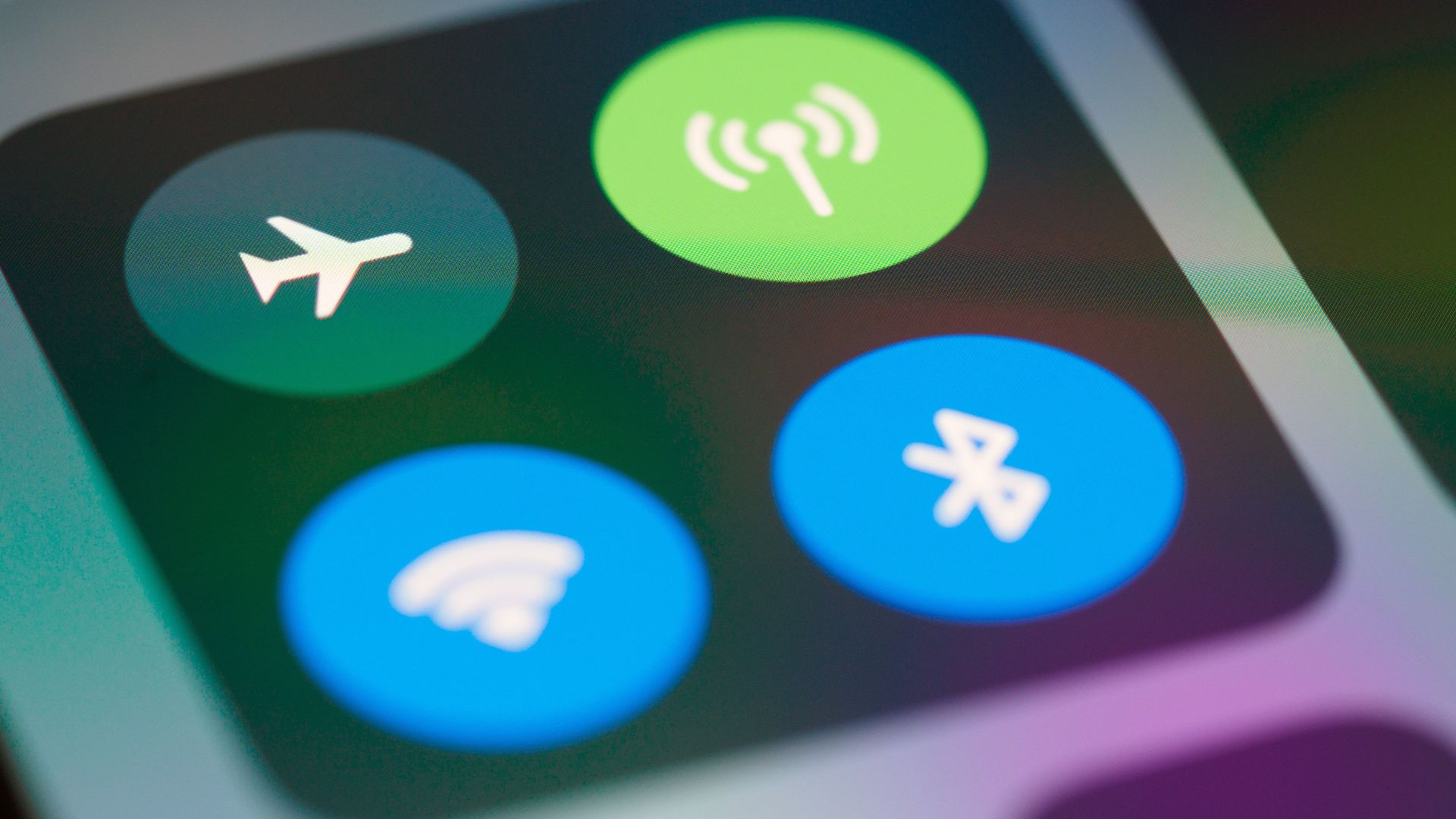
Automatic Wi-Fi connections are convenient until your phone reconnects to an unfamiliar network without your knowledge. Devices that remember public hotspots may try to join networks with matching names, including fraudulent ones designed to fool unsuspecting users. Disabling automatic connections to public networks gives you more control over which hotspots your device uses.
9. Download Software From Unfamiliar Websites
A free program might sound tempting when you're trying to get something done, but downloading software from an unknown website is risky regardless of your connection. Public hotspots can add another concern if someone redirects you to a fake download page or tricks you with a misleading update notification. You're better off sticking to official app stores and verified developer websites instead of clicking whichever download link appears first.
10. Disable Your Firewall
Some people turn off their computer's firewall when they're struggling to connect to public Wi-Fi, hoping it'll fix the issue. Unfortunately, doing so removes an important layer of protection against unwanted network connections, particularly when you're sharing a hotspot with strangers. Rather than disabling essential security features, ask the business for assistance or find another way to connect.
11. Reset Important Account Passwords
Changing your password is usually a smart security habit, but doing it through an unfamiliar network might not be the best choice. Fake login pages can look remarkably similar to legitimate password-reset screens, making it easy to accidentally hand over your credentials. If you're updating the password for your primary email or another important account, it's worth using a connection you trust.
12. Trust Every Public Wi-Fi Login Page
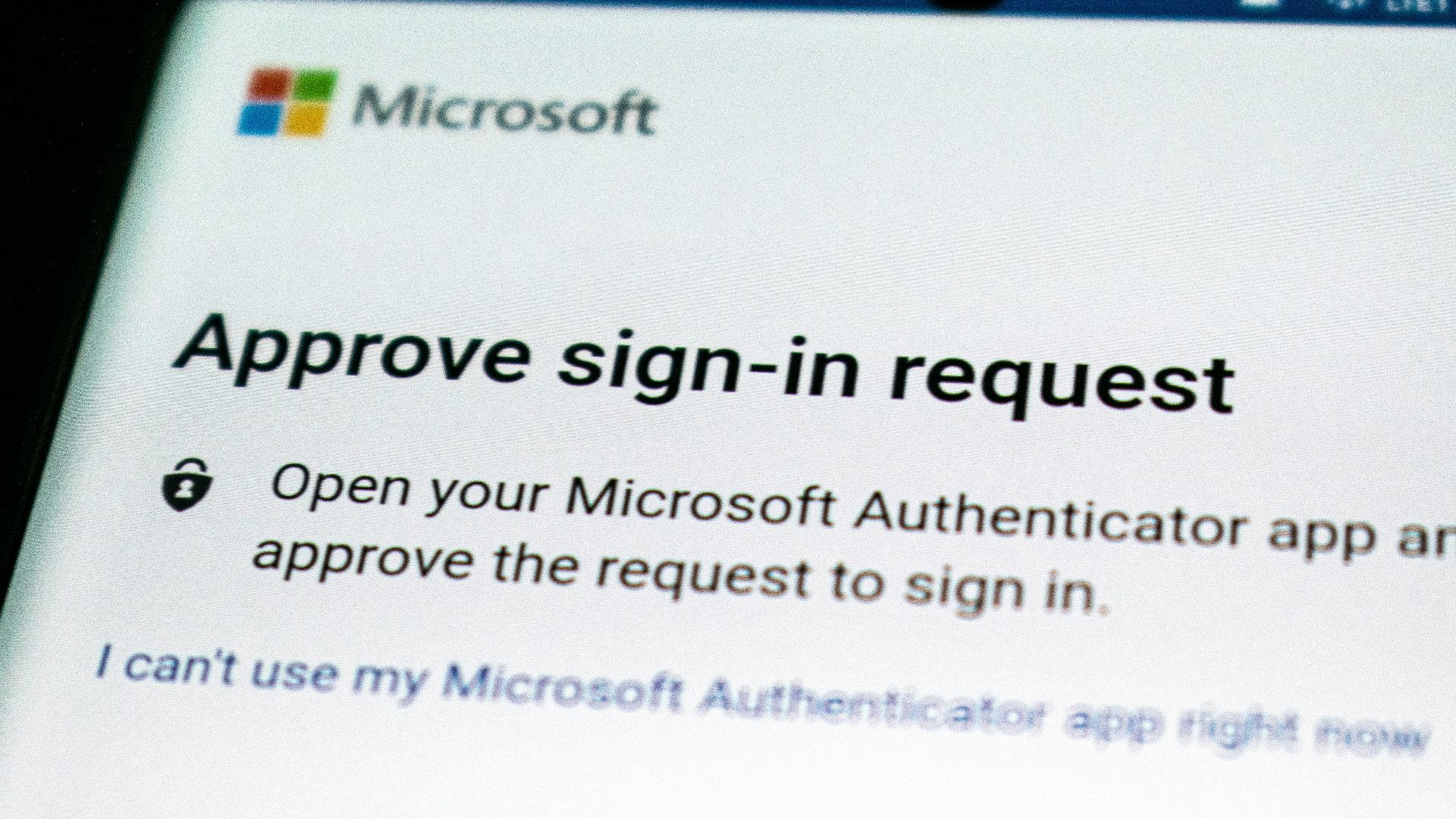
Many hotels and airports use legitimate login pages that require guests to accept certain terms before accessing the internet. However, a page requesting your banking password, social media credentials, or excessive personal information should make you suspicious. A normal Wi-Fi login page generally has no reason to ask for unrelated account passwords, so check with the establishment before providing anything unusual.
13. Send Sensitive Information Through Unencrypted Messages
Not all messaging services offer the same level of privacy, and some communication methods provide very little protection for personal information. Sending identification numbers, financial details, or confidential documents through unencrypted messages could expose information that you'd rather keep private. Whenever you're sharing sensitive details, choose a reputable end-to-end encrypted messaging service, regardless of the network you're using.

14. Ignore Your Device's Network Discovery Settings
When you're connected to public Wi-Fi, your device may be configured to make itself visible to other computers on the same network. While this can be useful at home, there's usually no reason for strangers at a coffee shop or airport to discover your device. Turn off network discovery when using public hotspots to reduce unnecessary exposure to unfamiliar devices.
15. Ignore Unexpected Connection Requests
If an unfamiliar device suddenly requests permission to connect to your laptop, don't approve it without knowing who's behind the request. Depending on your settings, nearby devices may try to establish connections or access services you've accidentally left available. Reject anything you don't recognize, especially when you're connected to a busy public network.

16. Access Your Cryptocurrency Wallet Through Suspicious Links
Managing cryptocurrency requires extra care because fraudulent transactions can be extremely difficult, if not impossible, to reverse. A fake wallet website or malicious browser extension could trick you into revealing passwords, recovery phrases, or other sensitive information. When making important transactions, stick to trusted applications and a secure connection, and never enter your recovery phrase into an unfamiliar website.
 Jievani Weerasinghe on Unsplash
17. Use Public Wi-Fi Without Updating Your Device
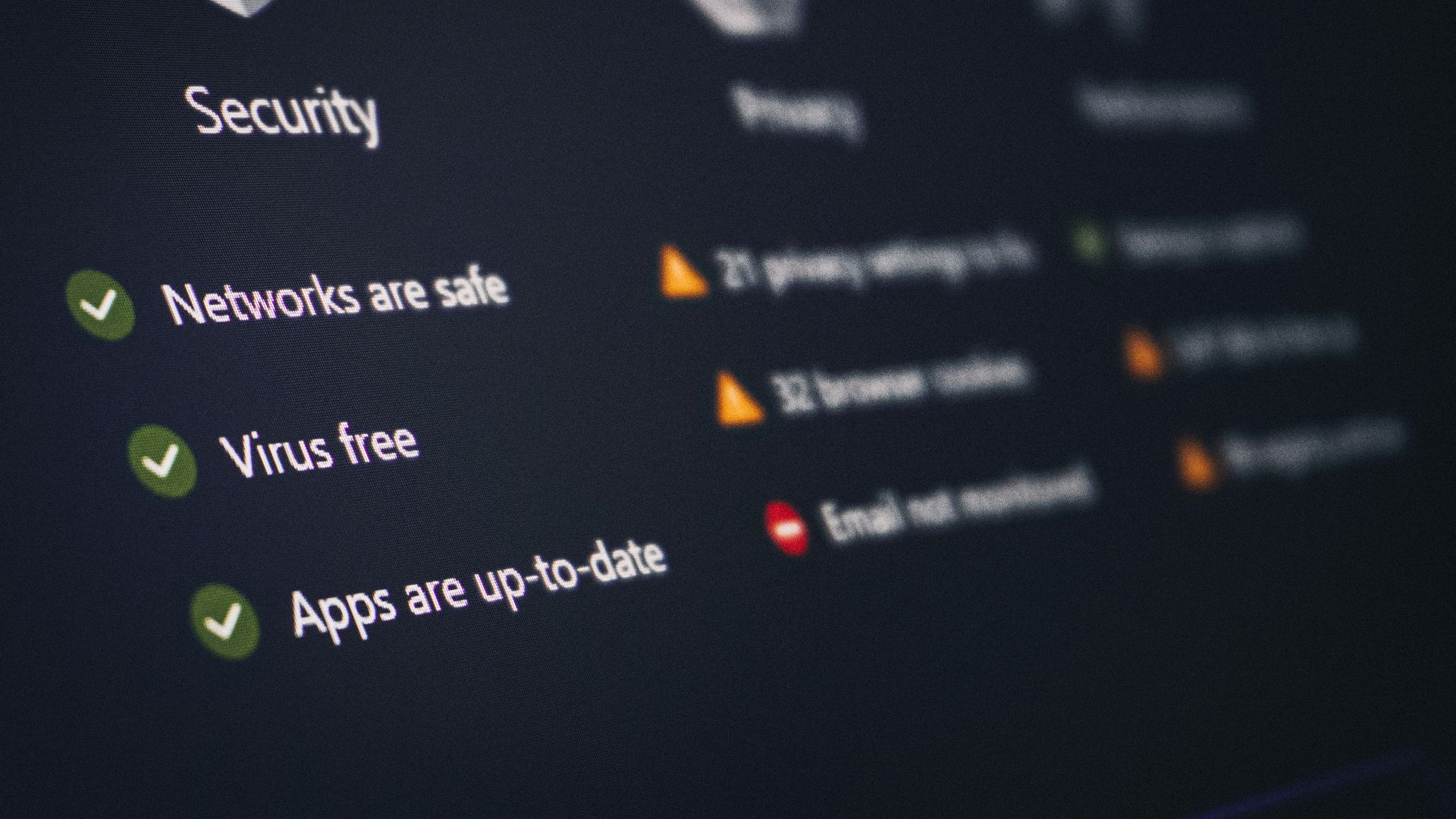
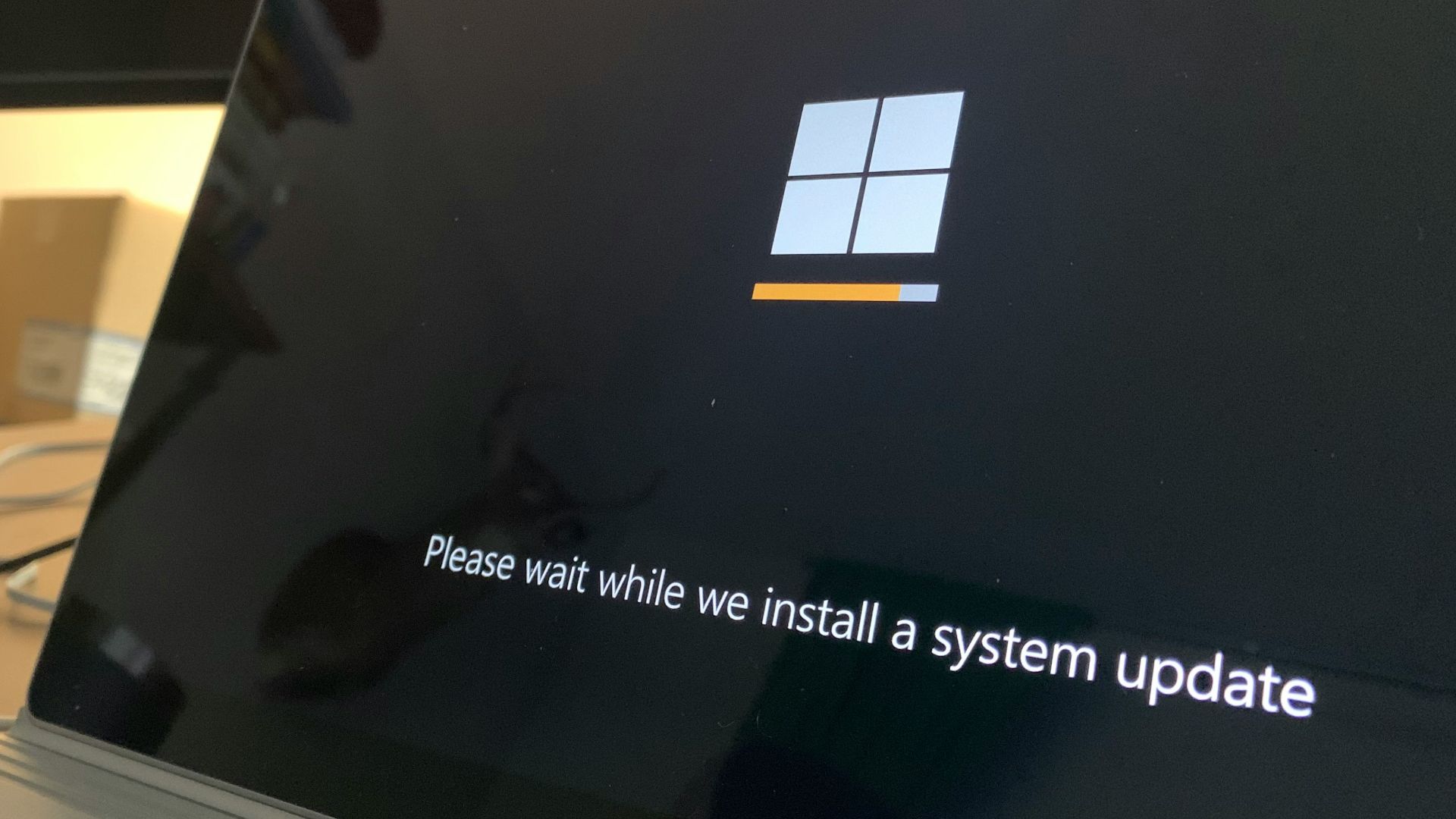
Putting off software updates for weeks might not seem like a big deal, but outdated devices can have security vulnerabilities that attackers already know how to exploit. Connecting to unfamiliar networks may increase your exposure to certain attacks, especially if your system has known weaknesses. Keeping your operating system, browser, and security software up to date is one of the easiest ways to protect yourself.
18. Assume a Password-Protected Network Is Completely Safe
A hotel Wi-Fi network that requires a password might seem safer than an open hotspot, but that doesn't necessarily mean it's secure. After all, if every guest receives the same password, plenty of people you don't know could still be using the network. Keep using encrypted websites and following basic security precautions instead of assuming that a password takes care of every potential risk.
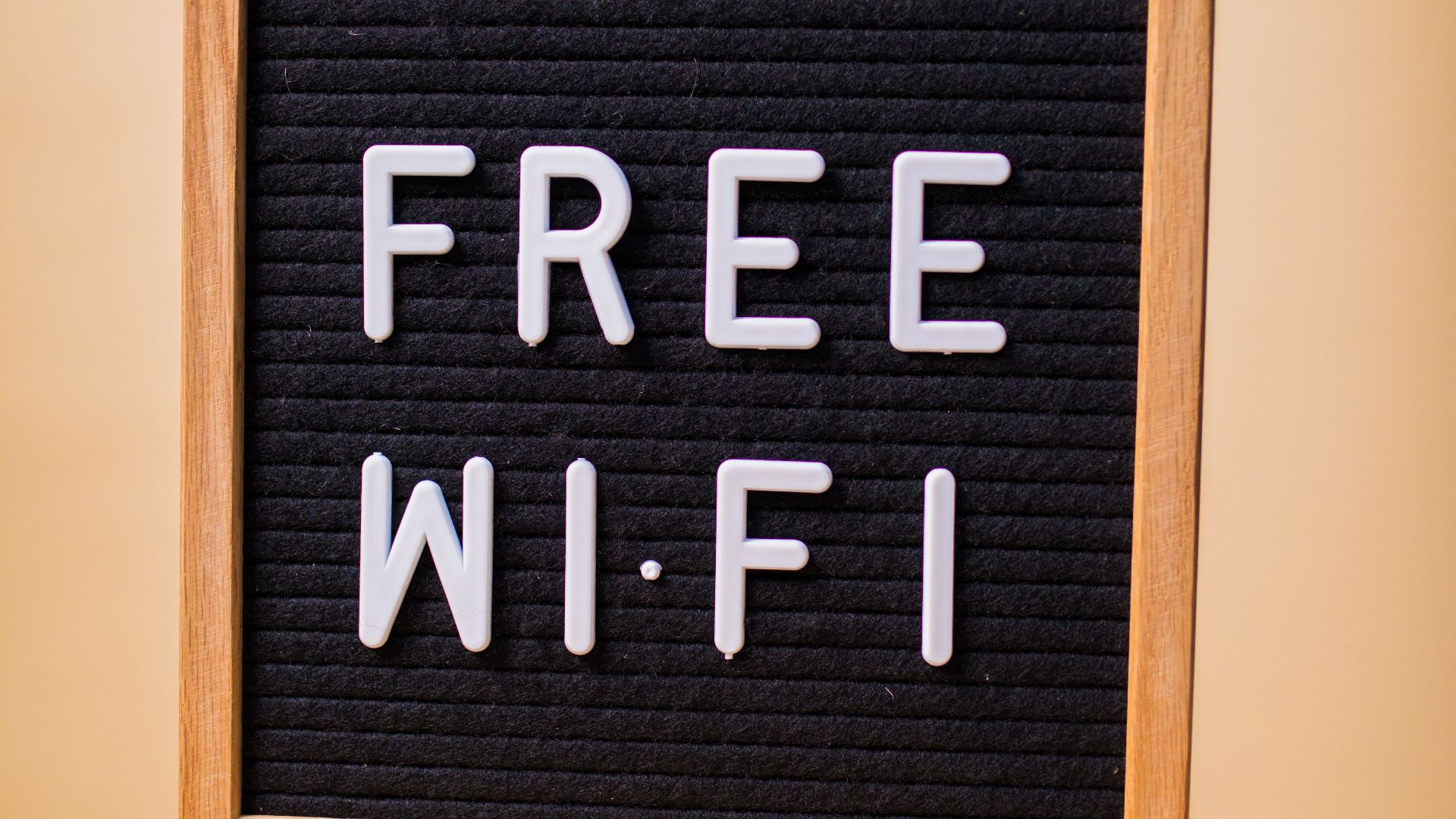
19. Forget to Disconnect When You're Finished
Leaving public Wi-Fi enabled after you're done browsing can keep your device connected for longer than necessary. Depending on your settings and location, it might also continue searching for networks you've previously used. Once you've finished using the hotspot, disconnect and consider forgetting the network to prevent your device from automatically reconnecting another time.

20. Assume a VPN Makes Everything Safe
A virtual private network can add another layer of protection by encrypting traffic between your device and the VPN service. However, it can't stop you from entering your password on a fraudulent website, downloading malicious software, or falling for an online scam. Using a reputable VPN is a sensible precaution, but good browsing habits are still essential for keeping your information safe.