Default Or Not, Your Games Look Worse And Feel Slower
Games often ship with a bunch of settings turned on by default that are honestly doing you no favors. A lot of them are just borrowed from movie camera tricks, or they're there to paper over performance problems, or some developer just never turned them off before shipping. And if you play shooters, racers, or anything fast and twitchy, clarity and quick response time matter so much more than a bit of extra sparkle on the screen. Even in slower single-player games, some of these quietly smear the image, muddy up dark corners, or make your aiming impossibly slow. Here are 20 settings worth switching off.
1. Motion Blur
Motion blur is trying to make your game look like a summer blockbuster. What it actually does is make everything harder to read. In shooters, especially, it can swallow enemy silhouettes mid-turn and make tracking targets inconsistent.

2. Vsync (PC)
Vsync exists to cut down screen tearing, which sounds great in theory. Sadly, here's an input delay that sneaks in, and you feel it: shots that land a beat behind, a mouse that feels just a little heavy. If your monitor supports variable refresh rate, you're probably already getting the smooth experience possible.

3. Film Grain
Film grain throws a layer of speckles across your whole image, including the exact parts you're squinting to focus on. Distant heads in a multiplayer map, subtle loot outlines, fine details in dark environments, all of it just gets harder to see.

4. Chromatic Aberration
This setting adds color fringing around edges, that slightly unfocused, blurry look. It's a stylized thing, a bit artsy, but it rarely helps you actually play the game. On high-contrast scenes, it can make the picture feel a little too soft.

5. Depth Of Field
Depth of field blurs whatever isn't "in focus.” In third-person games, it softens enemies sitting in the mid-distance, and in first-person games, it blurs your peripheral vision to a point where it’s distracting. It also tends to clash with UI elements, making menus and prompts look hazy.

6. Lens Flare
Lens flare brightens highlights and throws streaks across your screen any time you look near a light source or the sun. In a competitive game, it can cost you everything. Even in single-player, it makes it harder to hold a clean aiming line when the screen keeps lighting up.

7. Camera Wobble
Camera wobble adds shake for "realism." In tight hallways or close-quarters fights, though, that extra bobbing makes enemies harder to track, and can also cause motion sickness in some folks.
8. Colorblind Mode (Unless You Actually Need It)
Colorblind modes are brilliant accessibility tools, full stop. They're just not meant to be used as a cosmetic filter if you don't need them. Switching one on when you're not colorblind can actually make team colors, damage indicators, and loot rarities less clear, depending on the game. If better visibility is what you're after, brightness, contrast, and HUD color options are the right place to look.
9. Sprint Turn Scale (Controller)
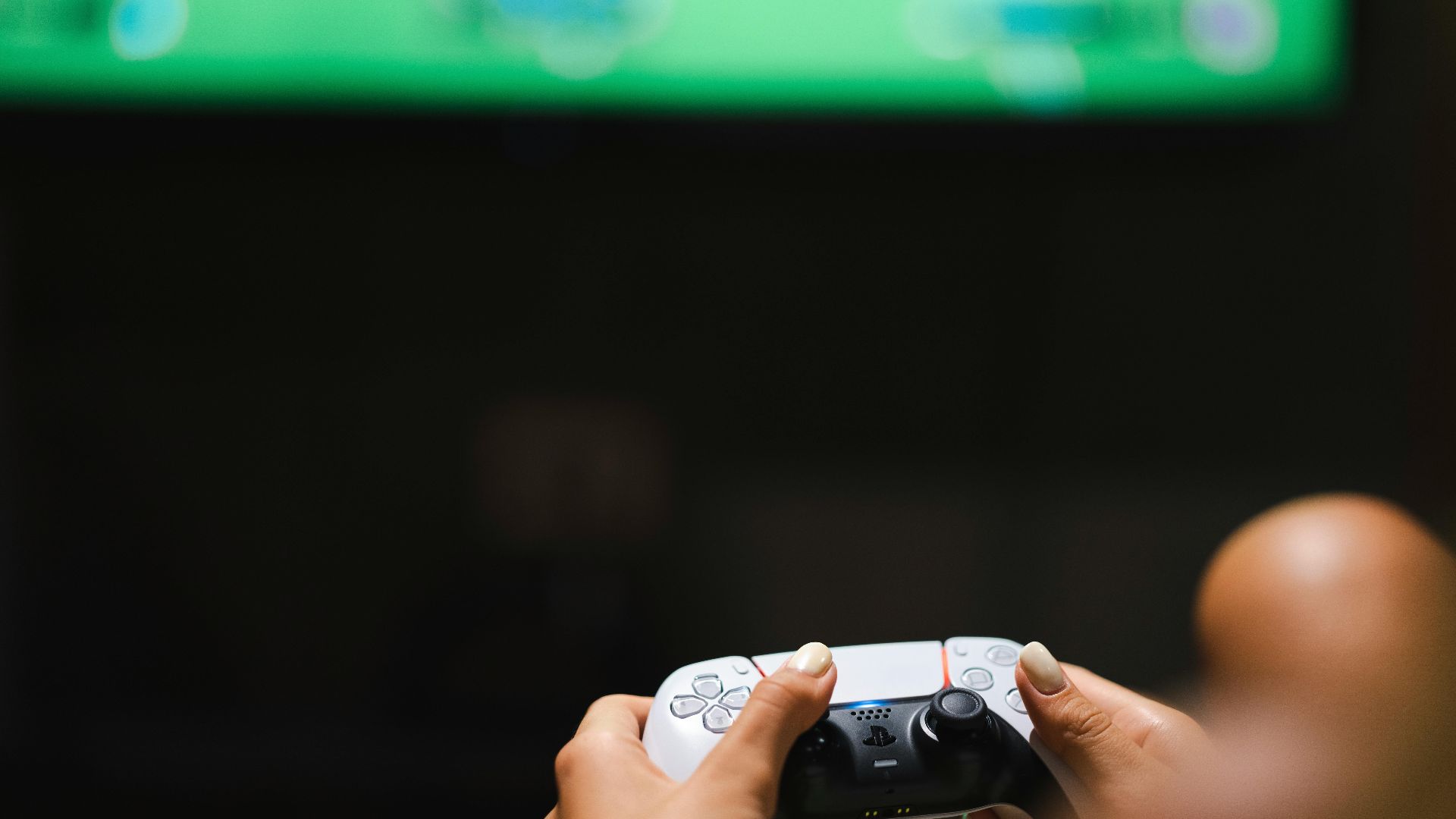
Sprint turn scale adjusts how quickly you turn while sprinting, and here's what happens: people tweak it once, forget about it, and then wonder for months why their right stick feels weird. Consistency is everything on the controller, especially when you're snapping from a full sprint into an aiming position.
10. ADS Sensitivity Modifier
If the scaling is even slightly off, your muscle memory never fully settles. Small corrections overshoot or undershoot, depending on the zoom level. A lot of players genuinely do better by setting one clean base sensitivity and only touching per-scope options when there's a very specific, obvious problem.

11. Framerate Cap (PC)
Capping your framerate makes sense sometimes, but leaving a low cap on by accident is an easy way to make a game feel sluggish when it doesn't need to be. More frames mean better motion clarity and less perceived input delay.

12. Autolook Centering (Controller)
This one pulls your camera back to center whenever you stop touching the stick. It sounds helpful in theory. Sadly, it acts more as a hassle to players than anything else.
13. Screen Bounds Tweaks
If your picture already fits the screen nicely, leave the screen bounds alone. Unnecessary adjustments can shrink your HUD, clip important edges, or shove subtitles into awkward spots. If you start messing with it when everything is already fine, you can end up hiding ammo counts, objective markers, or minimap borders without even realizing it.
14. NVIDIA Reflex
Reflex is supposed to reduce latency, and often it does exactly that. But on certain setups, flipping it on without checking how the game responds can introduce stutters, unstable frame pacing, or a strange little hitch during fast turns. If you notice any of that after turning it on, it may well be the culprit for that specific title.

15. Wind Impulse
Wind impulse pushes foliage, particles, and sometimes your whole camera presentation around in ways that add visual clutter you didn't ask for. In open-world games, especially, it puts constant movement into grass and trees, the exact things you're scanning for enemies or loot.

16. Radial Deadzone (Controller)
Radial deadzone is how much stick movement the game ignores in the circular zone around the center position. Too much deadzone and your aim feels unresponsive. If you want cleaner micro-aiming, pulling that unnecessary deadzone back means your reticle actually moves when you tell it to.
17. Axial Deadzone (Controller)
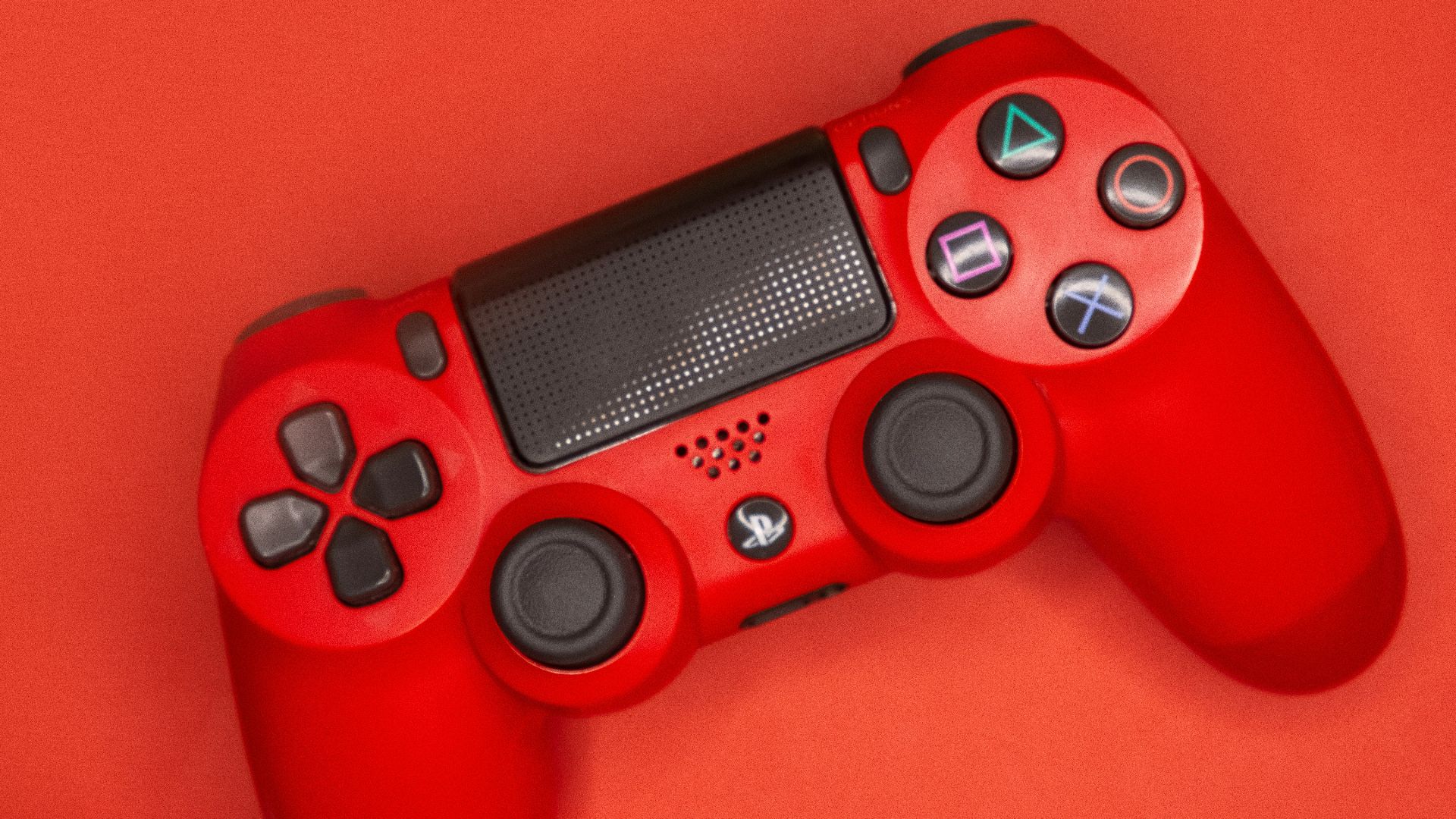
Axial deadzone affects movement along the stick's horizontal and vertical axes specifically, and when it's set too aggressively, it creates an odd snapping sensation when you try to aim diagonally. The reticle starts to prefer straight lines and resist smooth angles. When you're tracking a target, it’s a fast track to missed shots.
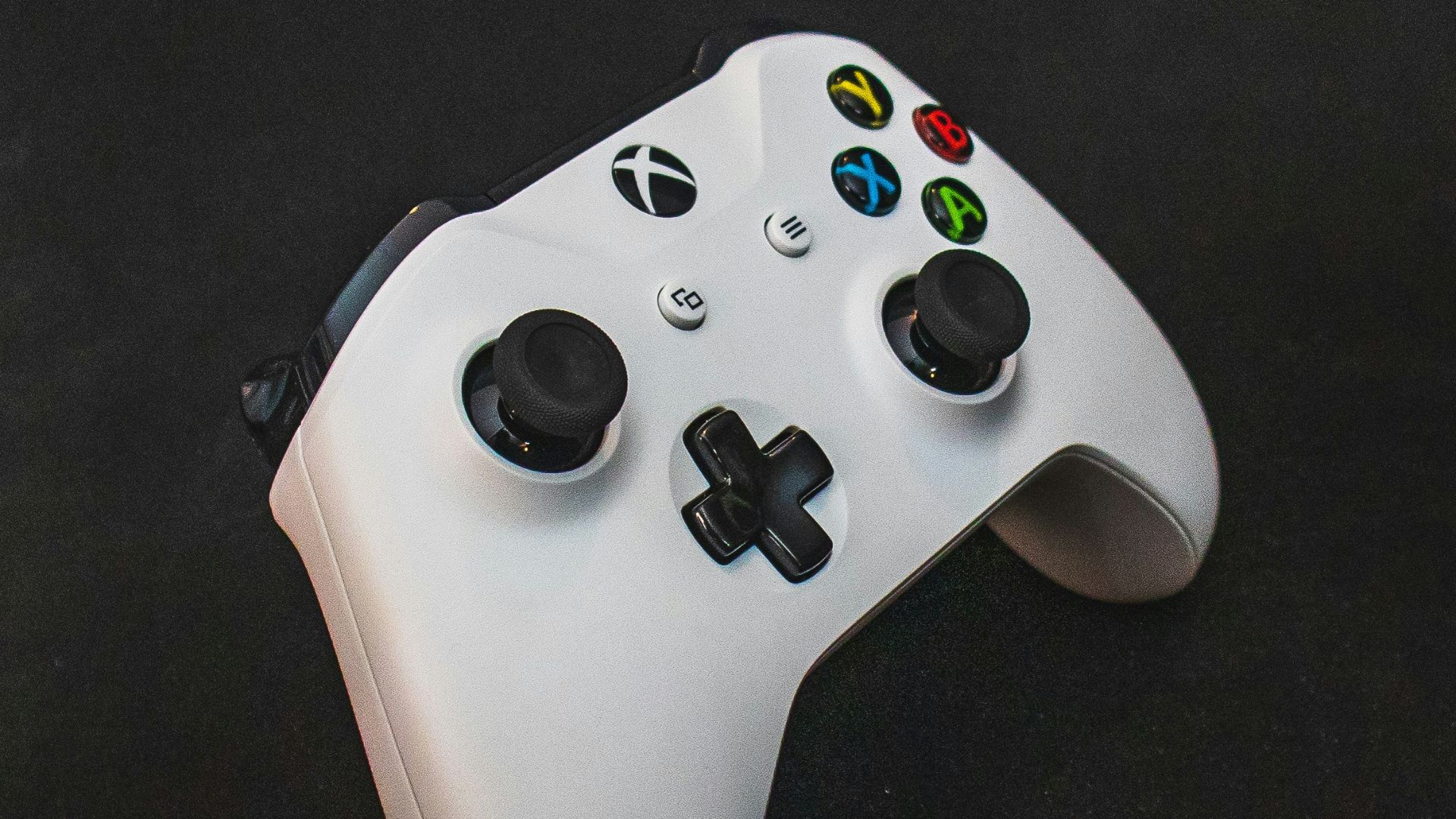 Joshua Oluwagbemiga on Unsplash
18. Controller Vibration
A little vibration is genuinely fun in the right context. But in competitive play, that extra shake during automatic fire, explosions, or constant environmental effects can subtly throw off your aim and make recoil harder to manage. Also, it adds fatigue during longer sessions.
19. Enhance Pointer Precision (Mouse)
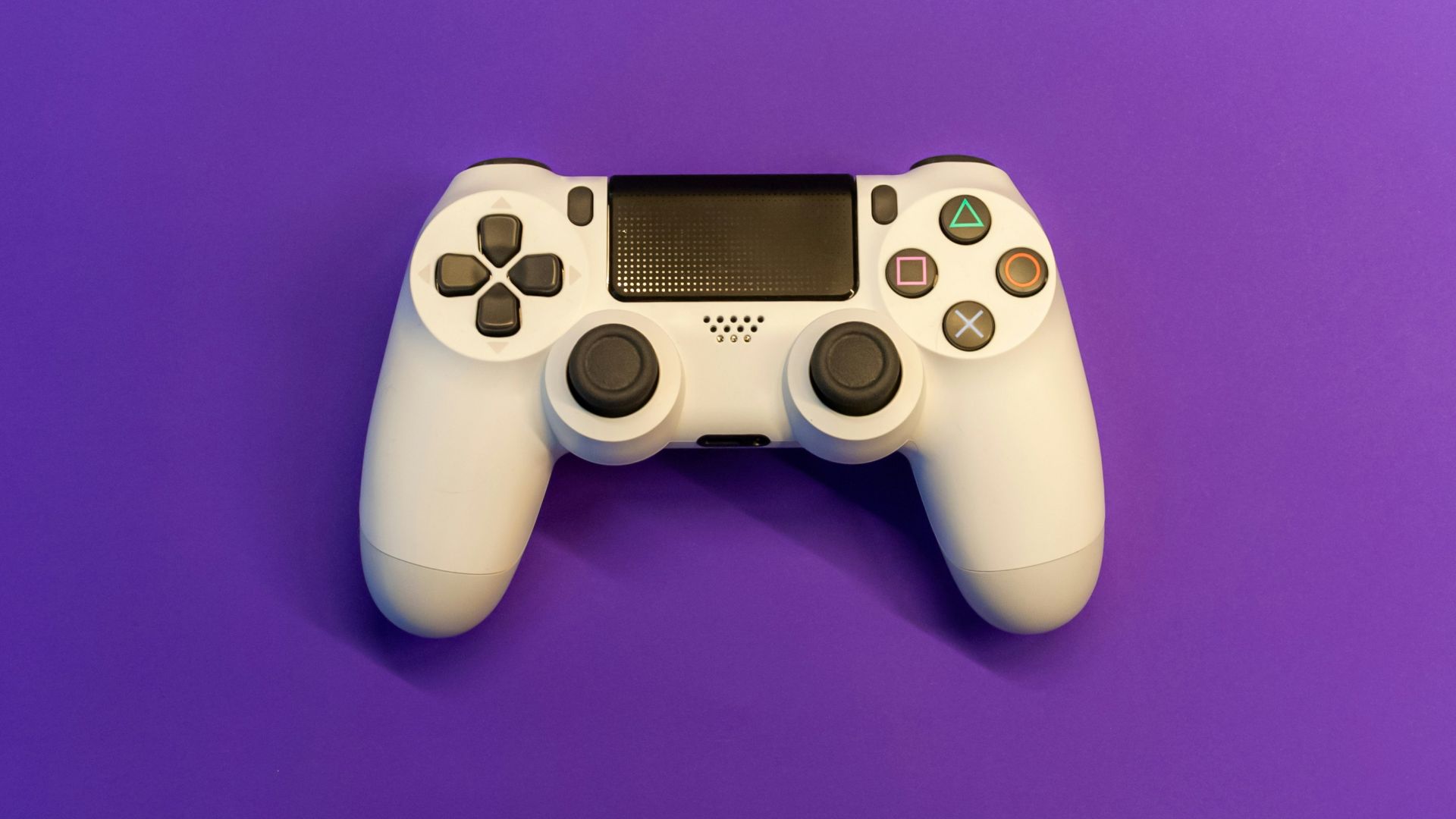
This is the mouse acceleration setting at the operating system level, the one that changes how far your cursor travels based on how fast you physically move the mouse. For shooters, that means the same physical swipe can produce completely different results depending on your speed. Your muscle memory never gets a solid foundation to build on.
20. Mouse Smoothing
Mouse smoothing averages your inputs over a brief window of time, which makes camera movement feel a little less jittery but also less direct, less you. In practice, it introduces a subtle delay and softens the feeling of control during quick flicks or tiny corrections. Raw, unsmoothed input is almost always the cleaner path to aim for that feels honest and, crucially, repeatable.