

Spinning Wheel of Death: 10 Reasons Your Computer Is Abysmally Slow & 10 Ways to Speed It Back Up
Spinning Wheel of Death: 10 Reasons Your Computer Is Abysmally Slow & 10 Ways to Speed It Back Up
Spinning and Spinning and Spinning...
Uh-oh, there it is again: that annoying spinning rainbow that won't seem to go away no matter what you do. Or, if you're on a PC, you might be constantly met with the dreaded Blue Screen of Death. It's no surprise that a slow computer can test your patience, especially when programs take forever to open and even basic tasks seem to lag or buffer for ages. But there are lots of reasons why your computer might be slow, and it's not always due to outdated software or aging hardware. Sometimes, it could simply be because you have way too many tabs open. If you're fed up with that colorful spinning wheel of death, it might be time to do something about it.

1. You Have Too Many Programs Running at Once
Every open program uses some combination of your computer's processor, memory, storage, and other resources, even when you're not actively using it. If you regularly keep several large applications running alongside dozens of browser tabs, your system may struggle to keep everything responsive. Computers with limited RAM are particularly susceptible because they have less working memory available to handle simultaneous tasks. Closing programs you aren't using can sometimes produce an immediate improvement.
2. Your Startup Apps Are Taking Over
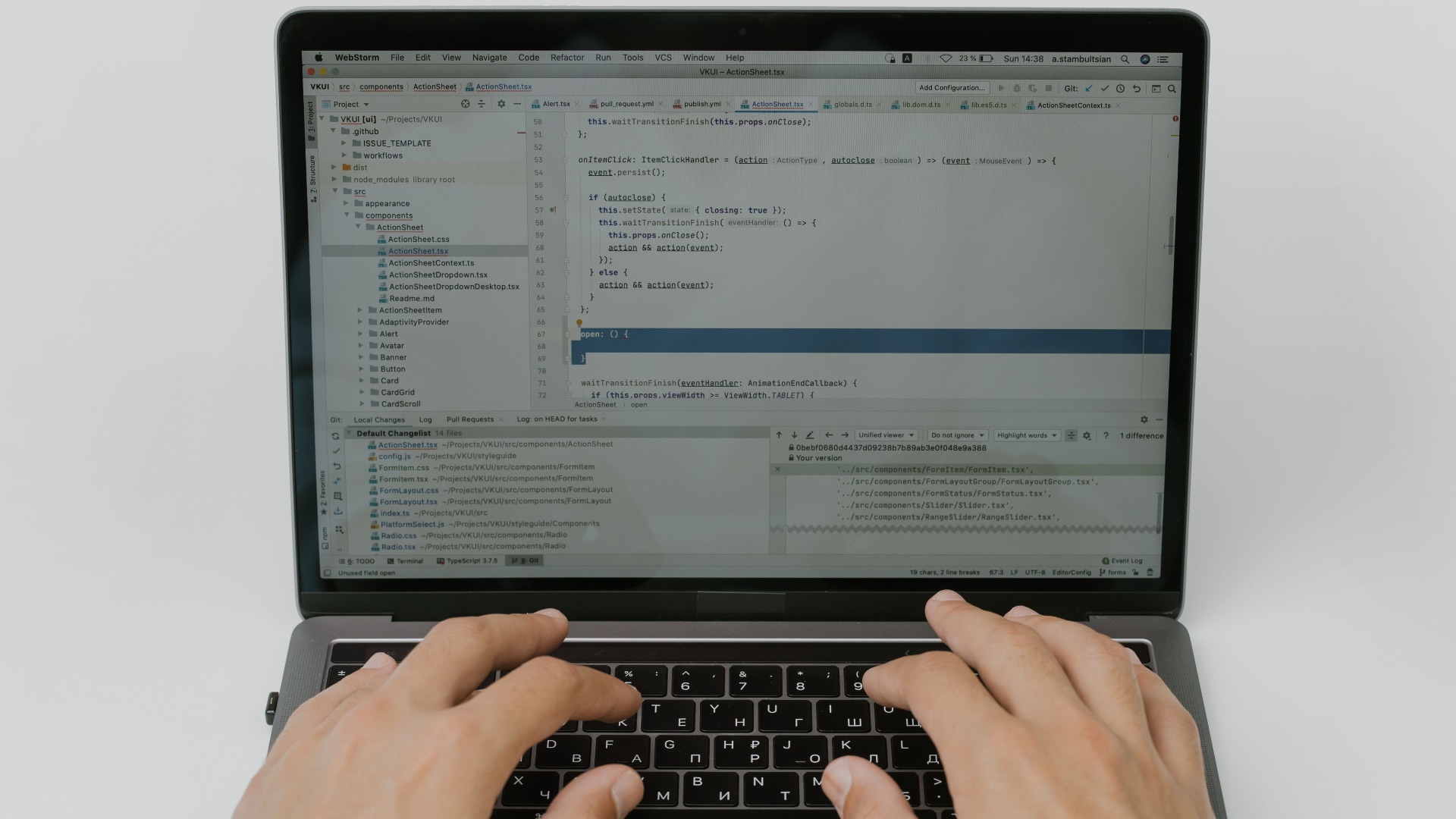
Plenty of applications configure themselves to launch automatically whenever you sign in, whether you actually need them right away or not. Cloud-storage utilities, messaging programs, game launchers, manufacturer software, and update services can all contribute to a crowded startup process. Beyond making boot times longer, some of these programs continue consuming resources throughout the day. A computer can therefore feel slow before you've even opened your first application yourself.

3. You're Running Low on Available Storage
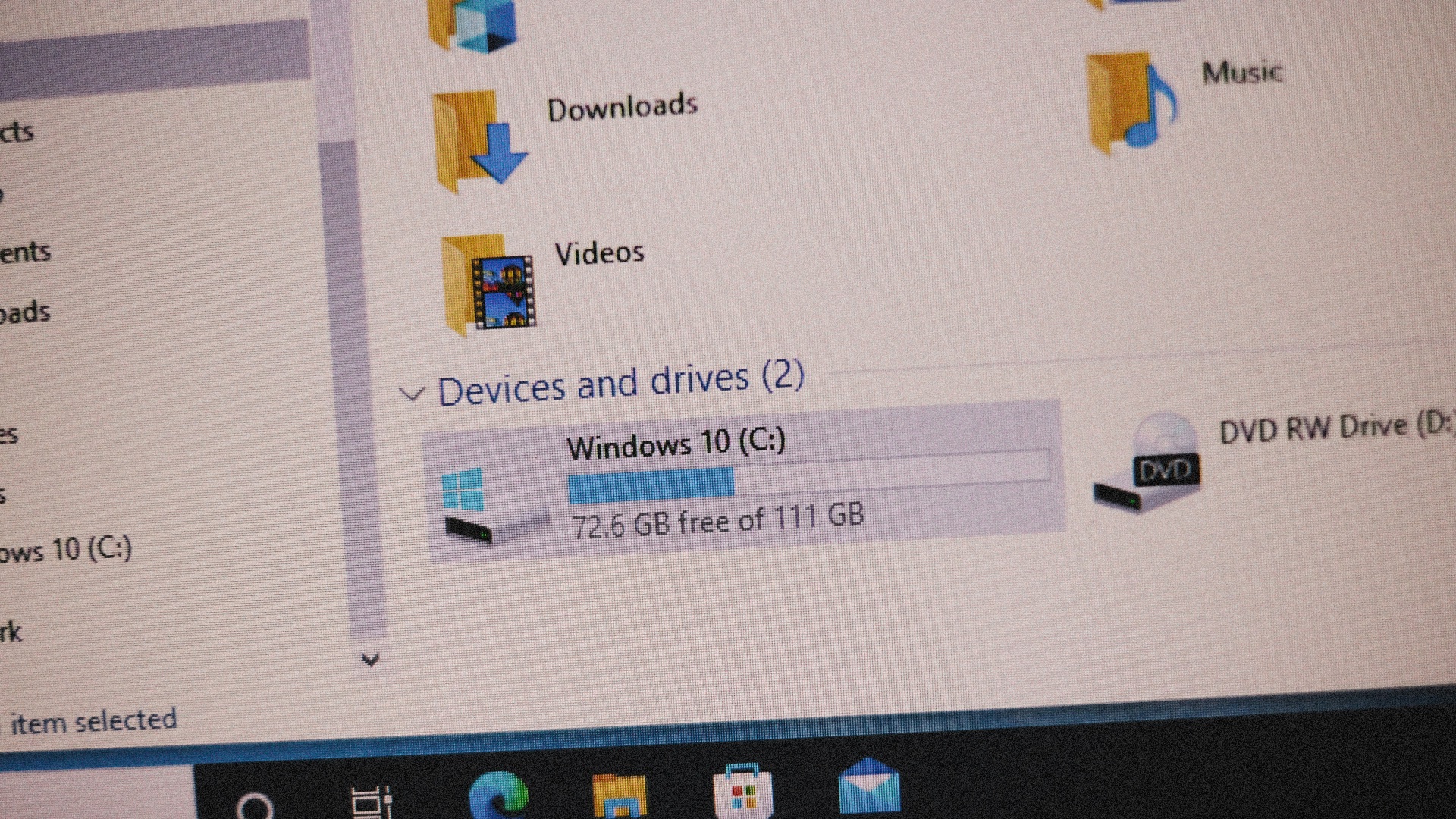
A nearly full drive can interfere with several processes your operating system depends on to function efficiently. Windows and macOS both need available storage for temporary files, updates, caches, virtual memory, and other routine operations. Once free space becomes scarce, everyday tasks may take longer and larger updates can become difficult to install. Large downloads, videos, old installers, and forgotten applications are common reasons storage gradually disappears.
4. Your Computer Doesn't Have Enough RAM
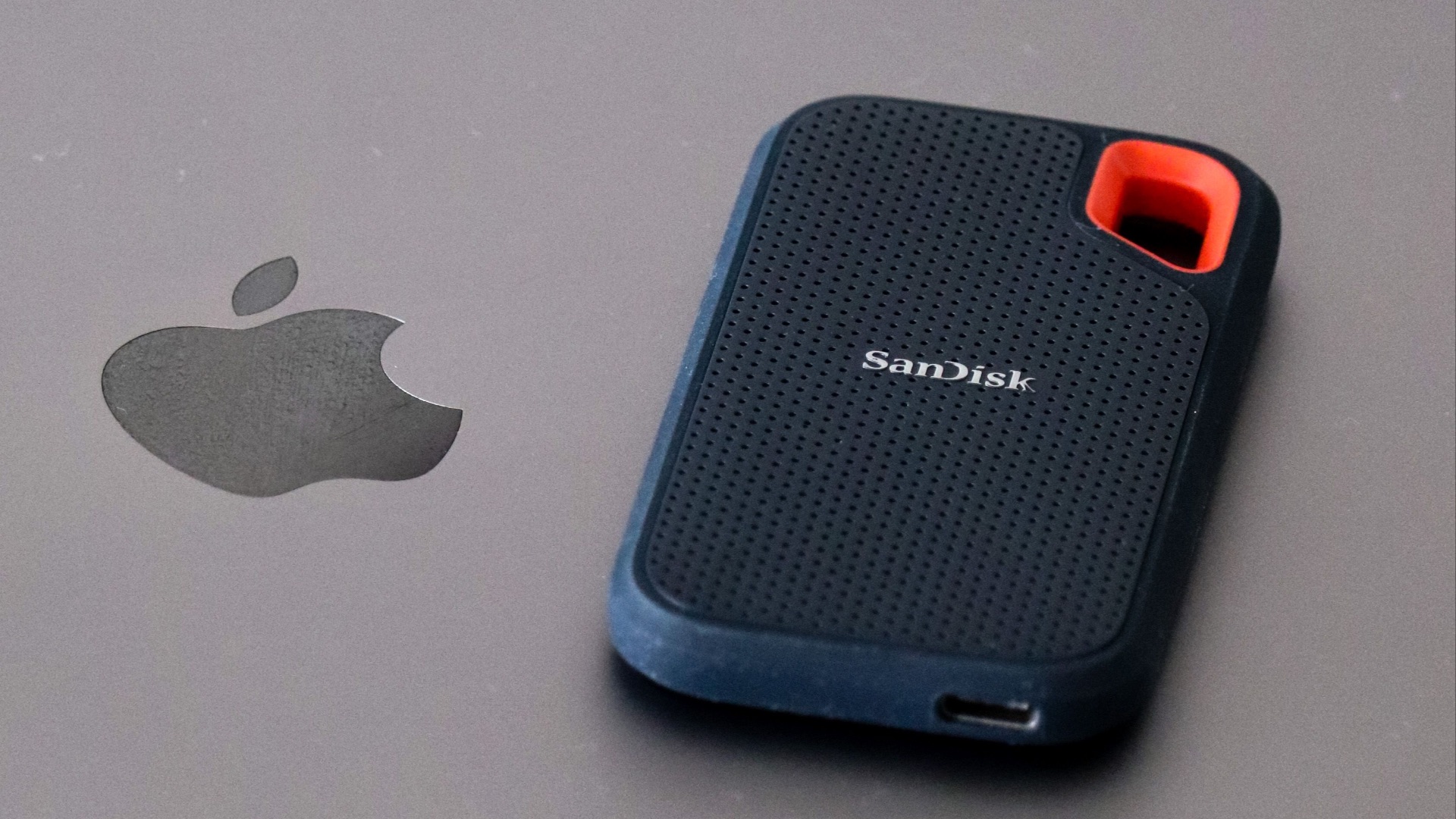
RAM provides fast temporary storage for the information your computer is actively working with, so having too little can create noticeable performance problems. When available memory runs short, the operating system may have to rely more heavily on much slower storage to keep applications running. You might notice the problem most when switching between programs, opening additional browser tabs, or working with large files. Older entry-level computers can reach their memory limits surprisingly easily with modern software.
5. Your Browser Is Overloaded
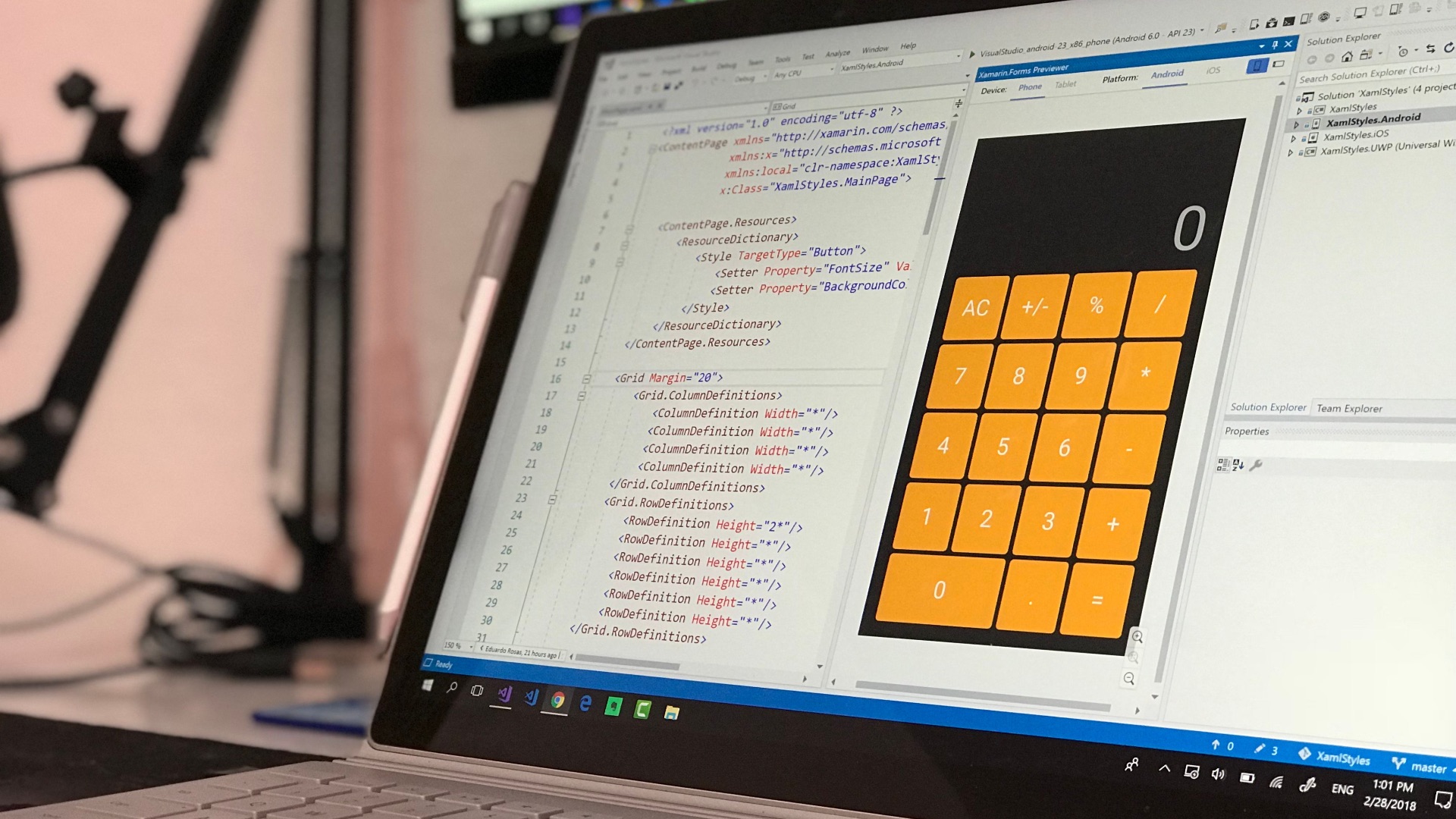
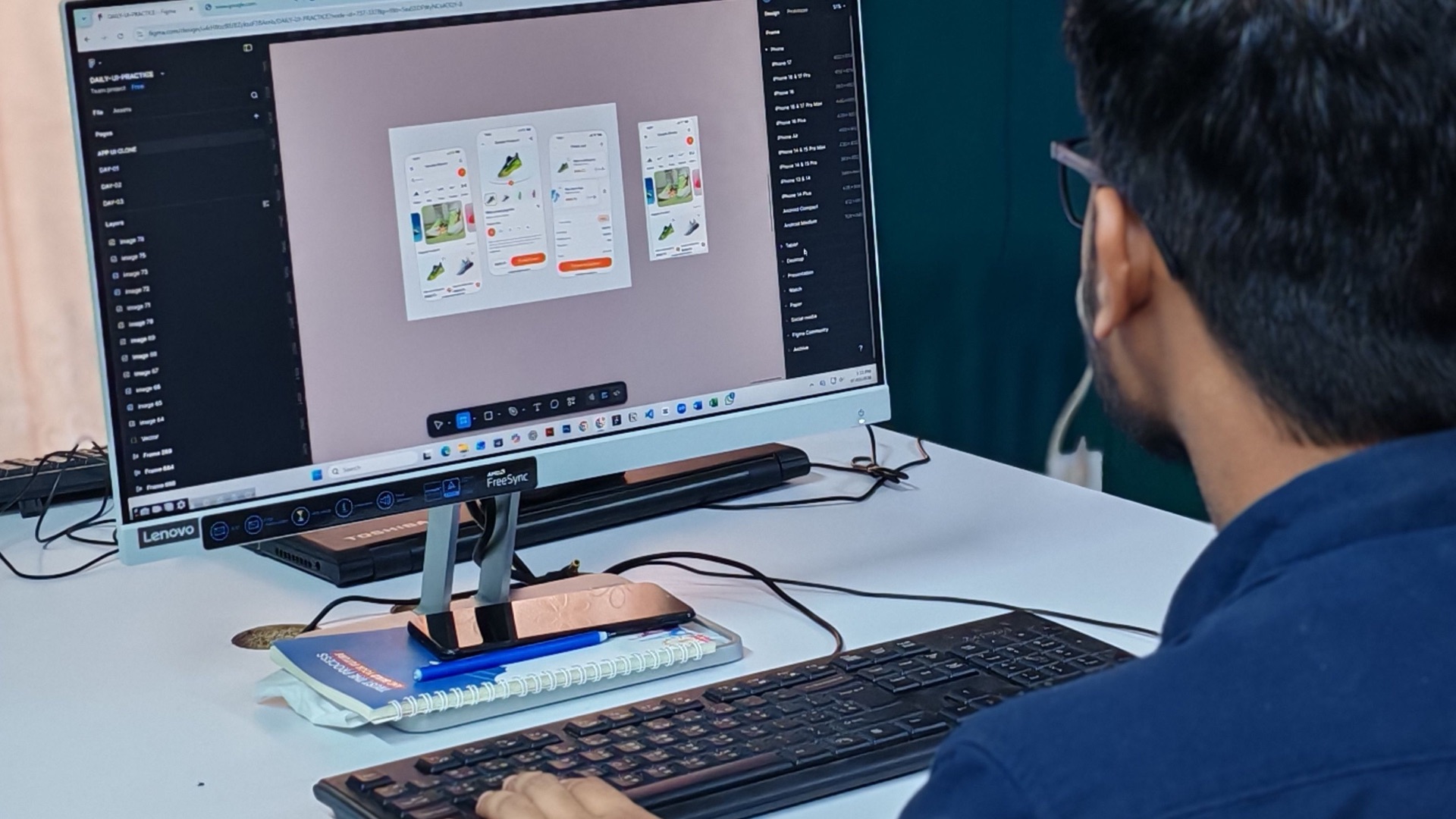
The browser itself may be responsible if your computer mainly becomes sluggish while you're online. Individual tabs can use substantial amounts of memory and processing power, particularly when they're running video, advertisements, web applications, or complex interactive content. Extensions can add another layer of resource use, especially if you've accumulated several that run continuously. Keeping 40 tabs open because you plan to read them later eventually comes with a performance cost.
 Emiliano Vittoriosi on Unsplash
6. Background Processes Are Using Your Resources
Not everything consuming processing power appears as an obvious window on your screen. Operating-system services, synchronization tools, antivirus scans, search indexing, software updates, and other background processes can temporarily place heavy demands on your computer. Some activity is necessary, but poorly behaving applications can also consume an unreasonable share of system resources. Task Manager on Windows or Activity Monitor on macOS can help reveal what's actually running.
7. Your Software Is Outdated
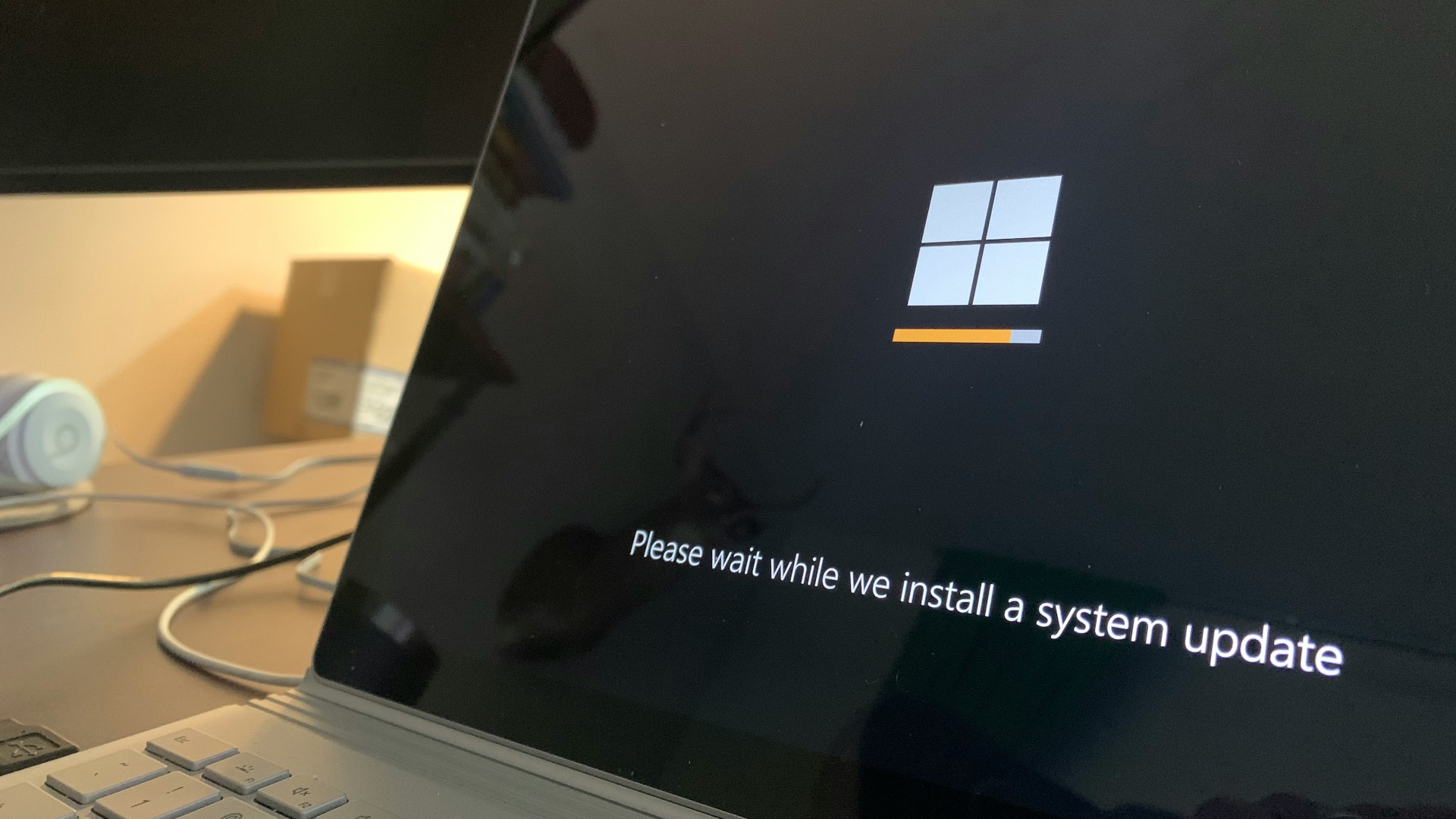
Putting off operating-system and application updates can eventually affect more than security. Updates frequently include bug fixes, compatibility improvements, and performance changes that address known problems with existing software. An outdated program may also interact poorly with newer applications or drivers installed elsewhere on the system. That doesn't mean every update will make your computer faster, but years of neglected software maintenance can certainly contribute to instability and sluggishness.
8. Malware or Unwanted Software Is Running
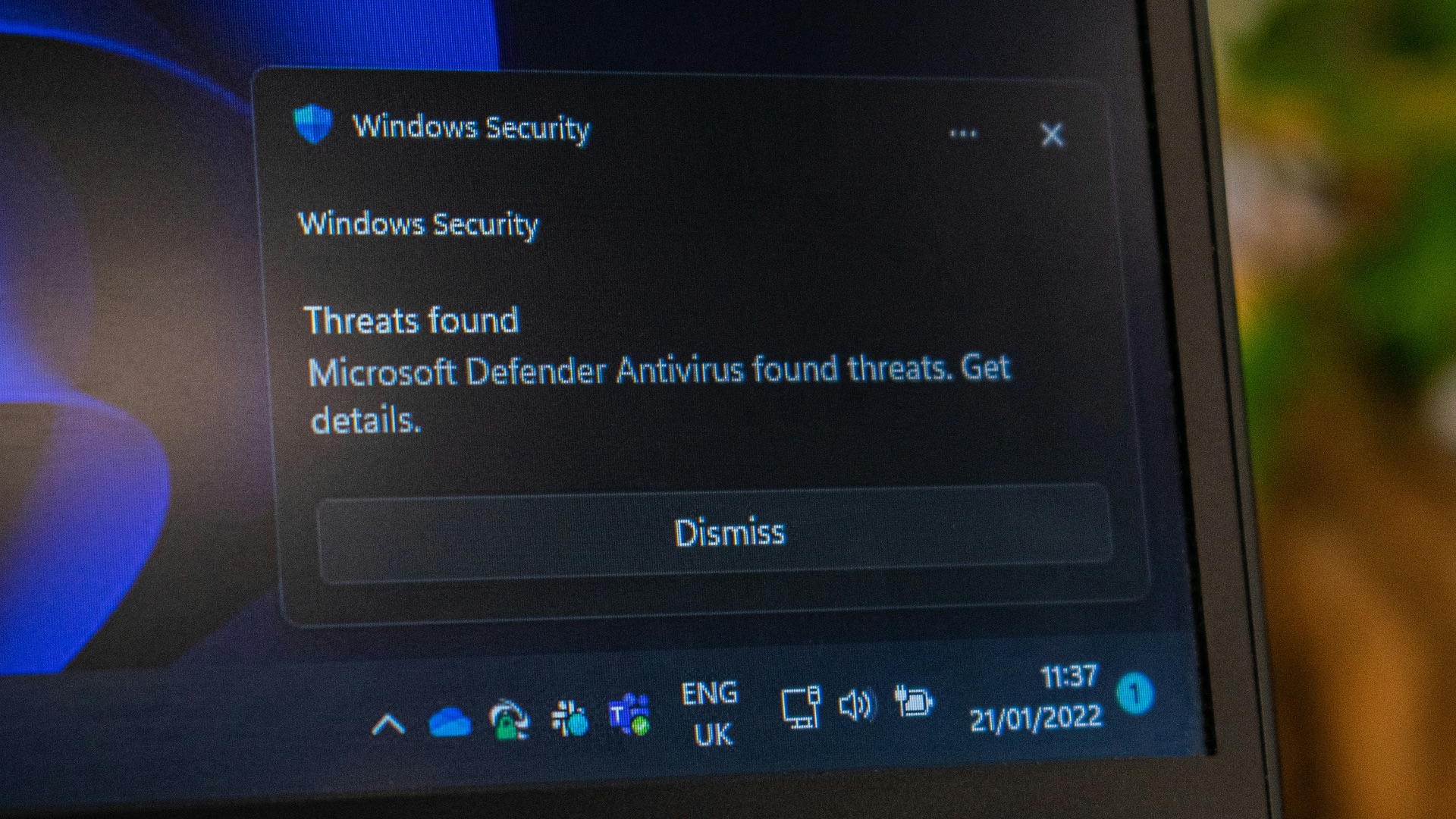
Malicious programs aren't responsible for every slow computer, but unexplained performance problems can sometimes indicate unwanted software. Certain threats consume processing power, use your internet connection, display advertisements, collect information, or run additional processes without your knowledge. Potentially unwanted applications can cause similar problems even when they don't meet the definition of traditional malware. Sudden slowdowns accompanied by unfamiliar programs, browser changes, or unusual pop-ups deserve closer investigation.

9. Heat Is Limiting Your Computer's Performance
Processors generate heat during operation, and computers are designed to reduce their performance when temperatures become excessive. Dust buildup, blocked vents, poorly functioning fans, or dried thermal materials can make overheating more likely, particularly in older machines. A laptop sitting on a soft surface can also have trouble pulling in enough air if its ventilation openings are obstructed. If performance consistently deteriorates during demanding work, excessive heat may be part of the problem.

10. Your Hardware Is Simply Getting Old
Software requirements continue to increase, and hardware that handled everyday computing comfortably several years ago may no longer deliver the same experience. An aging processor, limited memory, or older mechanical hard drive can become particularly noticeable after operating-system and application requirements grow. There's also a point where optimization can only accomplish so much because the underlying components remain the limiting factor. If your computer is consistently slow despite being well maintained, its specifications may no longer suit what you're asking it to do.
Identifying the problem, however, is only half the job. Once you know where performance is being lost, it's time to make some changes so you can make an otherwise frustrating computer considerably more responsive. Let's take a look at what helps.
1. Restart Your Computer More Often
If your computer routinely stays on for days or weeks, a restart is one of the easiest places to begin. Restarting closes lingering processes, clears temporary information from memory, and allows certain pending system changes to finish installing. It can also resolve software problems that gradually develop during long sessions. You don't need to restart constantly, but doing it occasionally is far more useful than leaving a struggling machine running indefinitely.
2. Disable Unnecessary Startup Programs
Review which programs launch automatically and remove the ones you don't need immediately after signing in. Windows provides startup controls through Task Manager and Settings, while macOS lets you manage login items through System Settings. Disabling an application at startup usually doesn't uninstall it, so you can still open the program normally whenever you need it. Concentrating on optional third-party programs can reduce both startup delays and ongoing resource use.

3. Free Up Space on Your Drive
Start by checking how much storage remains and identifying which categories are taking up the most room. Old downloads, duplicate files, large videos, unused applications, temporary data, and abandoned installation files can consume significant space over time. Built-in storage-management tools in Windows and macOS can help you locate some of the easiest material to remove. Just make sure important files are backed up before deleting anything you're uncertain about.
4. Cut Down on Browser Tabs and Extensions
Reducing the amount of work your browser is doing can make a substantial difference on computers with limited resources. Close tabs you no longer need, bookmark pages you're saving for later, and uninstall extensions that serve little purpose. Many modern browsers also offer memory-saving features that reduce resource use from inactive tabs. If browser slowdowns persist, checking its built-in task manager or performance tools can reveal particularly demanding websites or extensions.

5. Install Operating-System and Software Updates
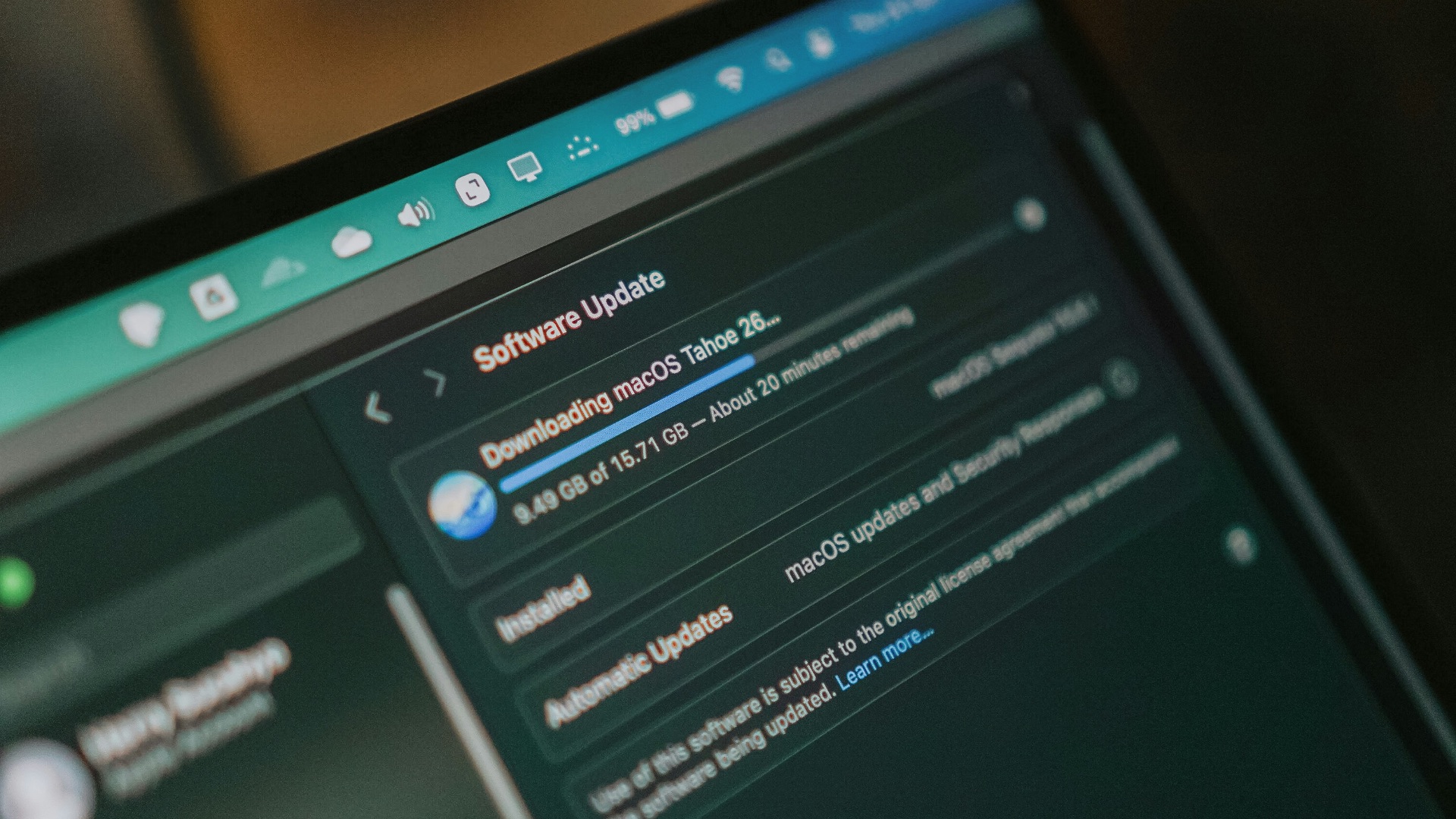
Keeping your operating system, browser, drivers, and frequently used applications current can eliminate bugs and compatibility problems that interfere with performance. Before installing a major operating-system upgrade on an older computer, however, check whether your hardware comfortably meets the recommended requirements rather than just the minimum ones. Smaller routine updates are generally worth staying on top of because they often contain reliability and security fixes. Regular maintenance also prevents you from facing an enormous backlog of updates all at once.
6. Scan for Malware and Unwanted Programs
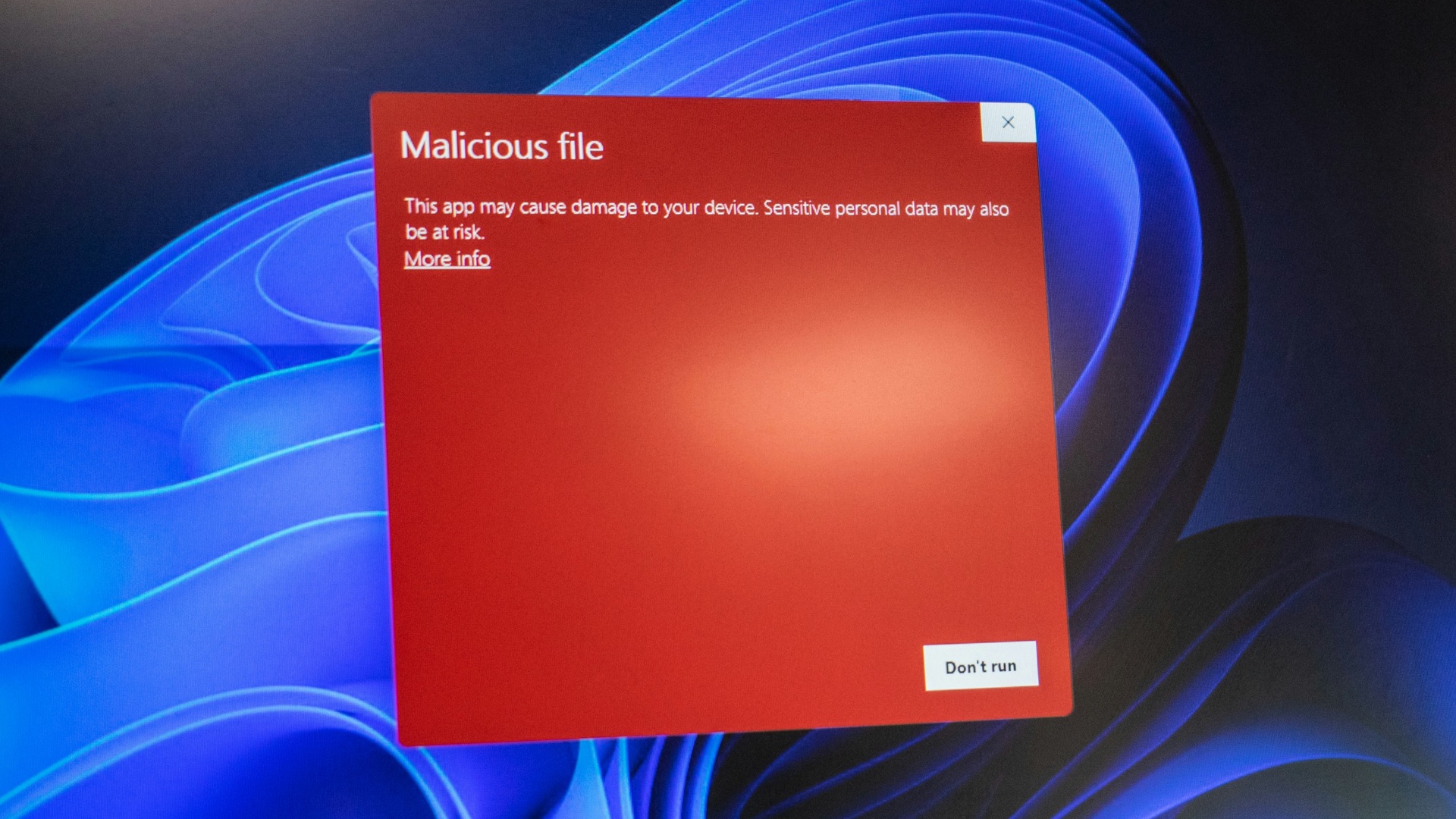
Use your operating system's built-in security features or a reputable security application to check for malicious software if performance has changed unexpectedly. Remove programs you don't recognize only after confirming what they are, since legitimate system components can sometimes have unfamiliar names. It's also worth reviewing installed applications for bundled utilities or programs you knowingly installed but no longer use. Keeping unnecessary software off the machine reduces the number of processes that can compete for resources.
7. Reduce Resource-Hungry Background Activity
Open Task Manager or Activity Monitor and look for applications consistently consuming unusually high amounts of CPU, memory, disk activity, or energy. Sometimes the culprit is an application you can close, reconfigure, update, or uninstall without affecting anything important. Other processes may be legitimate system tasks that should be allowed to finish rather than forcibly stopped. Knowing the difference helps you address persistent software problems without interfering with essential operating-system functions.
8. Improve Cooling and Airflow
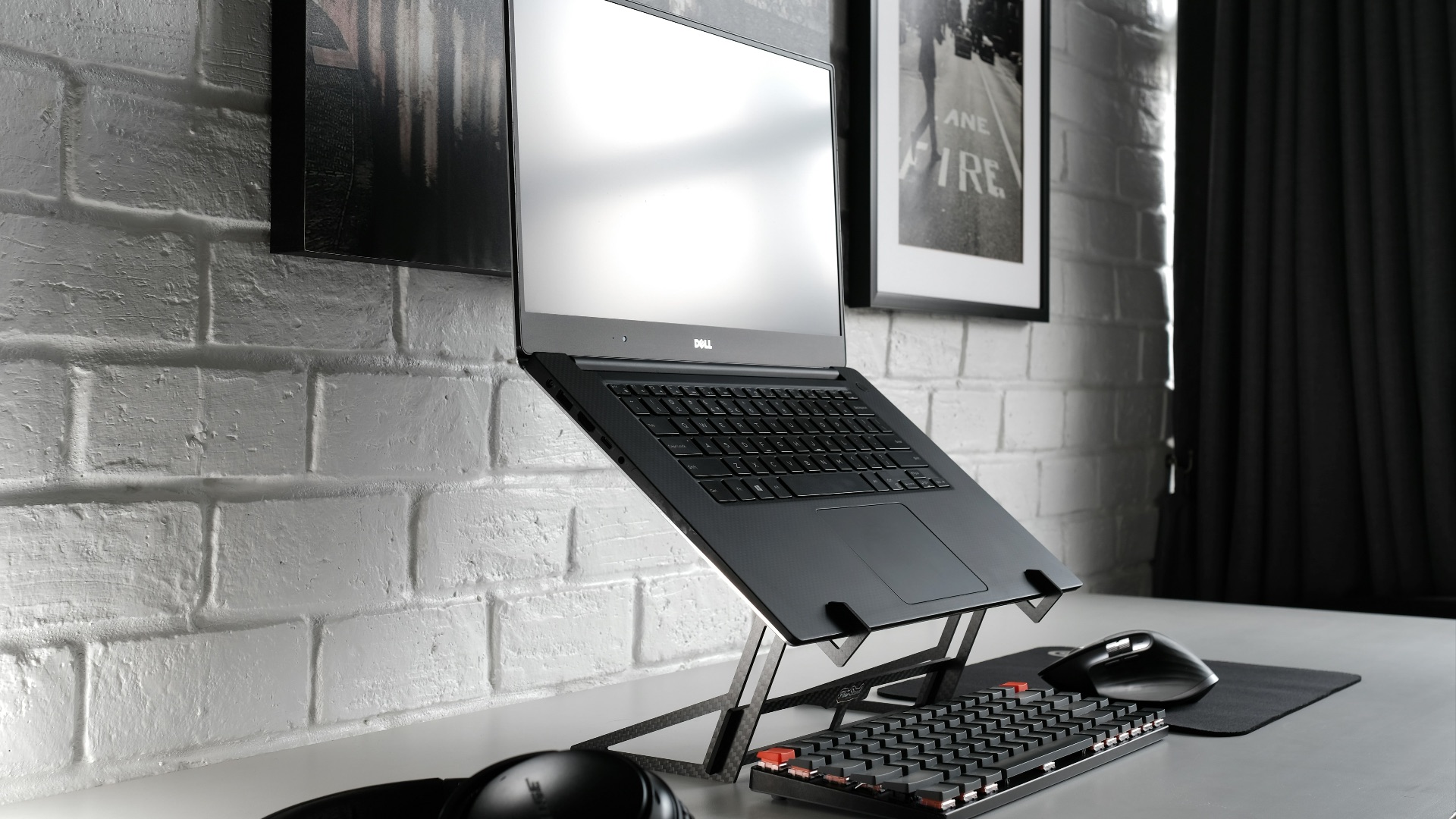
Make sure vents aren't blocked and avoid using a laptop on bedding, cushions, or other surfaces that can restrict airflow. Dust around vents can often be removed carefully, although opening a computer for deeper cleaning may require more experience and could affect a warranty depending on the device. If fans are unusually loud, temperatures remain high, or the machine shuts down under load, professional inspection may be worthwhile. Better cooling won't overcome inadequate hardware, but it can prevent heat from unnecessarily reducing available performance.
9. Upgrade the RAM or Storage When Possible
Some computers can receive inexpensive hardware upgrades that produce far larger improvements than additional software tweaking. Replacing an old mechanical hard drive with a solid-state drive can dramatically reduce startup, loading, and file-access times, while adding RAM can help systems that regularly run out of memory. Upgrade options vary considerably between models because many modern laptops have components soldered directly to the motherboard. Check your computer's specifications and upgradeability before buying parts.
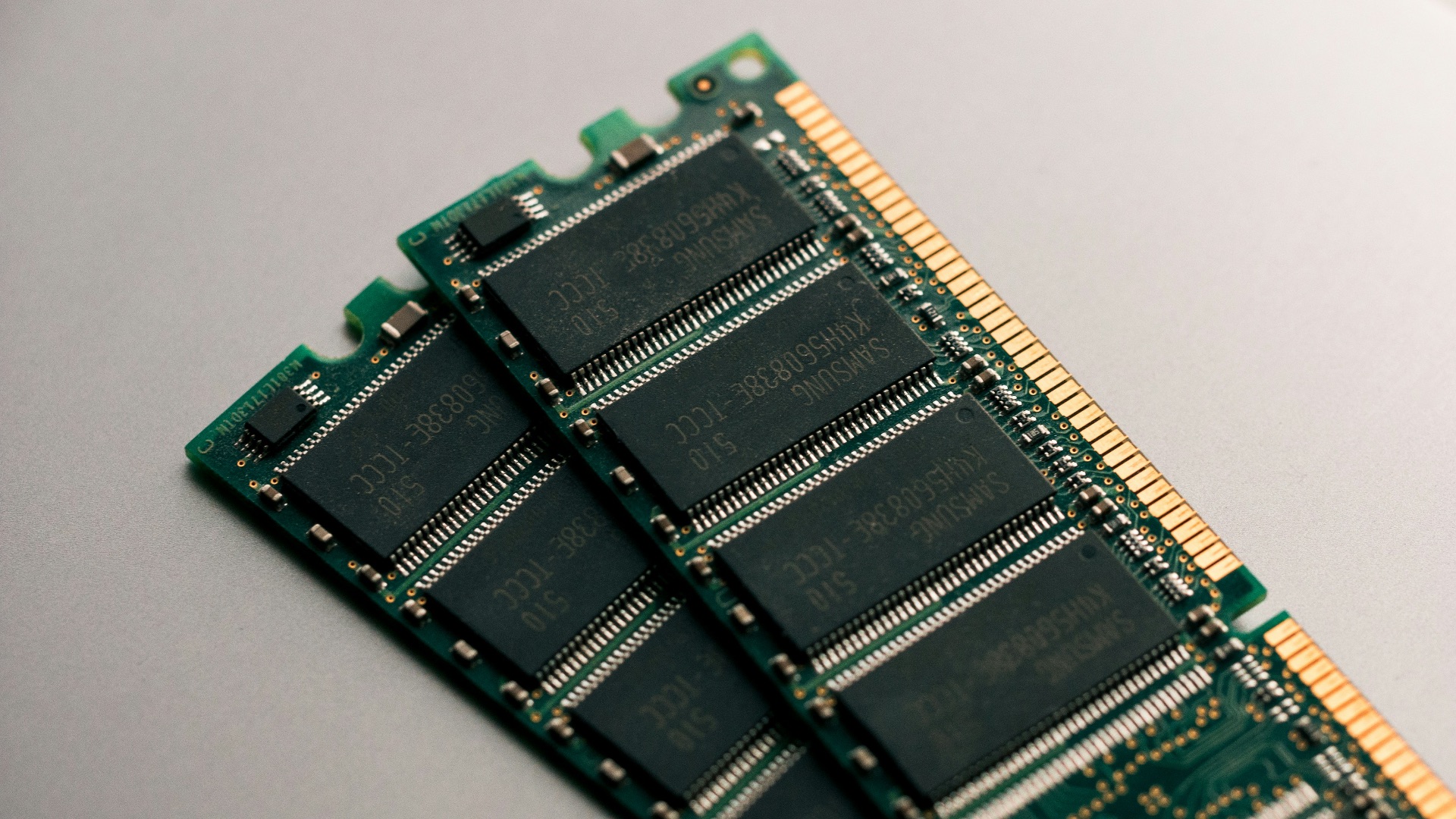 Harrison Broadbent on Unsplash
10. Consider a Clean Reset or Replacement
When years of accumulated software problems remain after ordinary troubleshooting, reinstalling or resetting the operating system can provide a fresh starting point. Back up your important files first, confirm you have access to necessary accounts and software licenses, and understand what the reset process will remove. If the computer remains painfully slow after a clean installation, the hardware itself is probably the larger limitation. At that stage, replacing the machine may be more practical than continuing to invest time or money in incremental fixes.