Get More Out Of Your PS4
The PS4 has been around for years, but there's a good chance you haven't explored every setting and shortcut hiding in its menus. Some features are designed to make everyday navigation faster, while others can make gaming, sharing, and managing your console a little more convenient. You don't need any special accessories or technical knowledge to use most of them.

1. Quickly Switch Between Two Recent Apps
You can double-tap the PS button to quickly swap between what you’re currently doing and what you were most recently doing. It’s extremely handy for toggling between a game and something else. Go back through menus enough times, and it starts to feel dreadfully slow.

2. Hold The PS Button For Quick Access
Hold down the PS button to pull up the Quick Menu. From there, you can alter settings like devices, sound, power options, and more without having to fully exit what you’re doing. The exact options available vary based on what other devices you have connected and what system software you’re using.

3. Use Your Phone As A Second Screen
Did you know the PlayStation App can connect your smartphone to your PS4? While you won’t be able to play games on it by any means, you can use your phone to sign in and manage your PlayStation account, look at games, and more. Some games even supported companion apps, which gave you second-screen functionality.
4. Charge Your Controller While The PS4 Is In Rest Mode
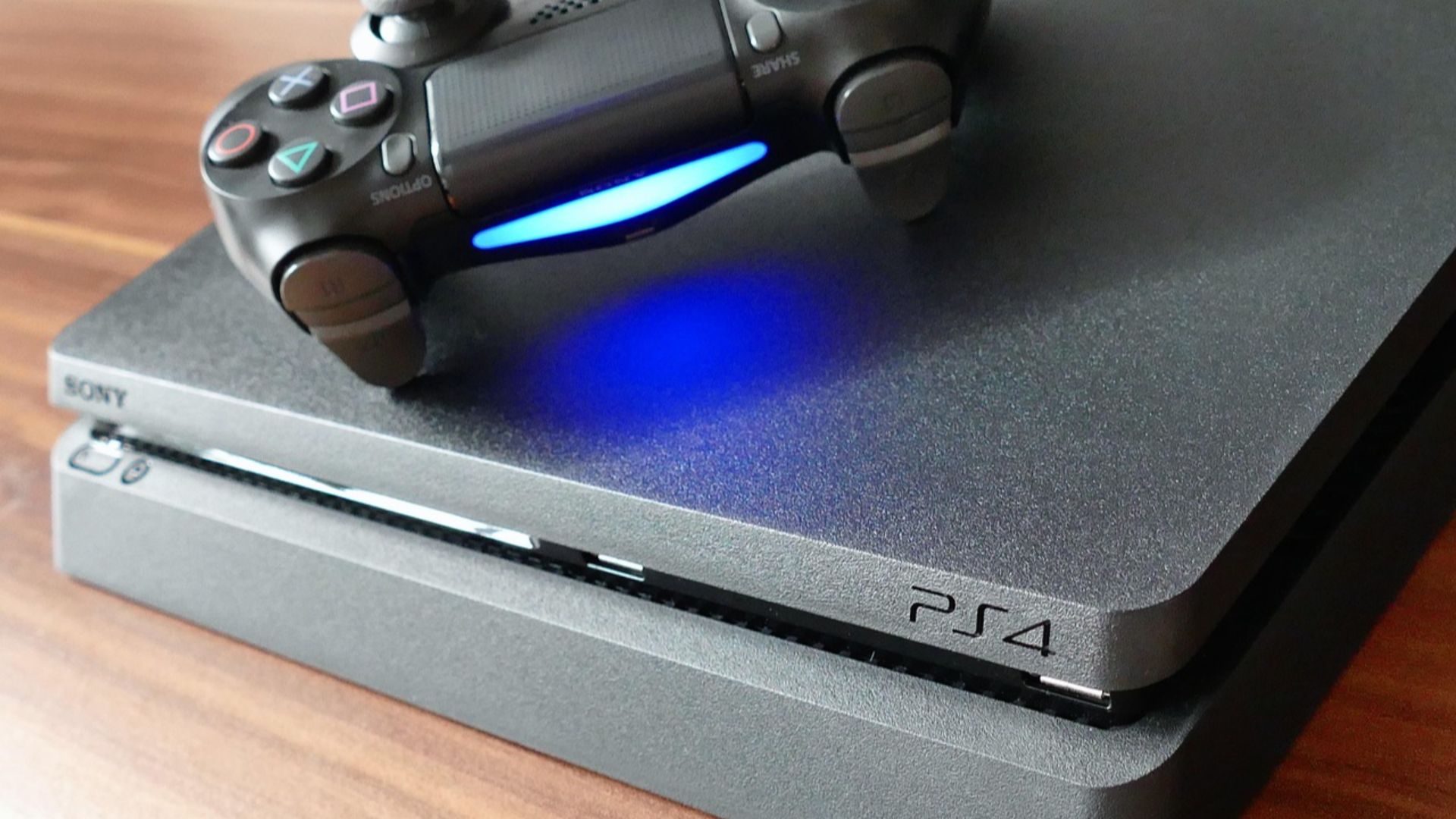
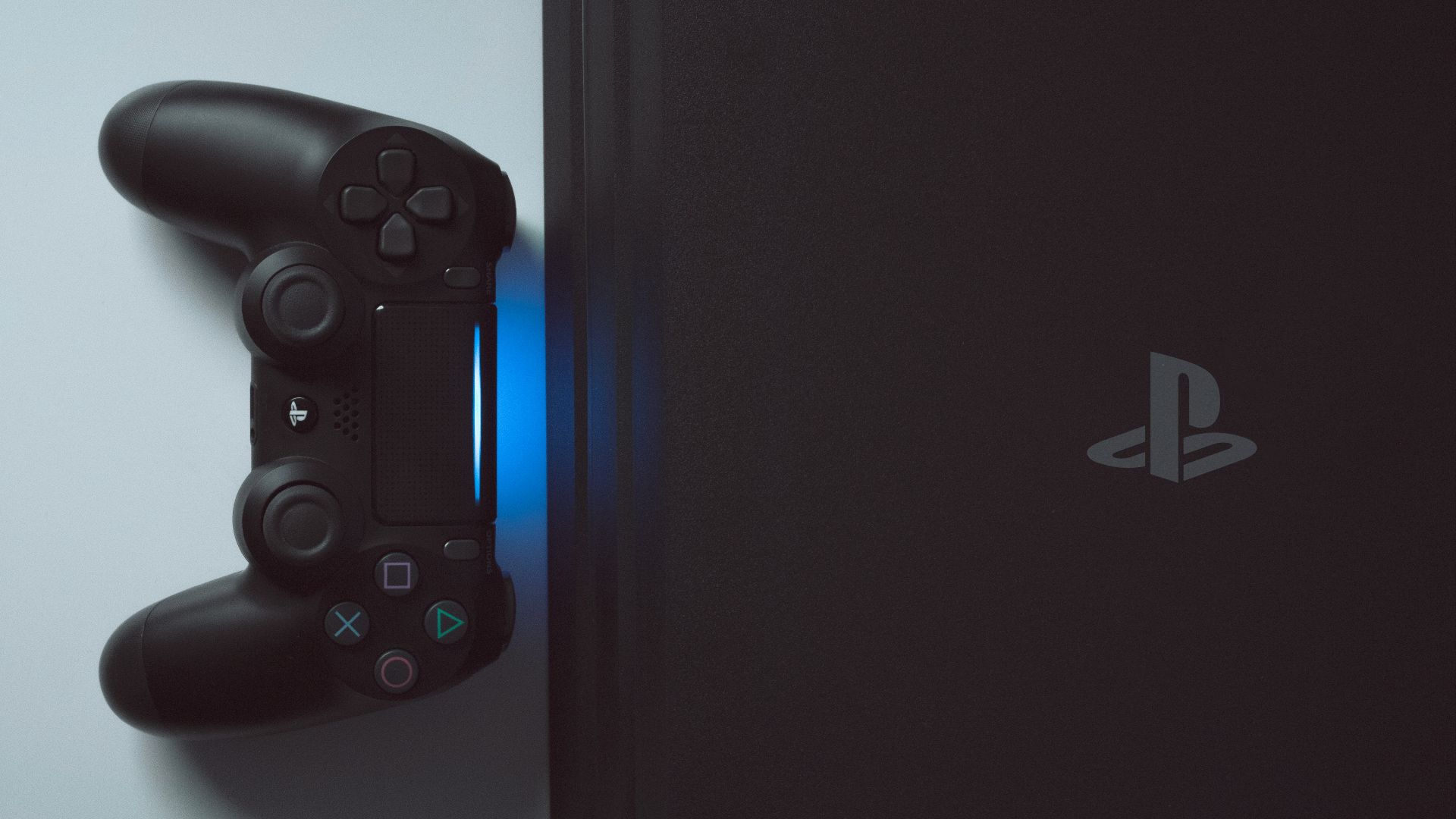
Enable a USB power option under Settings > Power Save Settings > Set Functions Available in Rest Mode to allow your DualShock 4 to charge without turning on your PS4. This means you can leave the controller connected while you're away from the console. Just remember that the charging light doesn't necessarily mean the controller is already fully charged.

5. Customize The Quick Menu
Speaking of that Quick Menu, you can customize what options are displayed. Rather than leaving all of the default options there, you can rearrange them so you don’t have to dig through menus for the settings you use most. If you regularly change audio, devices, or other settings, putting those controls within easy reach can save you plenty of menu navigation.

6. Use Remote Play
Rather than playing games on your television, why not stream them to other devices? Remote Play allows you to stream PS4 games to another device. Once you configure Remote Play, you can play PS4 games on supported phones, tablets, computers, and more.

7. Take Screenshots With A Button Press
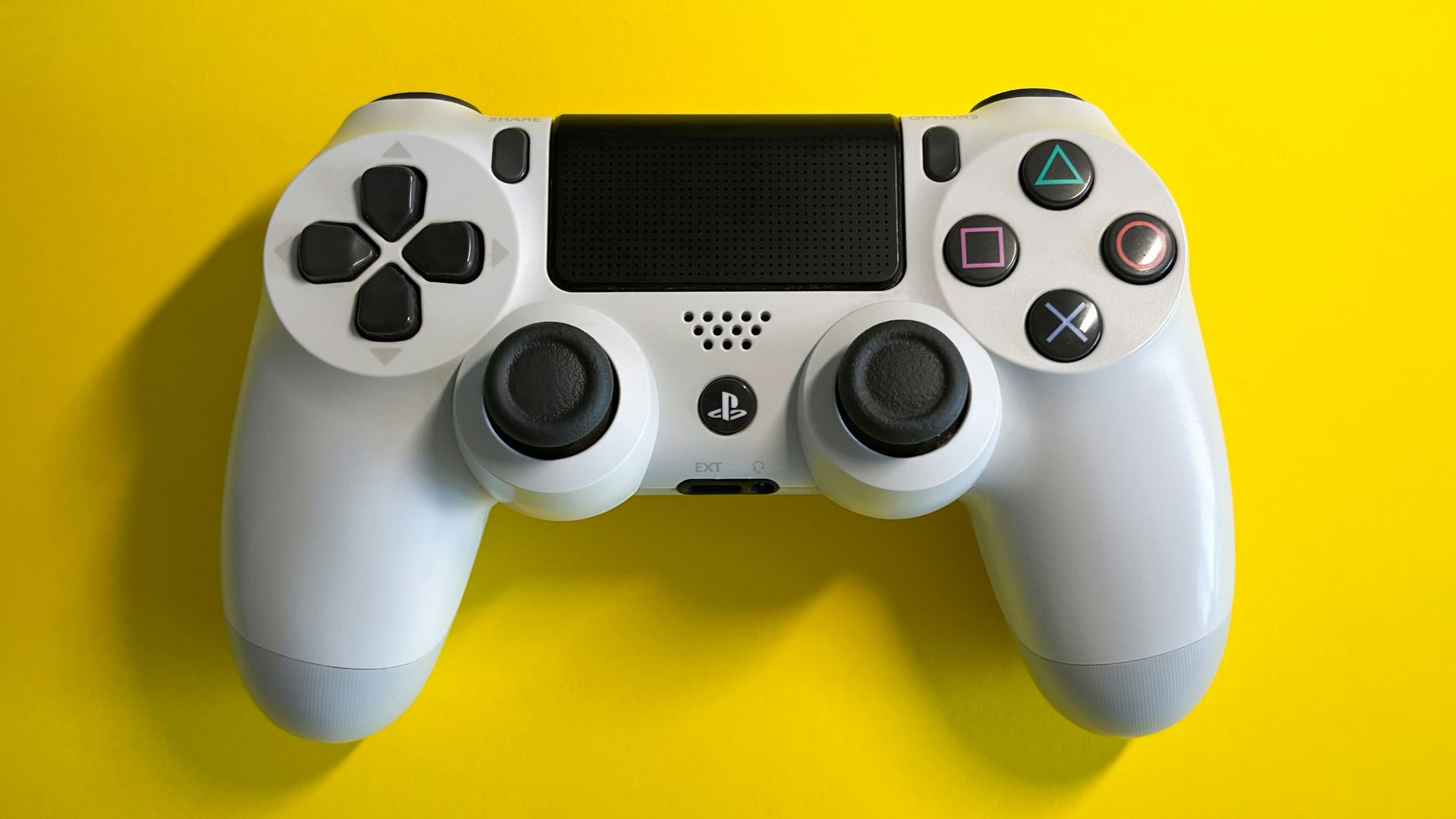
Capturing screenshots is as easy as pressing the Share button. Press the button to take a screenshot, or hold it down to configure alternate behavior via the system’s Share settings. Screenshots will appear under the Capture Gallery.

8. Record The Previous Few Minutes Of Gameplay
The PS4 even automatically stores the last few minutes of your gameplay video in a temporary clip buffer. Hold down the Share button to begin recording, or press it once, then select the appropriate option to save the recent gameplay clip. This is especially useful when something happens unexpectedly and you weren't already recording.

9. Change The Share Button's Behavior
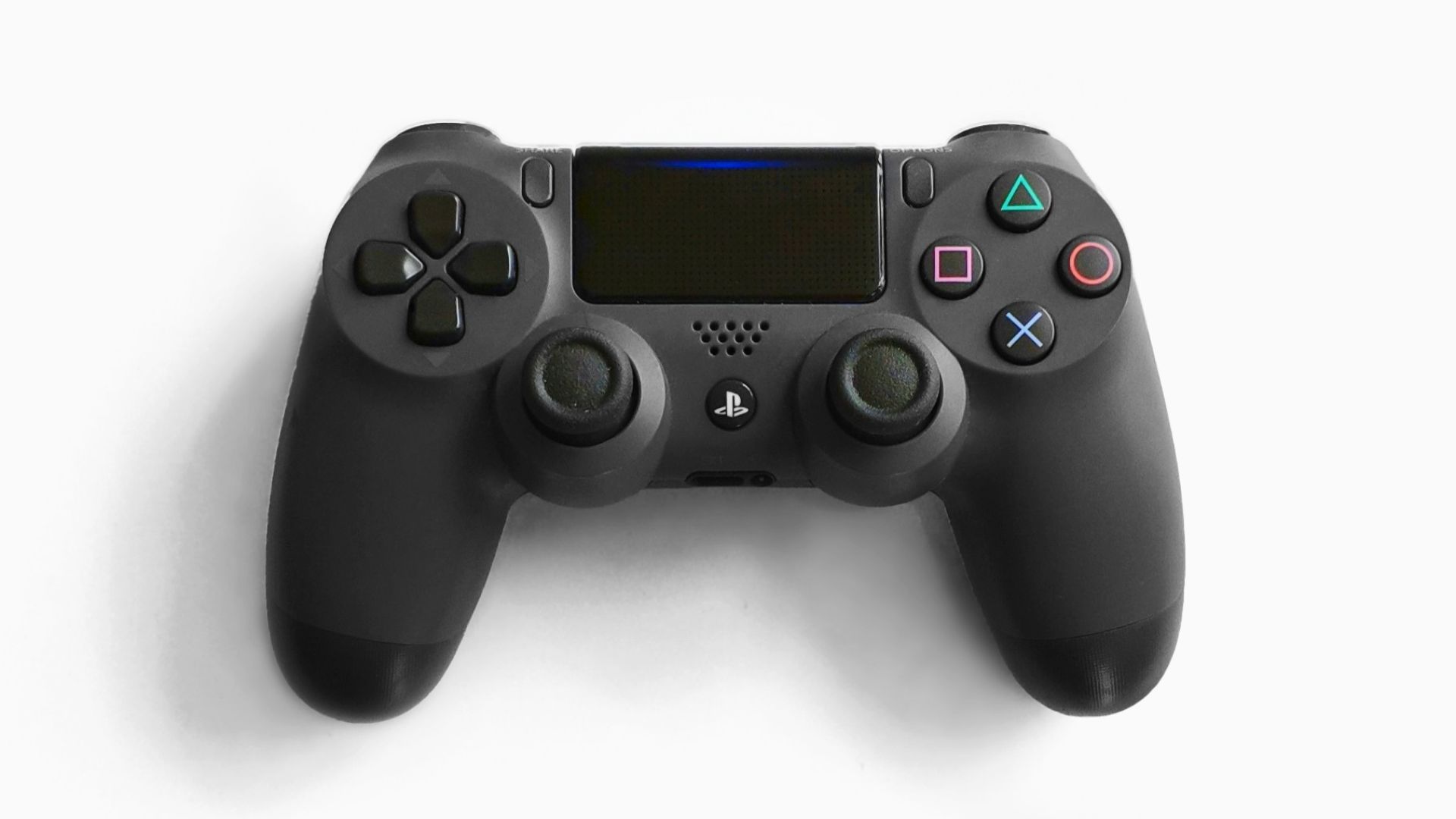
Don’t like the default Share button behavior? Change it. Navigate to Settings > Sharing and Broadcasts > SHARE Button Control Type to pick your preferred option. A small controller change can make a surprisingly noticeable difference once it becomes muscle memory.
10. Connect A Keyboard For Easier Typing
Yes, you can connect a keyboard to your PS4. Compatible USB and Bluetooth keyboards work with the console and allow you to input text much more easily. You’ll still navigate the console with your controller, but when you need to enter text, the keyboard can take the lead.

11. Use Voice Commands With A Headset
Want to launch games and apps using only your voice? If you have a microphone or headset with a built-in microphone, the PS4 can recognize specific voice commands. You can launch games, launch apps, take screenshots (when enabled), and more.

12. Hide Games From Your Library
Hidden games stay hidden from view in your library. Need to clean things up a bit? Don’t want someone else to see every single game you own? You can hide games so they no longer show up in Your Library’s Purchased section. Your purchases aren't deleted simply because you've hidden them.

13. Set A Custom Wallpaper
That generic PS4 background is ugly. Replace it with one of your own! Upload a compatible image to the console via USB or other supported methods, then head to Themes to select your new wallpaper. A favorite game screenshot can make the system feel much more like your own.
14. Make Your PS4 Easier To Read
Having trouble reading text or seeing important interface elements? Check out the PS4’s accessibility options. Settings like text size, bold text, high contrast, and a few color options can help. Useful for players who need those features, but also nice to have if you just want to make things easier to see from farther away.

15. Zoom In On The Screen
The zoom accessibility option allows you to enlarge the display. Head to Settings > Accessibility > Zoom to configure the button combination used to trigger it. Need to read something up close? Zoom in.

16. Turn On Button Assignments
You can actually change which functions each button performs. Head to Settings > Accessibility > Button Assignments to enable the option. From there, you can customize which buttons do what. Once enabled, the change applies at the system level, so remember to switch it back when you're finished if necessary.
17. Limit Who Can Message You
You don’t have to put up with everyone messaging you all the time. Head into your PS4’s privacy settings, and you can manage who is allowed to message you and interact with you. You can make your PSN account completely private or only restrict specific people.
18. Use Rest Mode Instead Of Fully Shutting Down
Rest Mode is kind of a misnomer because your PS4 can do more than just “rest.” Enable desired features under Settings > Power Save Settings > Set Features Available in Rest Mode, and your PS4 can download updates, stay connected to the internet, and charge your controllers without fully turning off.
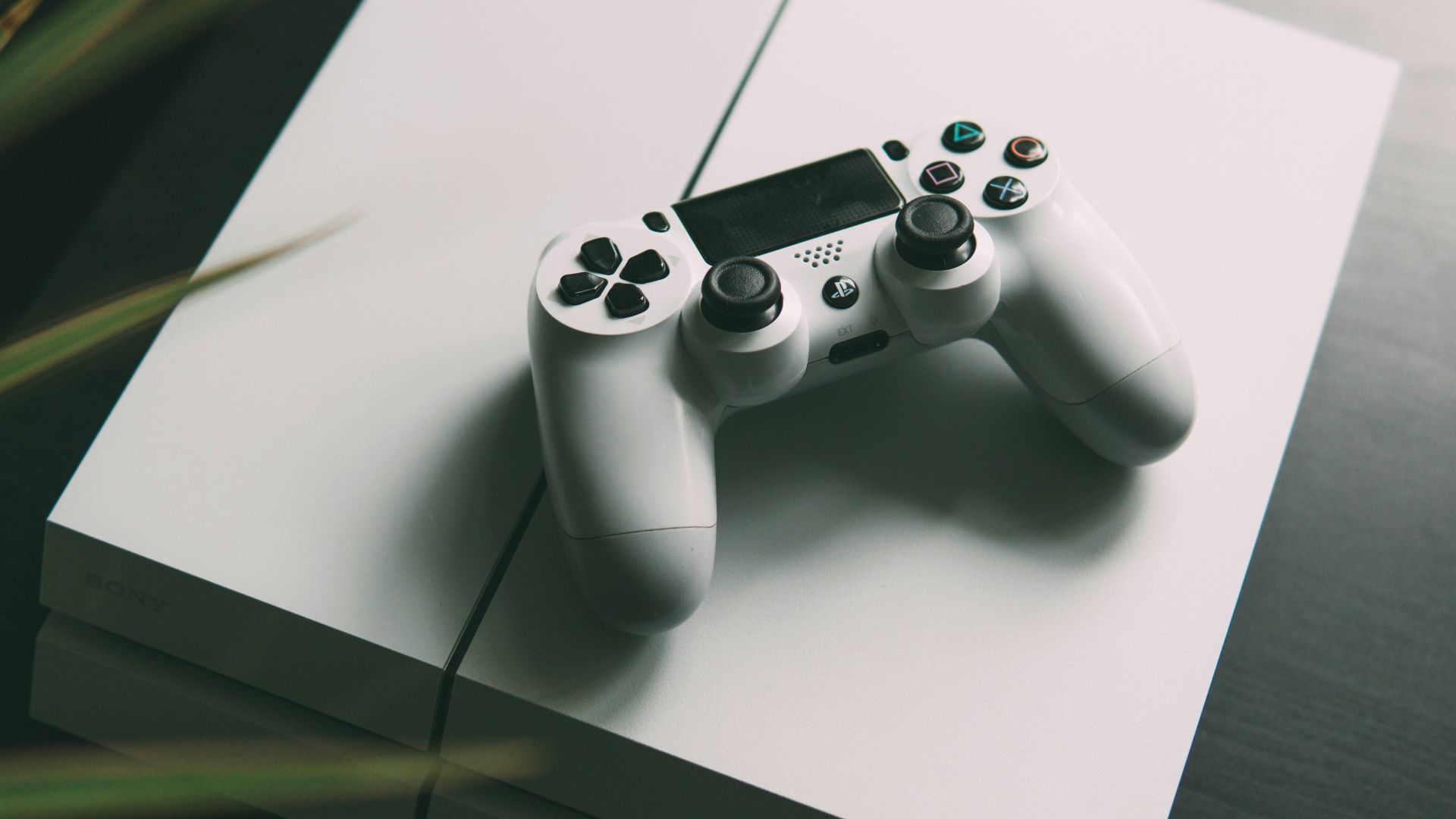 Nikita Kachanovsky on Unsplash
19. Free Up Space Without Deleting Everything
Running low on space? Head into Settings > Storage Management and see where you can trim the fat. Want to free up space without deleting a single game? There’s probably a lot of old screenshots and video clips you’ve forgotten about that can go.
20. Use Your PS4 To Control Media Playback
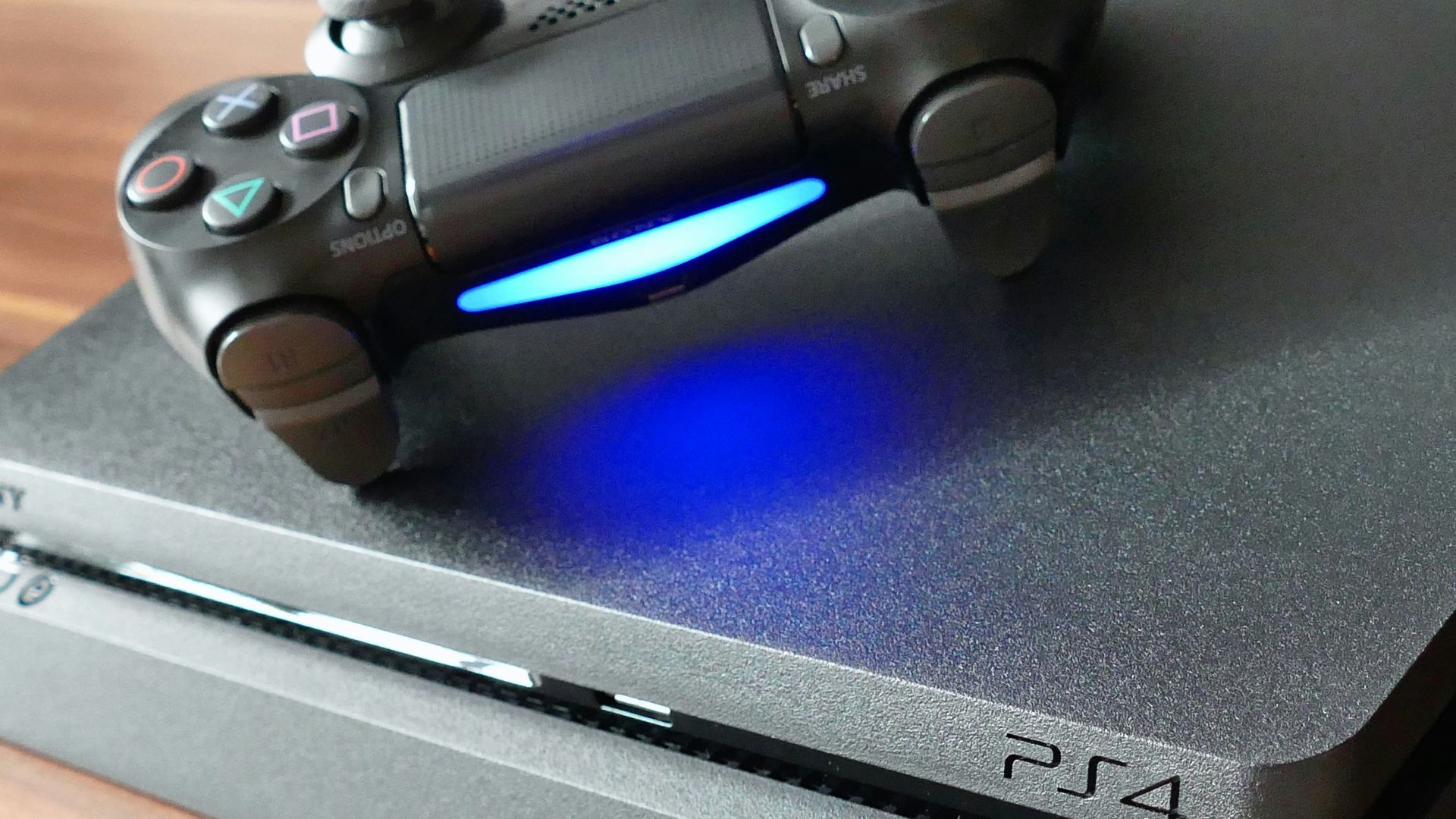
Your PS4 isn't only useful for games because it can also function as a media center. Compatible streaming and entertainment apps can be controlled with your DualShock 4, while the console can also play supported media from USB storage. If you have headphones connected to the controller, you can route supported audio through them as well.