
A Smarter Way to Build Your Browser
If you're like most, you probably have a browser extension or two that genuinely makes your life better. Whether it's a trusty ad blocker or an eye-saving dark mode, you can't even imagine surfing the web without them. And yet, not all extensions are created equal; they might only create more problems and clutter. Before you install anything, you may want to ask yourself if it'll really make your digital life easier. Here are 10 useless extensions you should never get, and 10 that are worth the download.
 Stephen Phillips - Hostreviews.co.uk on Unsplash
1. Coupon Spams
Coupon extensions can sound helpful because everyone likes saving money, but many of them interrupt nearly every shopping session with pop-ups and alerts. Some run constant searches in the background, even when the discounts they find are expired or worse than deals already shown on the site. They may also track your shopping habits across stores, which isn’t always worth the small chance of saving a few dollars. If you only shop online occasionally, manual coupon searches may be less annoying and more controlled.

2. Download Accelerators
Download accelerator extensions often promise faster downloads, but modern browsers already handle downloads pretty well on their own. In many cases, your internet speed, the website’s server, and your device matter more than the extension itself. Some of these tools add extra buttons, redirect downloads through unnecessary menus, or ask for broad file permissions. Unless you have a specific technical need, they usually create more clutter than benefit.
3. Fun Typing Sounds
A typing-sound extension might seem amusing for a few minutes, especially if it turns every keystroke into cartoon noises, game sounds, or animal chatter. After a while, though, it can become distracting for you and irritating for anyone nearby. It also doesn’t make typing easier, faster, or more accurate, which means it’s basically taking up space for a joke that wears off fast. Unless you’re installing it for one quick laugh, it’s not worth keeping around.

4. PDF Converter
PDF converter extensions are everywhere, but a lot of them do basic tasks your browser, computer, or trusted office software can already handle. Some ask for access to every website you visit, which is a lot of trust to give a tool that only converts files once in a while. Others push you toward a separate website filled with ads, upsells, or low-quality conversion results. For sensitive documents, it’s better to use reputable software or your device’s built-in export tools.
5. Digital Pets
Virtual pets, crawling bugs, floating animals, and little characters that wander across your browser can be cute at first. The problem is that they usually sit on top of real content, get in the way of buttons, or distract you while you’re trying to focus. They may not be dangerous, but they’re rarely useful beyond the first few minutes. If an extension’s main job is to interrupt your screen, it probably doesn’t deserve a permanent spot.

6. Random Inspirational Quotes
Motivational quotes, joke quotes, and pop-up sayings can seem harmless, but they often become visual clutter. If they appear every time you open a tab or visit a page, they can slow down the simple act of getting where you meant to go. Many of these extensions also come bundled with backgrounds, search changes, widgets, or other extras you didn’t really ask for. A single quote might be nice, but a whole extension for it is usually unnecessary.

7. Cookie Blockers
Cookie-blocking extensions can sound like an easy privacy fix, especially when they claim to erase pop-ups and stop tracking with one click. The problem is that some only hide cookie banners instead of making meaningful privacy choices for you, which can leave you with a false sense of control. Others ask for broad permissions across the websites you visit, which is a lot to hand over to a tool you may not know much about. Your browser’s built-in privacy settings, along with a reputable tracker blocker, are usually a safer place to start.

8. Price Trackers
Price trackers can be useful when they come from a reputable source, but random versions from unknown developers deserve caution. They often need access to shopping sites, product pages, browsing behavior, and sometimes account-related pages. If the tool has few reviews, unclear ownership, or a vague privacy policy, it’s not worth the risk. Saving a little money isn’t helpful if you’re giving too much data to a company you know nothing about.

9. Custom Cursors
Custom cursor extensions can make your pointer look like a sword, cartoon hand, pizza slice, or animated character. That might look fun in a screenshot, but it can make normal browsing feel clumsy when the pointer shape becomes harder to track. Some websites and work tools also depend on precise clicking, so a novelty cursor can become more frustrating than entertaining. Your regular cursor may be boring, but at least it does its job.

10. Extensions You Installed Once and Forgot About
One of the most useless extensions is the one you installed for a single task and never removed. It may sit in the background for months, taking up space, asking for updates, or keeping permissions it no longer needs. Forgotten extensions can also become risky if they’re sold, abandoned, or updated in ways you don’t notice. A quick extension cleanup every few months can make your browser faster and safer.
Not every extension deserves suspicion, though; some truly earn their place by making your browser easier to use. Let's take a look at the ones that you should download:
1. Trusted Password Manager
A password manager is one of the most useful extensions you can install because it helps you create and store strong, unique passwords. Instead of reusing the same password across sites, you can let the manager generate safer ones for each account. It also makes logging in easier without relying on memory, sticky notes, or saved passwords scattered across browsers. Choose a well-known option with strong security practices and clear privacy policies.
 Vova Kondriianenko on Unsplash
2. Reliable Ad Blocker
A good ad blocker can make browsing cleaner by reducing pop-ups, autoplay ads, banners, and other distractions. It can also help block certain malicious ads that try to send users to unsafe pages. The key is choosing a reputable blocker and adjusting the settings so important sites still work properly. Used thoughtfully, it can make everyday browsing feel much smoother.

3. Tracker Blocker
Privacy extensions can help limit how much companies follow your activity across different websites. They’re especially useful if you care about reducing third-party trackers, fingerprinting attempts, and unnecessary data collection. Some browsers already include privacy controls, but a trusted extension can add another layer of protection. Make sure you understand what it blocks so you can adjust settings when a site doesn’t load correctly.

4. Grammar and Writing Assistant
A writing assistant can catch typos, grammar mistakes, missing words, and awkward phrasing before you send an email or submit a form. It’s helpful for work messages, school assignments, social posts, and everyday communication. The best ones give suggestions without forcing every sentence into the same style. Since these tools may read what you type, it’s smart to review the privacy settings before using them on sensitive pages.
5. Read-Later
A read-later extension is useful when you find an article, guide, or recipe but don’t have time to finish it. Instead of leaving dozens of tabs open, you can save pages into one organized list and return to them when you’re ready. Many of these tools also offer cleaner reading views, tags, and offline access. It’s a simple way to keep your browser from turning into a messy holding area.
6. Screenshot and Annotation Tool
A screenshot extension can be handy when you need to capture a full webpage, mark something up, or save visual proof of an issue. Built-in screenshot tools work for basic captures, but extensions often make scrolling screenshots and quick annotations easier. They’re especially helpful for students, remote workers, designers, and anyone who sends visual feedback. Just avoid tools that require unnecessary access to every page if a lighter option will do.
7. Tab Manager
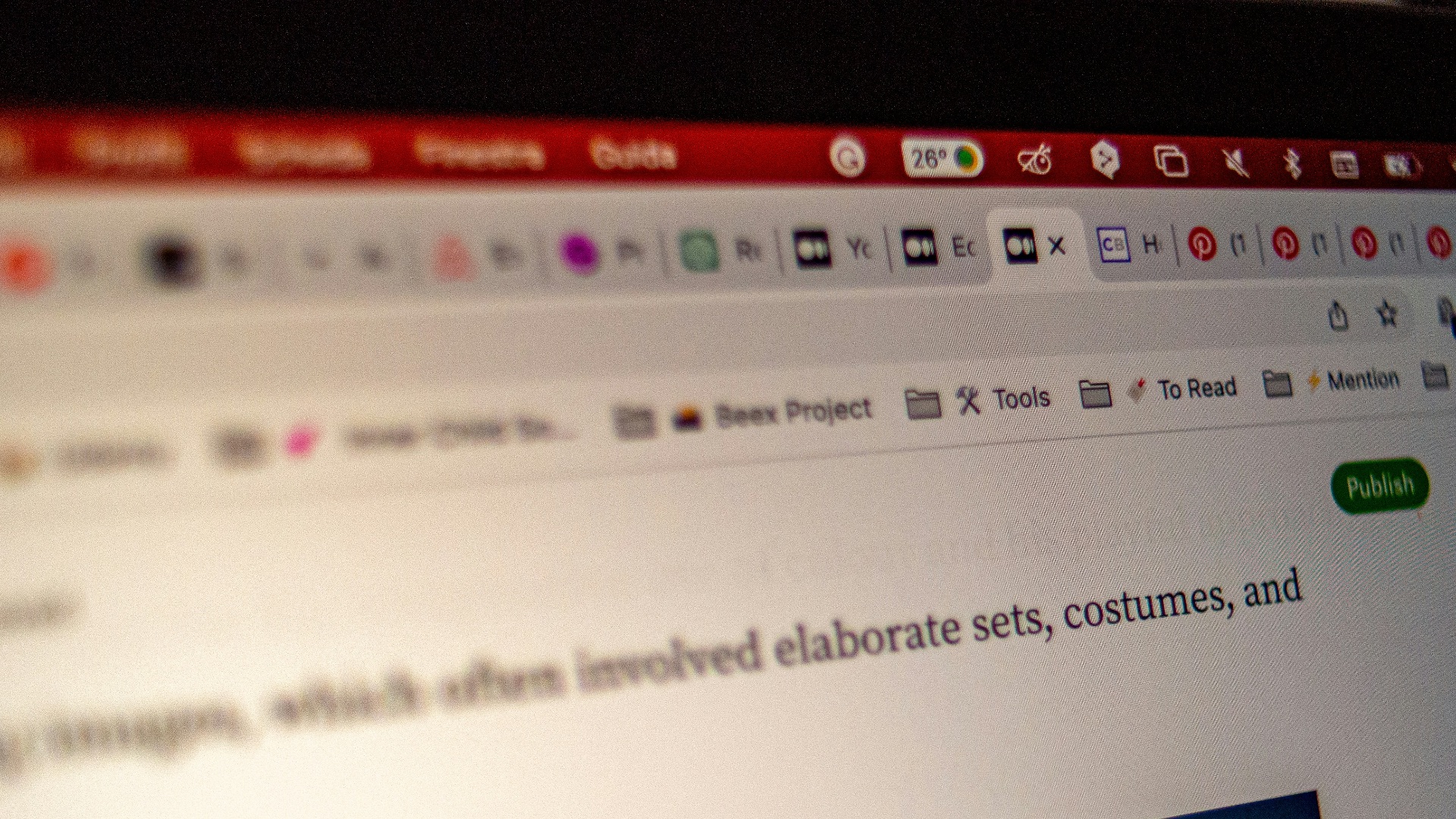
A tab manager can help if you’re the type of person who keeps 30 tabs open and then struggles to find the one you need. These extensions let you group tabs, save sessions, search open pages, or put unused tabs aside for later. That can reduce browser clutter and make your computer feel less strained during long work sessions. The best tab managers help you organize without adding more confusion.
 Emiliano Vittoriosi on Unsplash
8. Dark Mode
A dark mode extension can make websites easier on your eyes when you’re browsing at night or working in dim lighting. While many sites and browsers now offer their own appearance settings, not every page supports them well. A good extension can provide a more comfortable view across sites that don’t have built-in options. It’s worth choosing one that lets you turn it off quickly when a page looks wrong.
9. Added Security
Some security extensions can warn you about suspicious websites, unsafe downloads, phishing pages, or risky links. They’re especially helpful if you often click links from emails, forums, or search results. The important part is sticking with trusted companies rather than installing unknown tools with dramatic promises. A good security extension should protect you without burying you in alerts.

10. Accessibility
Accessibility extensions can make browsing easier by offering text resizing, contrast adjustments, reading aids, focus tools, or text-to-speech features. They’re useful not only for people with specific accessibility needs, but also for anyone who spends long hours reading online. A well-designed tool can make hard-to-read pages more comfortable without changing your whole browser setup. When an extension helps you use the web with less strain, it earns its place.