Your PC Warned You
A gaming PC rarely goes from perfectly healthy to completely dead without giving you at least a few clues along the way. Strange noises, unexplained crashes, performance changes, and hardware behaving differently than usual can all point toward a component that's struggling. Some warning signs are easy to dismiss because the computer still technically works, but ignoring them can turn a manageable repair into a much bigger headache.

1. The Fans Suddenly Get Much Louder
Your PC fans spinning at higher speeds than normal could indicate that something is getting hotter than usual. Dust, a failing fan, restricted airflow, or another component running hot are possible causes. Verify temperatures and ensure the fans are spinning before crying wolf.

2. Your PC Randomly Shuts Down
Random shutdowns can occur for many reasons, but don’t discount overheating as a potential cause. Hardware failure, defective components, or a problematic PSU can also trigger sudden shutdowns. Faulty PSUs tend to do this when under load, so take note if your computer shuts down during CPU/GPU-intensive tasks.
3. You Hear Clicking From A Drive
Noise coming from a mechanical hard drive isn’t always cause for concern, but be careful if you hear new clicking or grinding sounds. Try backing up the drive immediately if possible, since the problem will only get worse and could make the drive unrecoverable eventually.
4. Games Start Crashing For No Obvious Reason
Occasional crashes in one game aren’t likely to be hardware-related. But when multiple games begin to crash that once worked, you might want to look into it. Hardware can and will develop failures over time.
5. Your GPU Starts Showing Strange Visual Artifacts
Visual glitches like colored blocks flashing around, odd lines appearing onscreen, or aberrations in game textures can indicate a problem with the graphics card. Power issues, overheating, and driver problems can cause artifacting as well. Don’t conclude your GPU is toast just yet, but keep it in mind if you experience the bugs everywhere.
6. The PC Takes Much Longer To Start
Software issues or problems with your boot drive can affect startup times. If your PC suddenly takes ages to start up and you've eliminated the obvious software culprits, it could be a sign of a drive beginning to fail. Other applications taking a long time to open can be another sign.
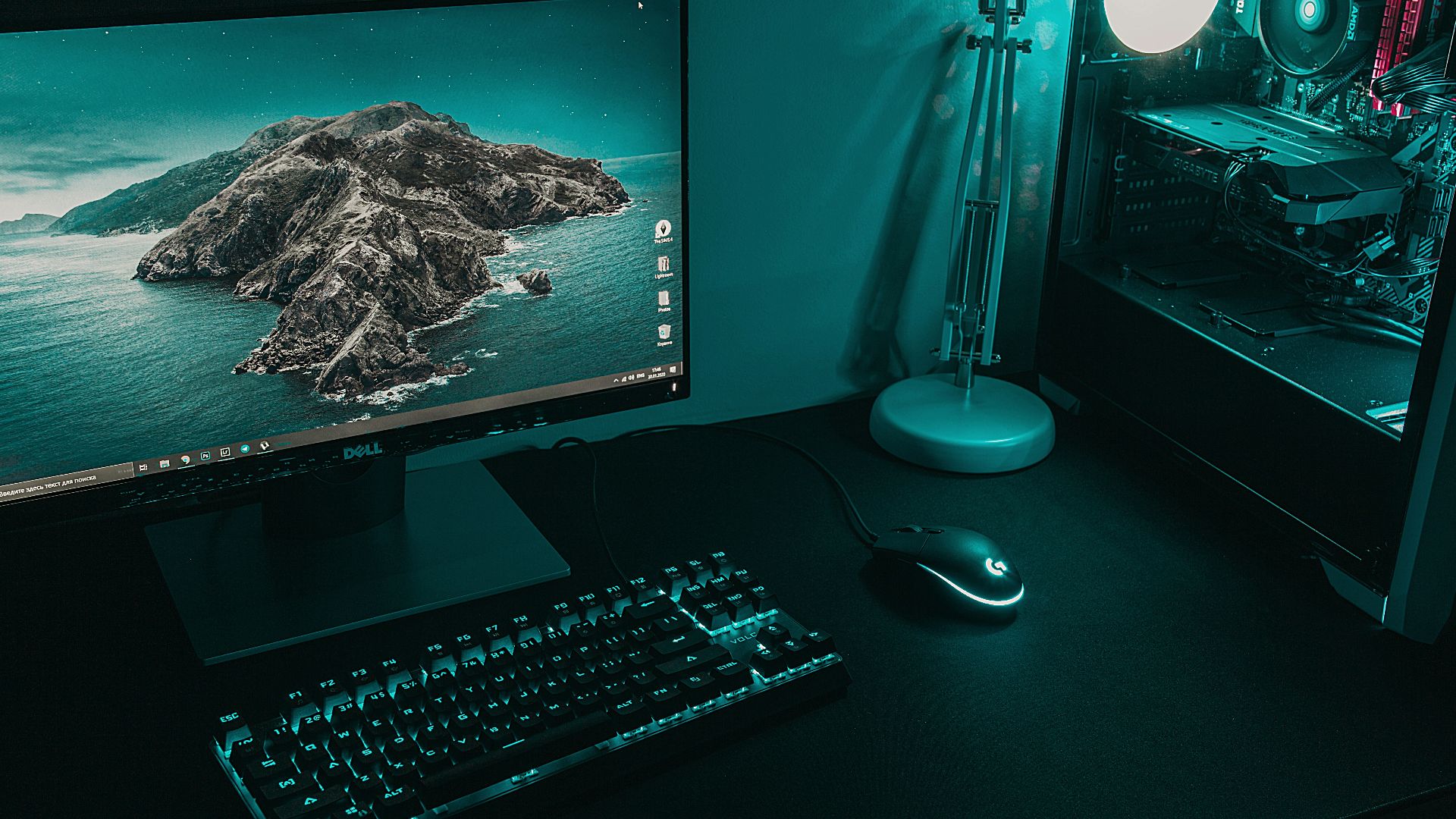 Daniel Eliashevskyi on Unsplash
7. Your SSD Keeps Filling Up Again
An almost-full drive isn’t a great sign, but shouldn’t immediately concern you if you know it’s full. If you empty your storage out of paranoia and suddenly your drive begins inexplicably making the available space shrink, it may be developing errors.
8. The System Freezes During Heavy Loads
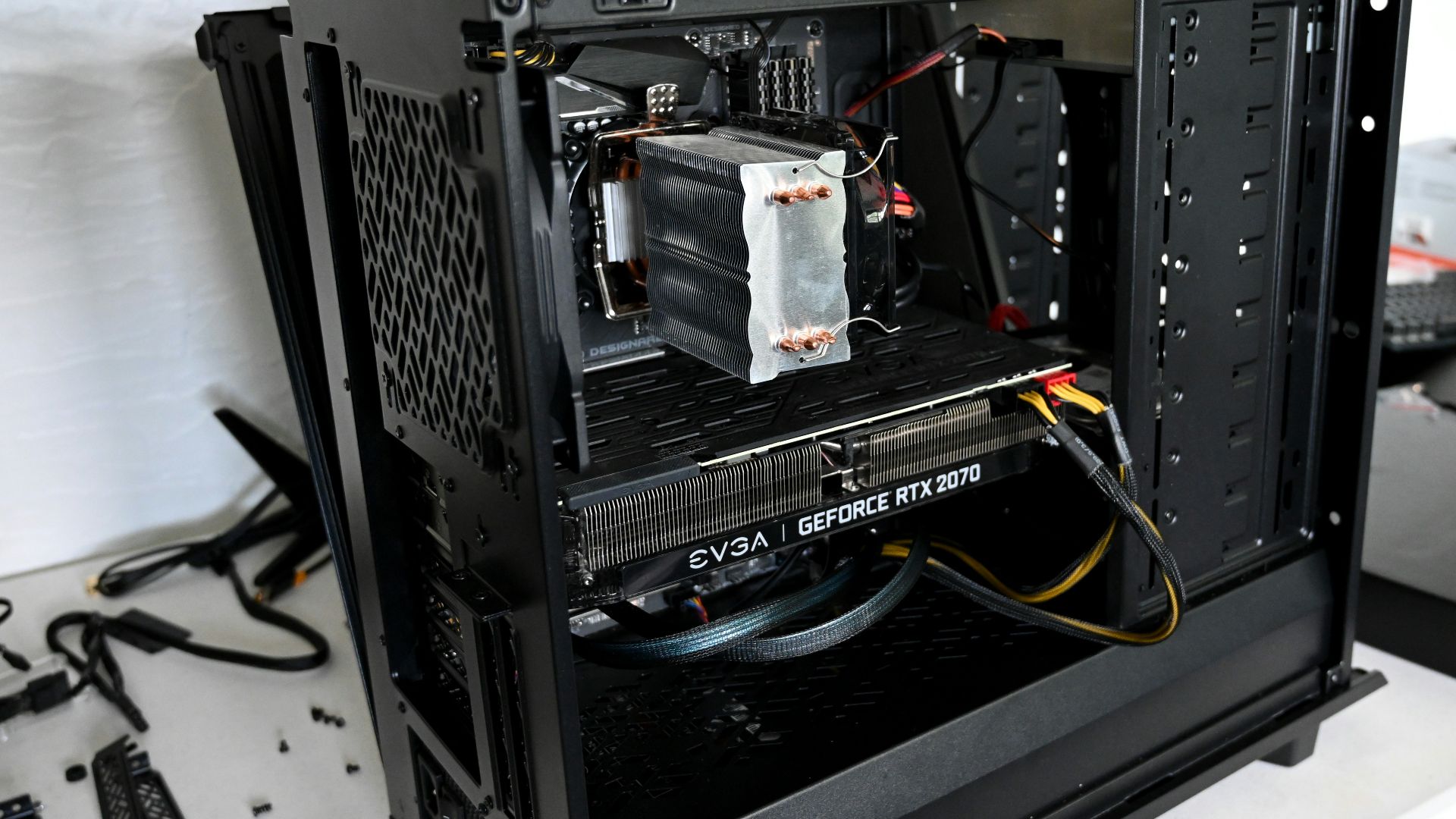
A PC that freezes whenever you launch a demanding game or rendering task may be struggling under load. Heat, memory instability, graphics hardware problems, and power delivery issues are among the possibilities. The fact that the computer works normally while browsing doesn't rule out a hardware problem that only appears when the system is pushed harder.
9. Your RAM Isn't Always Detected
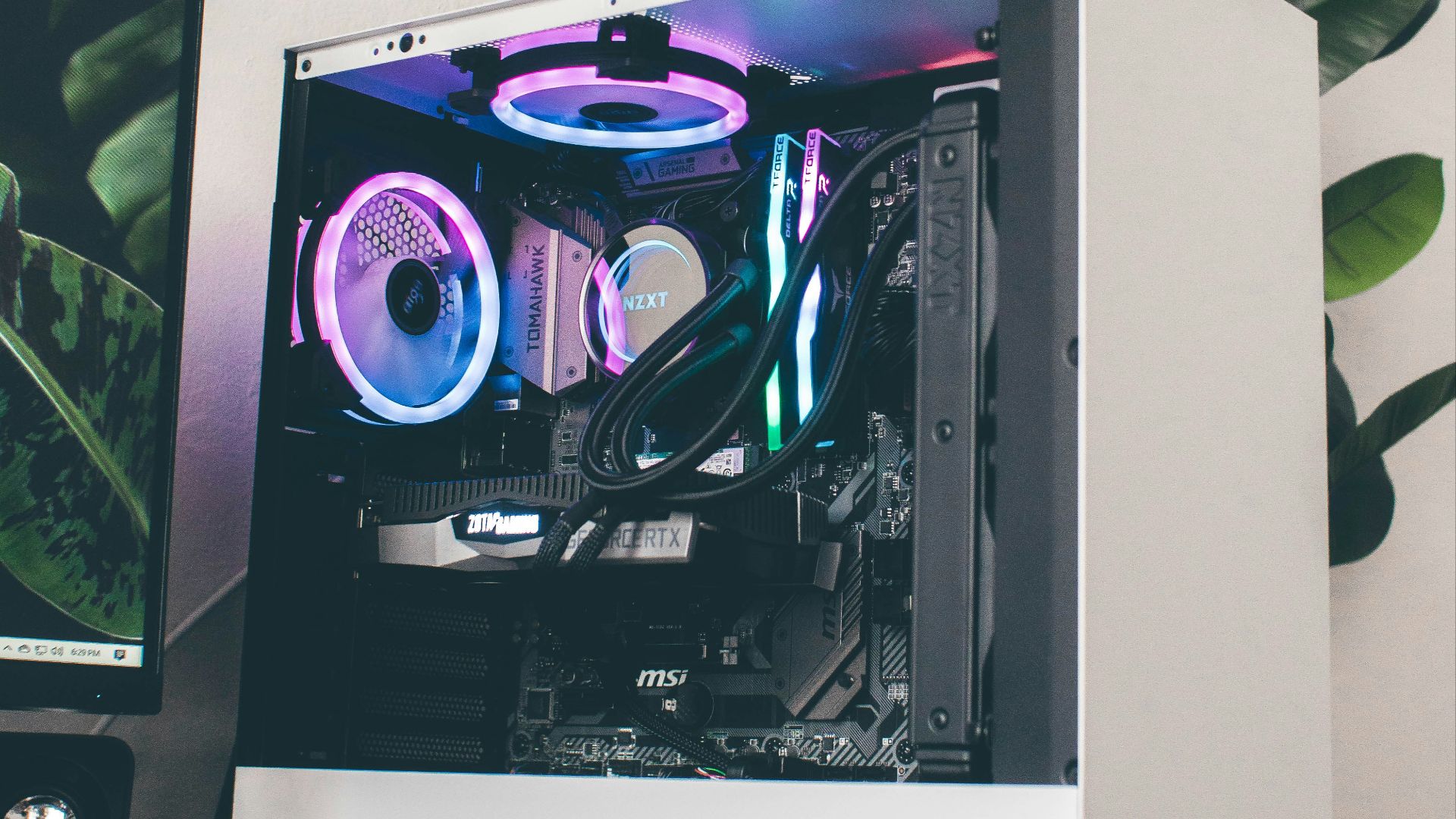
If your PC randomly decides to stop using one of your memory sticks, there may be a problem. It could be as simple as a RAM stick not being seated correctly. Otherwise, you could have a bad RAM stick, a problem with the motherboard, or, in frustrating instances, incompatible RAM XMP profiles.

10. USB Devices Keep Disconnecting
USB peripherals can disconnect if drivers are outdated or if certain power-saving features are enabled. If the problem occurs on multiple devices and only when plugged into certain USB ports, the root of the problem might be with the computer and not the devices themselves.
11. The Power Supply Makes New Noises
A power supply that suddenly develops buzzing, rattling, clicking, or unusually loud fan noise shouldn't be ignored. Some electrical noises can be harmless, but a new or worsening sound is worth investigating. Since the PSU supplies power to nearly every major component, unusual behavior there deserves more attention than an annoying fan elsewhere in the case.
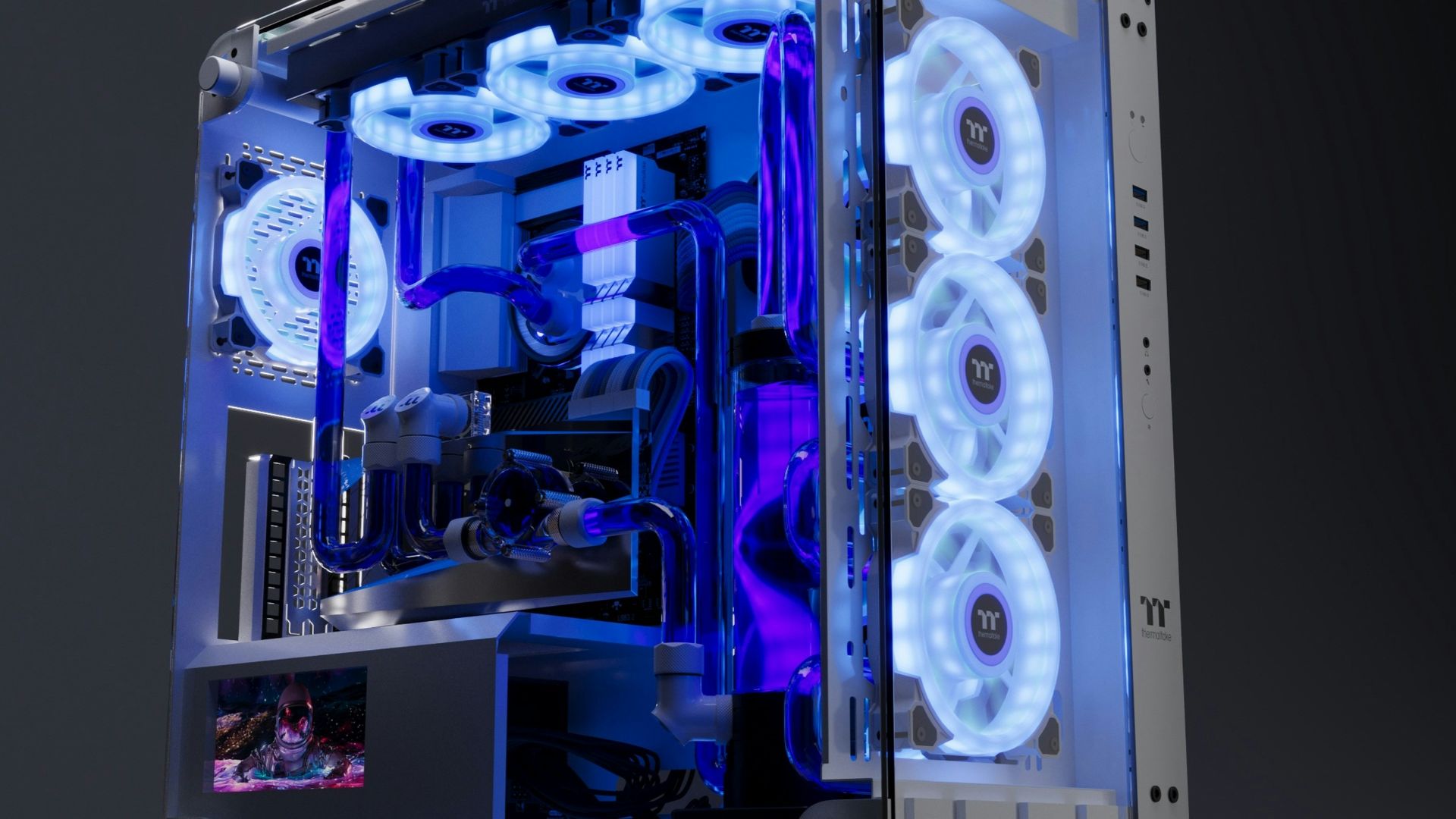
 Christian Wiediger on Unsplash
12. Temperatures Keep Climbing
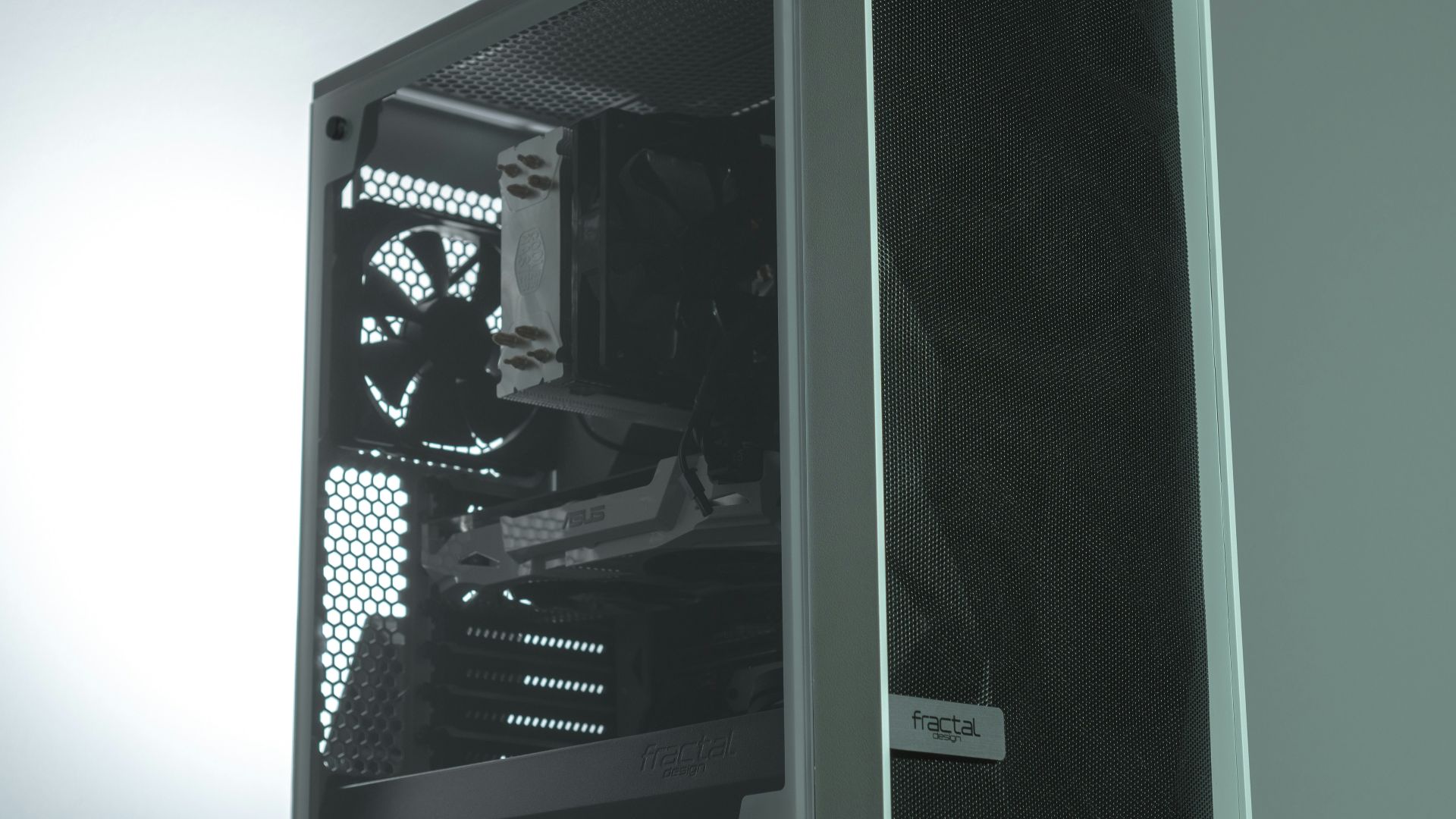
Temperatures inching ever higher under constant workloads is a clear sign that something has changed. Possible causes are restricted or blocked fans, dusty cases, dying fans, or degraded thermal paste. Dust buildup can usually be found simply by observing your PC case.
13. The PC Needs More Restarts Than Before
Everybody needs to restart their PC once in a while, but if you need to reboot more frequently than before, you may have a problem. Simple software issues can create situations where your only option is to restart. Before ruining your hardware by repeatedly rebooting, look for solutions to the problems you’re experiencing.

14. Storage Errors Start Appearing
Warnings about corrupted files, missing data, or disk errors shouldn't be treated as harmless annoyances. Storage devices can develop problems that become increasingly disruptive as more data is affected. Back up anything important and investigate the drive's health before assuming the operating system is simply being difficult.
15. The Case Smells Different
If your PC starts to smell like it's burning, turn it off. Let it cool down, and assess the situation before turning it back on. Electrical smells can come from failing hardware or can be caused by metal physically rubbing on another component.

16. The Motherboard Shows A New Warning Light
Motherboards these days will usually have some sort of diagnostic LED light. These little helpers can tell you if your PC has a detected issue with the graphics card, RAM, boot device, or CPU. These indicators can save you considerable time because they provide a direct clue about where the system is encountering trouble.
17. The PC Becomes Unstable After Upgrades
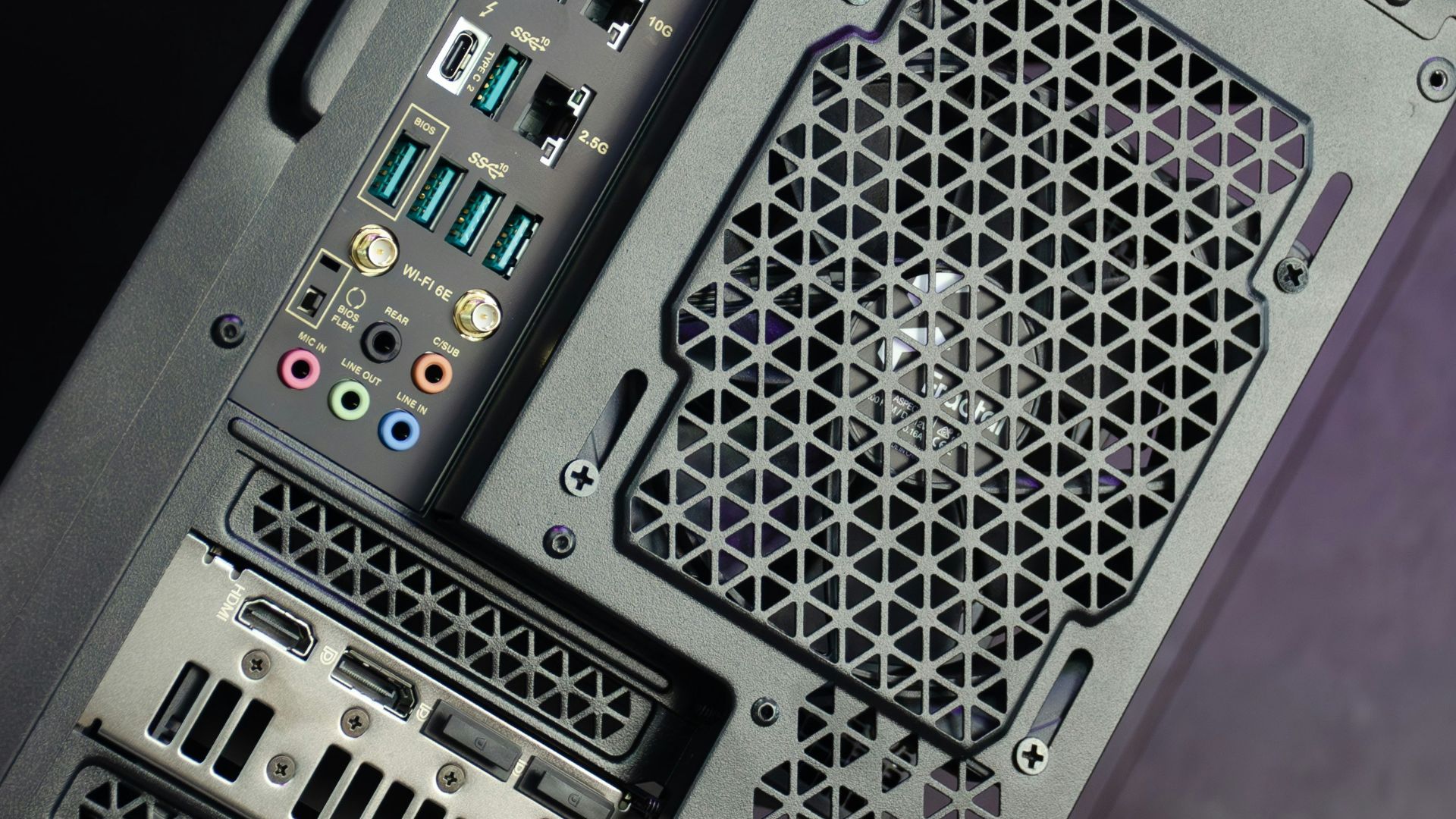
Upgrading any component can cause issues if you’re not careful. New hardware, especially RAM, can cause previously unstable PCs to work, as well as make stable PCs break. Ensure any new hardware is installed correctly.

18. Your Monitor Suddenly Loses Signal
A monitor going black while the PC continues running can have several explanations, including cable problems, display settings, or graphics driver crashes. When it happens repeatedly during demanding games, however, the GPU, power supply, or thermal behavior may deserve closer inspection. If the display returns only after restarting the computer, take note of exactly when the failure occurs.
19. The PC Starts Rebooting In A Loop
Repeatedly turning on, shutting down, and starting again without successfully reaching the operating system is a major warning sign. Memory, motherboard, power, CPU, and boot-drive problems can all cause boot loops. Disconnecting recently added hardware and checking diagnostic indicators can help narrow down the source.
20. Several Small Problems Appear At Once
It could be a coincidence, but don’t be surprised if your computer blowing a gasket is the result of one large issue causing several minor issues. Once you burn your GPU trying to solve each problem individually, step back and look at all the problems as a whole. There’s very likely a single underlying problem causing them all.