10 Signs Someone Hacked Into Your Security Camera & 10 Ways To Protect Yourself
Make Sure No One Watches You
A security camera is supposed to make life feel calmer, not turn into another tiny gadget you have to side-eye from across the room. And yet, without the proper precautions, you never really know who could access your device, what they might say to you, or what else they can get their grubby little hands on. Let’s dive into a few glaring signs someone has hacked your security footage, and a few ways you can protect yourself in the future.
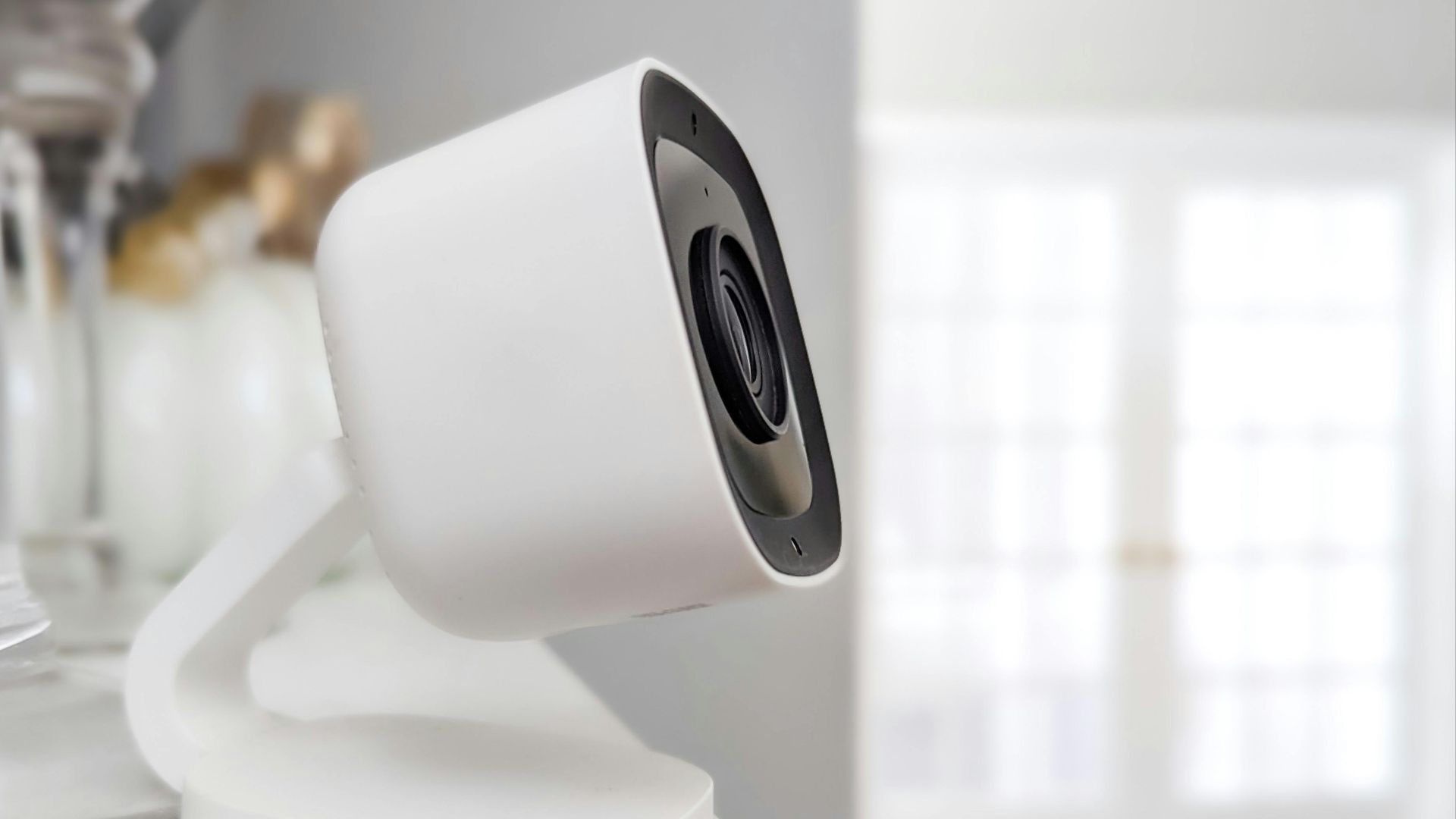
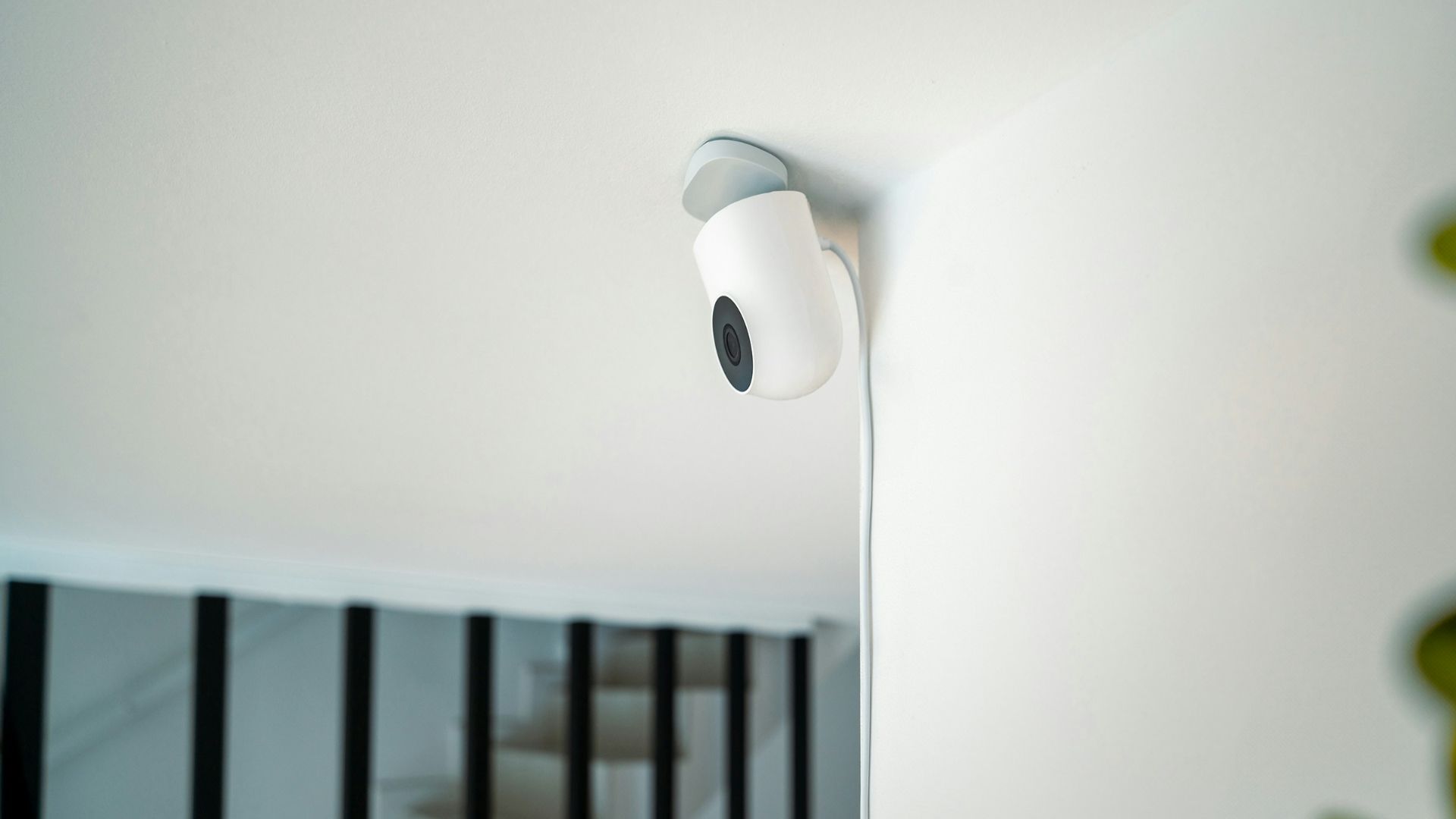
1. The Camera Moves When You Didn’t Touch It
A camera that suddenly pans across the room or tilts toward a hallway deserves attention. Even if you thought you were “just hearing things,” you should still check it out. Before blaming a ghost or the wind, check your app history and see whether another logged-in device has been making adjustments.
2. The Indicator Light Turns On
A lot of cameras have a small light that turns on when the camera’s actually recording or being accessed. If that light appears at 2:00 a.m. while everyone’s asleep, or it flickers while the camera should be inactive, something may be wrong. Some cameras let you disable the light, so review your settings if it suddenly behaves differently.
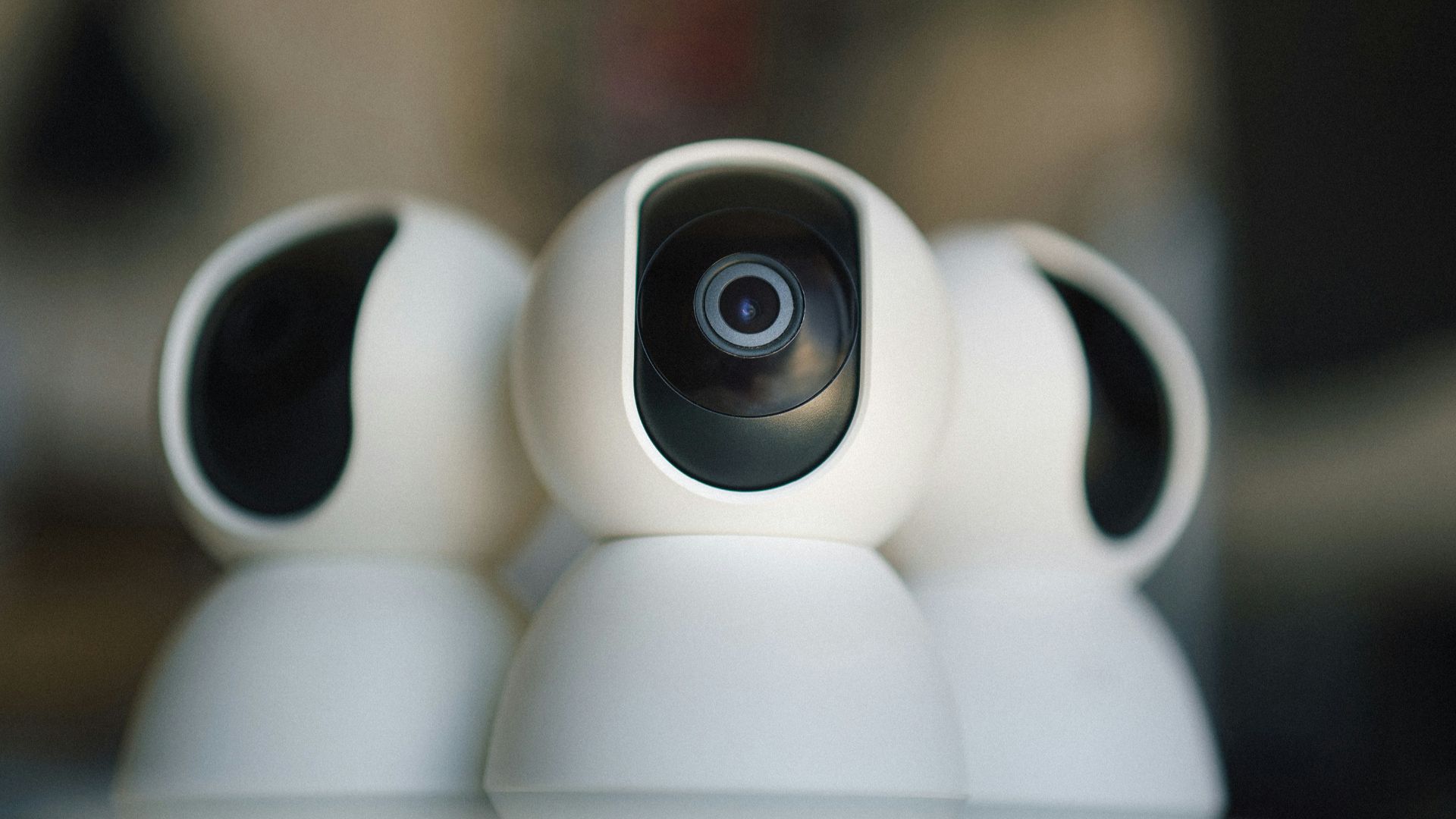
3. You Hear Strange Sounds
Two-way audio is useful for all kinds of things, but it’s less charming when it makes random noises. If you hear clicks, breathing, muffled voices, or someone new speaking through the camera, take it seriously.
4. Your Password Suddenly Stops Working
Getting locked out of your own camera account can be a big warning sign, especially if you’re sure you entered the right password. A hacker may change the login details to keep control of the account, so use the account recovery process right away.
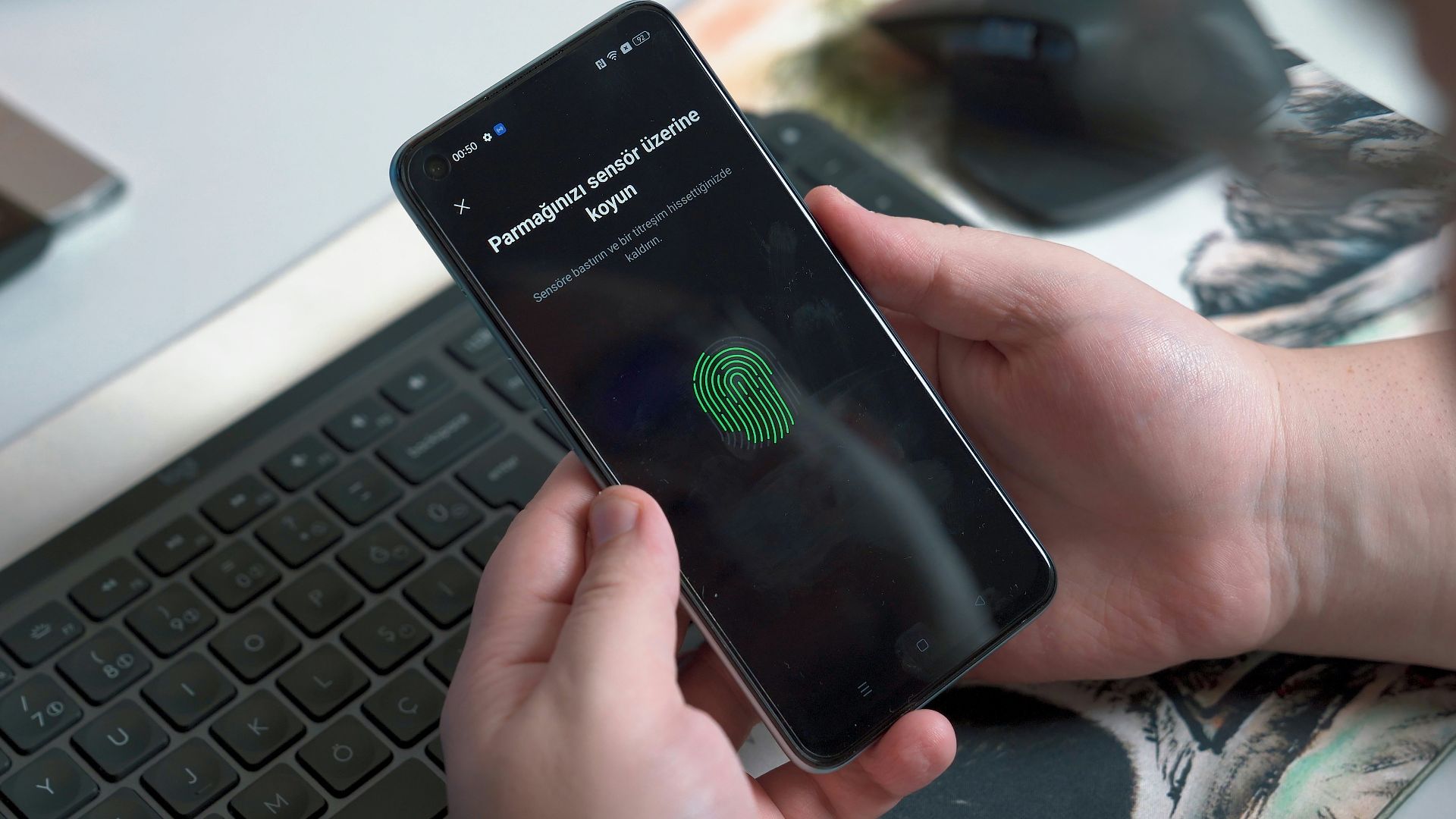
5. New Devices Show Up in the App
Most security camera apps show which devices are connected to your account. What that means for you is that if you spot a device you don’t recognize, don’t shrug it off. Remove the unknown session, sign out of all devices, and turn on two-factor authentication before logging back in.
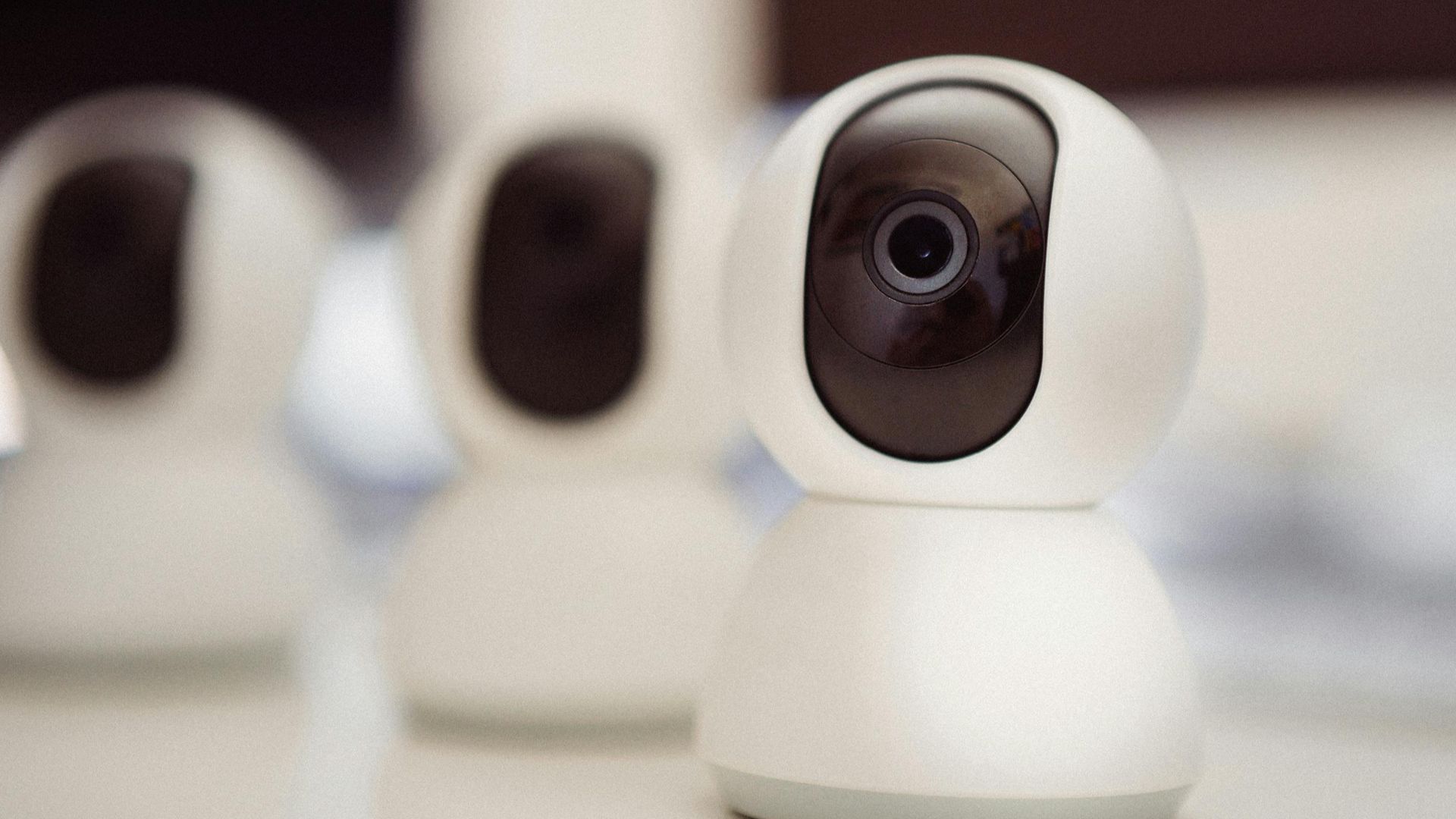
6. Camera Settings Change
A hacked camera can show up in the details, too. Your device may suddenly have different motion zones, recording schedules, notification settings, or privacy modes. Though these changes are easy to miss, comparing your current settings with how you remember setting them up can make all the difference.
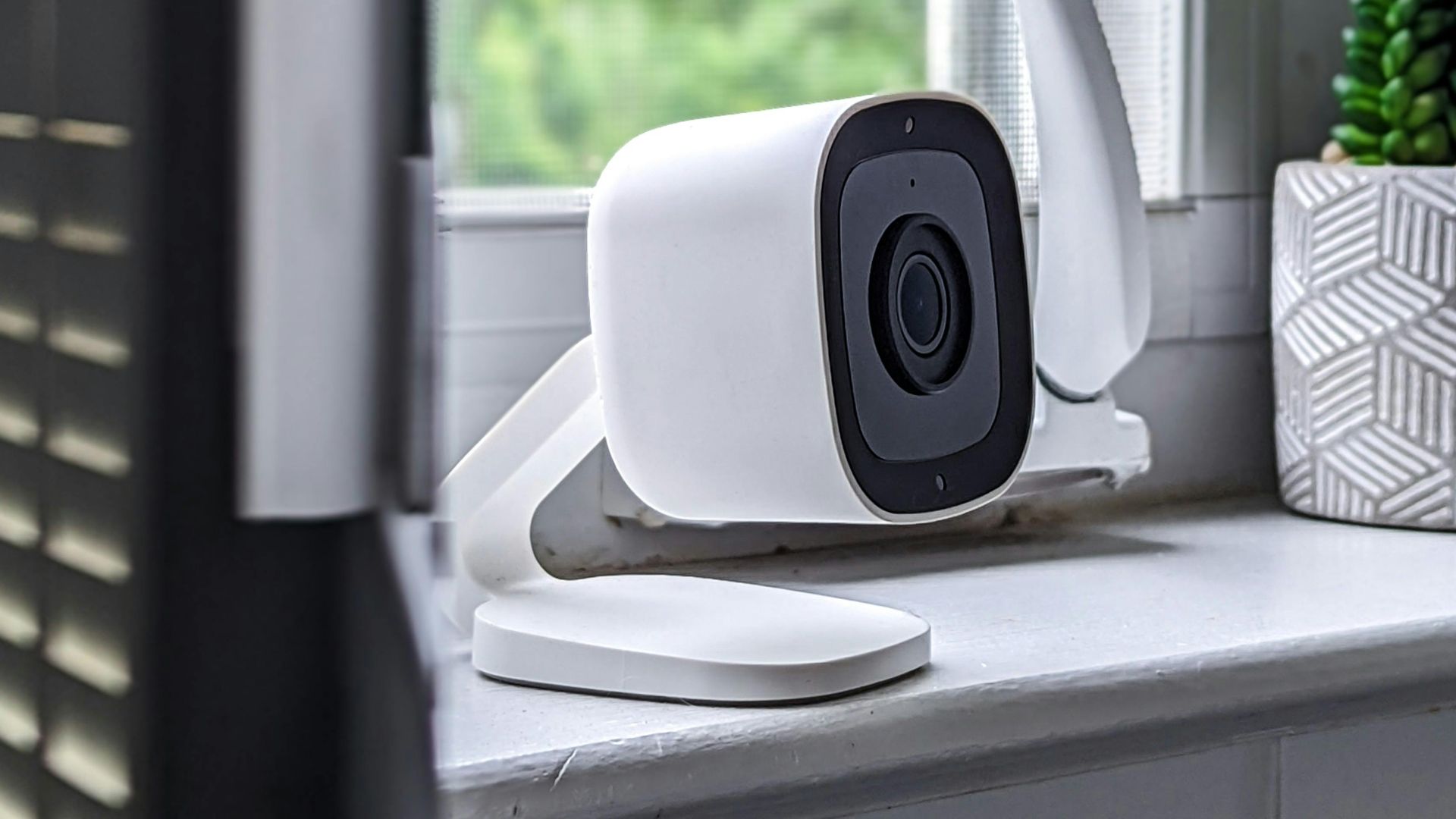
7. Recordings Are Mysteriously Missing
We don’t always think to check our saved recordings, especially when we have them set up to record movement outside. However, your saved clips can tell you a lot about what’s happening behind the scenes. It’s worth checking whether cloud storage rules have changed, too; a subscription issue can sometimes look suspicious without actually being criminal.
8. You Receive Login Alerts
One of the best things about today’s security cameras is that many brands send alerts when someone signs in. If you get an email saying there was a login from another state, a browser you don’t use, or a phone model you don’t own, it’s time to go through your settings.
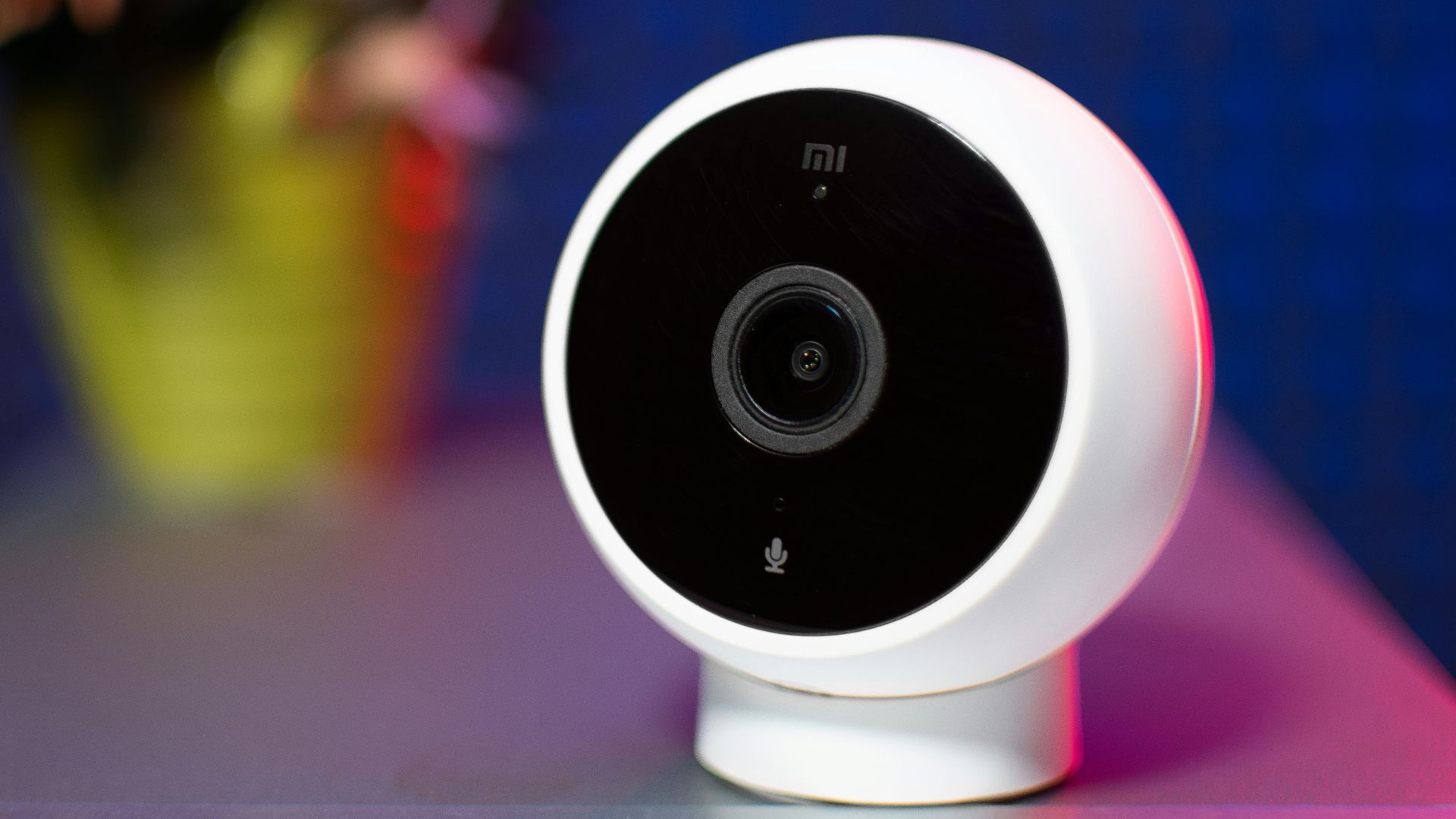
9. Your Internet Usage Spikes
Security cameras use data when they stream live video or sync with cloud storage, meaning if your router app shows a camera using a large amount of data while you’re away, or your internet slows down every night around the same time, unwanted viewing could be one possible cause.
10. The Camera Turns Back On
Cameras don’t just turn back on by themselves. Should yours reactivate after you turn it off, you need to treat that like a legitimate warning. Even if it could be nothing, don’t take chances; reset the device, remove shared users, and update every related password.
Indoor cameras can be genuinely useful when you want to check on pets, keep an eye on deliveries, or make sure the kids got home safely. But they’re only as comforting as you make them. Let’s dive into a few non-negotiable safety features every homeowner should invest in.
1. Place The Camera Where It Actually Belongs
Choose a spot that helps with security without capturing every private corner of your home. For example, pointing a camera at the front entryway makes more sense than aiming it toward a bedroom door. You’ll still catch important activity, but you won’t record more of your life than necessary.
2. Use A Strong, Unique Password
Security cameras often come with their own passwords that you’re required to change. Forgoing that simple step means any hacker can try a basic password and probably bust into your camera. Once you’ve changed it, avoid sending it in texts or shared notes where someone else could easily find it, too.
3. Two-Factor Authentication
Two-factor authentication adds an extra step when someone tries to log in, which can stop a stolen password from becoming a bigger problem. It’s a small inconvenience, but it’s much better than discovering a stranger had a front-row seat to your entire life—or your loved ones’.
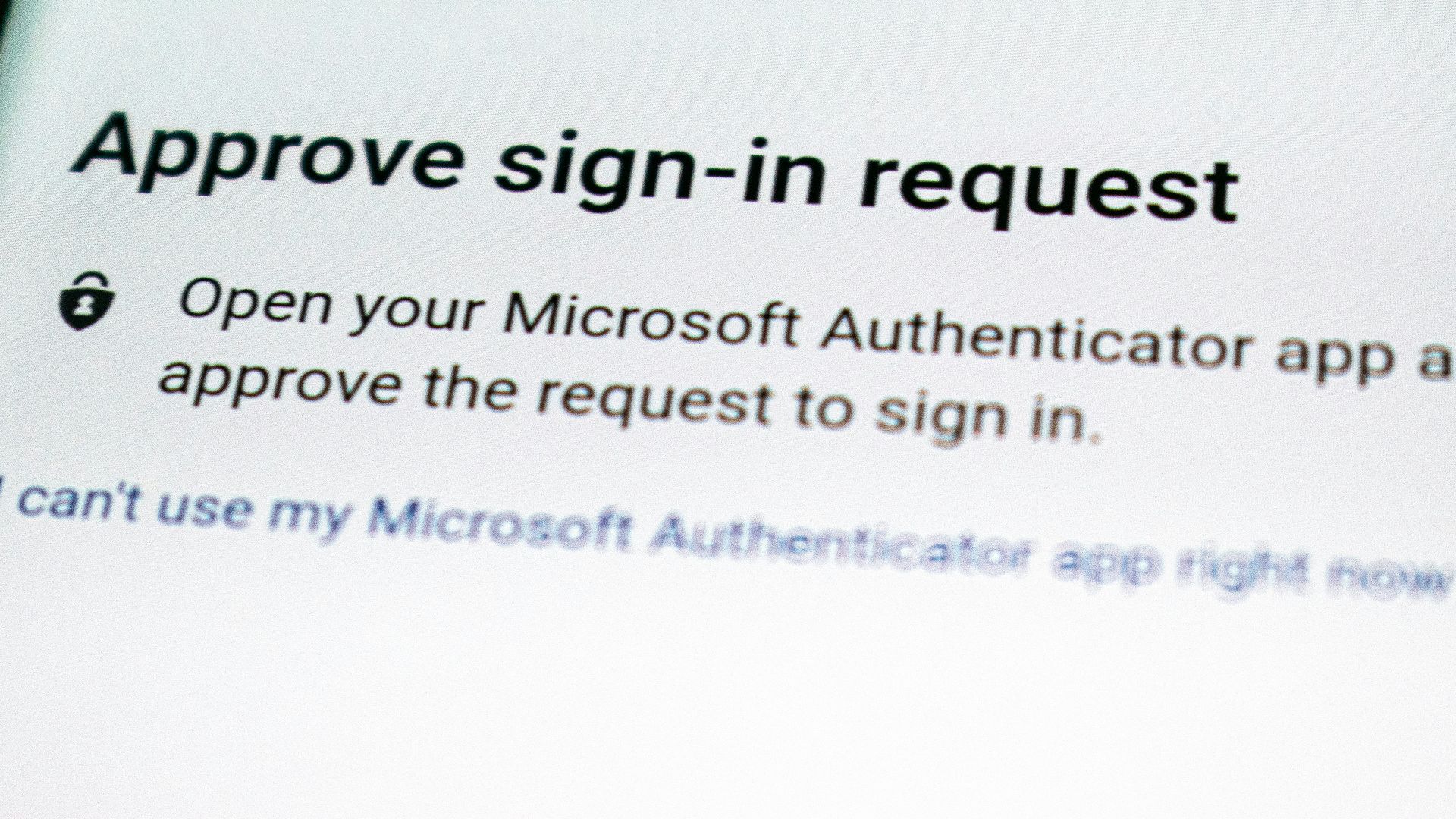
4. Check Who Has Access
Most camera apps let you share access with loved ones, but you still need to review that list every so often. Remove people who no longer need it, too. Keeping the user list tidy helps prevent accidental oversharing long after the original reason has passed.
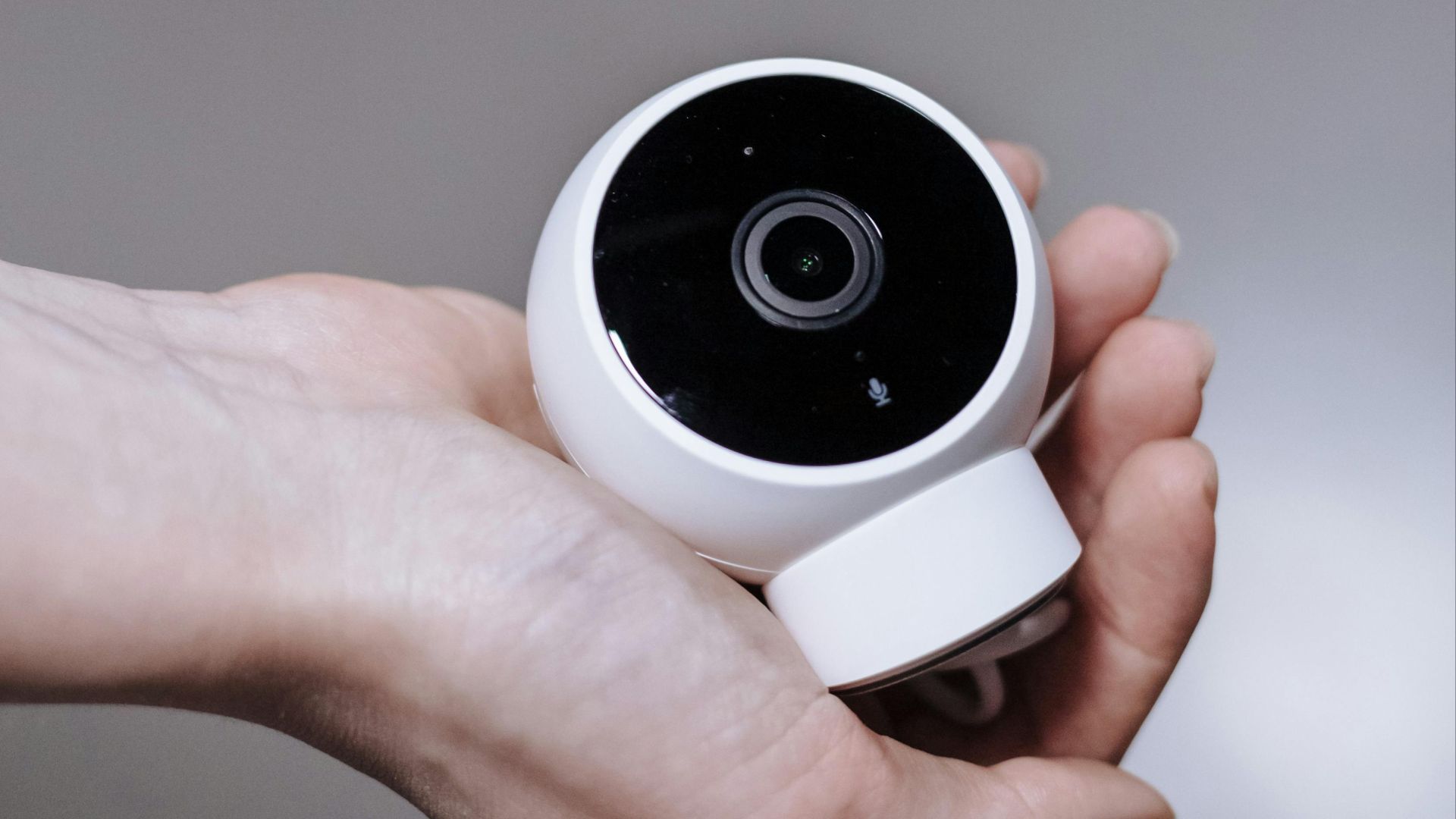
5. Use Privacy Zones When Available
Many indoor cameras let you block out certain parts of the frame so they aren’t recorded. Do yourself a favor and consider a privacy zone over a computer monitor, a child’s play area, or a part of your bedroom where a neighbor’s window is visible.
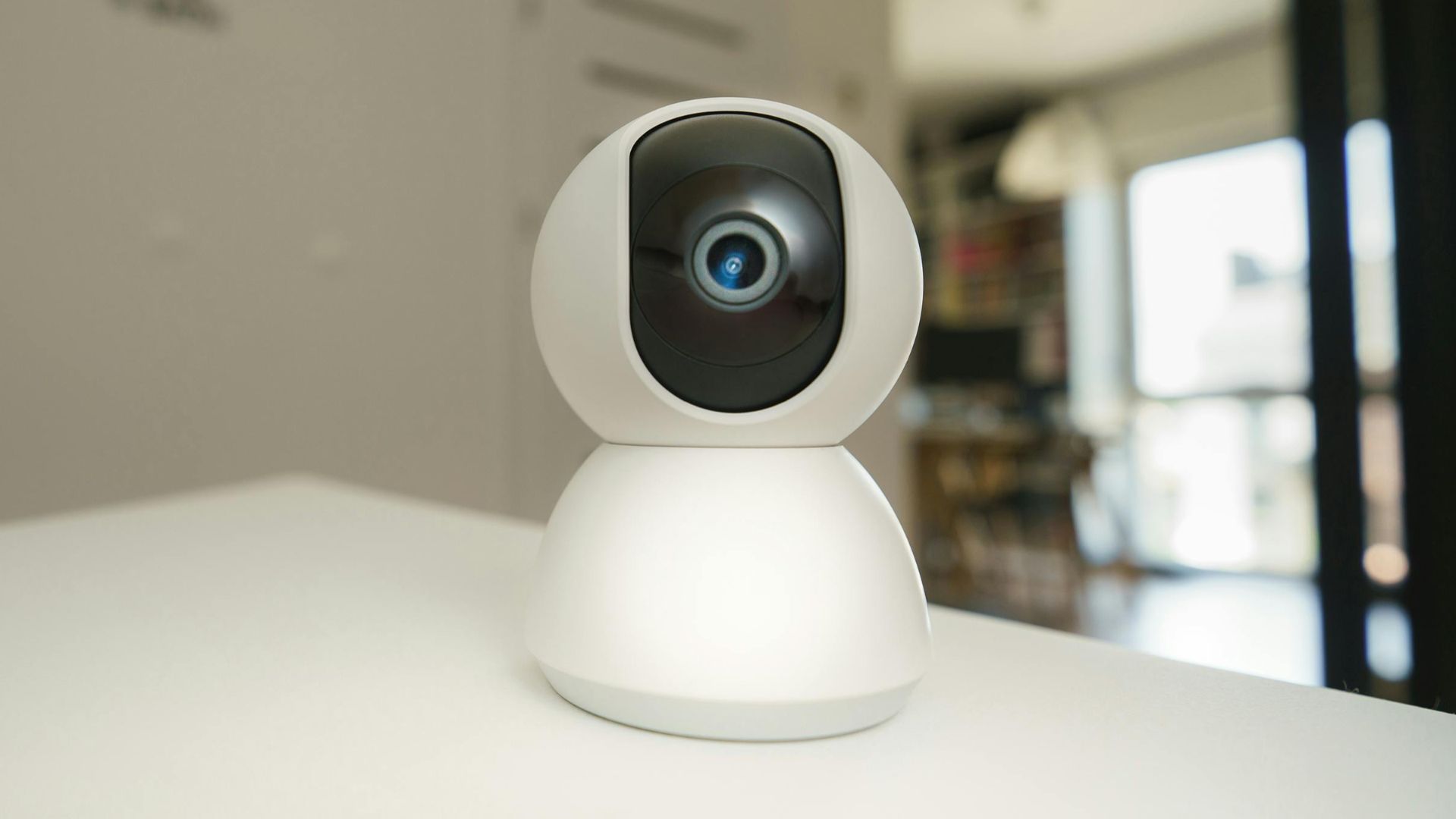
6. Disable Audio Recording
So long as you don’t actually need audio recording, video is usually enough for basic home monitoring. Audio recording can capture anything from private conversations and phone calls to background details that have nothing to do with security. If your app offers separate audio controls, turn the microphone off unless you truly use two-way talk.
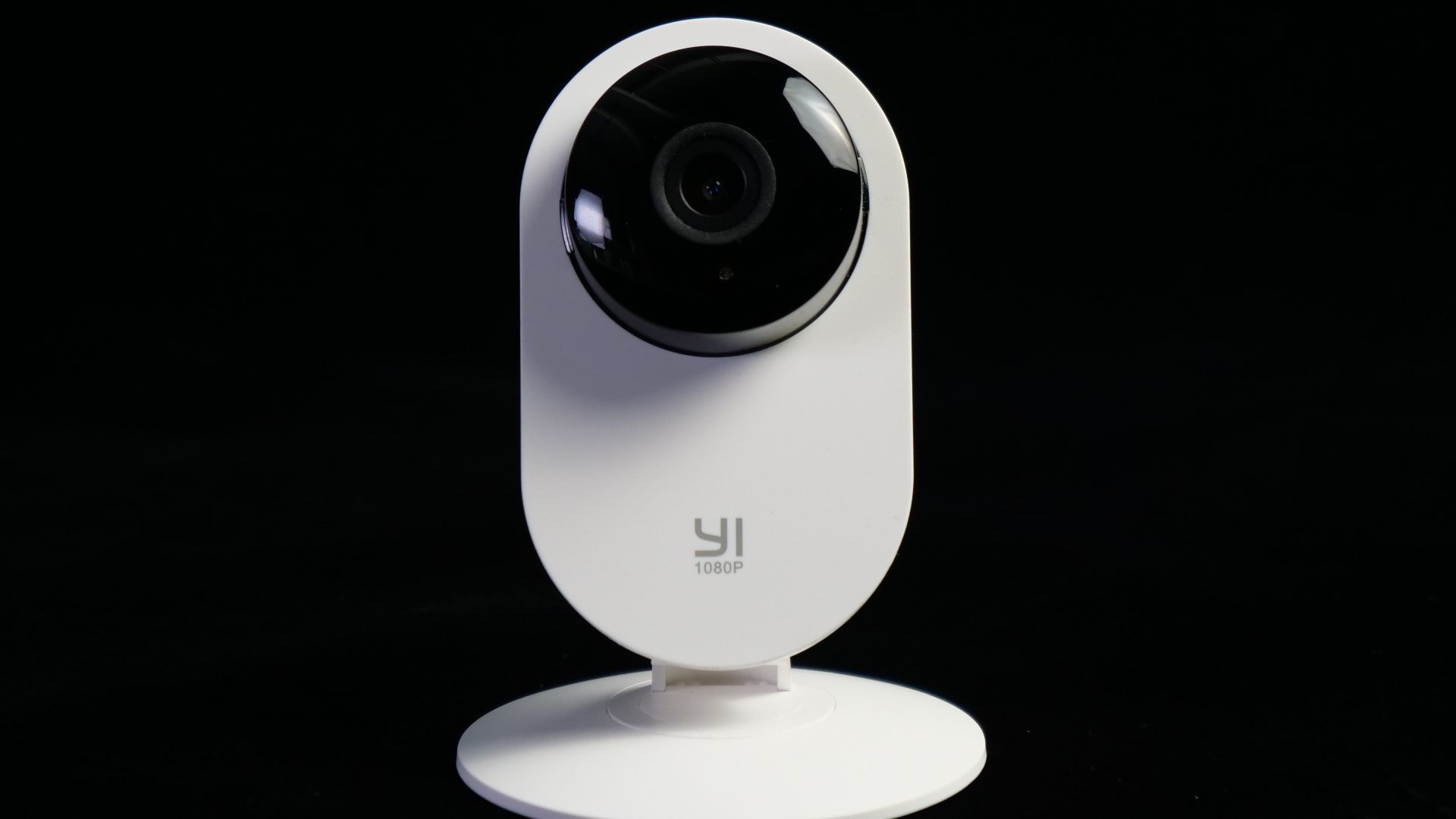
7. Schedule Recording Around Your Routine
A camera doesn’t need to record every minute of the day. You can set many cameras to record only when you’re at work, asleep, or away on vacation, which keeps the camera useful while cutting down on unnecessary footage of your family.
8. Keep Things Updated
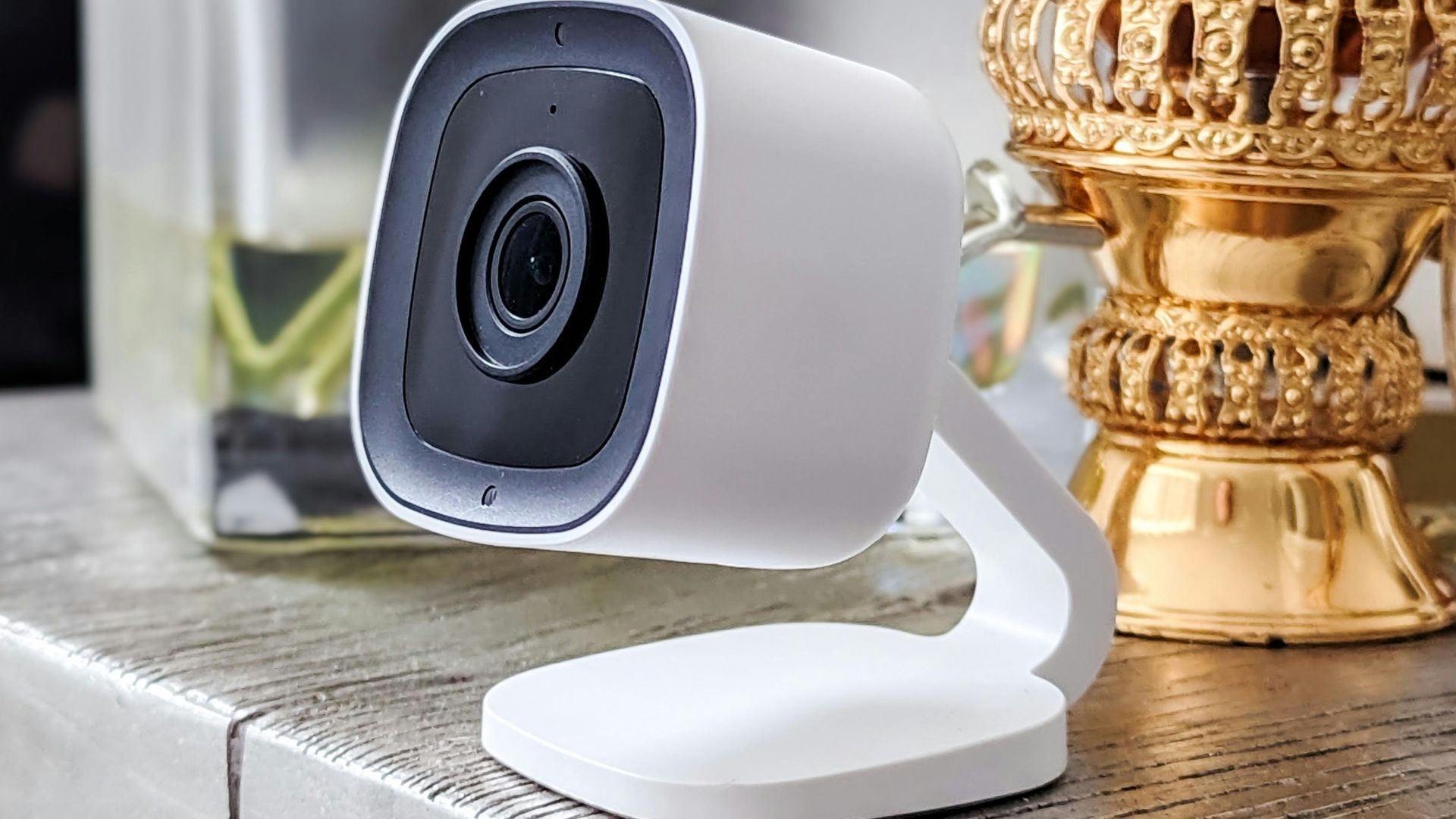
Like it or not, companies release updates to fix bugs, patch security issues, and improve privacy controls. If your app has an update waiting, don’t ignore it. Turn on automatic updates when possible, and check the device settings occasionally to confirm the camera itself is running the latest firmware.
9. Choose Local Storage
Cloud storage is convenient, sure, but it also means your footage is stored outside your home. Some cameras support microSD cards or network storage, which can be useful if you’d rather keep clips closer to you. Just remember that local storage still needs protection, so use encryption if offered!
10. Cover the Camera During Private Moments
Sometimes the best privacy setting is the simplest one: unplugging the camera (or turning it away). A quick physical step can give everyone peace of mind, and it’s far easier than running into an issue later.