Your iPhone Alarm Has a Hidden Flaw—And Two Settings Changes Can Fix It Permanently
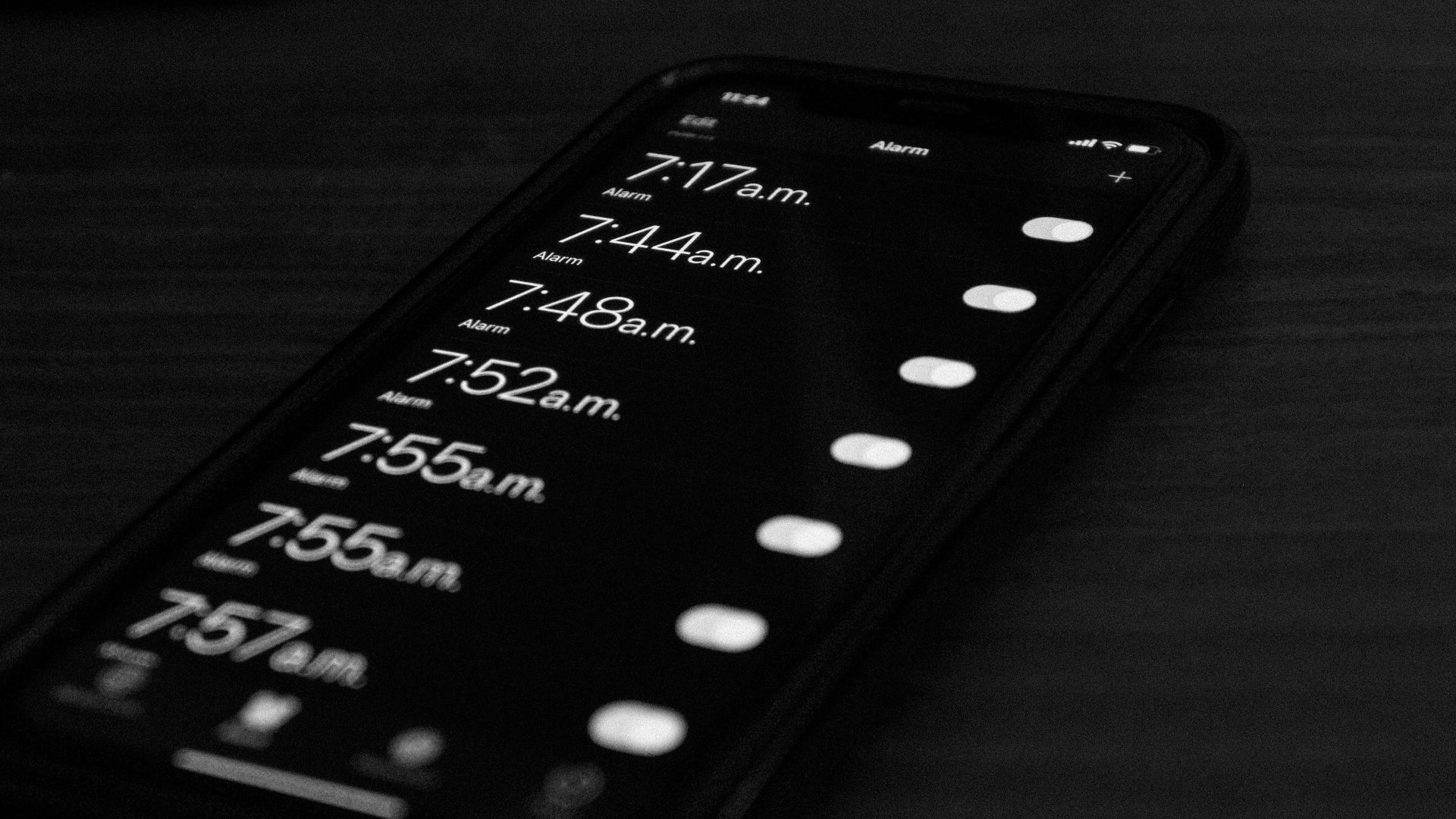
The iPhone can do a frankly ridiculous number of things, from running console-style games to tracking your sleep. So it feels especially absurd when the simple alarm, the tiny digital rooster we all quietly depend on, becomes the thing that fails us. Most people don’t think about alarm settings until something goes wrong. Then the Clock app suddenly becomes a high-stakes piece of technology, a role no one asked it to play.
Reports about iPhone alarms not sounding properly have been around for a while, especially from users who say an alarm appeared on-screen but didn’t make enough noise to wake them. Apple acknowledged in 2024 that it was aware of an issue involving alarms not going off or playing too quietly, though it did not publicly confirm a single cause. The safer read is that not every alarm problem comes from the same bug. Two settings, though, can make your alarm volume less predictable, and they’re well worth fixing.
Attention Aware
The first setting to check is Attention Aware Features. On iPhone models with Face ID, Apple says the TrueDepth camera can check whether you’re paying attention to your device. When that feature is on, your iPhone can adjust certain behaviors based on whether it thinks you’re looking at the screen. One of those behaviors is lowering the volume of alerts.
That can be genuinely useful during the day. If your phone is already in your hand, you probably don’t need it screaming at you. The problem is that bedtime and early-morning alarm moments are messier. A phone propped on a nightstand, a half-lit room, and a sleepy face are not exactly ideal conditions for smooth little software judgments.
Popular Science has reported that some users have tried turning off Attention Aware Features to help with quiet or silent alarm behavior. The same coverage maintains careful wording, since Attention Aware reduces lower alert volume rather than fully mutes an alarm.
To turn it off, open Settings, tap Face ID & Passcode, enter your passcode, and switch off Attention Aware Features. That stops your iPhone from using attention detection to lower alert volume. If your goal is a louder, more predictable alarm, this is the best first move.
Alarm Volume
The second setting is Change with Buttons, and it’s the kind of tiny toggle that feels harmless until it messes with your morning. Apple says alarm volume is tied to the Ringtone and Alerts slider in the Sounds & Haptics Settings. Apple also says that when Change with Buttons is turned on, the physical volume buttons can change alarm volume.
Think about how people actually use their phones at night. You might lower the volume while watching a video, playing a mobile game, scrolling through clips, or trying not to blast a sound in a quiet room. If the side buttons are set to adjust the alert volume, those little taps can leave your alarm quieter than expected.
To fix it, go to Settings > Sounds & Haptics and turn off Change with Buttons. Then drag the Ringtone and Alerts slider to a level you can actually hear. Apple says the phone plays an alert sound as you move the slider, so you can check the volume before leaving it there. Once that’s set, your alarm volume is less likely to be quietly changed during normal phone use.
The Extra Checks
These two settings are the strongest, cleanest places to start, but they’re not the only things worth checking. Apple says Do Not Disturb, the Ring/Silent switch, and Silent mode do not affect alarms set in the Clock app. That means those settings usually aren’t the reason a standard alarm fails to make a sound.
The alarm sound itself is a better place to look. Apple says that if an alarm only vibrates, you should make sure its sound isn’t set to None. Open the Clock app, tap the Alarms tab, tap Edit, choose the alarm, tap Sound, and pick an actual tone. It sounds basic, but basic settings are where a lot of annoying tech problems hide.
If one alarm keeps acting strangely, delete it and recreate it. Apple’s support page explains that alarms can be deleted by swiping left on the alarm or using Edit, and recreating a problem alarm gives you a clean entry. That doesn’t prove the old alarm was corrupted or broken. It simply removes one more variable.
Connected audio can also make alarm behavior feel confusing. Apple says that if headphones are connected, alarms play through the iPhone’s built-in speakers as well as wired and wireless headphones. Even so, if your alarm setup feels unreliable, it’s still sensible to check Bluetooth before bed, especially if you use earbuds, speakers, or other accessories often. Nobody needs their sleep schedule disrupted by a speaker in the next room.
So, can two setting changes fix the problem permanently? For many users, turning off Attention Aware Features and turning off Change with Buttons removes two common ways alarm volume can become less predictable. It doesn’t guarantee that no software bug, odd alarm setting, or unusual device state will ever cause trouble again, because technology apparently needs loopholes to feel alive. Still, these changes give your iPhone fewer chances to negotiate with your wake-up time.