
10 Ways You're Accidentally Exposing Your Computer to Viruses & 10 Tips to Protect It
Bad, Risky Habits
How good are you at taking care of your computer? And by that we mean: Do you regularly make sure whatever you're doing on there is safe? Sure, that email telling you to reset your password because someone tried to log into your account might look legit, but chances are, clicking on the provided link will only make everything worse. While modern computers certainly include stronger built-in security than older machines did, those defenses, unfortunately, can’t prevent every mistake you make online...
1. Downloading Programs from Unofficial Websites
Photoshop for free, you say? Well, folks, as they say: if something is too good to be true, it probably is. When a paid application is offered free on an unfamiliar website, be suspicious. You never know what you're actually downloading to your computer.
2. Clicking Links in Unexpected Emails
You probably already know what phishing emails look like, but even messages that look like they came from somewhere reputable can actually be anything but. Cybercriminals, after all, often create convincing copies of familiar login pages. Enter your private information on these portals, and you can kiss your data goodbye.
3. Opening Attachments Without Checking Them
Received an email with an attachment? Sure, you might think opening attachments is less risky than clicking a link, but malicious files can be disguised as common document types, and some can infect your device as soon as you tap into them.
Do yourself a favor: if you don't know the sender, delete it.
4. Postponing Software Updates for Too Long
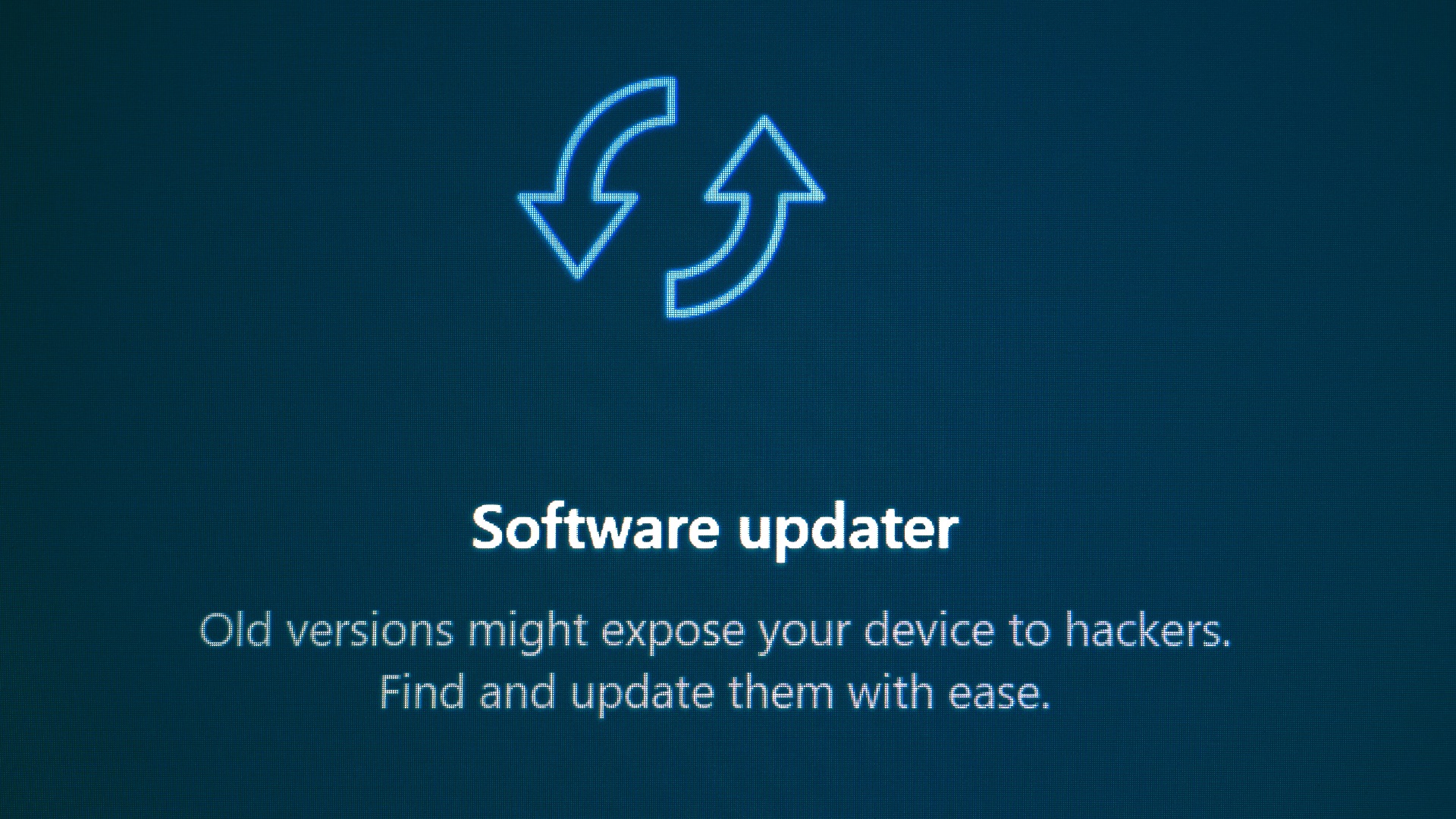
Be honest: how many times have you clicked "remind me later" on that software update notification that keeps popping up? You might think nothing of it, but the longer you delay the update, the more vulnerable your device is. The risk grows further when the software is so old that there are no longer any security fixes.
5. Installing Too Many Browser Extensions
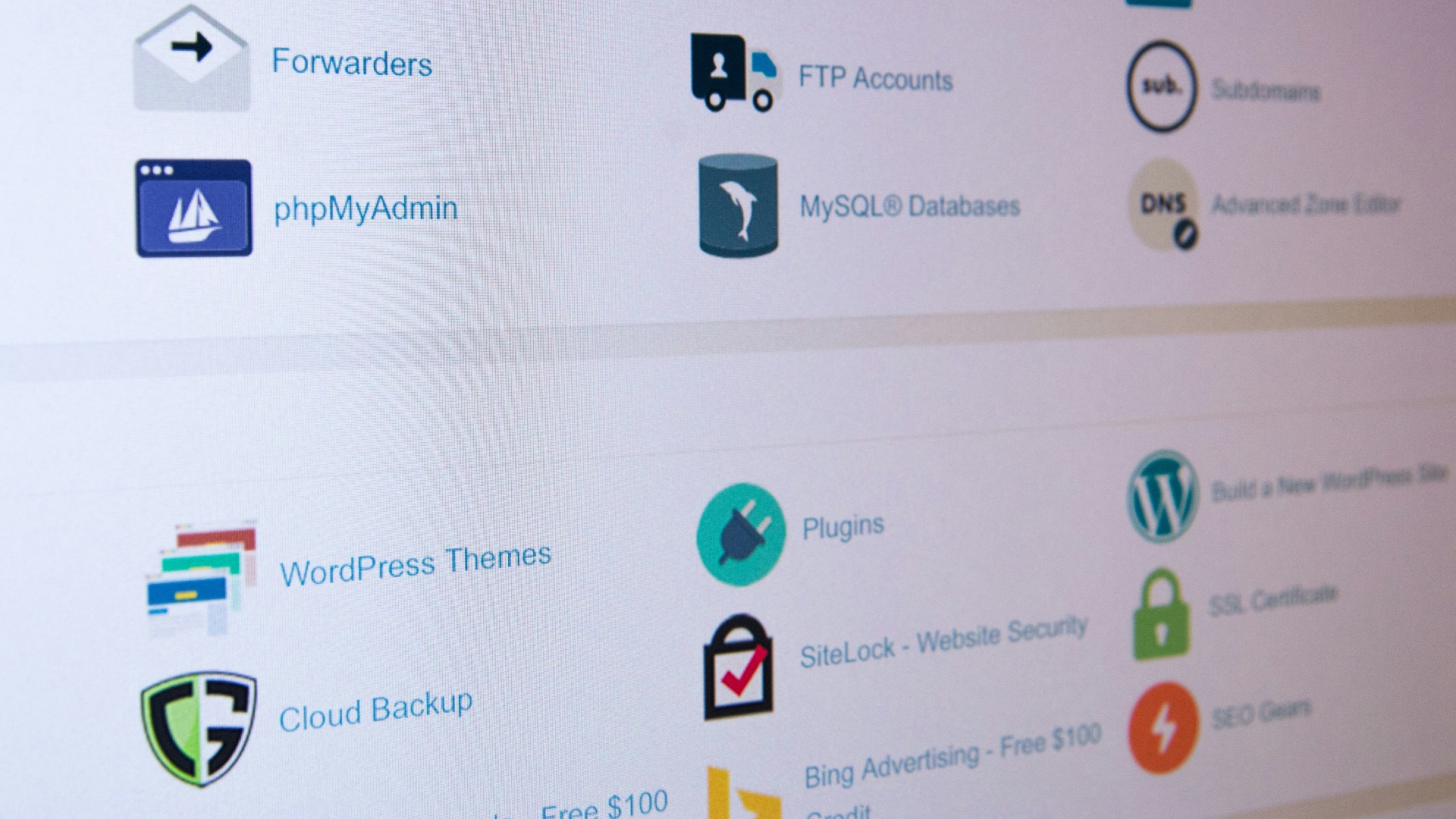
Useful as browser extensions are, you'll want to be wary: some may require permission to view everything you're looking at or even access sensitive information you enter. Plus, poorly secured extensions could be compromised, while a dishonest one might collect more data than its stated purpose requires.
 Stephen Phillips - Hostreviews.co.uk on Unsplash
6. Using Pirated Software and Media
Say you've downloaded an application you know has been cracked. All of a sudden, you're required to turn off certain security settings just to run it. That should immediately raise a red flag! We get that you want to save money, but is it really worth it if doing so could expose all your private info and put your computer at risk?

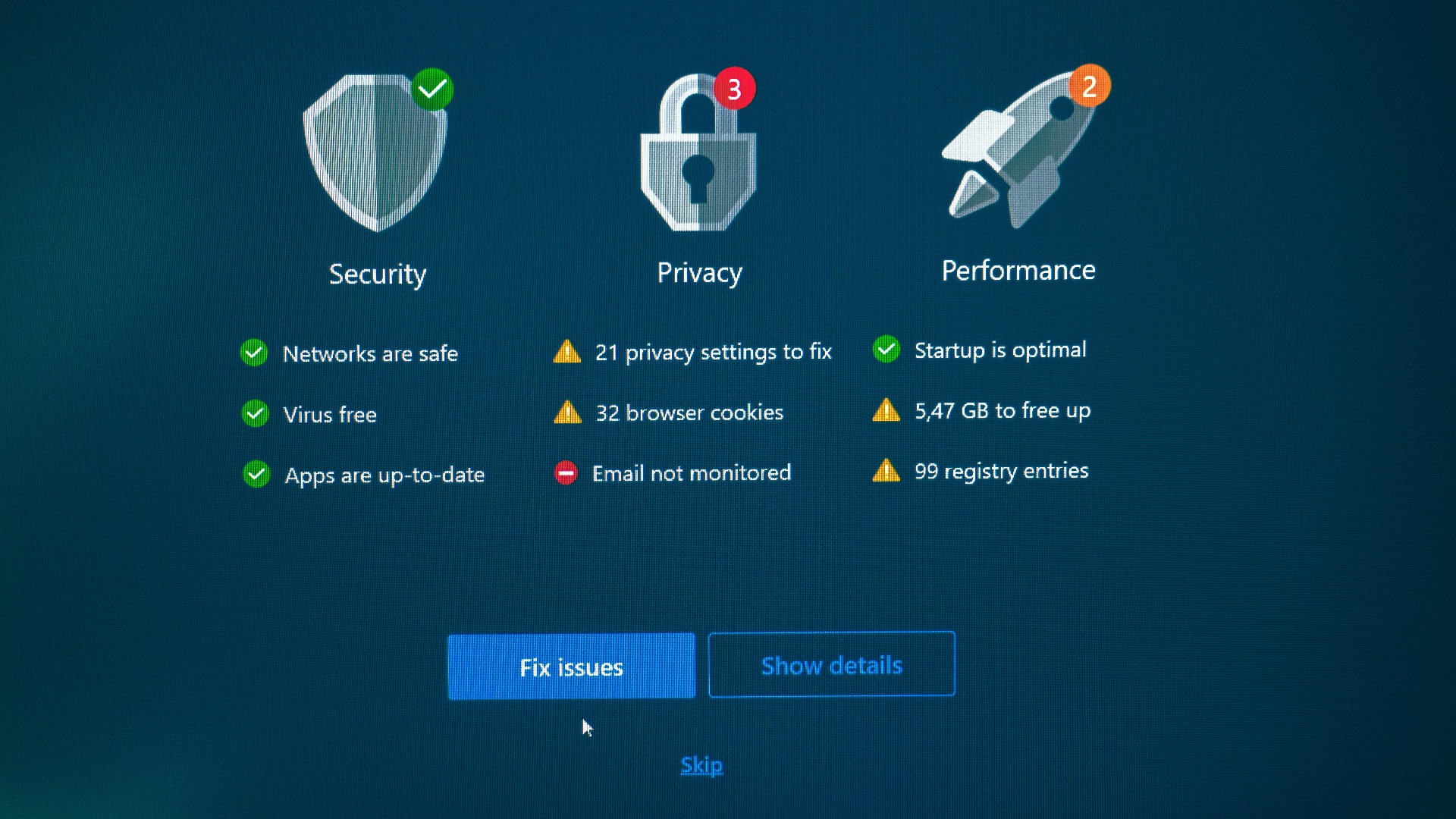
7. Trusting Fake Virus Warnings
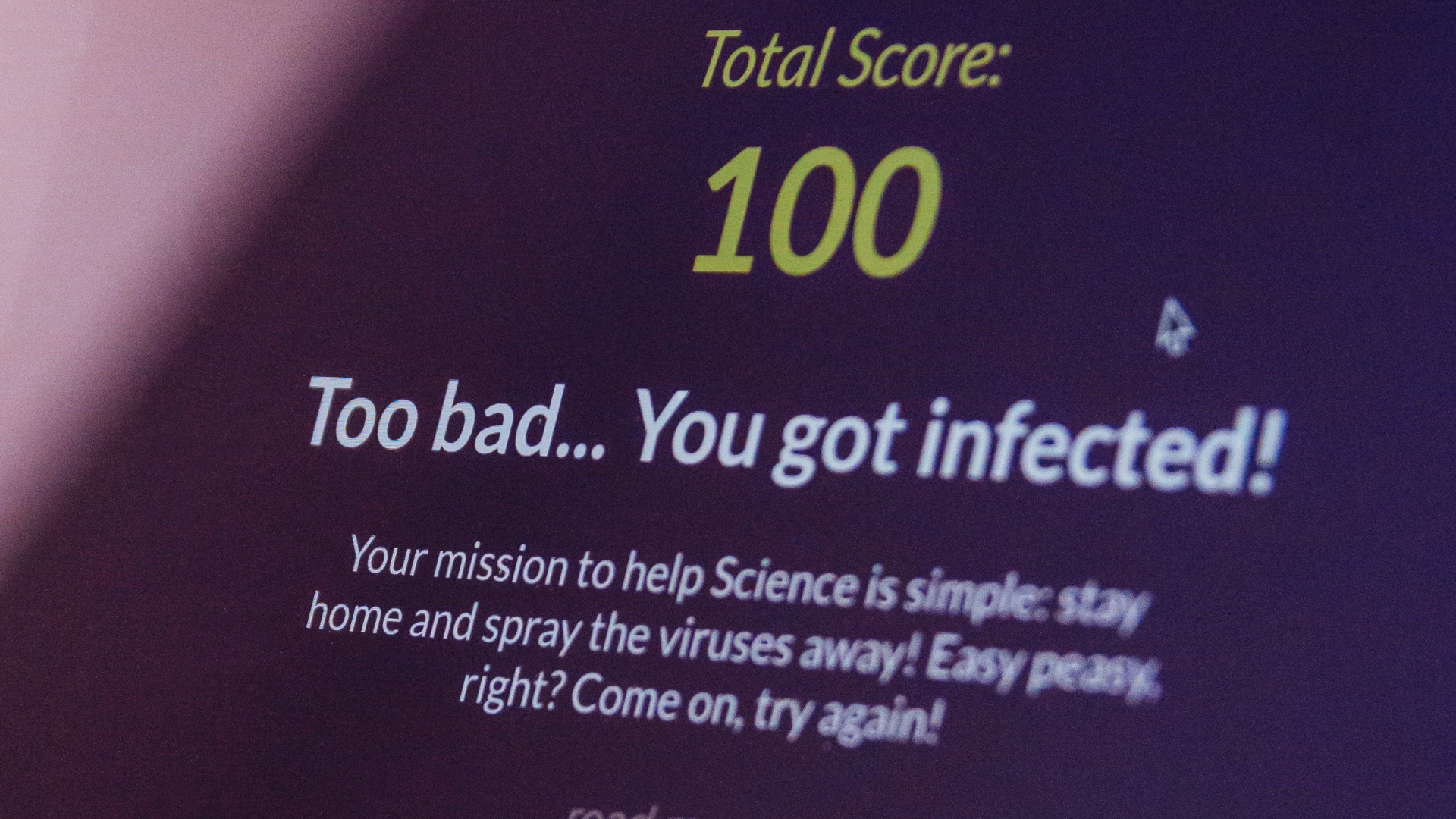
Oh, no! This random antivirus pop-up says you have 3000 viruses on your computer! What ever should you do? Well, you probably should do the smart thing:
ignore it. Following their instructions could install the very malware they claim to detect, or worse: connect you with someone trying to gain remote access.
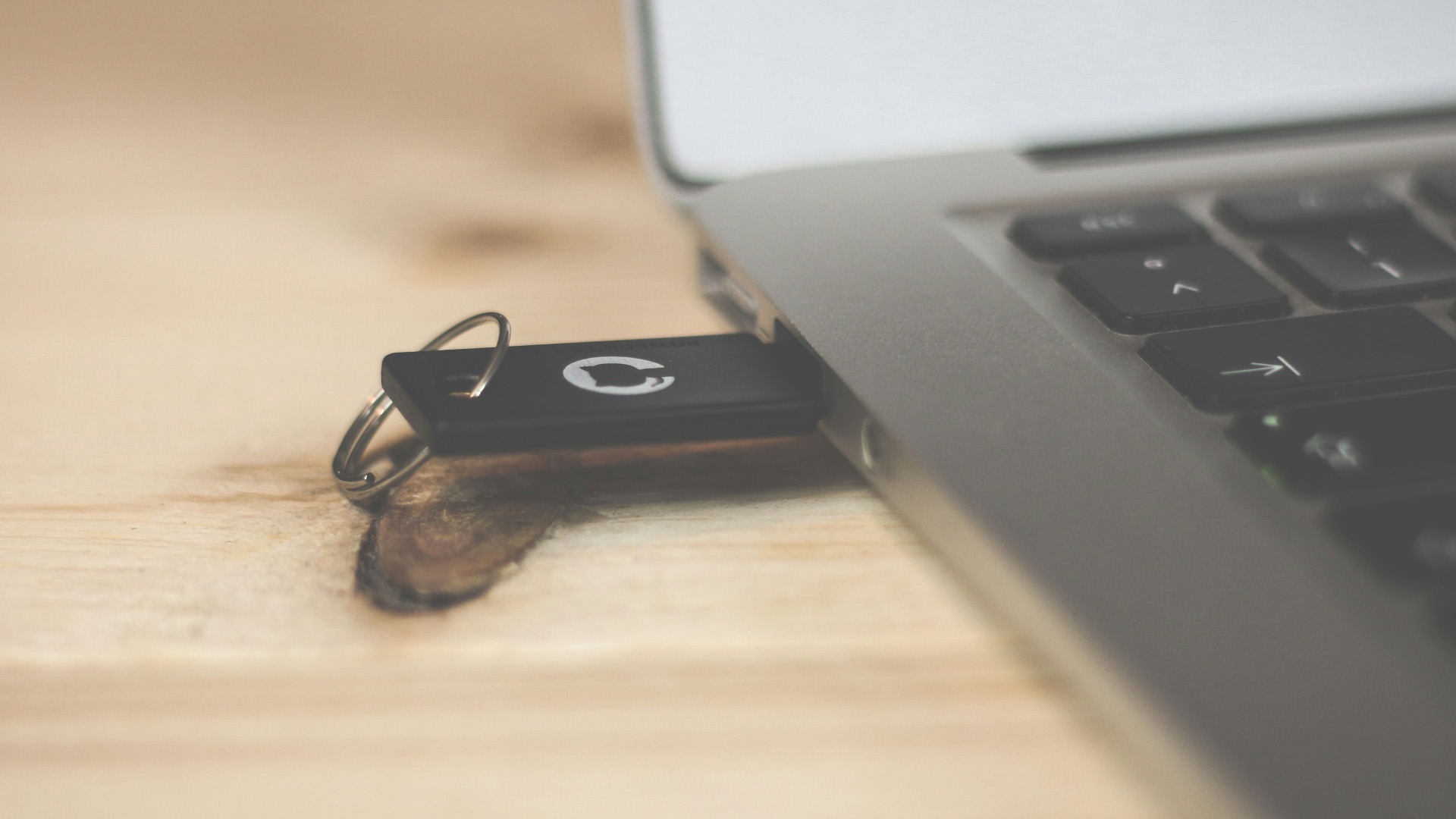
8. Plugging in Unknown USB Drives
Your curious brain might want to find out what's hiding on that USB drive you picked up in a parking lot, but you really shouldn't need us to tell you not to plug it into your computer. After all, you never know what could be stored on there, and it may even contain malicious files or programs designed to automatically run once opened.
9. Disabling Built-In Security Features
Those antivirus notifications might be annoying, but turning them off might land your computer in hot water. It's also why you should always be extra cautious whenever an application tells you to disable certain security tools—that can give you a huge clue as to what they're trying to do...
10. Allowing Anyone to Remotely Access Your Computer
Technical-support scams often begin with a simple pop-up claiming that your device has a serious problem. Fall for it, and you might be routed to a person asking you to install remote-access software so they can "examine" your computer and "repair" it. Obviously, it's all a lie, so never, ever grant remote control to anyone you don't know.
Phew! Now that the mistakes are out of the way, let's take a look at how you can strengthen your digital security.
1. Keep Your Operating System Updated
As we've mentioned, you don't want to ignore those software update notifications for too long! If you're tired of all the pop-ups, you can also enable automatic updates so important security patches can be installed without needing you to remember them.
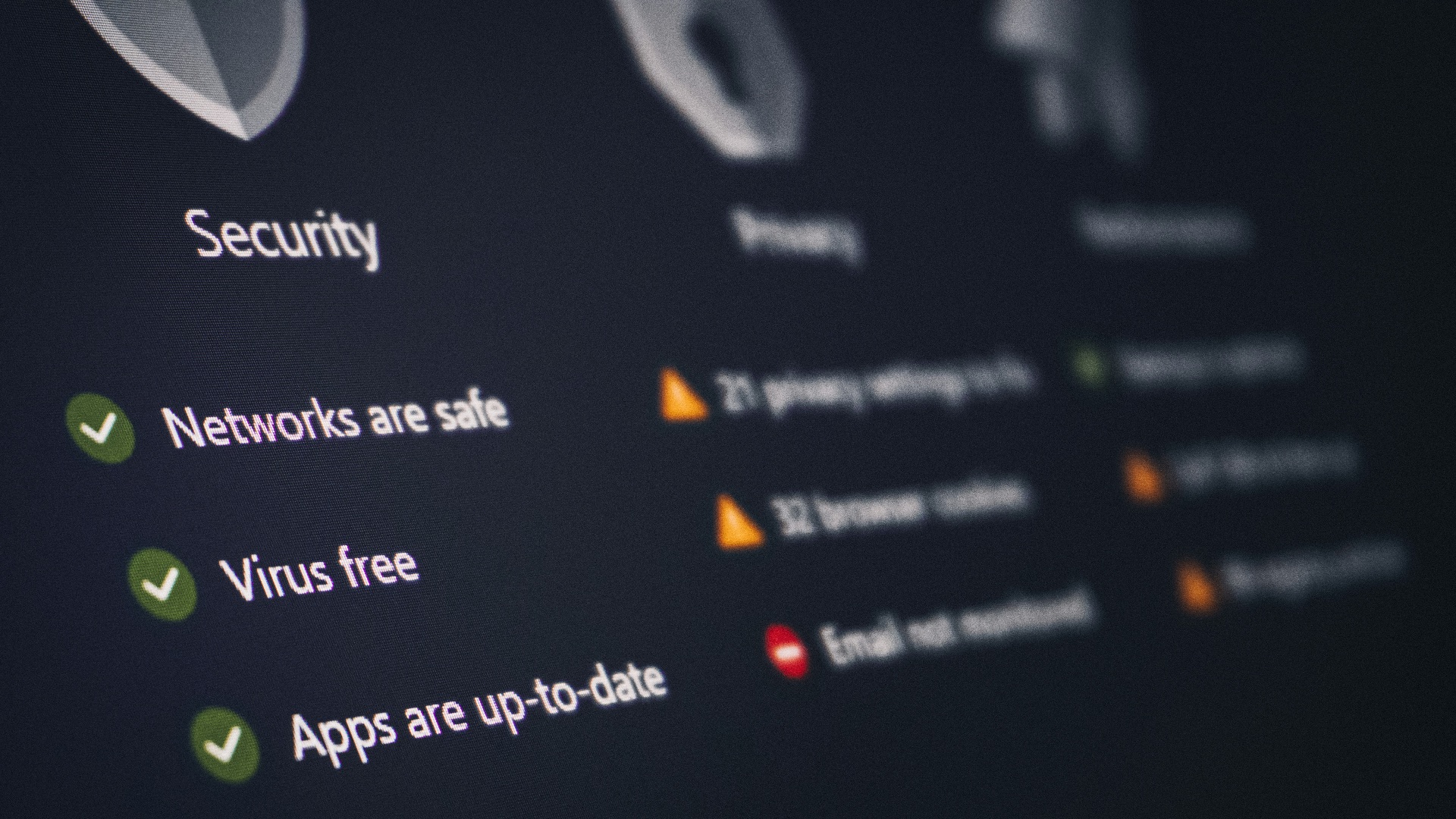
2. Leave Real-Time Protection Turned On
Windows and macOS include built-in protections that monitor files, applications, and other activity for known threats, so never, ever disable these features, especially for unknown programs. And if you use a separate antivirus product, always make sure to choose a reputable one!
3. Download Files from Reliable Sources
Building off the previous point, anything you download from the web should always be double-checked; whenever possible, go to an official app store or the developer’s own website. You'd be surprised how even a few extra seconds of verification can prevent you from downloading a convincing counterfeit.

4. Use Strong, Unique Passwords
Raise your hand if you use the same password for nearly everything. Got your hand raised? Well, you should know that you're only making it way easier for hackers to gain access to all your accounts. If you hate coming up with (and remembering) passwords, use a password manager!
5. Turn On Multifactor Authentication
Other than just having unique passwords, you should also have multifactor authentication turned on for all of your accounts. That way, should anyone ever successfully guess your password, you'll at least have an extra layer of protection.

6. Back Up Important Files Regularly
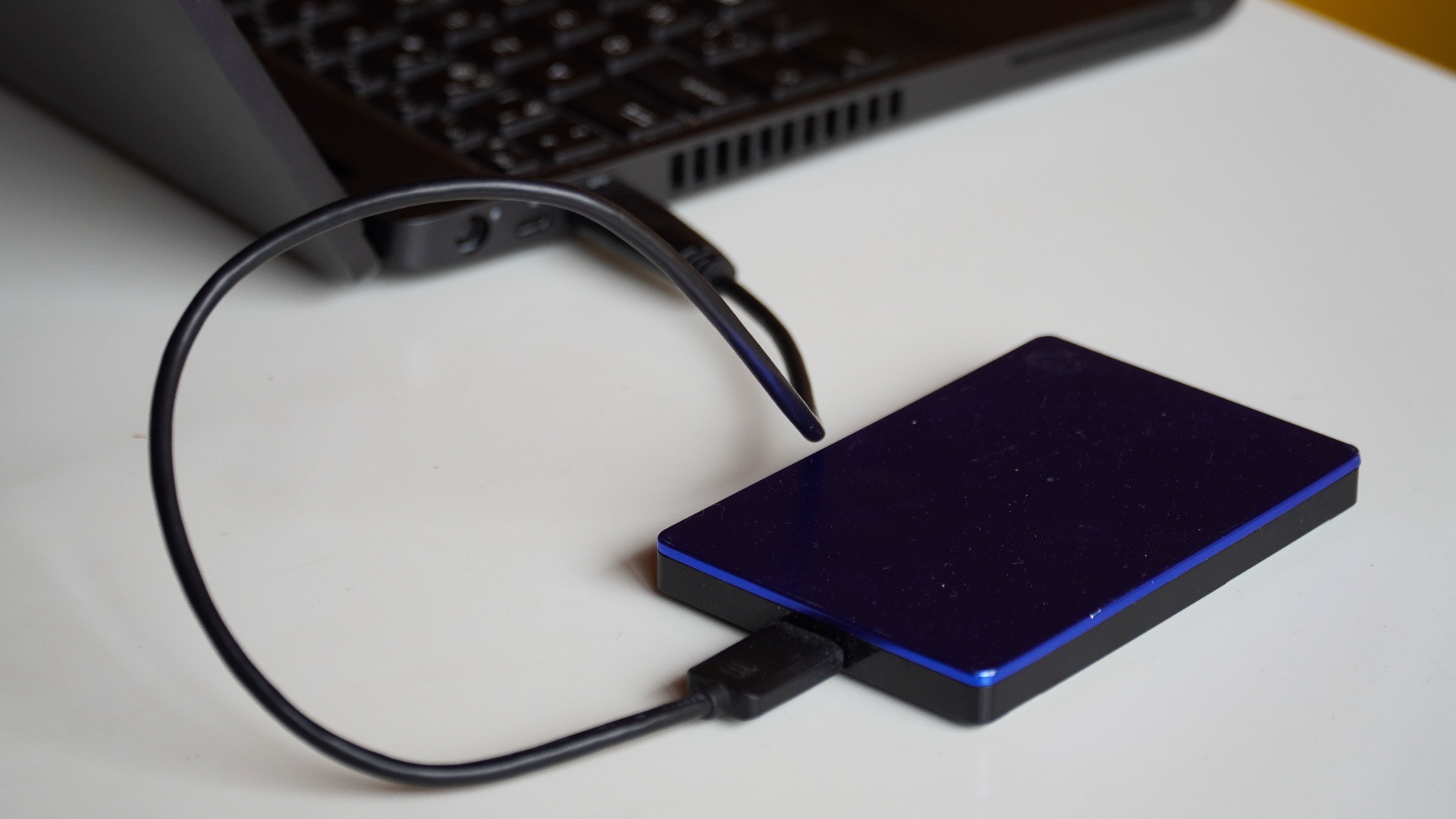
Uh-oh—you've accidentally exposed your computer to a virus, and now all your important files are compromised! To prevent this frightening scenario from ever happening, always make sure to back up your files regularly. Another tip: keep at least one copy separate from your computer, whether it’s stored in a reputable cloud service or on an external drive.
7. Review Browser Extensions and Installed Apps
Have way too many extensions? Whenever you have time, you should go through the list than letting them accumulate indefinitely; not only will this help you declutter, but you'll get rid of anything that seems suspicious. You should also examine the permissions requested by certain extensions!
8. Use a Standard Account for Daily Tasks
An administrator account can make major changes to the computer, which also gives malicious software more opportunities if it runs under that account. So, if possible, you should always stick to a standard user account for light browsing so it's not as easy for hackers to gain full control.
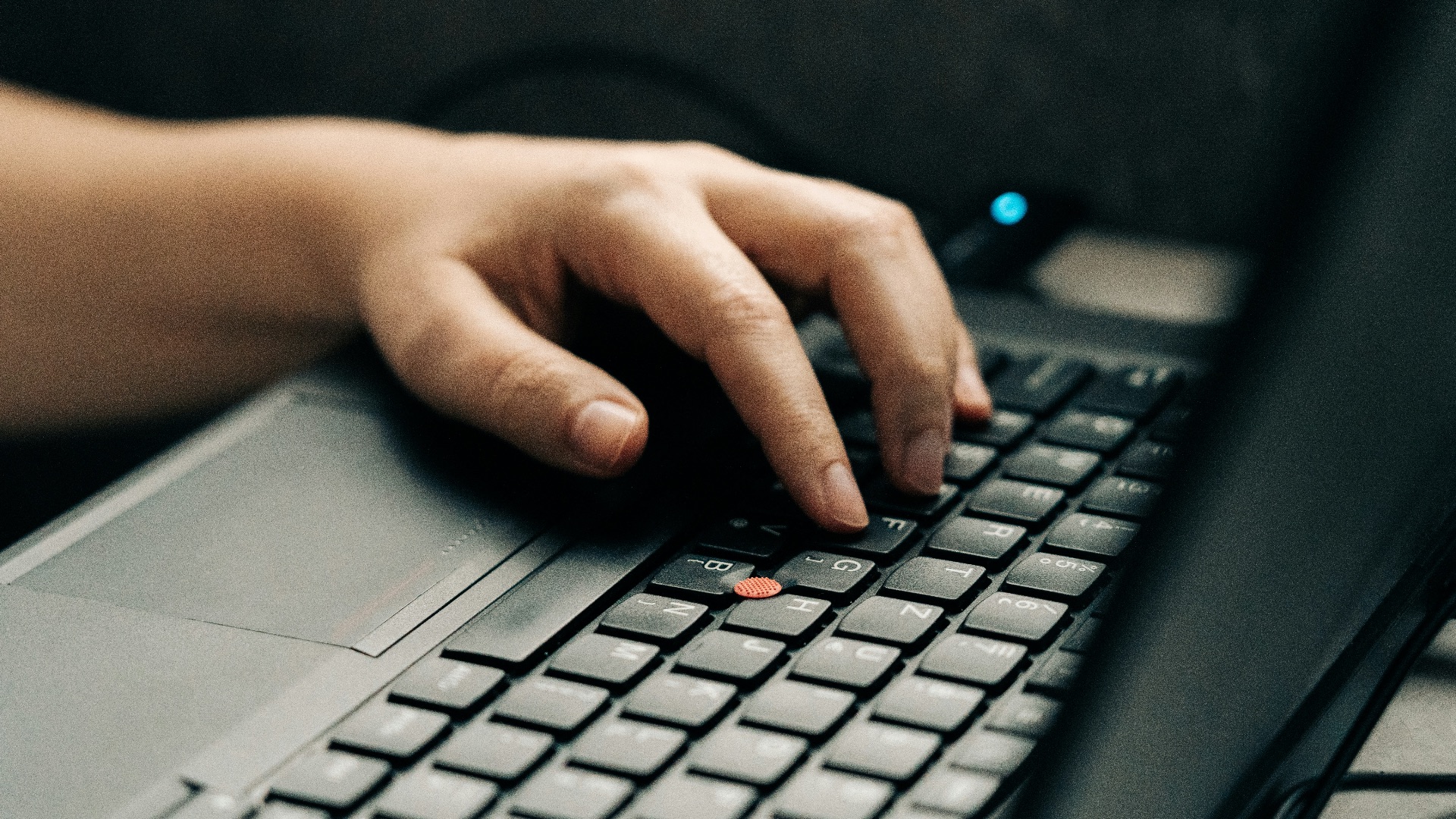
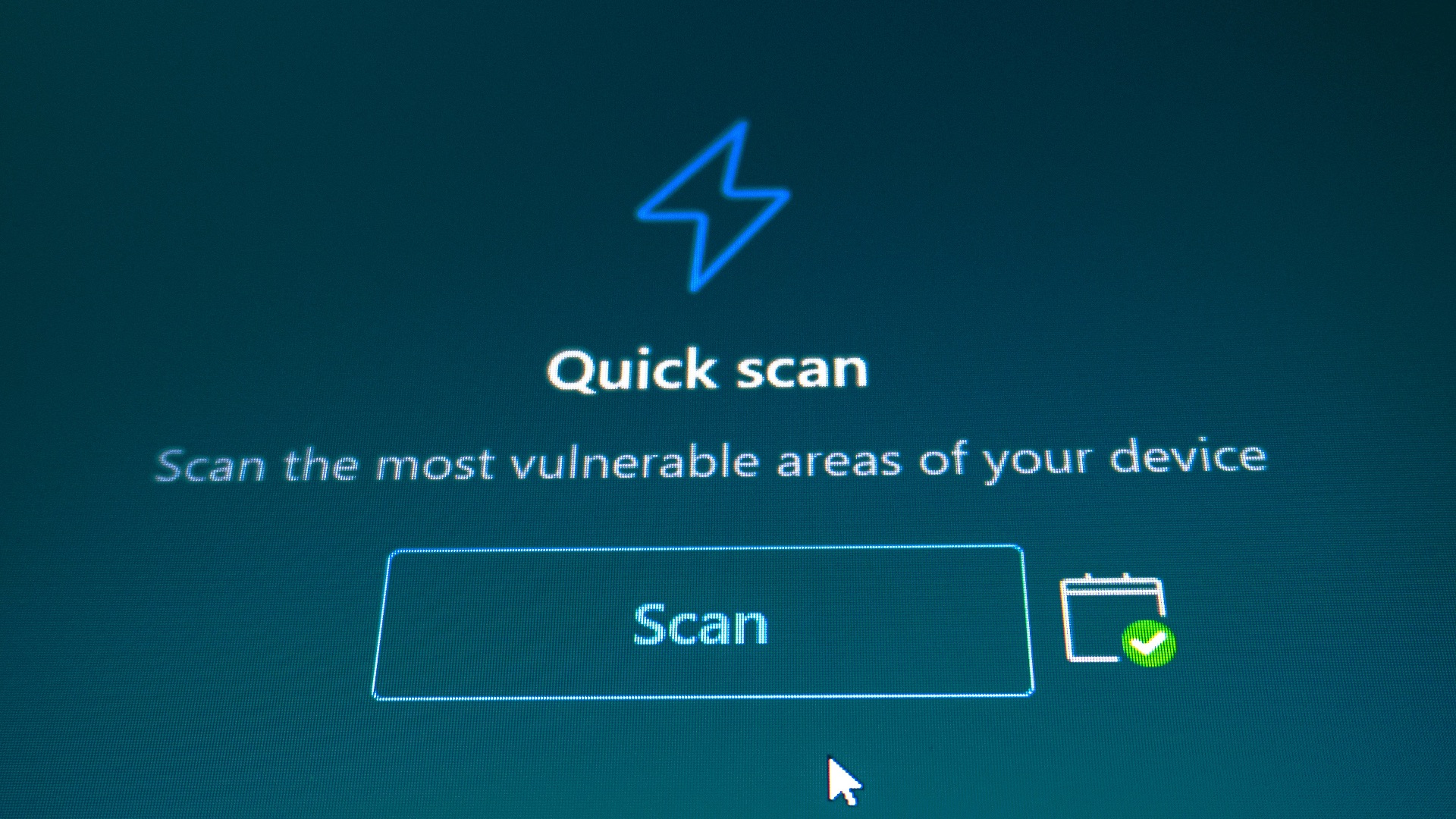
9. Scan Suspicious Files and Your Computer
Downloaded something questionable or clicked a suspicious link? Update your security software and run a scan! Even if your computer looks and works fine, some viruses are designed to be deceiving, so you never want to wait until it's too late.
10. Treat Unexpected Messages with Caution
Phishing attempts aren't only done through email, but they can also come via text messages, calls, and even compromised accounts belonging to people you know.
Whatever the platform, always exercise caution when a strange message pops up, and if you can, contact the person or company directly. Remember, as convincing as some of them may look, you don't want to fall for their tricks.