
10 Ways You're Accidentally Exposing Your Computer to Viruses & 10 Tips to Protect It
Bad, Risky Habits
How good are you at taking care of your computer? And by that we mean do you regularly make sure whatever you're doing on there is safe for it? Sure, that email telling you to reset your password because someone tried to log into your account might look legit, but chances are, clicking on the provided link will only make everything worse. Even downloading browser extensions and programs online can infect your computer with a virus. While modern computers certainly include stronger built-in security than older machines did, those defenses can’t prevent every mistake you make online. Here's how you're accidentally exposing your device to viruses, followed by some smart ways to protect it.
1. Downloading Programs from Unofficial Websites
When a paid application is offered free on an unfamiliar website, there’s usually a reason to be suspicious. Modified installers can contain malware that runs alongside the program you intended to download, sometimes without displaying anything unusual. Even legitimate free software may be repackaged by third-party sites with unwanted programs attached. Getting applications directly from their developers or an official app store gives you a much better chance of receiving the authentic version.
2. Clicking Links in Unexpected Emails
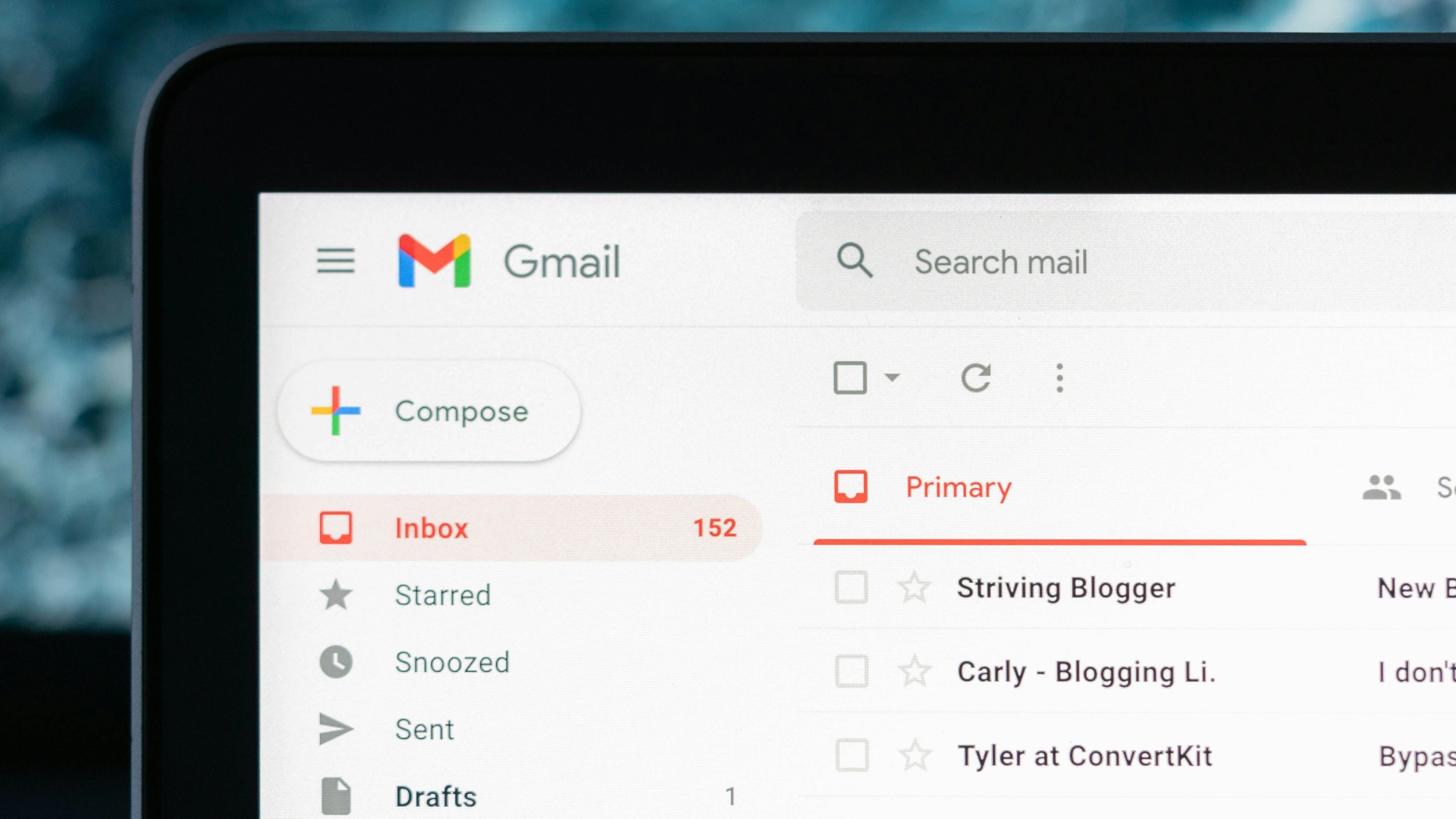
You probably already know that a message can look like it came from somewhere reputable while actually leading somewhere dangerous. Cybercriminals, after all, often create convincing copies of familiar login pages to steal passwords or persuade you to download infected files. Urgent language about account closures, missed packages, or unauthorized purchases is designed to make you act before examining the message. Instead of following its link, open the actual official website yourself and check your account there.
3. Opening Attachments Without Checking Them
An invoice, résumé, shipping document, or work file may appear harmless based on its name alone. However, malicious attachments can be disguised as common document types or may ask you to enable features that allow harmful code to run. A compromised email account can even send infected files from someone you know, making the message seem trustworthy. When an attachment arrives unexpectedly, confirm with the sender through another method before opening it.
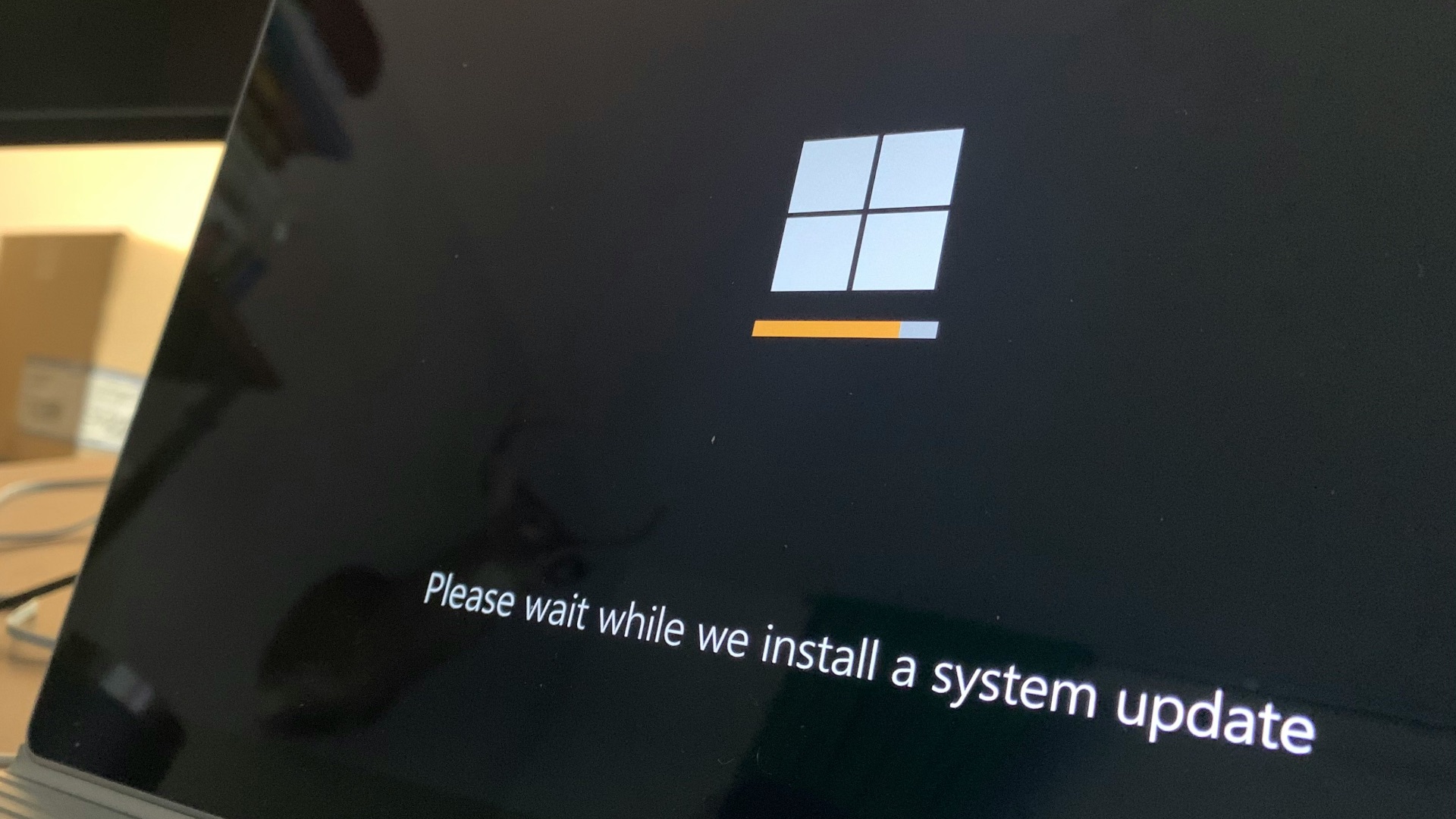
4. Postponing Software Updates for Too Long
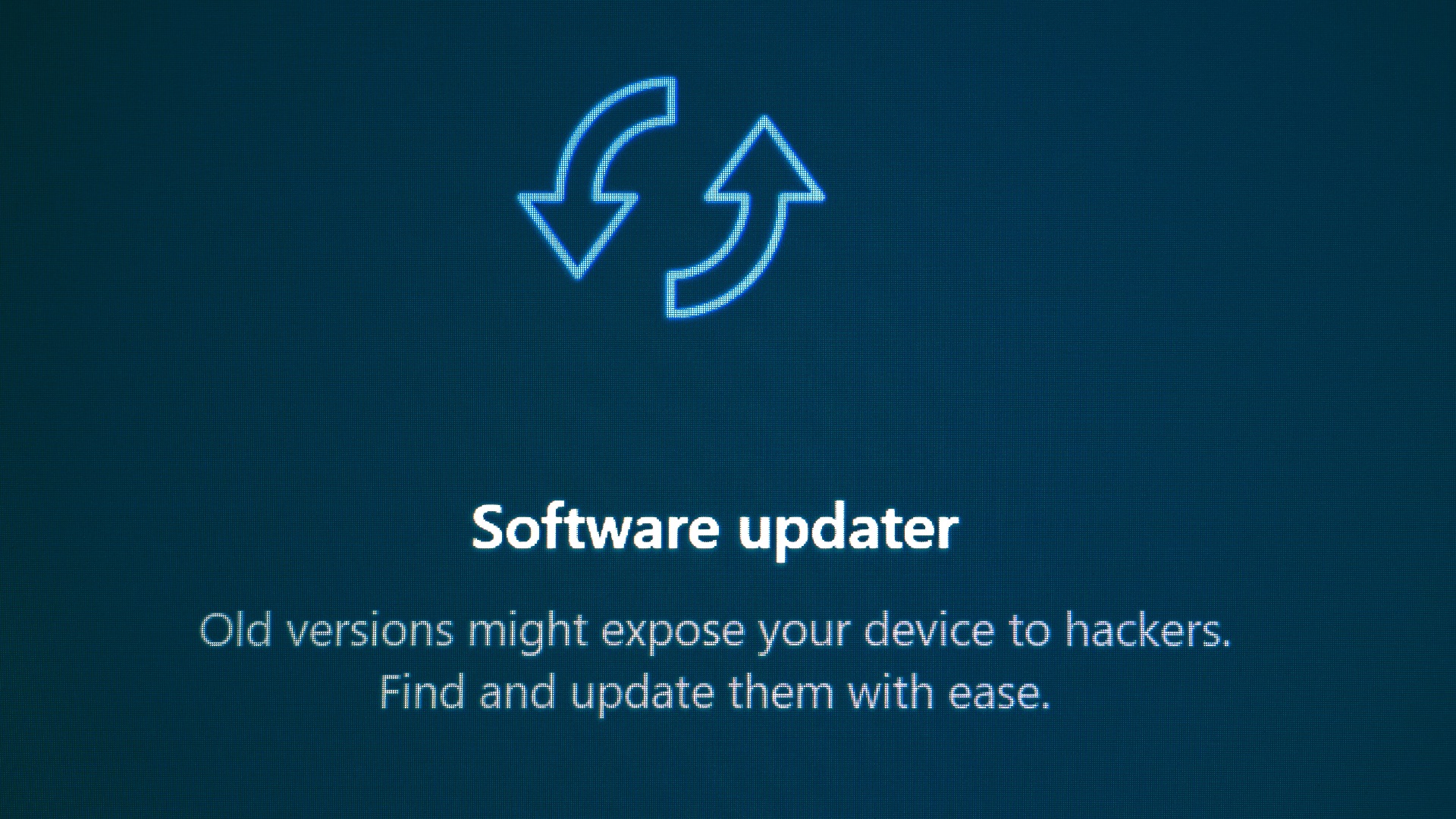
Update notifications have a habit of appearing when you’re busy, so clicking “remind me later” can become routine. Unfortunately, some updates repair security weaknesses that attackers already know how to exploit. Continuing to use an outdated operating system, browser, or application leaves those openings available for longer than necessary. The risk grows further when the software is so old that its developer no longer provides security fixes.
5. Installing Too Many Browser Extensions
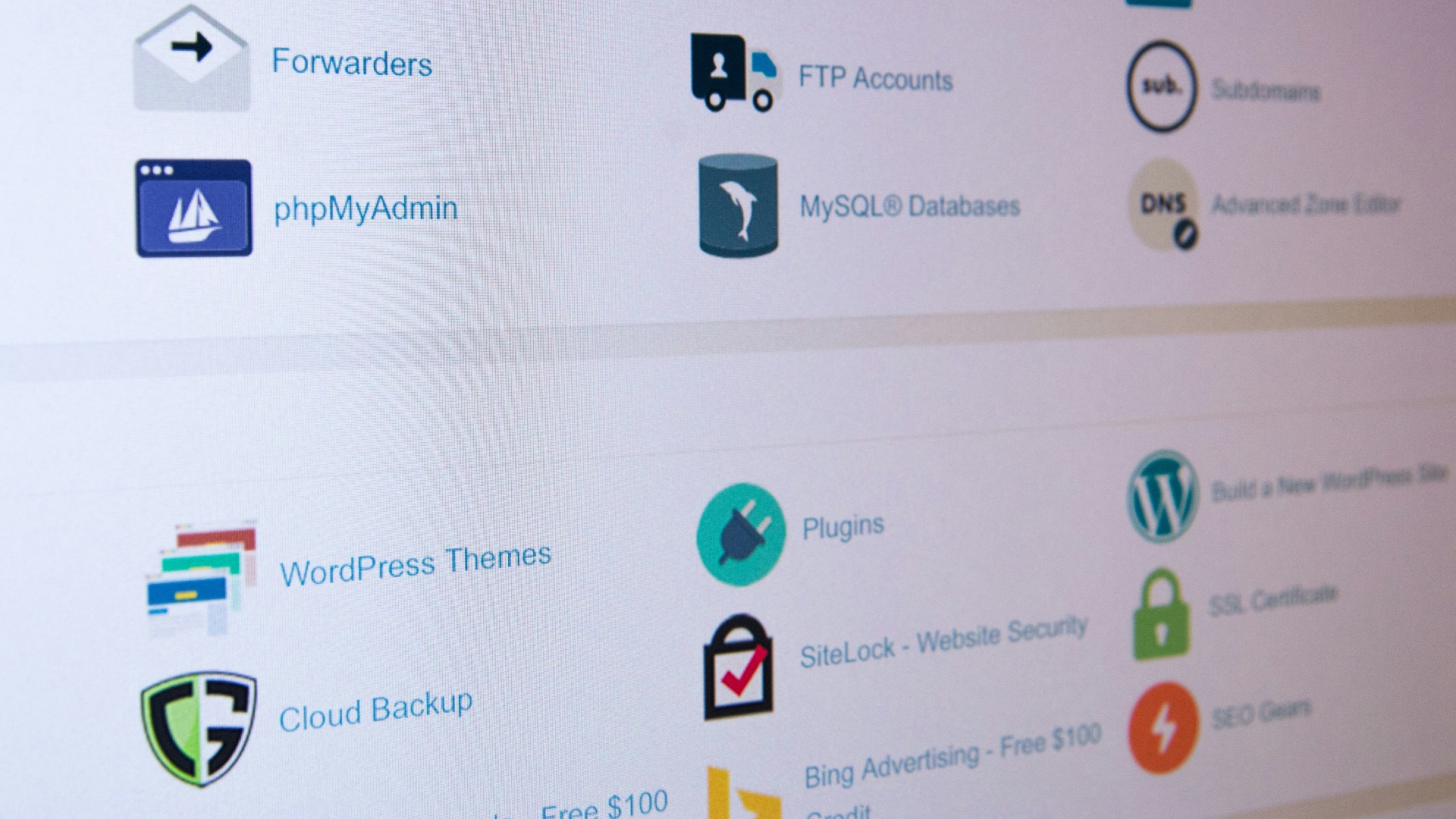
Browser extensions can block advertisements, compare prices, manage tabs, and perform countless other useful tasks. Each extension may also receive permission to view website activity, modify pages, or access information entered into your browser. A poorly secured extension could be compromised, while a dishonest one might collect more data than its stated purpose requires. Installing extensions casually can therefore expand the number of ways someone might interfere with your browsing.
 Stephen Phillips - Hostreviews.co.uk on Unsplash
6. Using Pirated Software and Media
Cracked applications, unauthorized games, and illegal media downloads frequently require you to ignore security warnings or disable protective features. That should immediately raise concern because legitimate software rarely needs you to weaken your computer before installing it. Files shared through torrent networks and unverified download pages may also be renamed to conceal what they really contain. Saving money on a program isn’t worthwhile when the download could expose your passwords, documents, and financial information.

7. Trusting Fake Virus Warnings
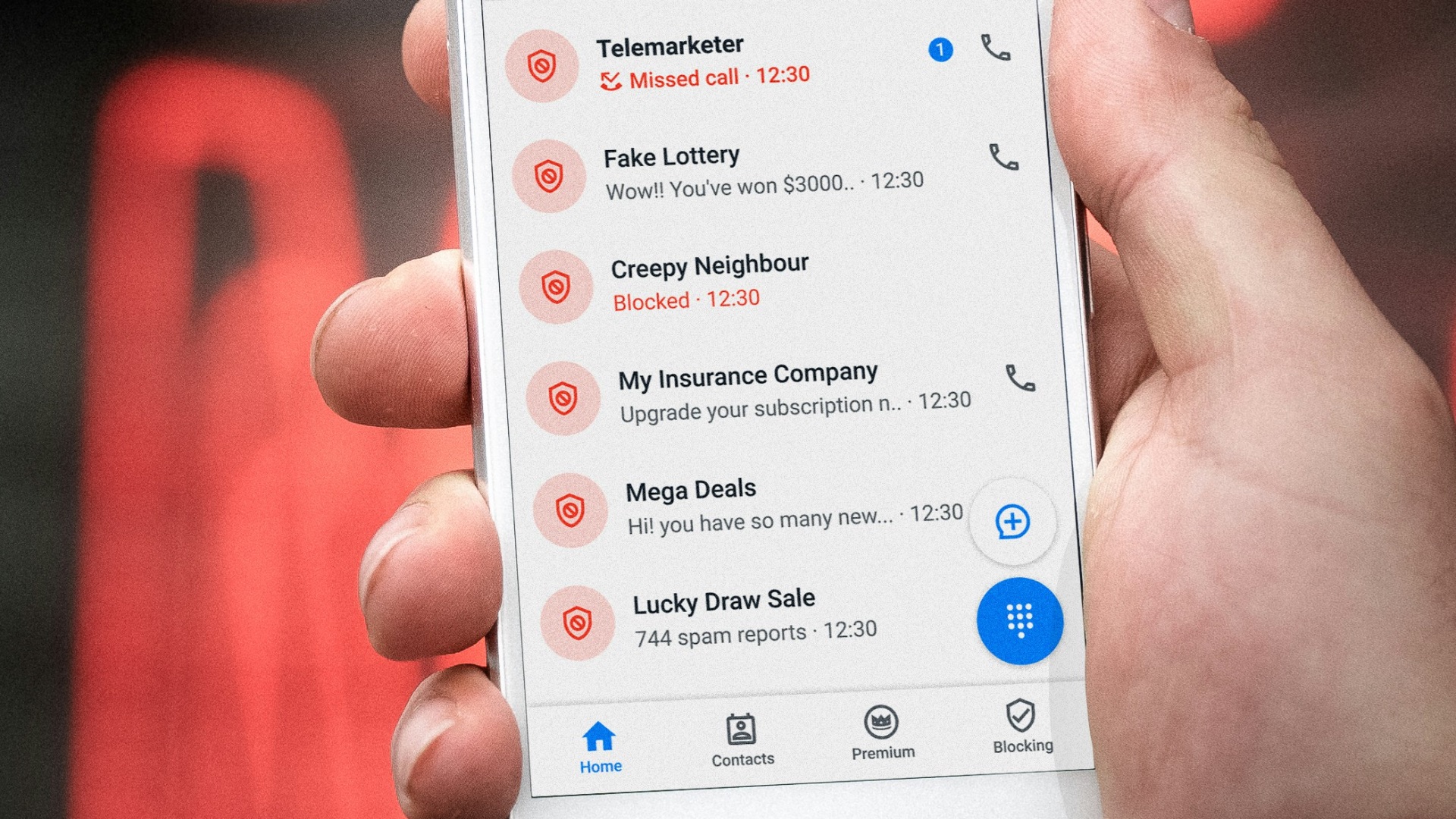
A dramatic pop-up may announce that your computer has dozens of viruses and urge you to call a number or install a security tool immediately. These warnings often come from the webpage you’re visiting rather than from your operating system or antivirus program. Following their instructions could install the very malware they claim to detect or connect you with someone trying to gain remote access. Close the browser tab instead of clicking buttons inside the warning, then check your computer through its legitimate security settings.
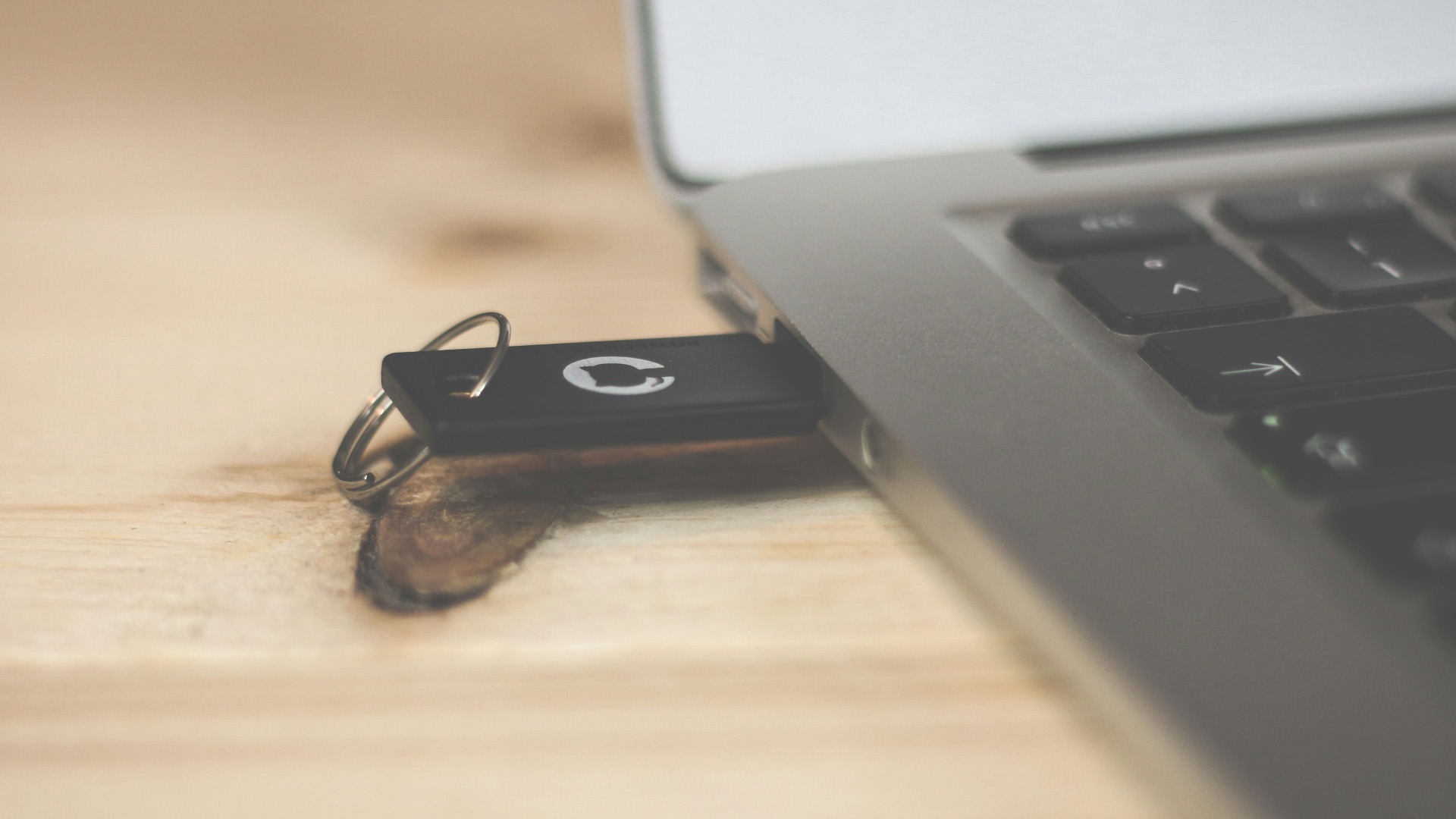
8. Plugging in Unknown USB Drives
Finding a USB drive in a parking lot, office, or shared computer area may make you curious about what’s stored on it. The device could contain malicious files, programs designed to run when opened, or hardware intended to interfere with the computer itself. Even a drive borrowed from someone you trust may have been infected by another machine without its owner realizing it. Unknown removable devices should never be treated as harmless simply because they look ordinary.
9. Disabling Built-In Security Features
Antivirus software, firewalls, browser warnings, and operating system protections can occasionally interrupt something you’re trying to do. Turning them off may solve the immediate inconvenience, but it also removes barriers that help detect or block suspicious activity. Some malicious installers specifically instruct users to disable security tools because the infection otherwise wouldn’t succeed. A program that can only run after your protections are switched off deserves extra scrutiny.
10. Allowing Anyone to Remotely Access Your Computer
Technical-support scams often begin with a phone call, pop-up, or message claiming that your device has a serious problem. The person may ask you to install remote-access software so they can examine the computer and supposedly repair it. Once connected, they could copy files, install malware, change settings, or pressure you into paying for unnecessary services. Never grant remote control to someone who contacted you unexpectedly, regardless of how professional the explanation sounds.
These mistakes can expose a computer in seconds, but preventing them, thankfully, doesn’t require advanced technical knowledge. Here's how to strengthen your digital security:
1. Keep Your Operating System Updated
Enable automatic updates so important security fixes can be installed without needing you to remember them. Restart the computer when required, since some protections don’t take effect until the system has rebooted. You should also check whether your current operating system is still officially supported. If updates have ended, moving to a supported version or replacing an incompatible device may be the safest option.
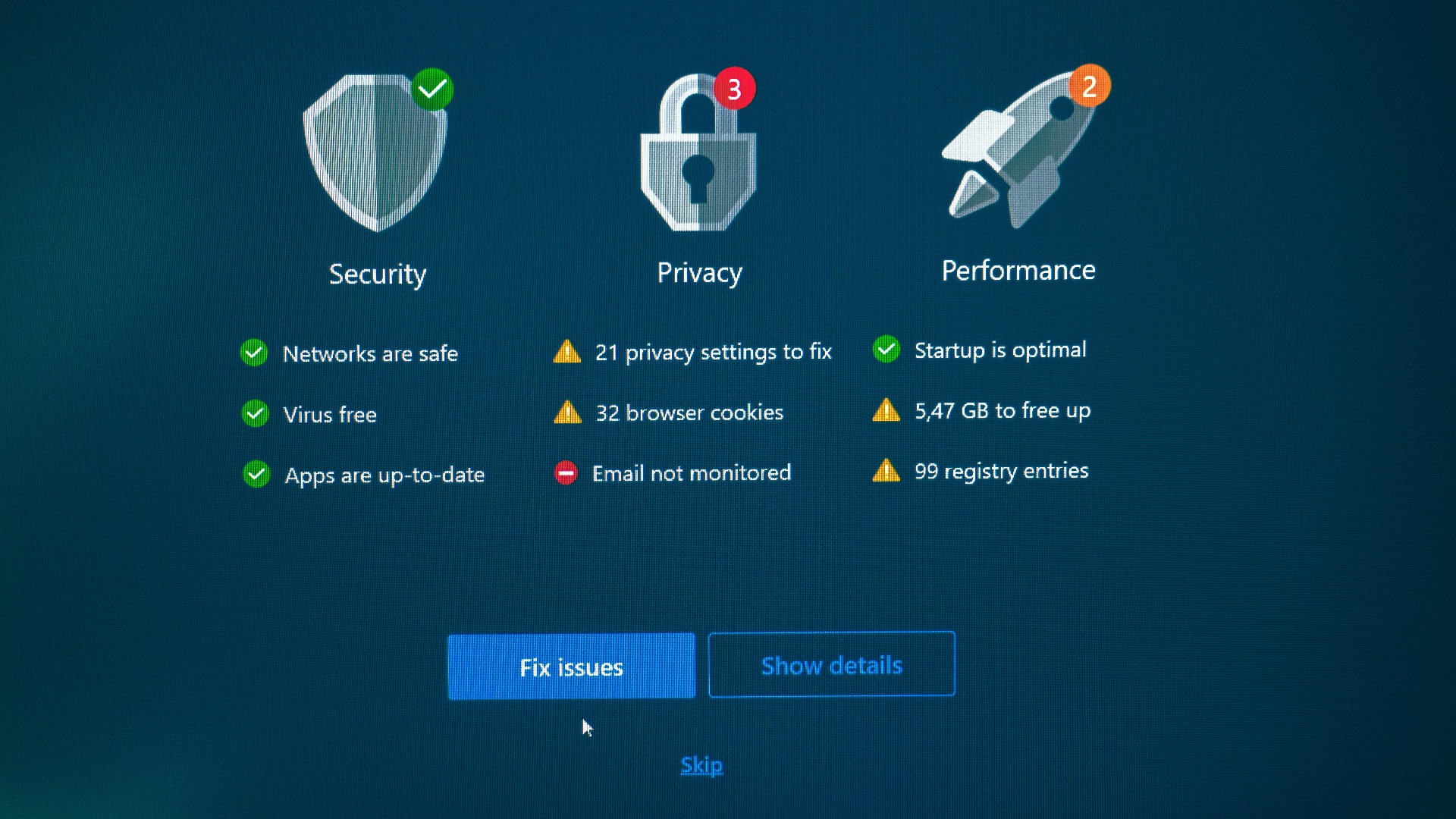
2. Leave Real-Time Protection Turned On
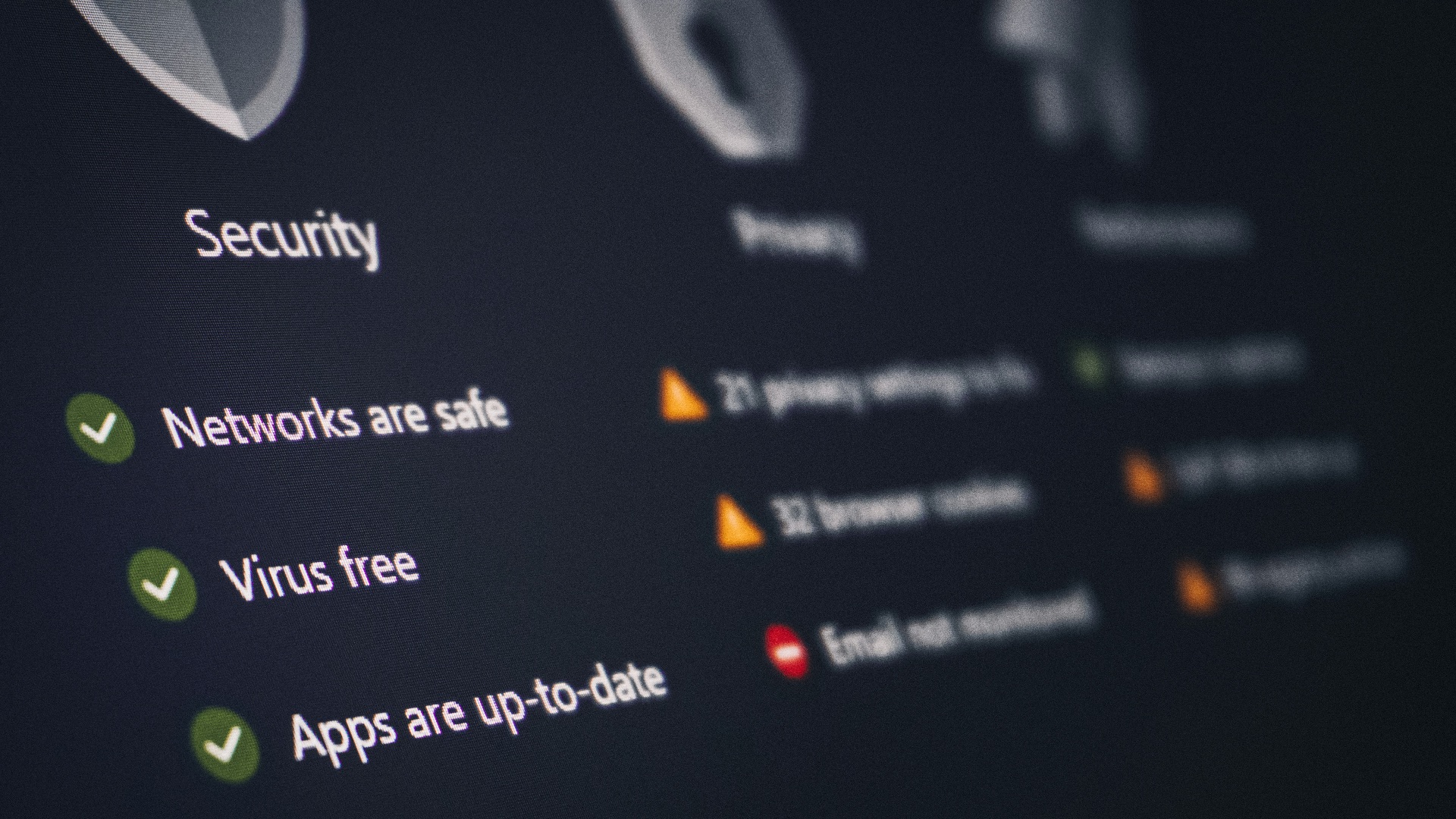
Windows and macOS include built-in protections that monitor files, applications, and other activity for known threats. Make sure those features remain enabled and receive their automatic security updates. If you use a separate antivirus product, choose a reputable one and avoid running several real-time antivirus programs at once. Multiple security programs can conflict with each other without necessarily providing better protection.
3. Download Files from Reliable Sources
Whenever possible, obtain software from an official app store or the developer’s own website. Be cautious when search results display advertisements above the real download page, since misleading ads can imitate well-known brands. Check the website address and publisher name before beginning an installation. A few extra seconds of verification can prevent you from downloading a convincing counterfeit.

4. Use Strong, Unique Passwords
A virus may target stored passwords, but reused credentials can make the resulting damage much worse. If the same password protects several accounts, stealing it once may give an attacker access to your email, shopping profiles, cloud storage, and other services. Use a password manager to create and store long, unique passwords without having to memorize each one. Protect the manager itself with a particularly strong master password.
5. Turn On Multifactor Authentication
Multifactor authentication requires another form of verification in addition to your password. That extra step can stop someone from entering an account even after the password has been stolen through malware or phishing. Start with your email account because it can often be used to reset passwords for many other services. Authentication apps, security keys, passkeys, and device-based prompts generally offer stronger protection than relying only on texted codes.

6. Back Up Important Files Regularly
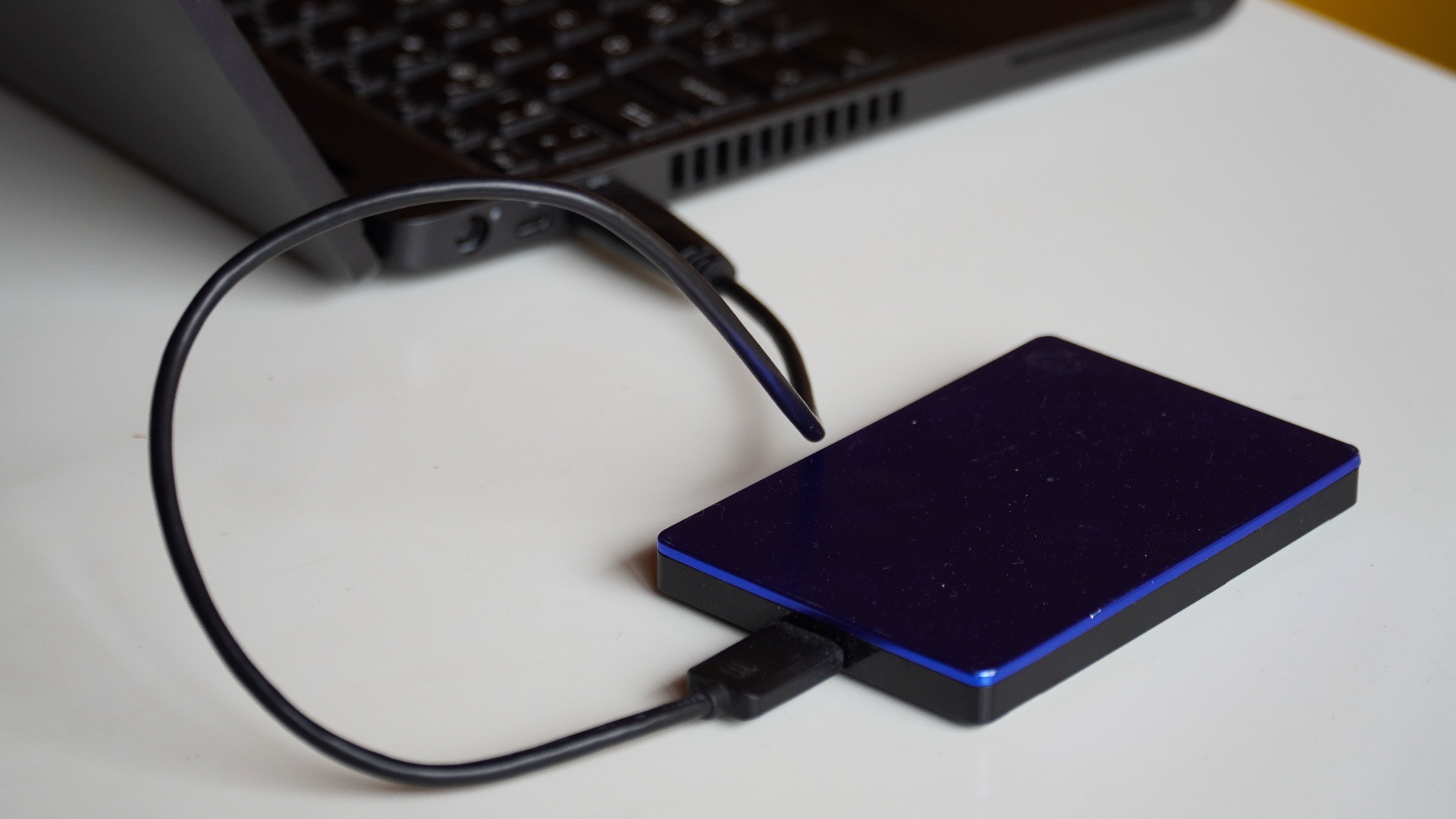
Some malware corrupts, deletes, or encrypts files in an attempt to make them inaccessible. A current backup lets you recover important documents and photos without depending entirely on the infected computer. Keep at least one copy separate from the device, whether it’s stored in a reputable cloud service or on an external drive that isn’t always connected. Occasionally test the backup to make sure the files can actually be restored.
7. Review Browser Extensions and Installed Apps
Go through your extensions and programs occasionally rather than allowing forgotten downloads to accumulate indefinitely. Remove anything you no longer use, don’t recognize, or can’t trace to a reliable publisher. You should also examine the permissions requested by extensions that remain installed. A simple tool shouldn’t necessarily need access to every webpage you visit or everything you type.
8. Use a Standard Account for Daily Tasks
An administrator account can make major changes to the computer, which also gives malicious software more opportunities if it runs under that account. Using a standard user account for browsing, email, and routine work limits what many unwanted programs can alter without additional approval. Keep a separate administrator account for installations and system changes. When the computer requests elevated permission unexpectedly, stop and investigate before approving it.

9. Scan Suspicious Files and Your Computer
If you downloaded something questionable or clicked a suspicious link, update your security software and run a scan. A quick scan may be useful for routine checks, while a full or offline scan can examine the system more thoroughly when you suspect an infection. Don’t assume everything is fine just because the computer appears to work normally. Some malicious programs are designed to avoid obvious disruptions while continuing to collect information.
10. Treat Unexpected Messages with Caution
Phishing attempts can arrive through email, text messages, workplace platforms, social media, and even compromised accounts belonging to people you know. Pause whenever a message pressures you to open a file, enter a password, send money, or bypass normal procedures. Contact the person or company using information you already trust rather than replying through the suspicious message. Careful verification remains one of the most effective protections because many infections still depend on persuading someone to take the first step.