

Is Microsoft Word Really the Best?
Microsoft Word has been around for decades, but there’s a reason it remains the default word processor for everything from school assignments to business reports. Its enormous feature set, familiar interface, extensive formatting controls, and compatibility with the DOCX format make it hard to replace when you need to create a polished, professional document. Still, Word isn’t perfect, and there's thankfully plenty of free alternatives that offer features that can make more sense depending on how and where you work. Who needs Word, anyway?

1. It Has Practically Every Feature You Could Need
Microsoft Word can handle far more than basic typing and formatting. You can create tables, charts, footnotes, citations, indexes, forms, mail merges, headers, and complex page layouts without leaving the program. Its sheer range of tools is one of the biggest reasons it continues to work for both everyday documents and demanding professional projects.

2. Its Formatting Tools Are Extremely Detailed
If you care about exactly how a document looks, Word gives you plenty of control over fonts, spacing, margins, columns, page breaks, images, tables, and other layout elements. You can also create and modify styles instead of manually formatting every heading or paragraph. That level of control is particularly useful when you're working on lengthy documents that need to follow specific formatting requirements.
3. Track Changes Makes Editing Much Easier
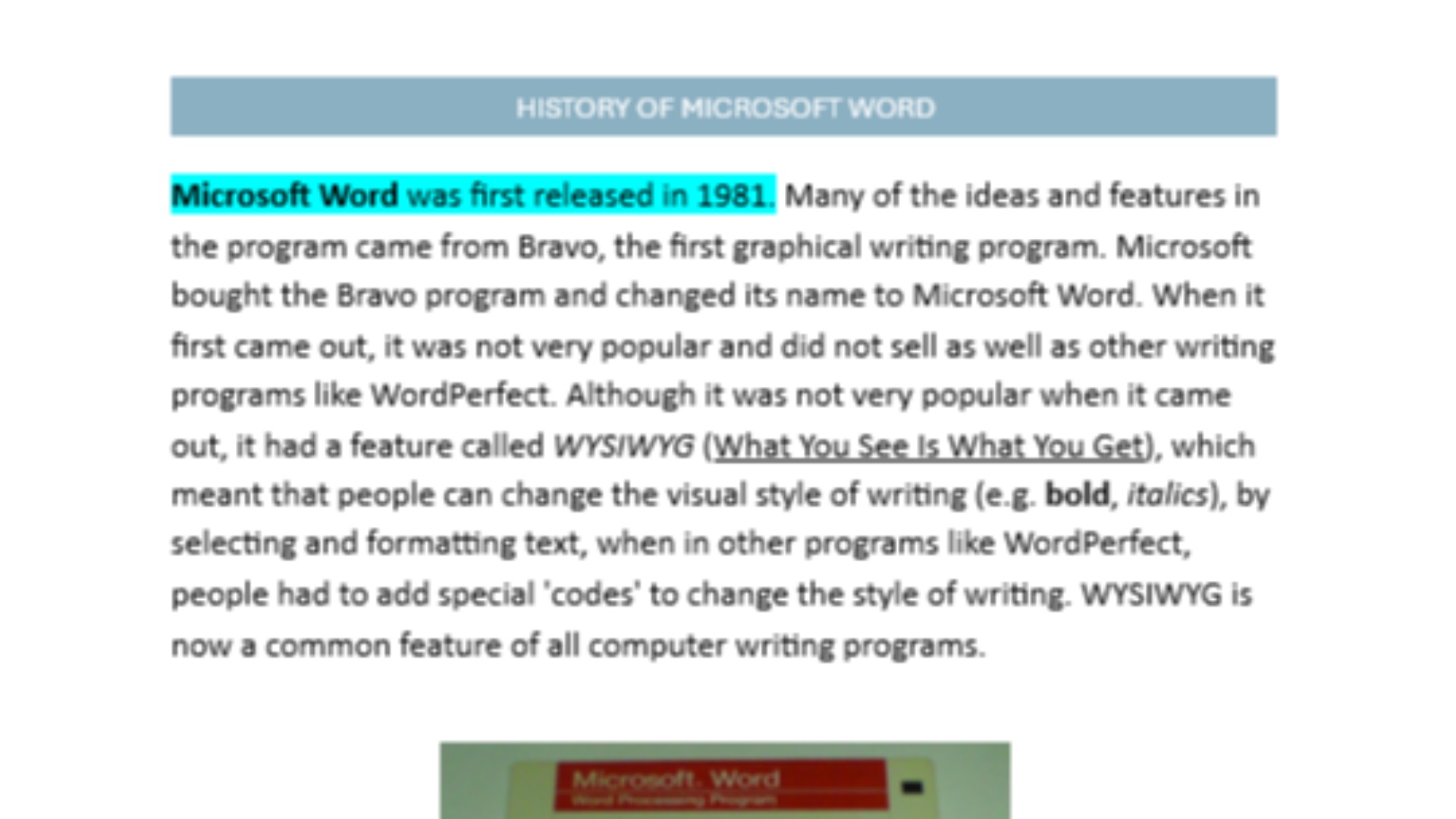
Anyone who regularly edits documents with other people knows how important Track Changes can be. Word lets you see additions, deletions, formatting changes, and other revisions, while also giving you the option to accept or reject individual changes. You can even choose whether to track only your own changes or those made by everyone working on the document.

4. It Handles Long Documents Well
Word isn't limited to short letters and quick assignments. Its tools for headings, navigation, page numbering, tables of contents, footnotes, and other document elements make it useful for lengthy reports, books, theses, and other large projects. Once you learn how those features work together, managing a document with hundreds of pages becomes considerably easier.
 https://kaboompics.com/ on Pexels
5. DOCX Is Practically a Universal Standard
There's a good chance that when someone asks you to send a document, they want a Word file. DOCX is supported by a huge range of software, which means you're less likely to run into compatibility problems when sending your work to someone else. That matters even more in professional settings where a document may pass through several people before it's finalized.
6. It Plays Nicely with Other Microsoft Apps
Word becomes even more useful if you already use Excel, PowerPoint, OneDrive, Outlook, or other Microsoft 365 services. You can incorporate information from other Microsoft applications and keep your files within the same broader ecosystem. For people who already rely on Microsoft products for work or school, staying in Word can be considerably more convenient than moving between unrelated programs.

7. Collaboration Is Built Right In
Word isn't just a desktop program anymore. You can share documents, work with other people at the same time, add comments, and see collaborators' changes, with Word for the web offering real-time co-editing. That gives Word many of the collaborative capabilities that helped cloud-based word processors become so popular in the first place.

8. Templates Save You from Starting at Square One
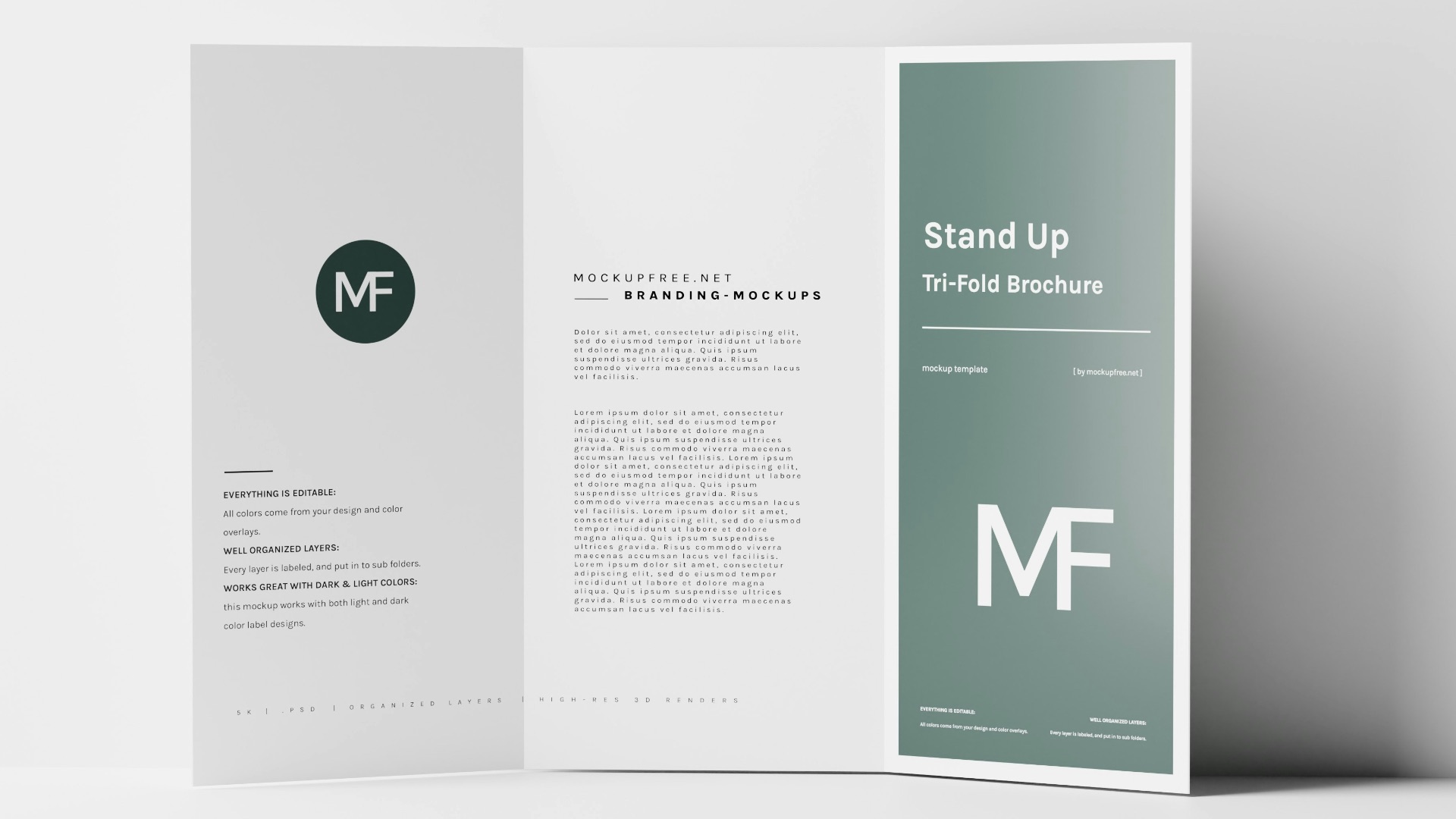
You don't have to design every document from scratch in Word. Its templates can give you a starting point for resumes, letters, reports, brochures, invitations, and other common documents, which can save a surprising amount of time. You can then customize the template instead of spending your first 20 minutes deciding how everything should be laid out.
9. It Has Mature Proofreading and Writing Tools
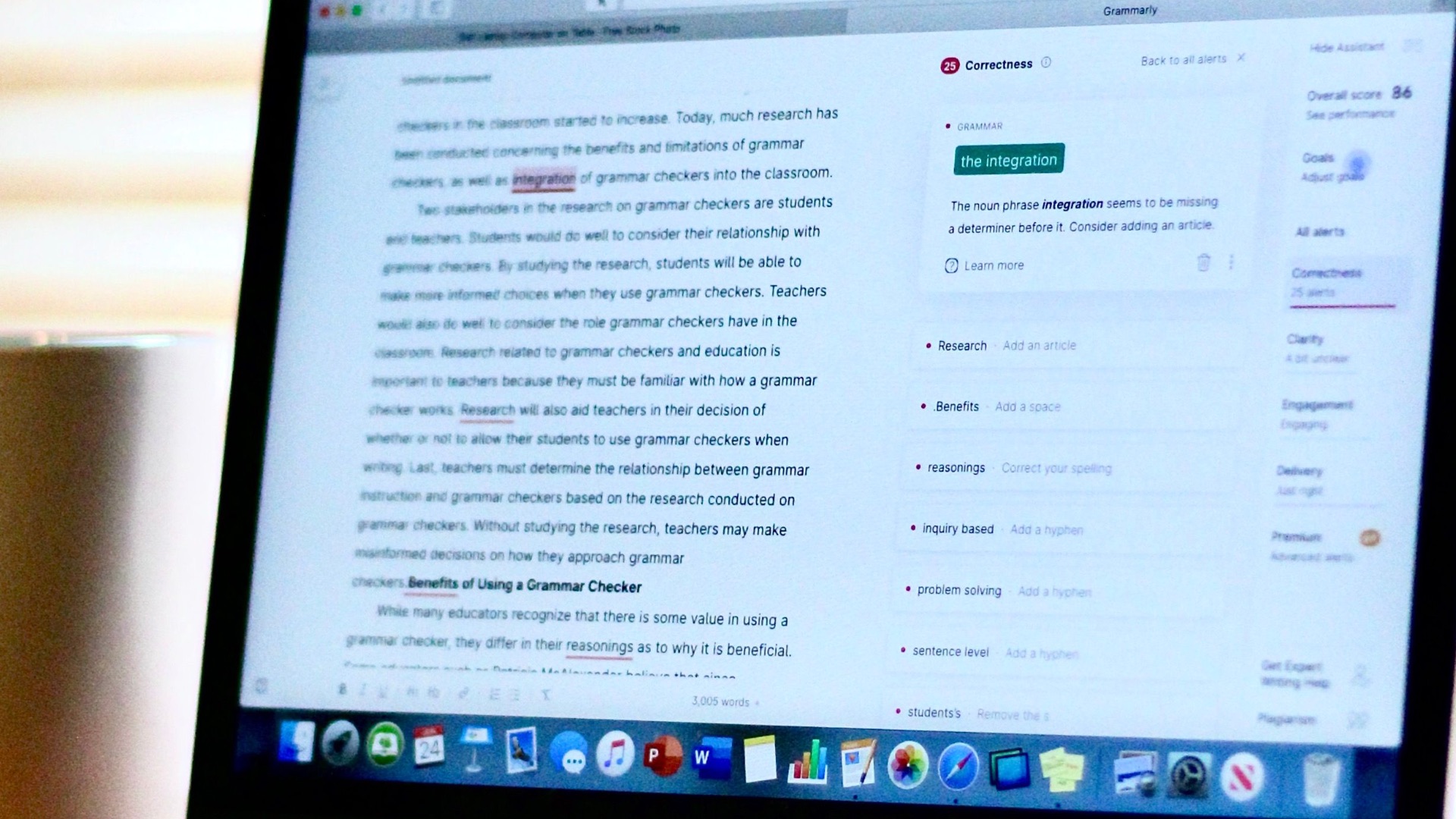
Word includes spelling and grammar assistance, along with additional writing and editing tools that can help you catch problems as you work. Microsoft has also added AI features through Copilot in Word for users who have access to them. Whether you're writing a quick email or polishing a long report, having those tools available in the same application can make the editing process more convenient.
10. Most People Are Already Familiar
There's also a practical advantage to Word that isn't tied to a particular feature: familiarity. If you've used computers at school or work, there's a good chance you've encountered Word before, so you don't have to spend much time learning the basics. That familiarity also makes it easier to exchange documents with coworkers, teachers, editors, clients, and other people who already use the program.
If Word does all of that, why would you bother switching? The answer is simple: you don't always need all of those features, and you don't necessarily want to pay for Microsoft 365 just to write and edit documents. That's why the next 10 alternatives can come out ahead when affordability and accessibility matter more. (The best thing: they're all free!)

1. LibreOffice Writer
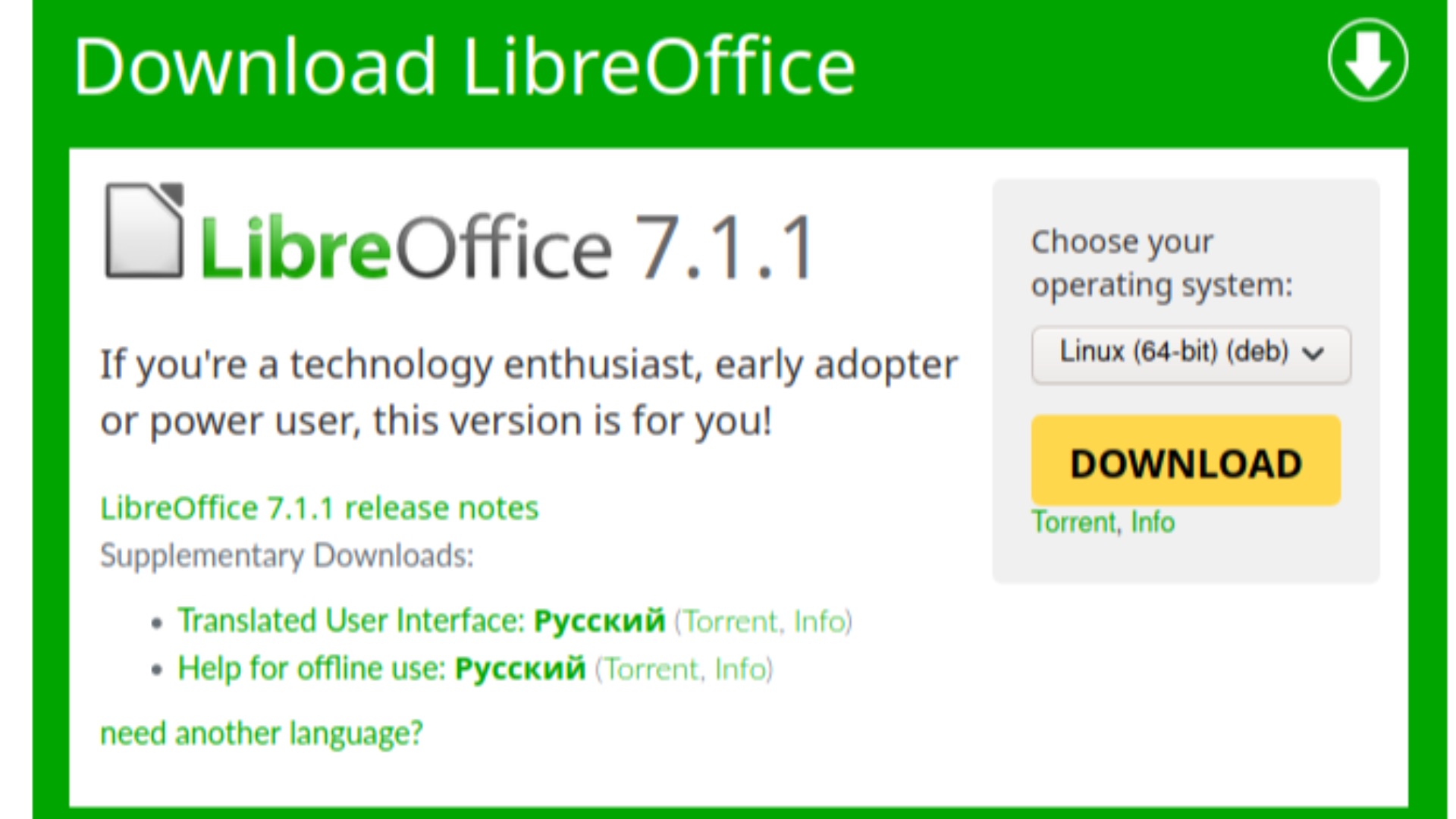
LibreOffice Writer is one of the strongest choices if you want a traditional desktop word processor without paying for Microsoft Office. It's free and open source, works with formats including DOC and DOCX, and includes extensive tools for creating everything from basic documents to lengthy academic projects. You may notice some differences when moving between Writer and Word, but it's remarkably capable for something that costs nothing.
2. Google Docs
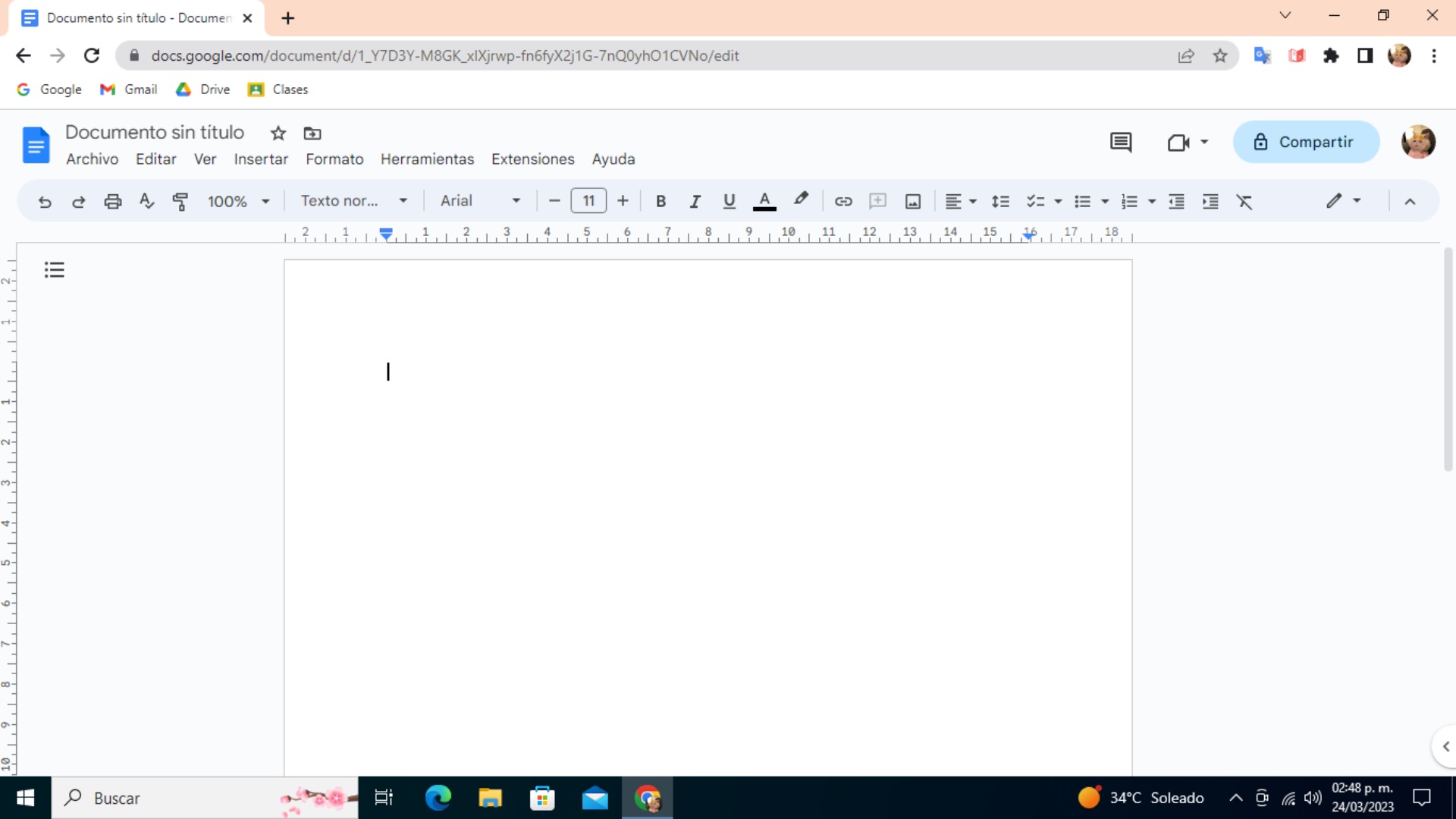
If you're constantly sharing documents with other people, Google Docs may be the more convenient choice. Anyone with a Google Account can create documents, and multiple people can edit the same file at the same time while comments, permissions, and revision history help keep the project organized. You can also import or directly edit Word files, so switching doesn't require abandoning your existing documents.
3. Zoho Writer
Zoho Writer is a particularly interesting option if you want a browser-based word processor without paying a subscription. Zoho says Writer is completely free, with access to its features after you sign up, and it can import Word documents while exporting files as DOCX and PDF. It also offers tools such as grammar checking, translation, document automation, and offline editing, giving it plenty of appeal beyond basic word processing.

4. ONLYOFFICE
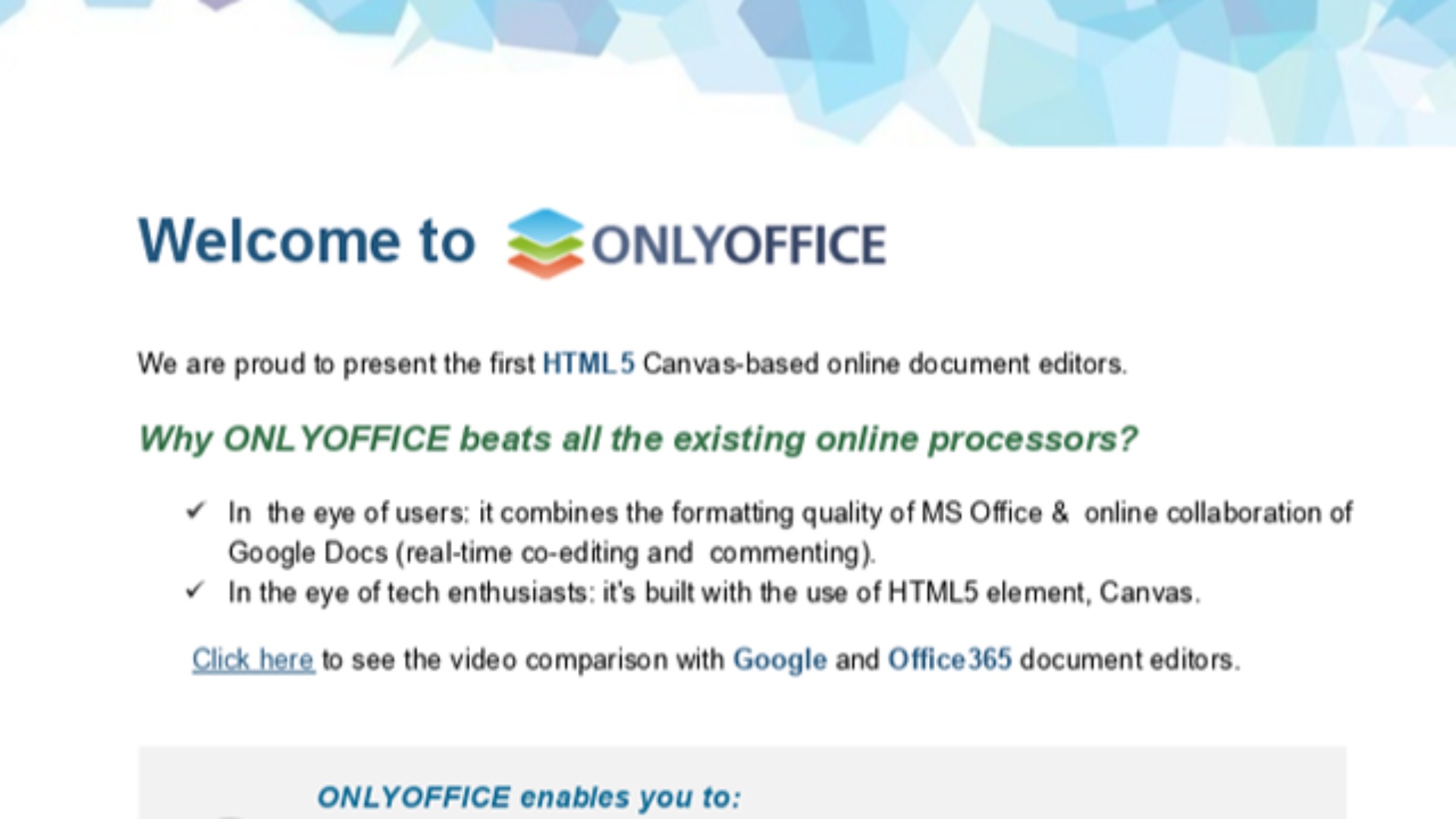
ONLYOFFICE is worth considering if you want a free desktop program that feels closer to a conventional office suite. Its free Desktop Editors work on Windows, macOS, and Linux, support DOCX and other popular formats, and can edit documents offline. If your biggest concern about leaving Word is compatibility, ONLYOFFICE makes that transition easier.
5. WPS Writer
WPS Writer takes a more feature-heavy approach, combining traditional word-processing tools with PDF functions and AI features. The free version can open, edit, and save common Word formats, while WPS also offers tools for rewriting, summarizing, translating, and checking documents. It can be a particularly appealing alternative if you want more than a simple replacement for Word.

6. FreeOffice TextMaker
FreeOffice TextMaker is designed specifically as a free alternative to Microsoft Word, so it makes sense for anyone who wants a conventional desktop writing experience. It works on Windows, macOS, and Linux, supports DOC and DOCX files, and can create PDFs directly from the application. If you're not interested in learning an entirely different approach to word processing, its familiar setup may be exactly what you're looking for.

7. Ellipsus
Ellipsus is built for people who want a clean, minimal writing environment without unnecessary clutter. The base version is typically free and gives you a straightforward space to draft and organize your writing without getting pulled into complex formatting tools. While some advanced features may sit behind a subscription, the core experience is often enough if you just want to focus on getting words down. It’s especially appealing for writers who prefer simplicity over feature-heavy interfaces.

8. FocusWriter
FocusWriter is designed specifically to reduce distractions while you write, offering a full-screen interface that hides most of the usual desktop noise. It’s free, lightweight, and works well for drafting long-form content like essays, stories, or journal entries. You can still access basic formatting and timers, but the emphasis stays on uninterrupted writing. If Word feels too busy for your first draft work, this is a strong alternative.

9. Reedsy Studio
Reedsy Studio is tailored for authors working on books, giving you tools to organize chapters, track progress, and format manuscripts in a clean, guided way. The base version is free, and it already includes enough structure to help you move from idea to finished draft without needing extra software. It also supports export options that make it easier to move your work into publishing workflows. If you're writing longer projects, it can feel more focused than Word’s general-purpose setup.

10. WriteMonkey
If Microsoft Word has more features than you actually need, WriteMonkey takes the opposite approach. This free Windows writing tool is designed around a minimalist interface that puts your words first, with fewer distractions and less visual clutter competing for your attention. It includes useful features for serious writing while avoiding the enormous collection of formatting and editing tools found in a full office suite. The catch is that WriteMonkey is currently designed for Windows, so Mac and Linux users will have to look elsewhere.