10 Ways You're Accidentally Damaging Your Computer Screen & 10 Smarter Tips to Preserve It
10 Ways You're Accidentally Damaging Your Computer Screen & 10 Smarter Tips to Preserve It
Small Habits Can Cause Lasting Damage
Your computer screen may look sturdy, but its surface and internal display components are much more delicate than they seem. And even if you're giving it a good wipe down every now and then, bad habits such as using the wrong cleaner, closing it carelessly, or eating around it can all gradually lead to scratches, dead pixels, discoloration, and even cracks. Thankfully, many of these problems are preventable once you know what puts the display at risk. But how do you preserve your expensive monitor? Here are 10 ways you might be accidentally damaging your screen, and 10 smarter tips to follow for a cleaner, clearer display.
1. Spraying Cleaner Directly Onto the Display
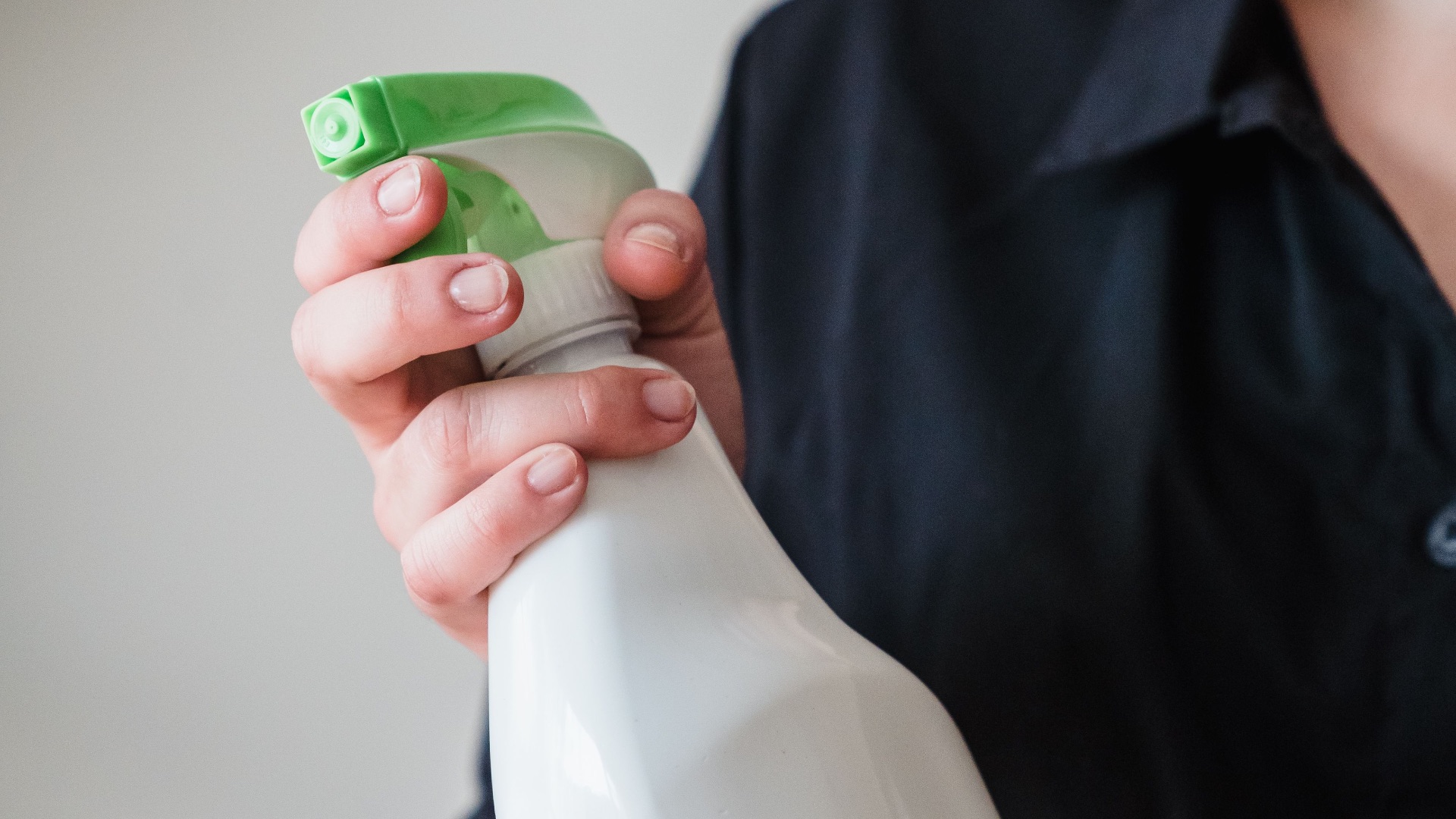
Applying liquid straight to the screen gives it a chance to run into the bezel, speakers, keyboard, or internal components. Even a small amount of moisture can cause staining, electrical damage, or problems with the display coating. The risk is especially high when you use more product than necessary because you assume a wetter surface will be easier to clean.
2. Using Household Glass Cleaner
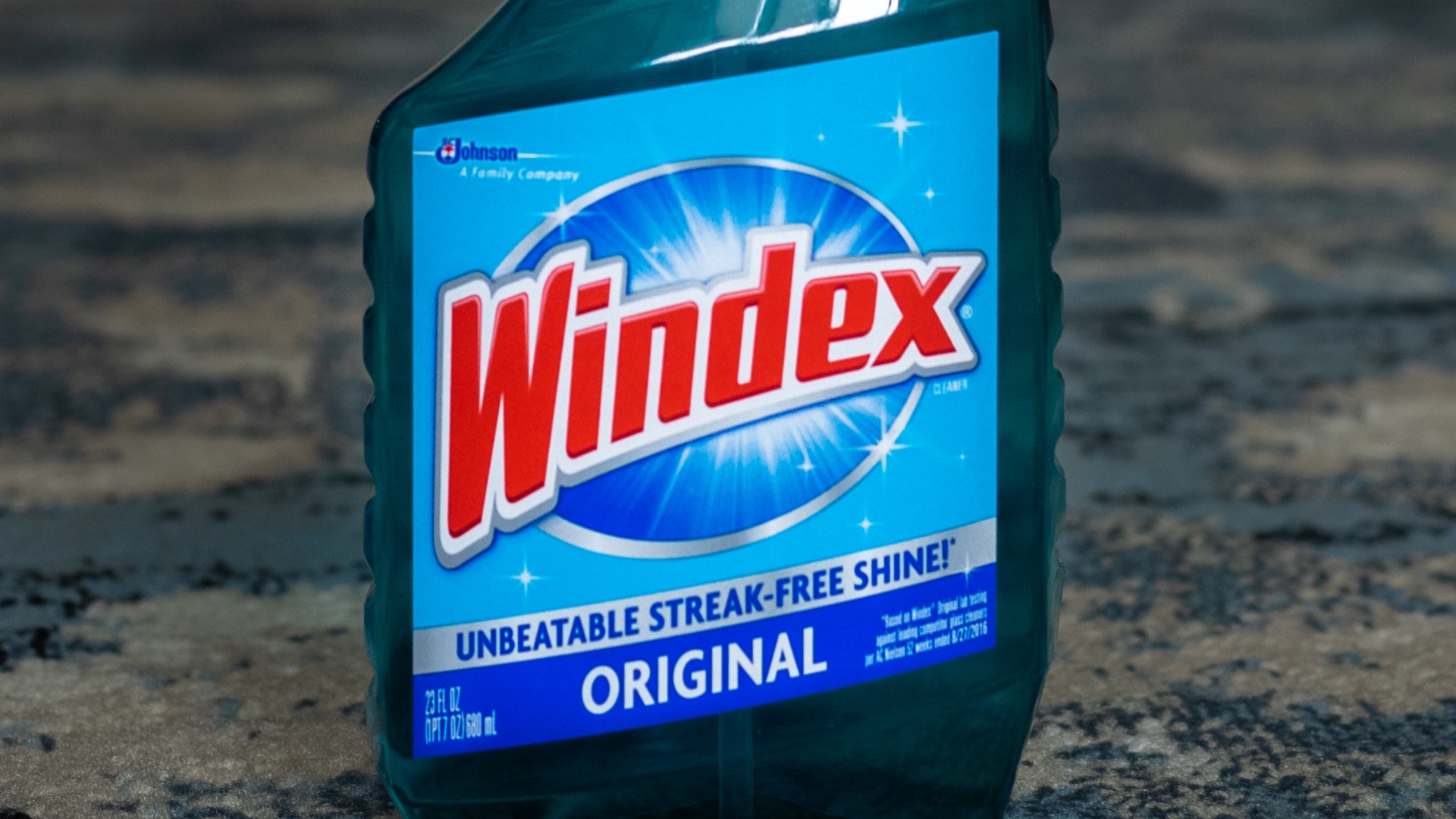
A computer monitor isn't the same as a household window, so products made for glass may be too harsh for it. Many conventional cleaners contain ammonia, alcohol, or other chemicals that can weaken anti-glare and protective coatings. Over time, the display may develop cloudy areas, streaks, or uneven patches that ordinary wiping can't correct.
 Ajay Suresh from New York, NY, USA on Wikimedia
3. Wiping It with Paper Towels
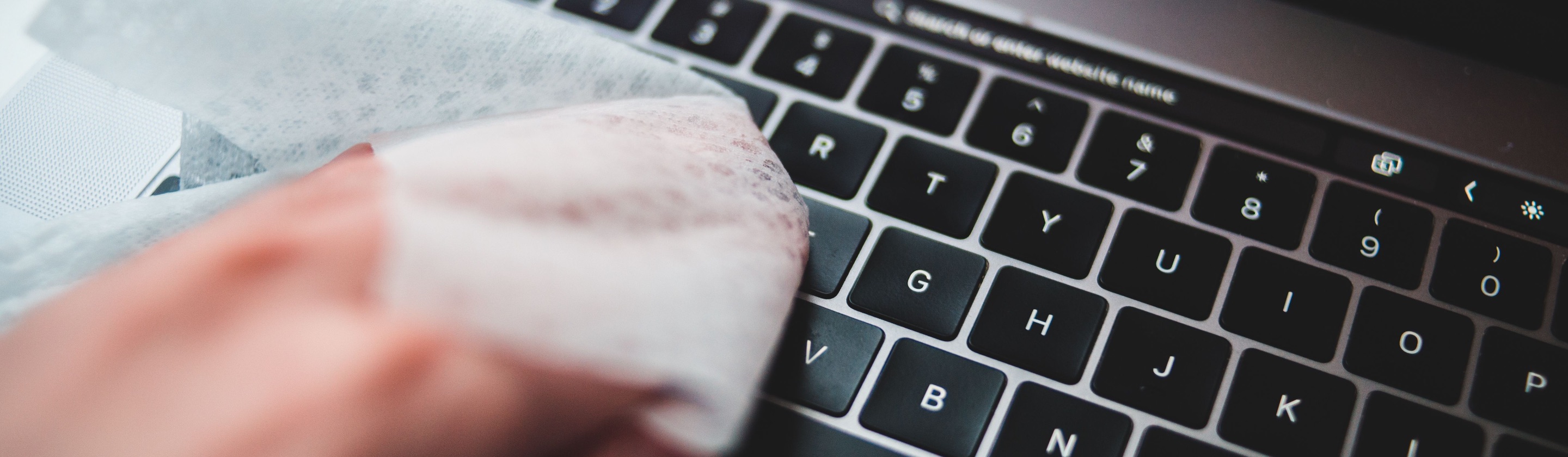
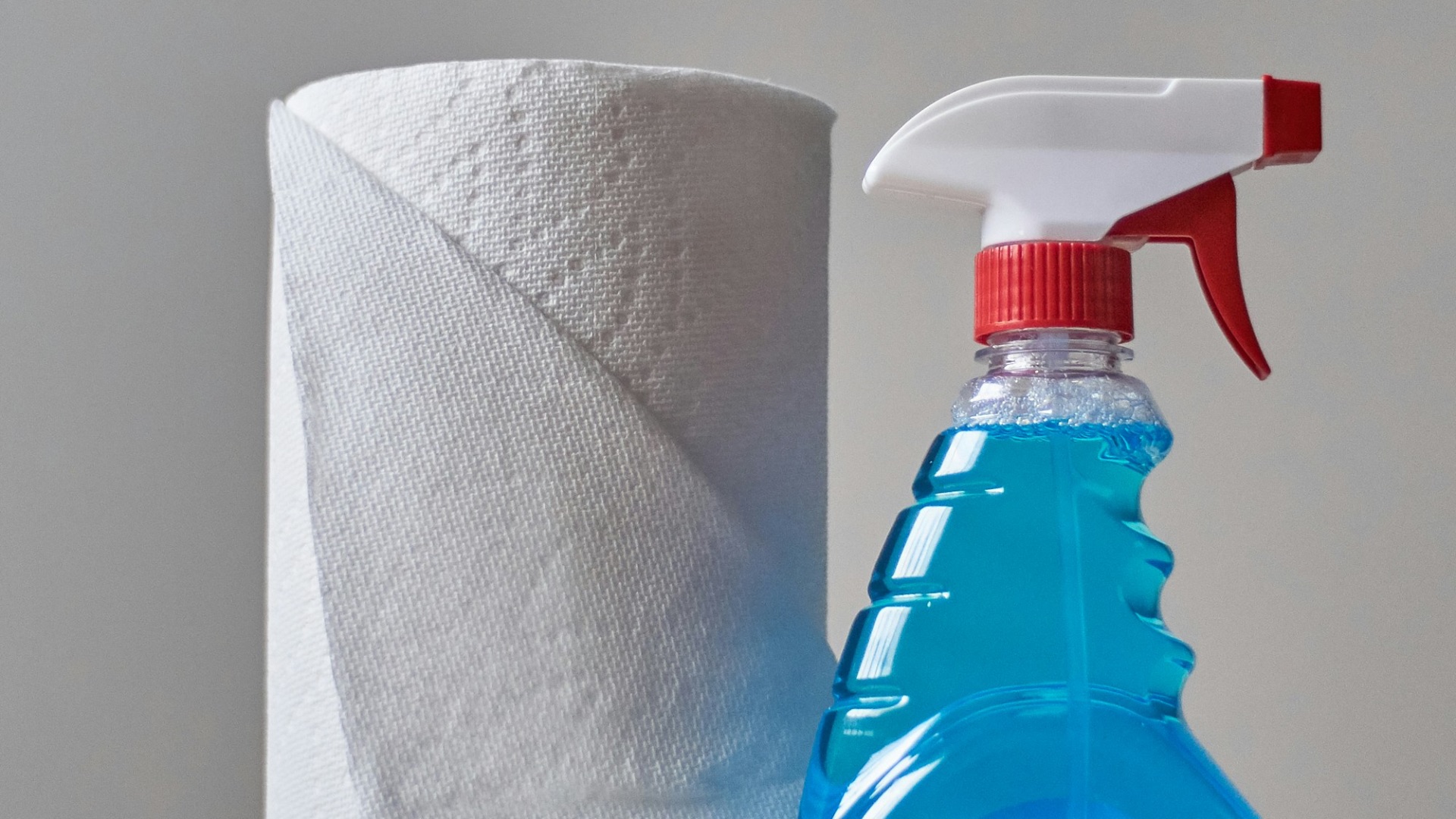
Paper towels may feel soft in your hand, but their fibers can be rough enough to leave fine scratches on a display. Facial tissues, napkins, and toilet paper can cause similar problems while also depositing lint across the surface. The damage may not be obvious after one cleaning, though repeated use can gradually make the screen look dull.
4. Pressing Too Hard While Cleaning
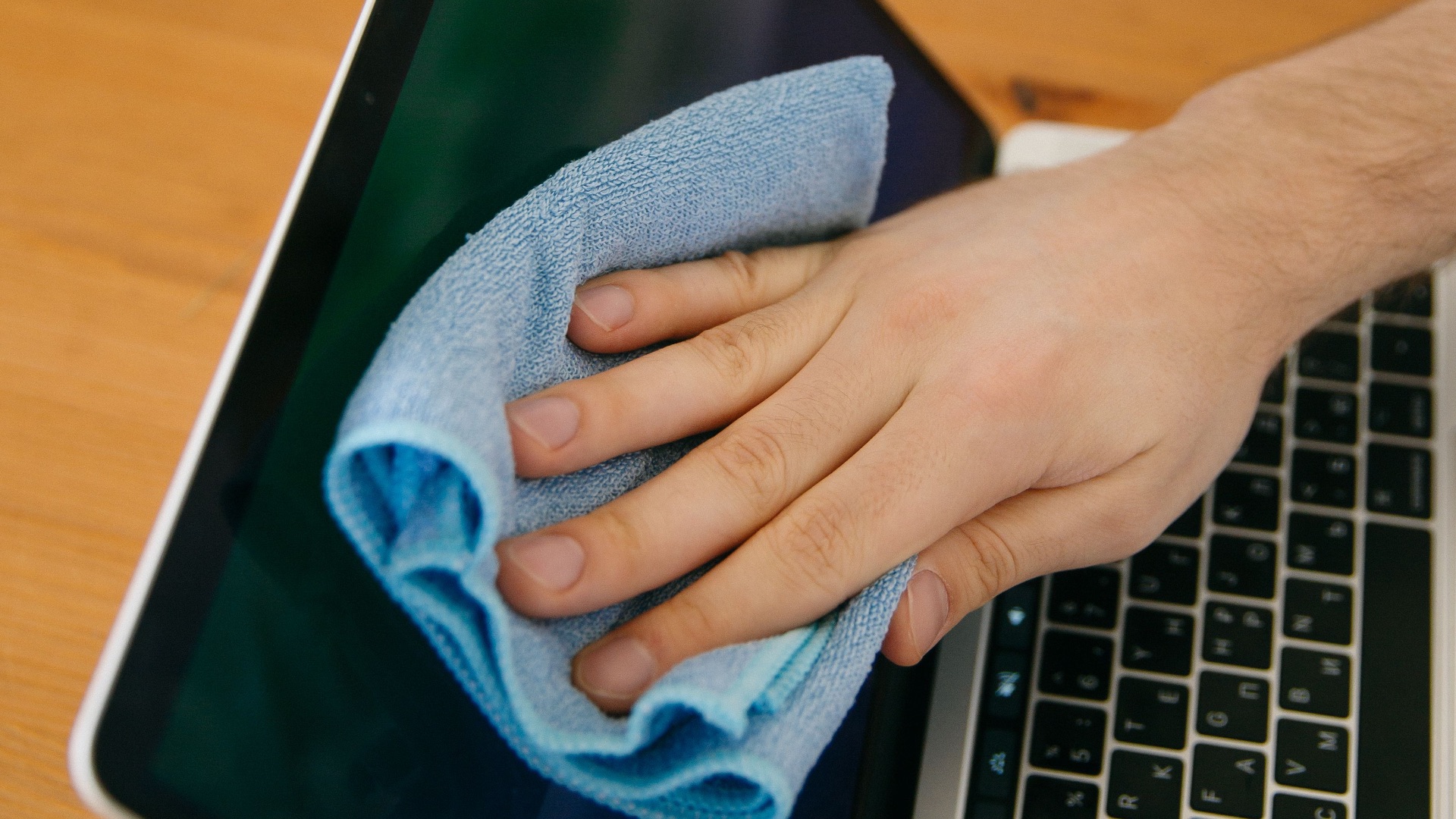
Stubborn fingerprints often tempt people to scrub the screen with more force than they should. Excessive pressure can disturb the liquid crystals beneath an LCD panel, creating temporary discoloration or permanent pixel damage. Thin laptop screens are particularly vulnerable because there's less structural support behind the display.
5. Closing Your Laptop with Something Inside
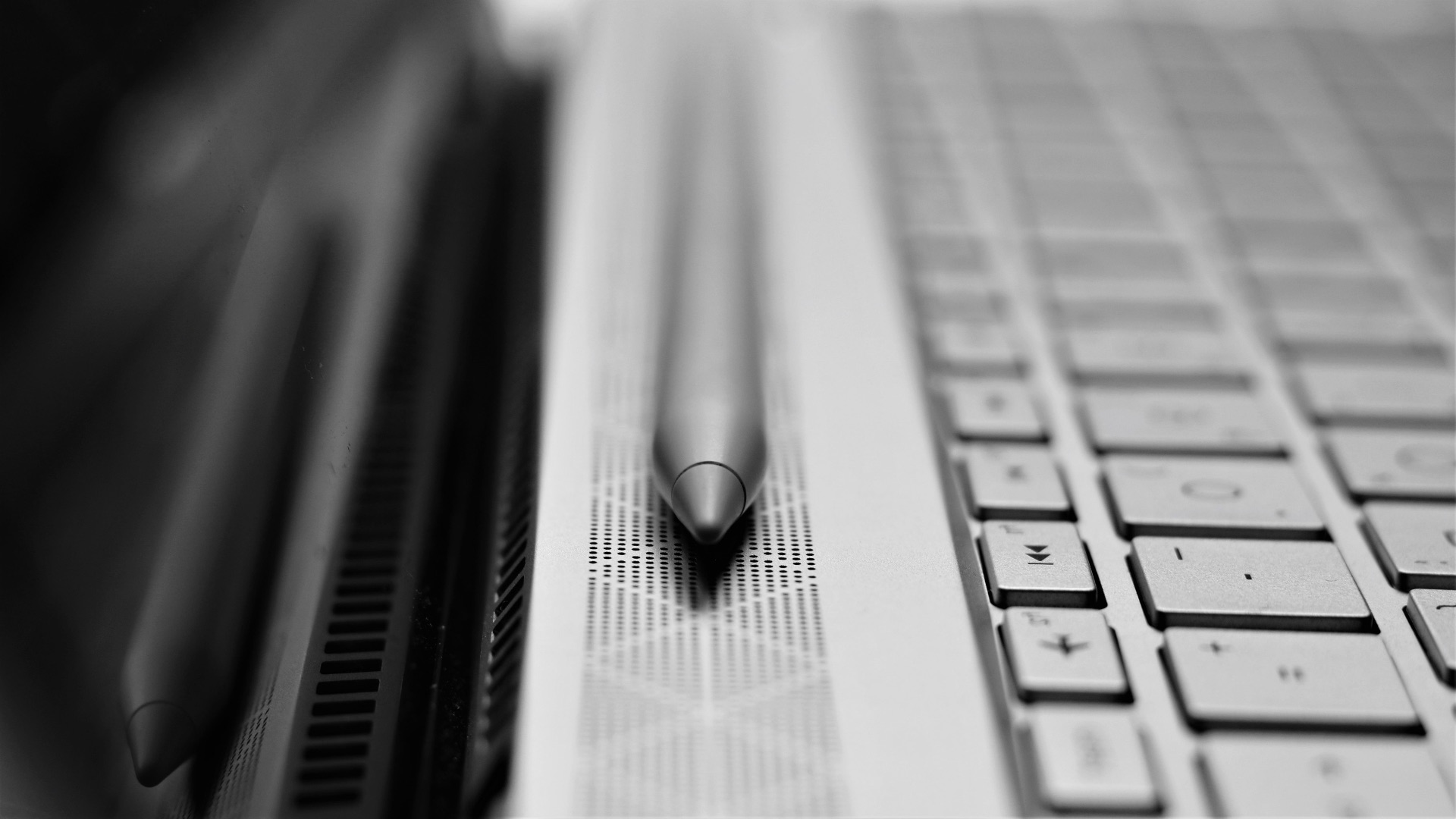
A pen, earbud, cable, or even a small stack of paper can cause serious damage when trapped between the keyboard and screen. Closing the lid creates concentrated pressure that may crack the panel or leave a permanent mark. Even tiny crumbs can scratch the surface when they're pressed against it firmly enough.
6. Carrying a Laptop by the Screen
Grabbing an open laptop by the top corner or edge places stress on both the display and its hinges. The screen can flex, the bezel may separate, and the internal cable connecting the display to the computer can loosen. Always lifting the device from its base is slightly less convenient, but it avoids putting unnecessary strain on its weakest section.

7. Packing It Into an Overstuffed Bag
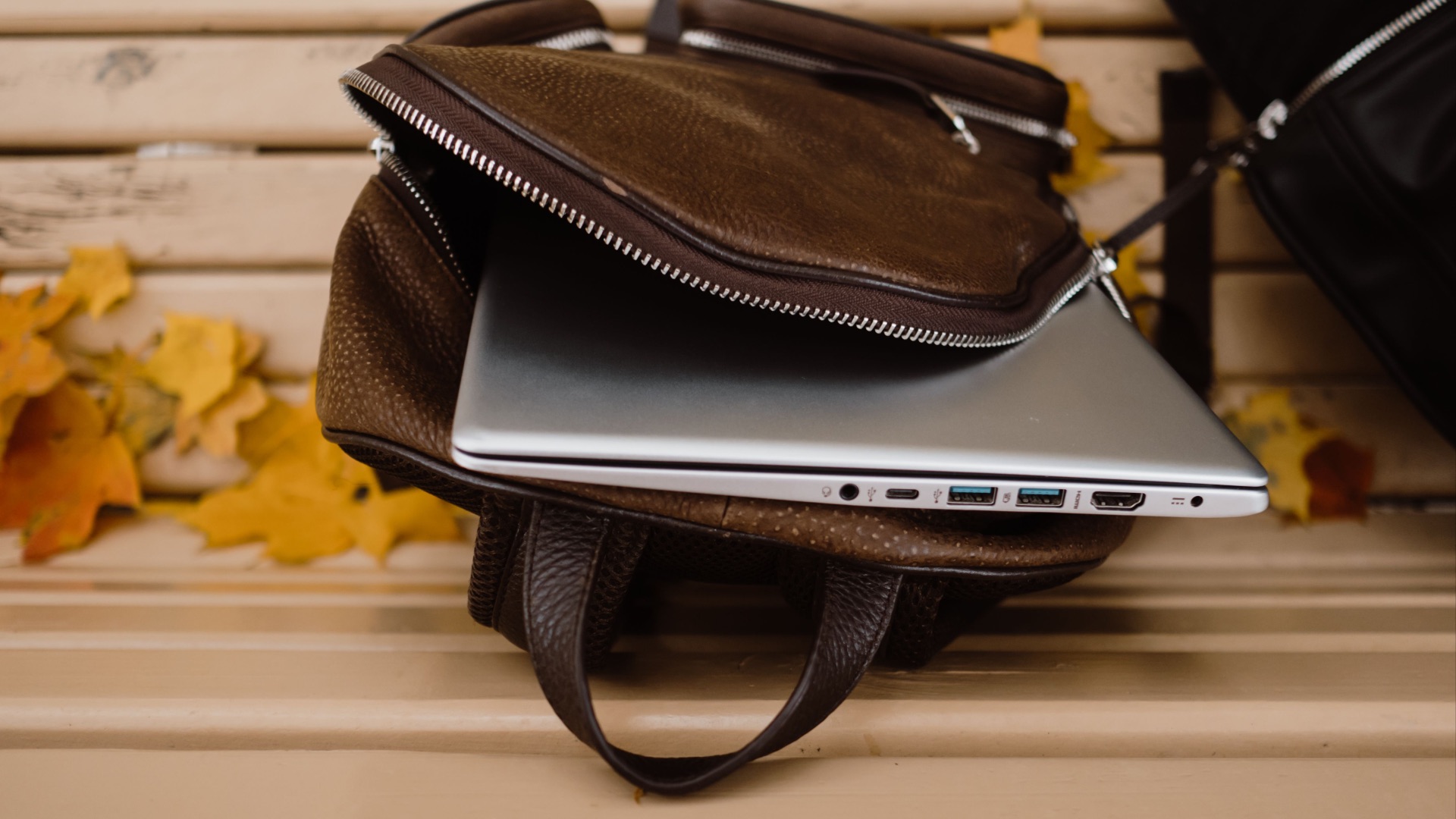
A crowded backpack can press chargers, books, water bottles, and other hard objects directly against your laptop. That steady pressure may bend the lid or force the screen against the keyboard, eventually producing bright spots, cracks, or keyboard-shaped marks. A soft sleeve alone may not provide enough protection when the rest of the bag is tightly packed.
8. Leaving It in Extreme Temperatures
Computer displays don't respond well to prolonged exposure to intense heat or freezing conditions. A hot car can damage adhesives, coatings, and internal layers, while severe cold can make certain materials more brittle. Turning the device on immediately after bringing it indoors may also cause trouble if condensation has formed inside.
9. Touching the Screen Constantly
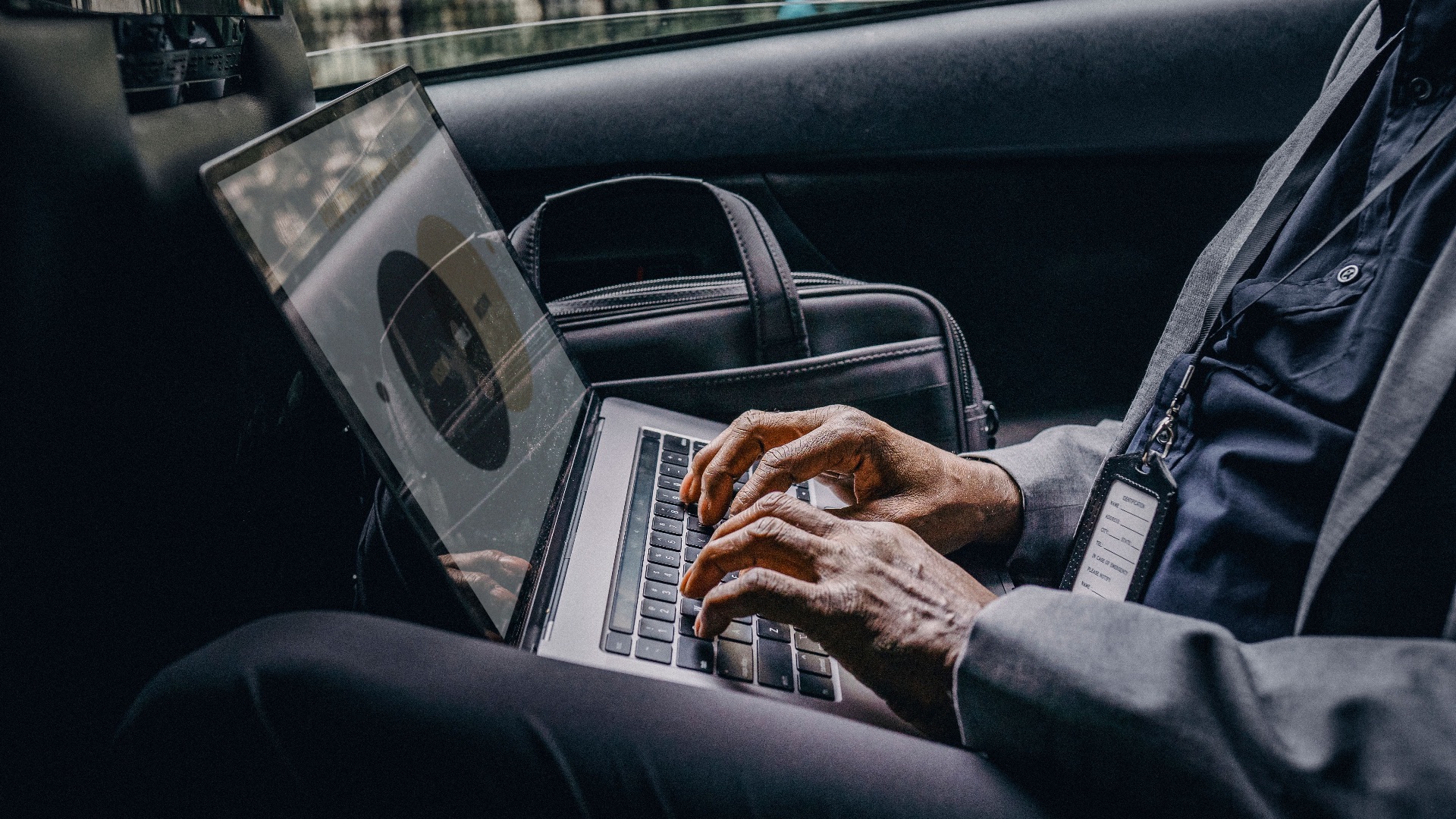
Unless your computer has a touchscreen, there's no reason to keep pressing or tapping the display. Fingers leave behind oils that attract dust and require more frequent cleaning, increasing the possibility of scratches. Long nails, rings, or pointed objects can also damage the surface during an otherwise harmless gesture.

10. Letting Dust Build Up Around the Bezel
Dust may seem like a cosmetic issue, but trapped particles can become abrasive when you wipe across them. Debris near the edges can also work its way into gaps around the bezel or hinges, depending on the device's design. Waiting until the screen is heavily coated often leads to more aggressive cleaning than would have been necessary with regular care.
Avoiding these habits can prevent a surprising amount of wear, but screen care isn't only about what you stop doing. Here are some smarter habits that can help you preserve the life of your computer (or at least its expensive screen) for longer.
1. Use a Clean Microfiber Cloth
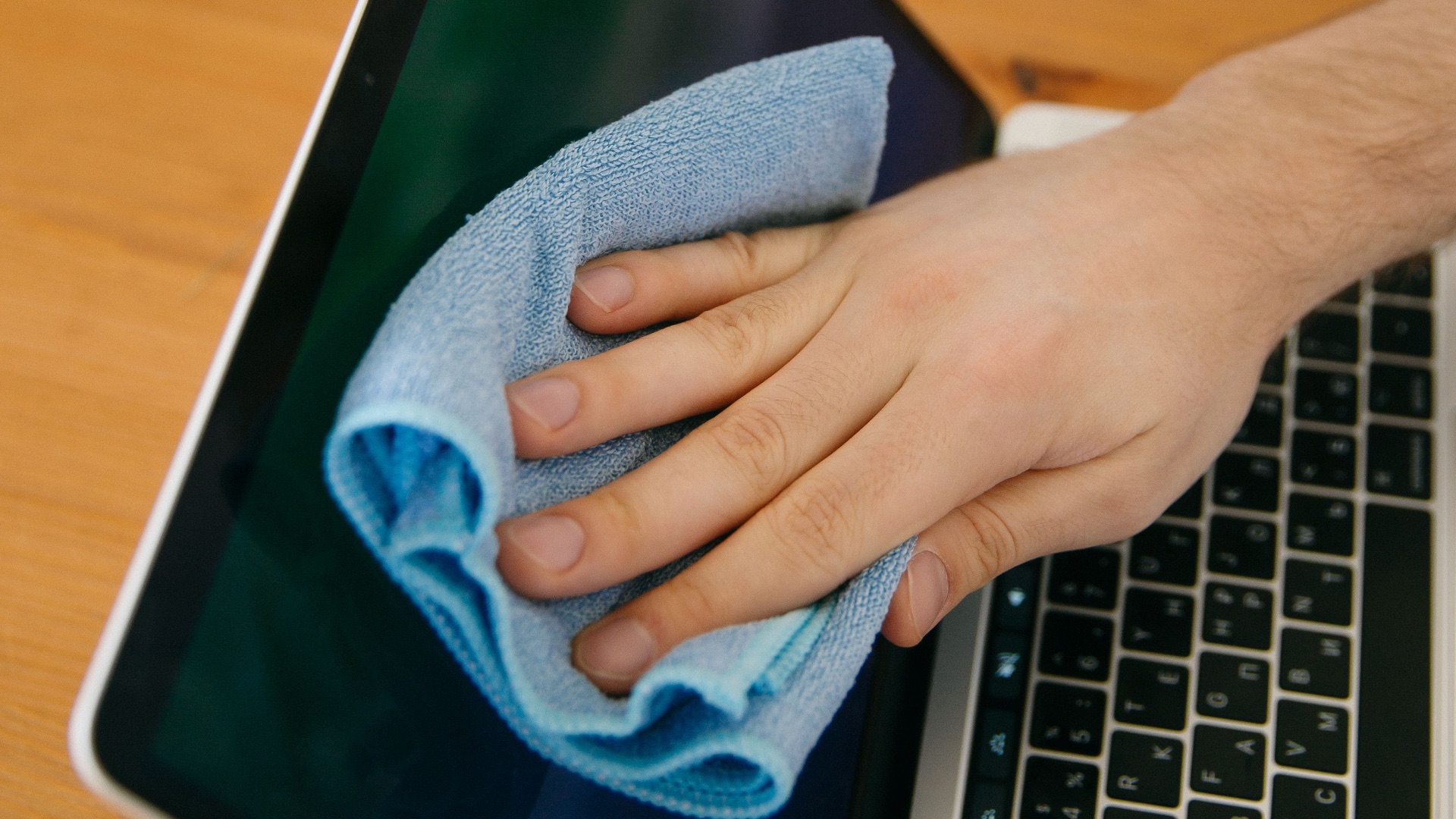
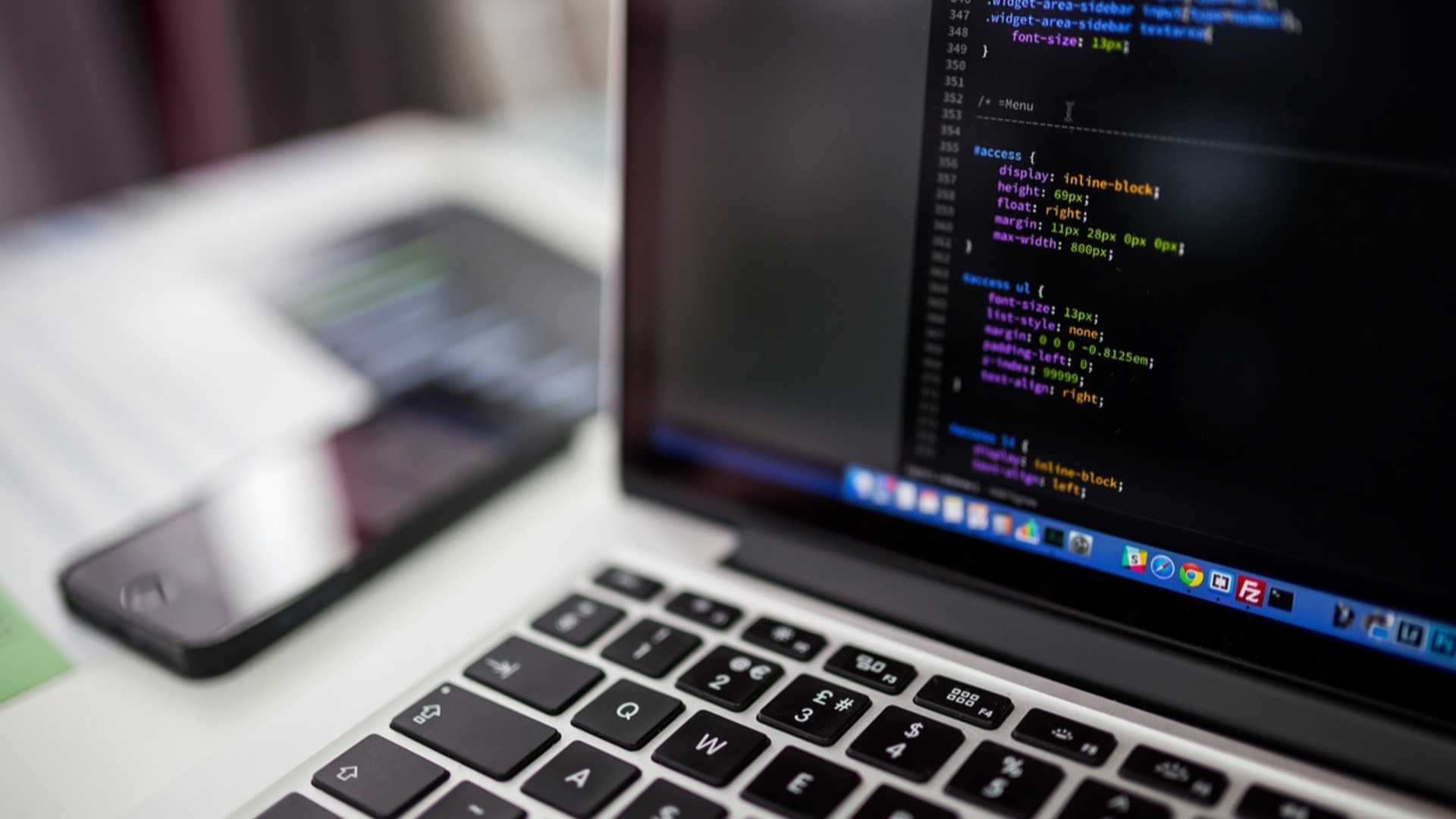
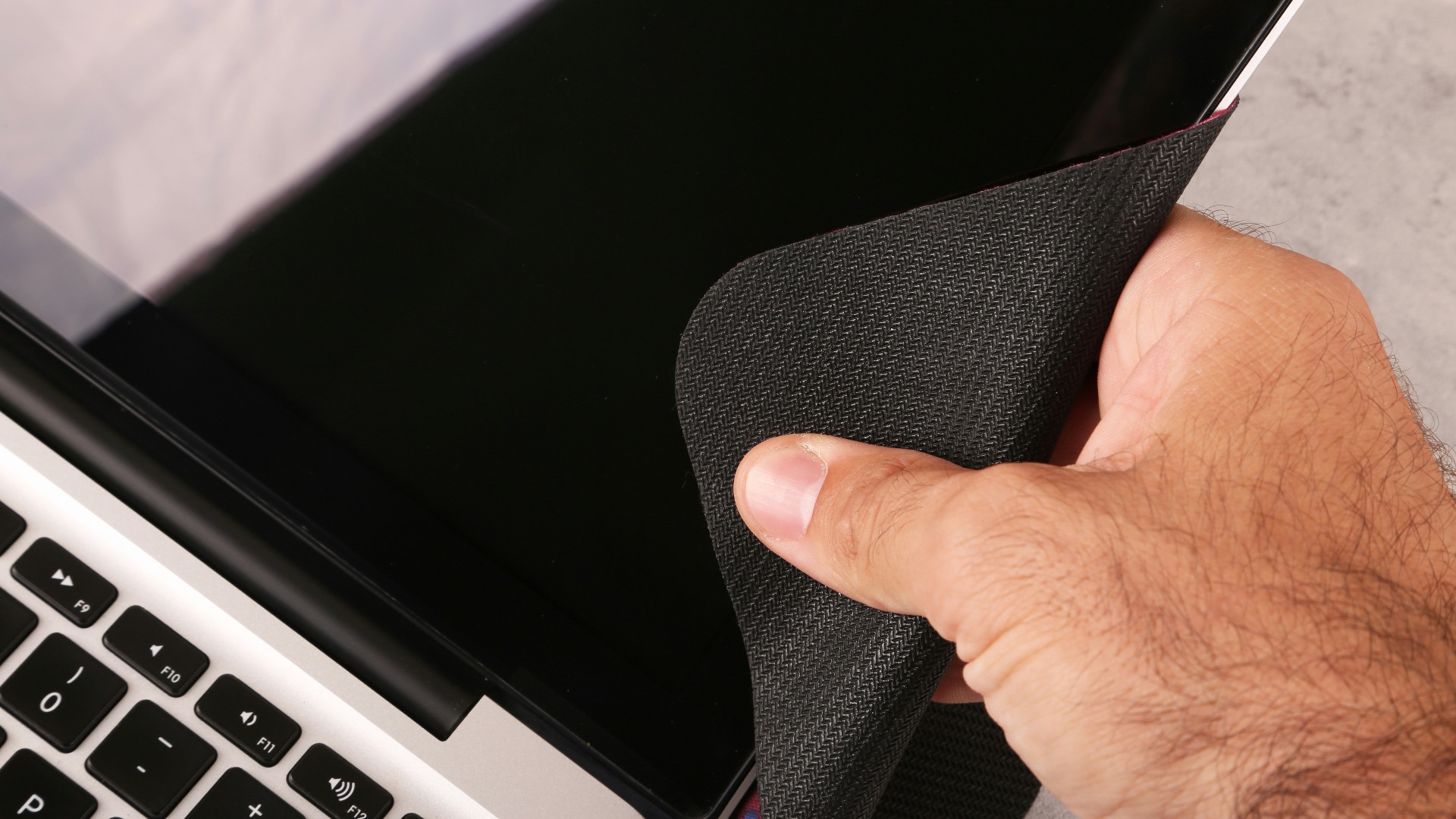
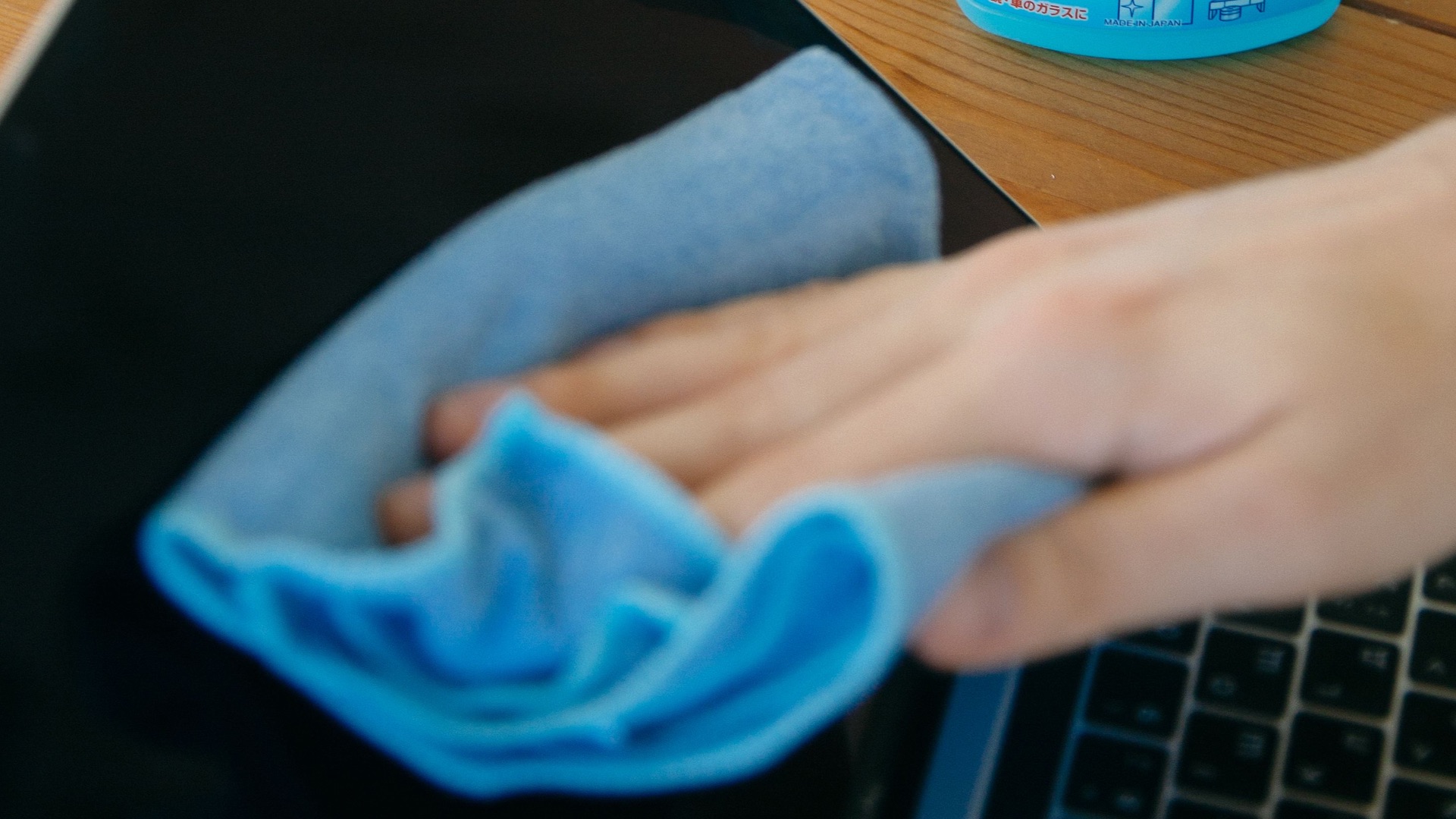
A soft microfiber cloth can lift dust, fingerprints, and light smudges without scratching the surface. Keep one specifically for your computer rather than using a cloth that has already collected dirt, grease, or cleaning residue elsewhere. Shake it out or wash it regularly so trapped particles don't get dragged across the display.
2. Apply Cleaning Solution to the Cloth
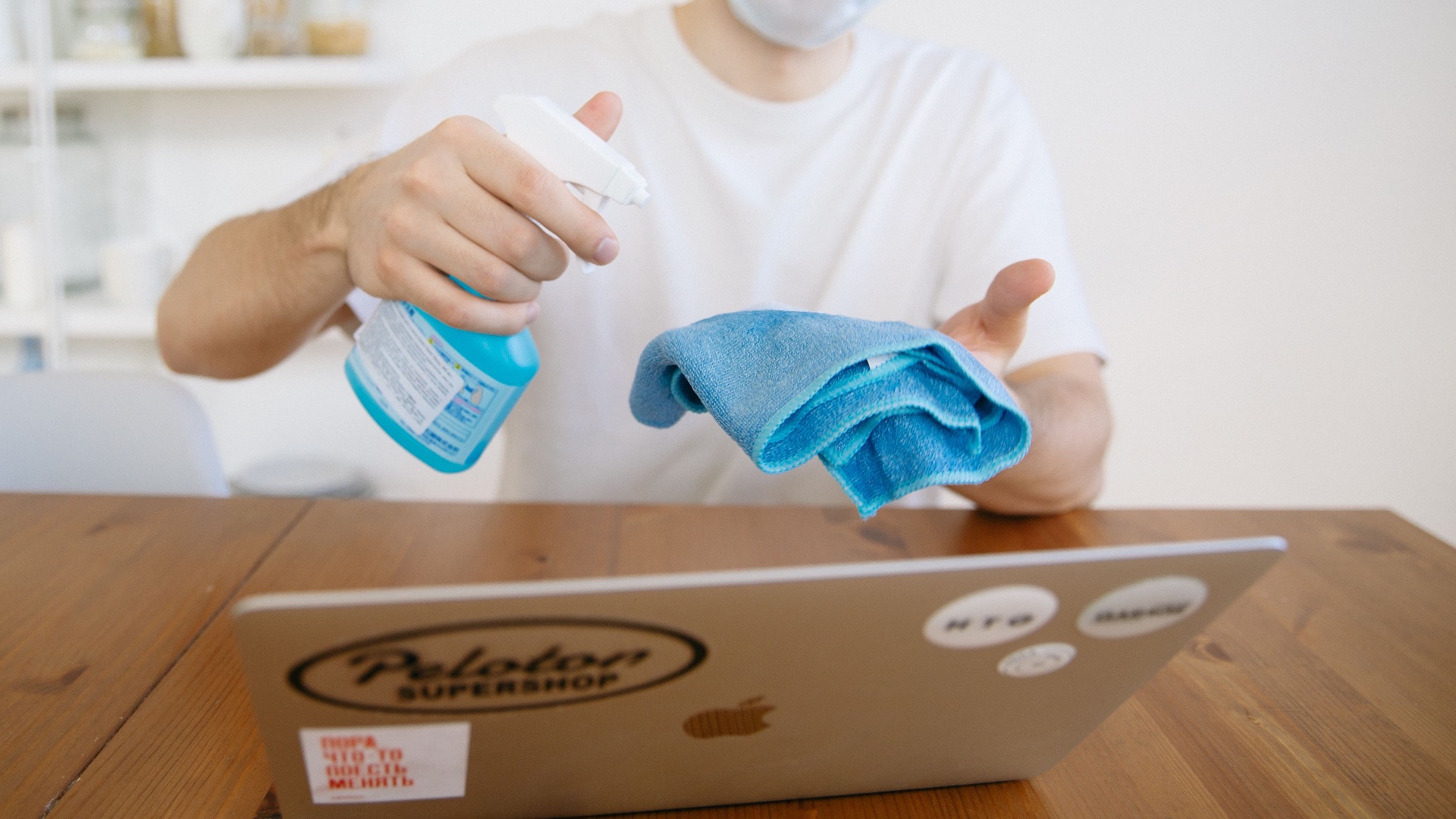
When moisture is necessary, lightly dampen the cloth instead of spraying the screen itself. The fabric should be barely moist, not wet enough to drip or leave liquid pooling near the edges. This approach gives you better control and greatly reduces the chance of fluid entering the device.
3. Check the Manufacturer's Cleaning Advice
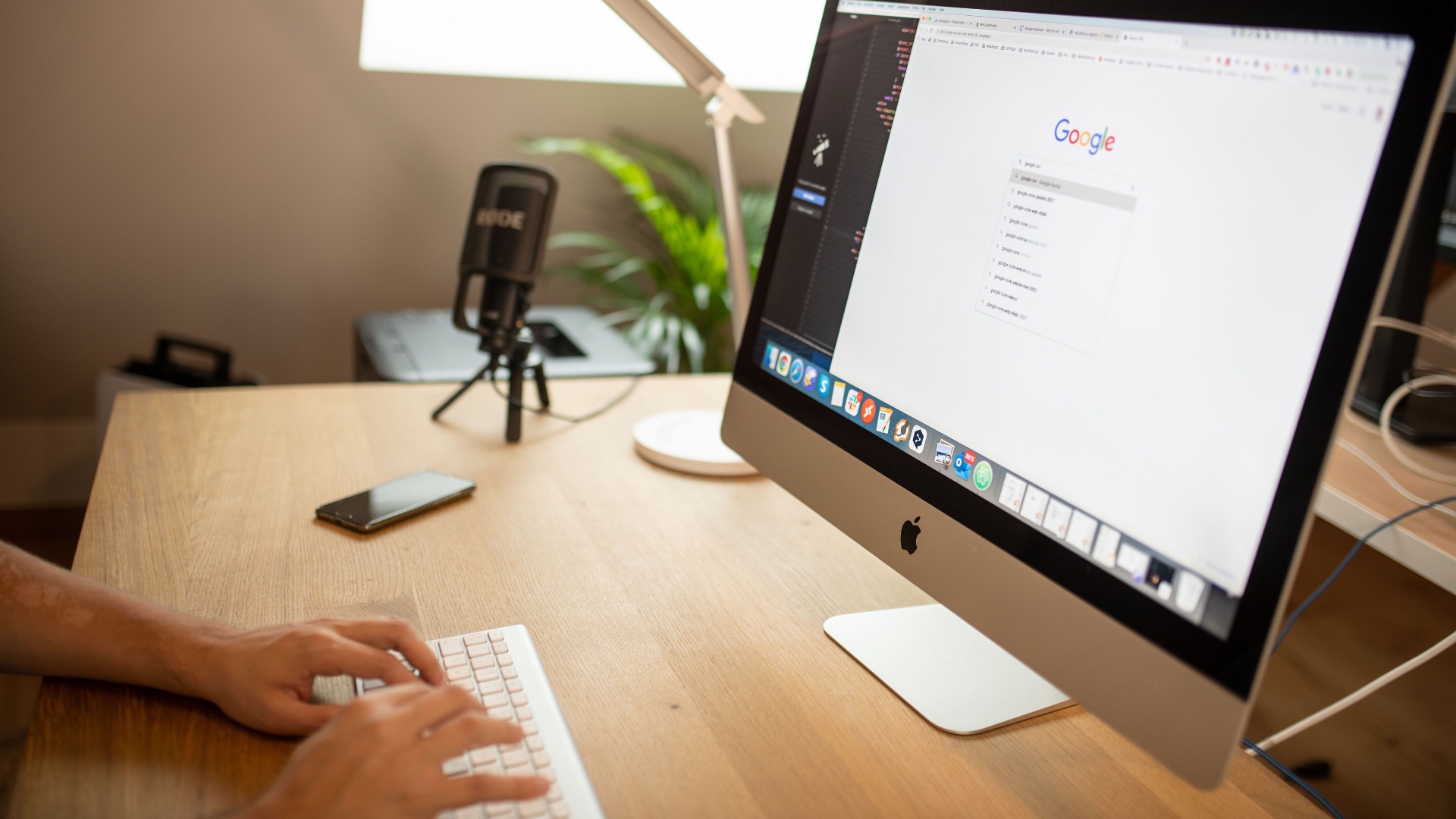
Screen materials and coatings vary, so a method that's safe for one computer may not be ideal for another. The manufacturer's support page or user manual may specify which products are acceptable and which ingredients should be avoided. Following those instructions is also important when the device is still covered by a warranty.
4. Turn the Computer Off Before Cleaning
A dark screen makes fingerprints, dust, and streaks much easier to see. Shutting the computer down also reduces electrical risk if a slightly damp cloth is being used near the bezel. Give the display a moment to cool first, particularly after a long work session.
5. Wipe with Light, Controlled Movements
Gentle passes are more effective and safer than pressing hard on a stubborn spot. Support the back of a laptop lid with one hand if it tends to flex while you're cleaning it. When a mark doesn't lift right away, add a tiny amount of appropriate solution rather than increasing the pressure.
6. Keep Food and Drinks at a Distance
A drink placed beside your computer can splash the screen even if it never spills into the keyboard. Greasy food can also leave airborne residue or fingerprints that require stronger cleaning later. Setting snacks and beverages on a separate surface helps protect the display along with the rest of the machine.

7. Use a Protective Laptop Sleeve
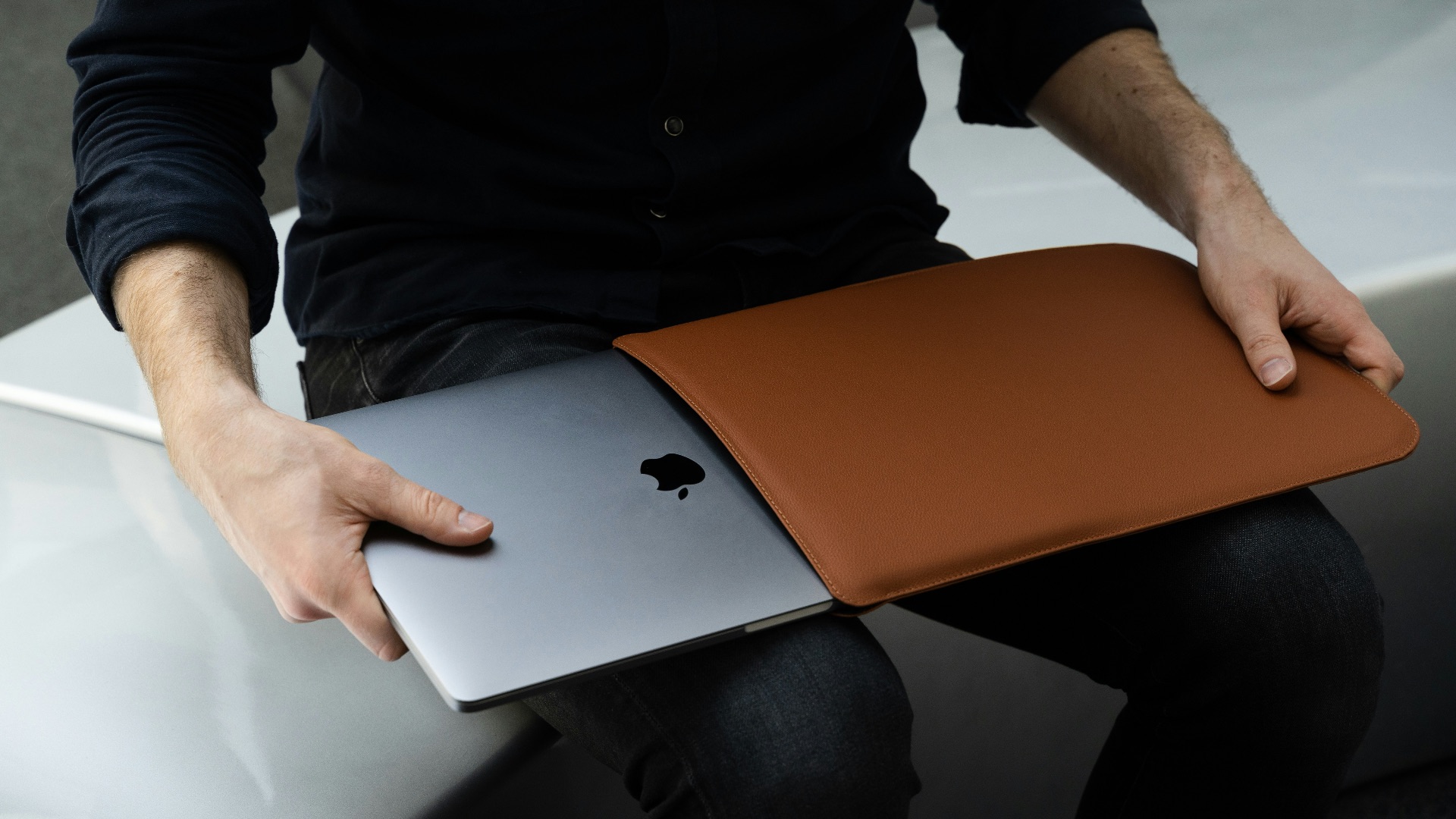
A well-fitted sleeve adds cushioning between your computer and the other items in your bag. Look for one with enough structure to resist light pressure rather than choosing a very thin fabric cover. It still won't make the device crushproof, but it can reduce scratches and minor impacts during routine travel.
8. Close the Laptop from the Center
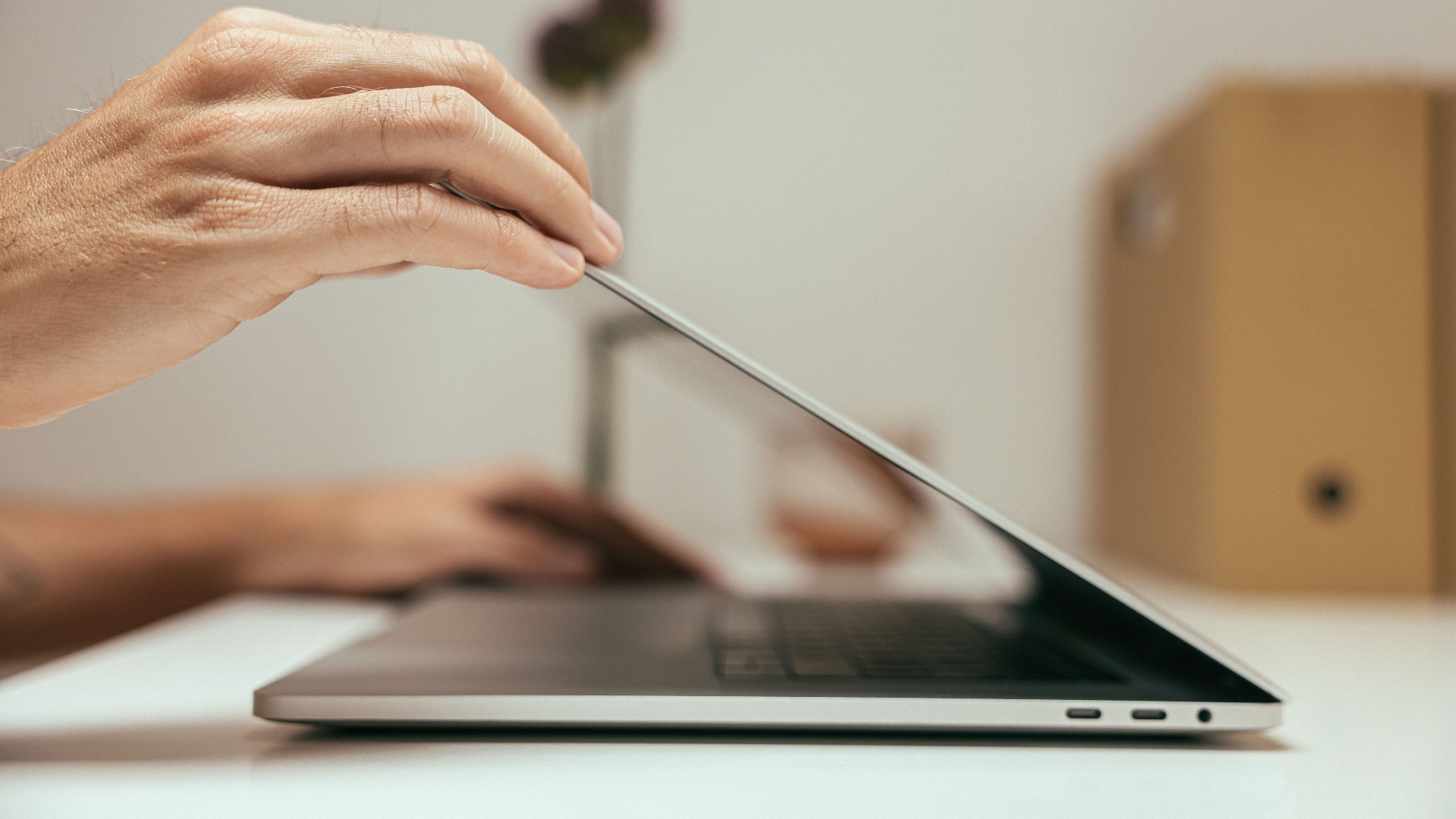
Pulling the lid down from one corner can twist the display and place uneven stress on the hinges. Using the center distributes the force more evenly and helps the screen stay properly aligned. Before closing it, take a second to check that the keyboard area is clear.
9. Adjust Your Workspace to Prevent Glare
Strong glare may lead you to increase the brightness unnecessarily or tilt the screen into an unstable position. Repositioning a lamp, closing a blind, or changing the computer's angle can make the display easier to see without pushing it to maximum brightness all day. Lower brightness can also reduce heat and may help slow certain types of panel wear.
10. Store the Computer in a Safe Position
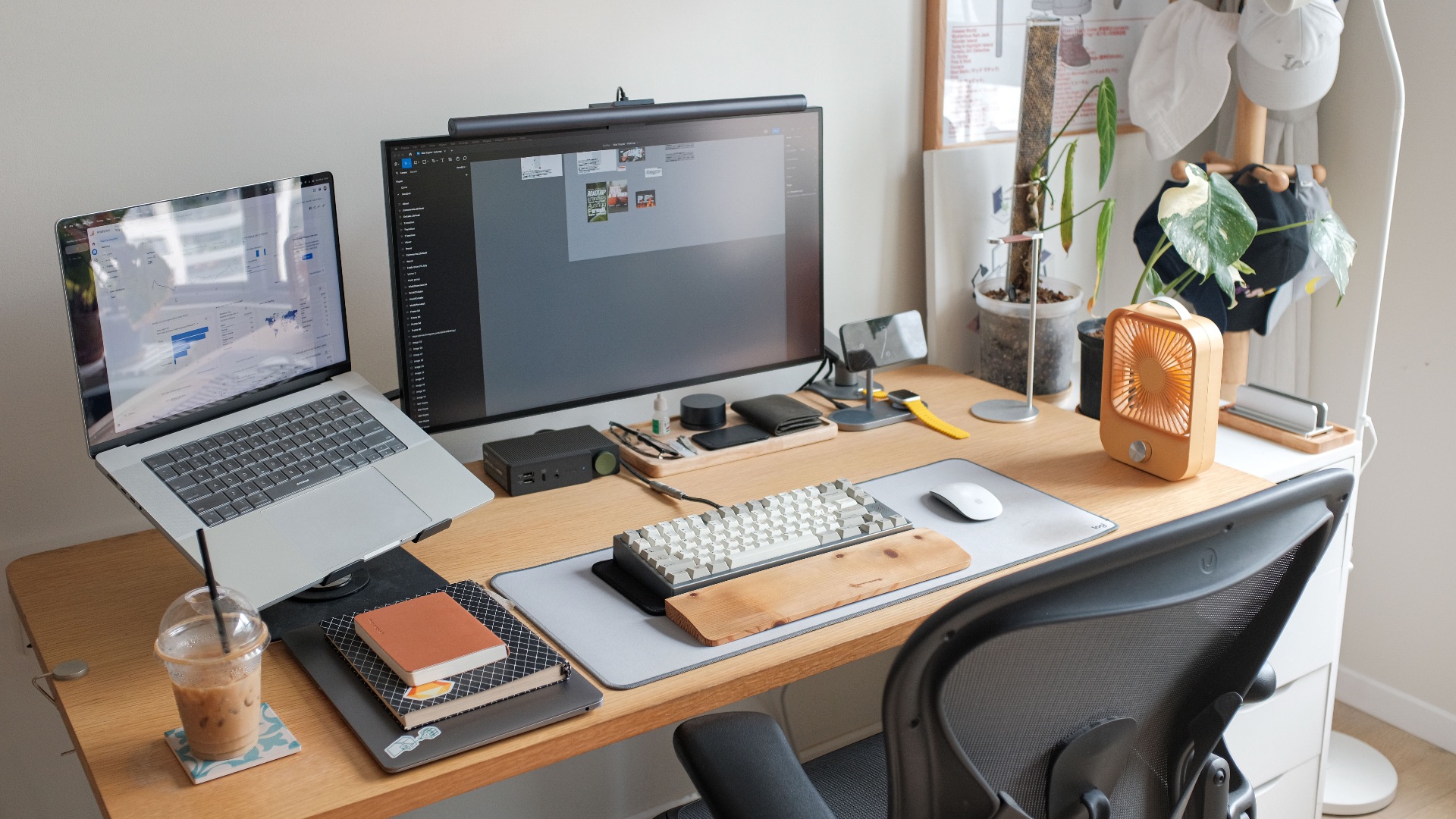
When the device isn't being used, place it somewhere stable where it can't be knocked over, stepped on, or buried under other objects. Avoid balancing it on the edge of a couch, bed, or cluttered desk, since a small bump can send it to the floor. Thoughtful storage protects the screen from sudden accidents that no cleaning routine can undo.