
Is Your Data Stored Safely?
External hard drives are convenient, sure, but they’re also easy to corrupt due to frequent plugging and unplugging, travel, and power hiccups. The signs can start subtly, so catching them early and adjusting your habits can save you from bigger headaches later. If you want to make sure your data is always stored safely, here are 10 clear warning signs of a corrupt external hard drive to watch for, and 10 practical tips that keep it in good shape for the long run.
1. Files Suddenly Won’t Open
One of the first glaring signs that your hard drive might be corrupted is you click a file you’ve used before, and it refuses to open or throws an error you didn’t see yesterday. Even if the file name looks normal, the data inside may be partially unreadable. When multiple unrelated files start acting this way, corruption is a strong possibility.
2. Folder Names Look Wrong or Jumbled
You might also notice folders with odd symbols, missing letters, or names that don’t match what you remember. That kind of weird labeling often points to file system damage rather than simple user error. If renaming doesn’t stick or the folder becomes inaccessible, treat it as a serious warning.
3. Transfers Keep Failing Midway
A copy may start normally, then stop with a failure message even though the cable looks fine. Repeated interruptions during transfers can indicate bad sectors or file allocation problems. If the same files fail across different computers, the drive itself is likely the issue.
4. The Drive Disconnects Without Being Unplugged
Another sign is that your computer might act like the drive was removed even though it’s still physically connected. Random disconnections can happen when the drive can’t reliably read data or maintain stable communication. When it becomes frequent, it’s often tied to corruption or hardware instability that can lead to corruption.
5. Your Computer Freezes When Accessing the Drive
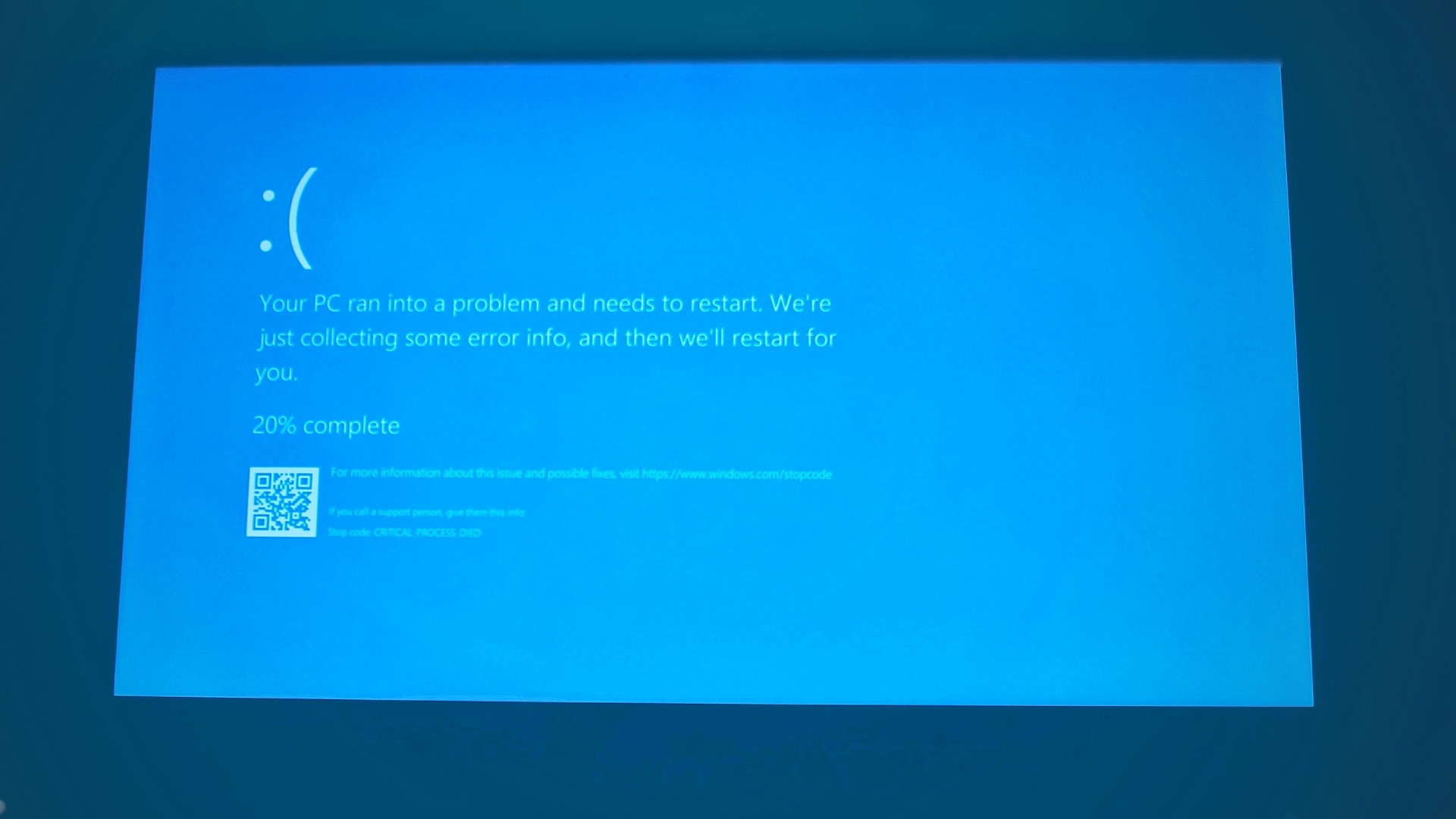
The system may stall when you open the drive, browse folders, or try to preview files. That slowdown can happen when the drive repeatedly retries failed reads. If the rest of your computer runs normally while only the external drive triggers freezing, that’s a red flag.

6. You’re Seeing Unexpected Read or Write Errors
You might get alerts saying the disk is not readable, the file is corrupted, or the operation can’t be completed. These messages often appear when the file system’s records don’t match what’s actually stored on disk. If errors show up across multiple apps, it’s not just one program acting up.
7. The Drive Shows the Wrong Capacity or Free Space
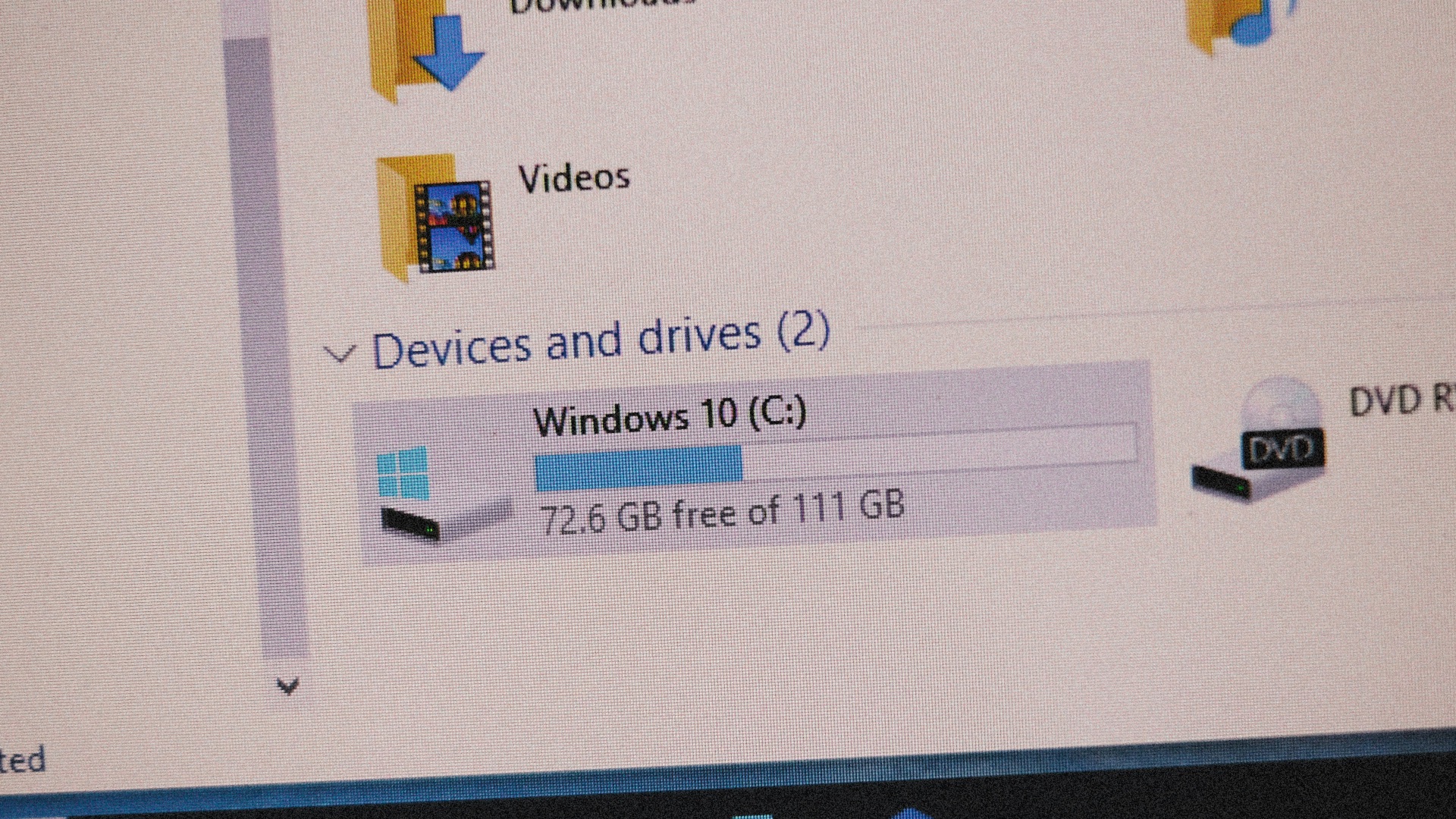
A drive that used to show plenty of space might suddenly appear nearly full, or it might report a strangely small capacity. That mismatch can happen when the file system’s accounting data becomes inconsistent. It’s especially suspicious if the number changes after reconnecting the drive.
8. You’re Getting Prompts to Format the Drive
Your computer may say the disk is not formatted and ask if you want to format it now. That message often appears when the system can’t interpret the existing file system structures. If you know the drive previously worked, don’t format it as a first step.
9. Disk Check Tools Keep Finding New Problems
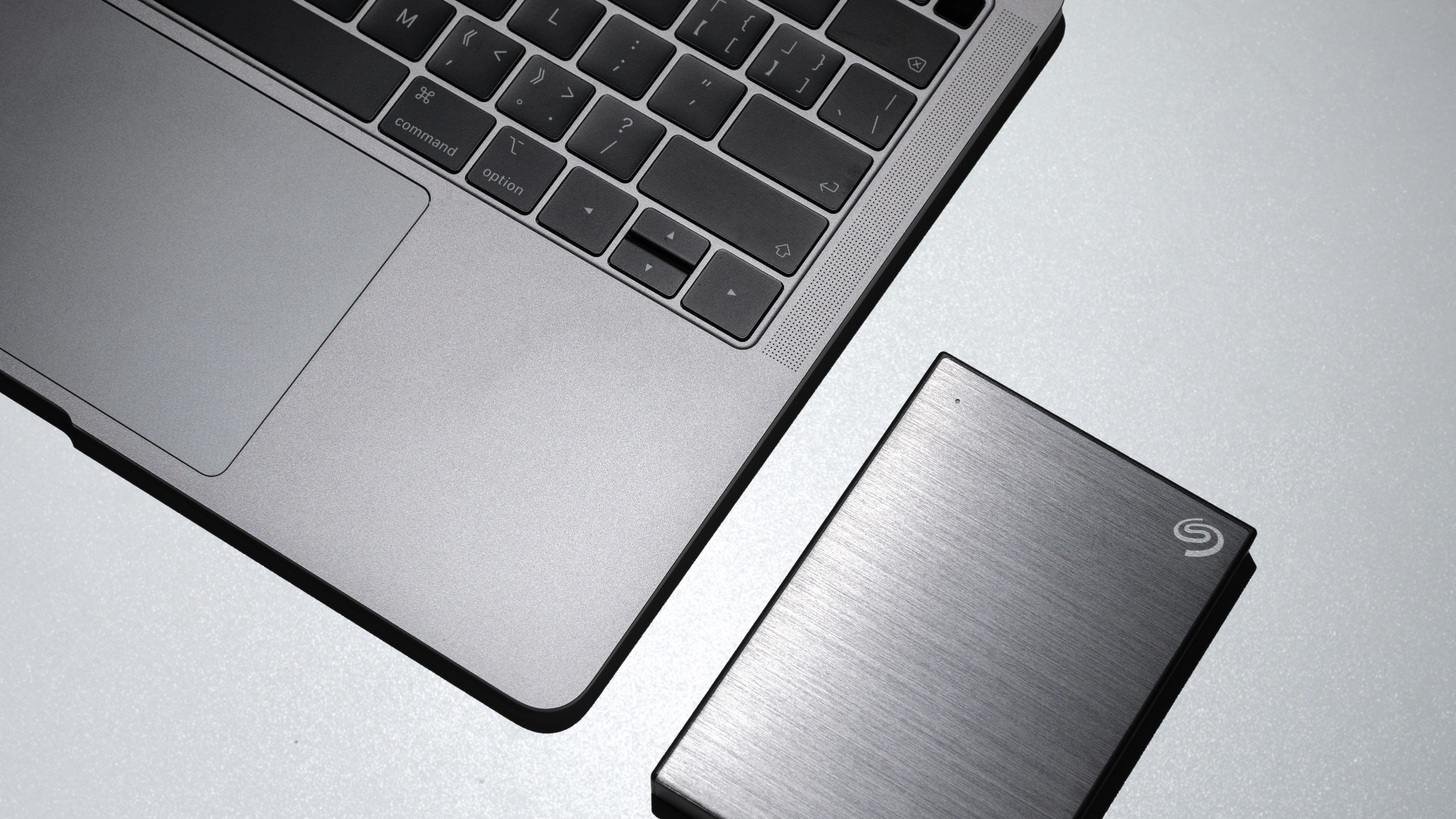
You run a repair or disk check utility, it reports fixes, and then the same issues return. Persistent findings can mean corruption is spreading or the underlying storage is failing. When new errors appear after each scan, it’s time to prioritize backing up what you can.

10. Some Files Vanish or Reappear Randomly
You notice files missing, then later they show up again, or duplicates appear without you creating them. That inconsistency can come from damaged directory records or unstable reads. If your drive’s contents can’t stay consistent from one connection to the next, assume corruption is involved.
So, what are some ways to keep your hard drive healthy? Here are 10 smart tips you should start following if you don't already.
1. Eject the Drive Properly Every Time
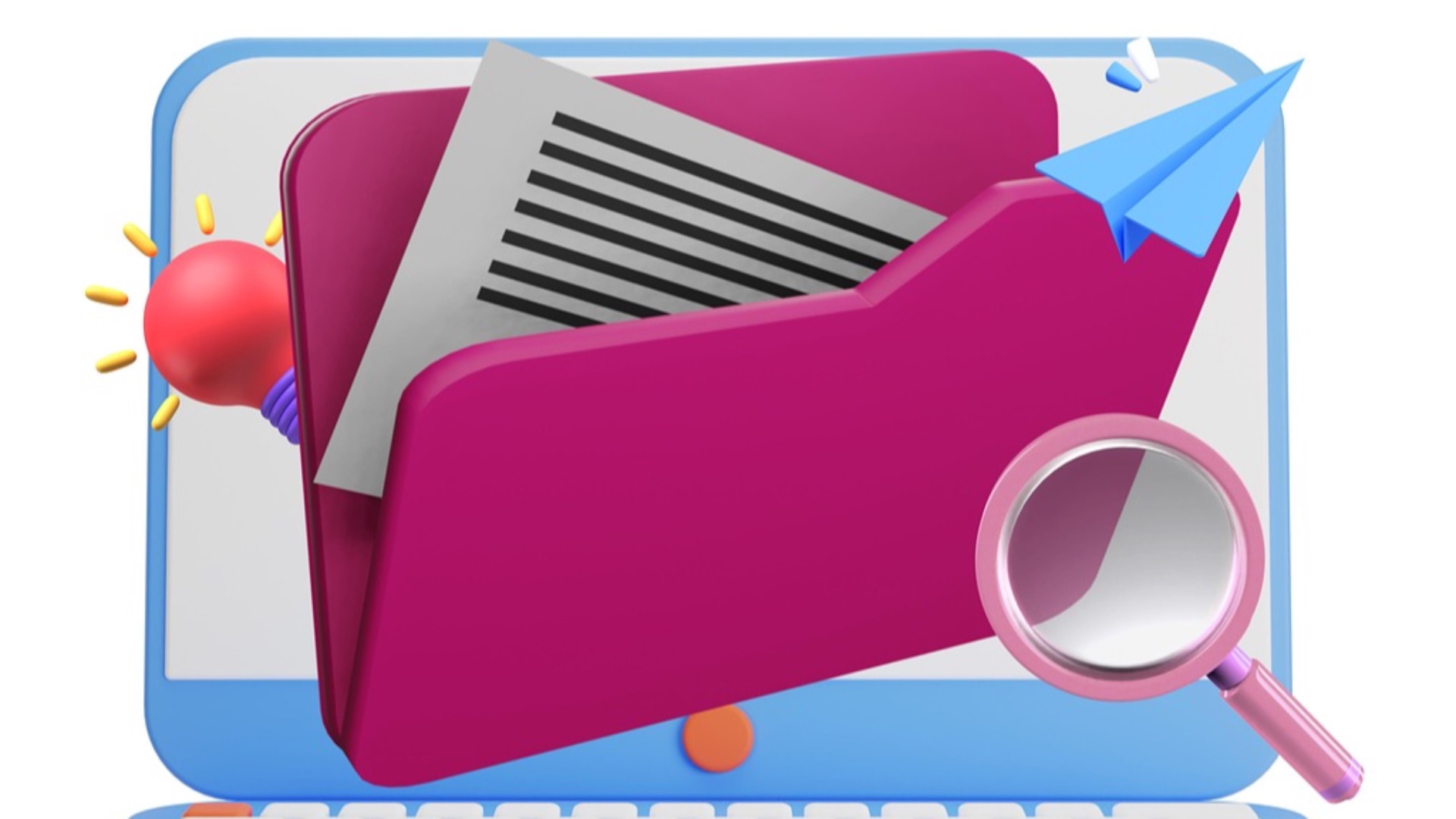
Remember to always use your operating system’s safe eject option before unplugging the cable; this helps ensure pending writes are completed and file system updates are finalized. Skipping this step increases the chance of partial writes that can corrupt data.
2. Keep Reliable Backups
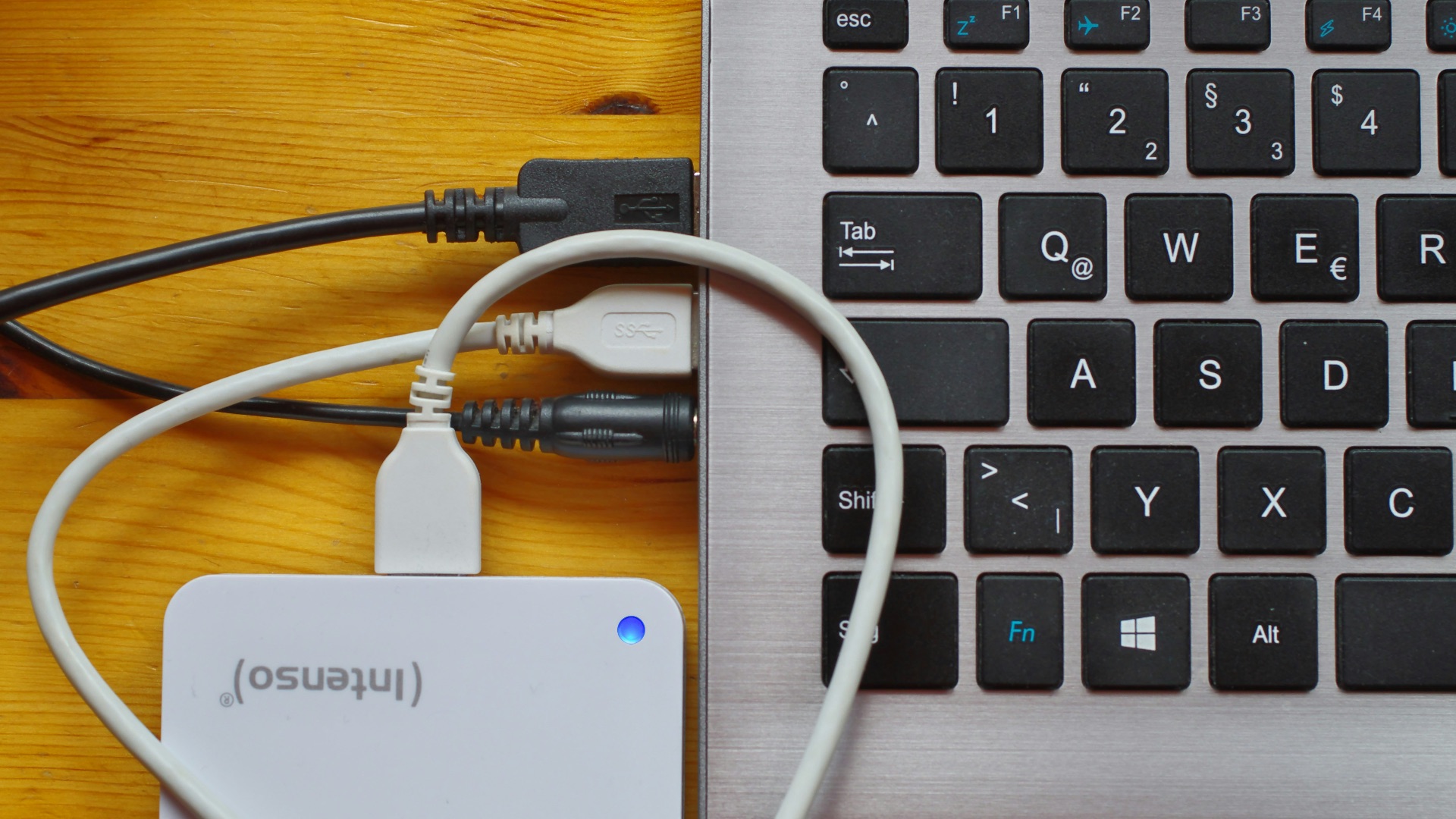
Save important files in at least one other location, like another drive or a reputable cloud service. Backups reduce the stakes if corruption appears without warning. It’s much easier to recover from a copy you already have than from a drive that won’t mount.
3. Use a High-Quality Cable and Replace Worn Ones
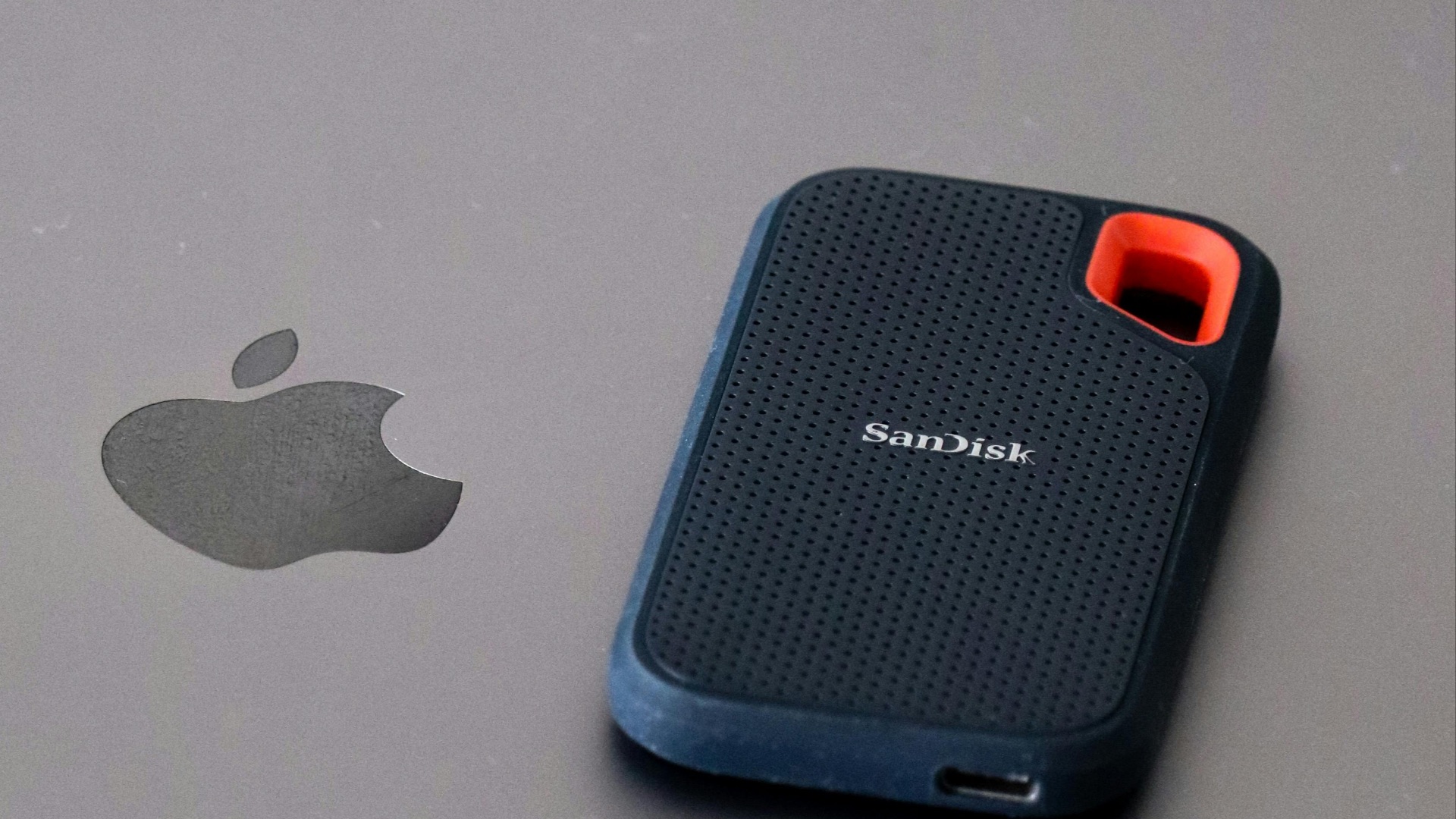
A damaged or loose cable can cause bad connections that interrupt transfers. Those interruptions can leave files half-written or confuse the file system over time. If the cable feels loose, bends easily near the connector, or has visible wear, swap it out.
4. Avoid Sudden Power Loss During Writes
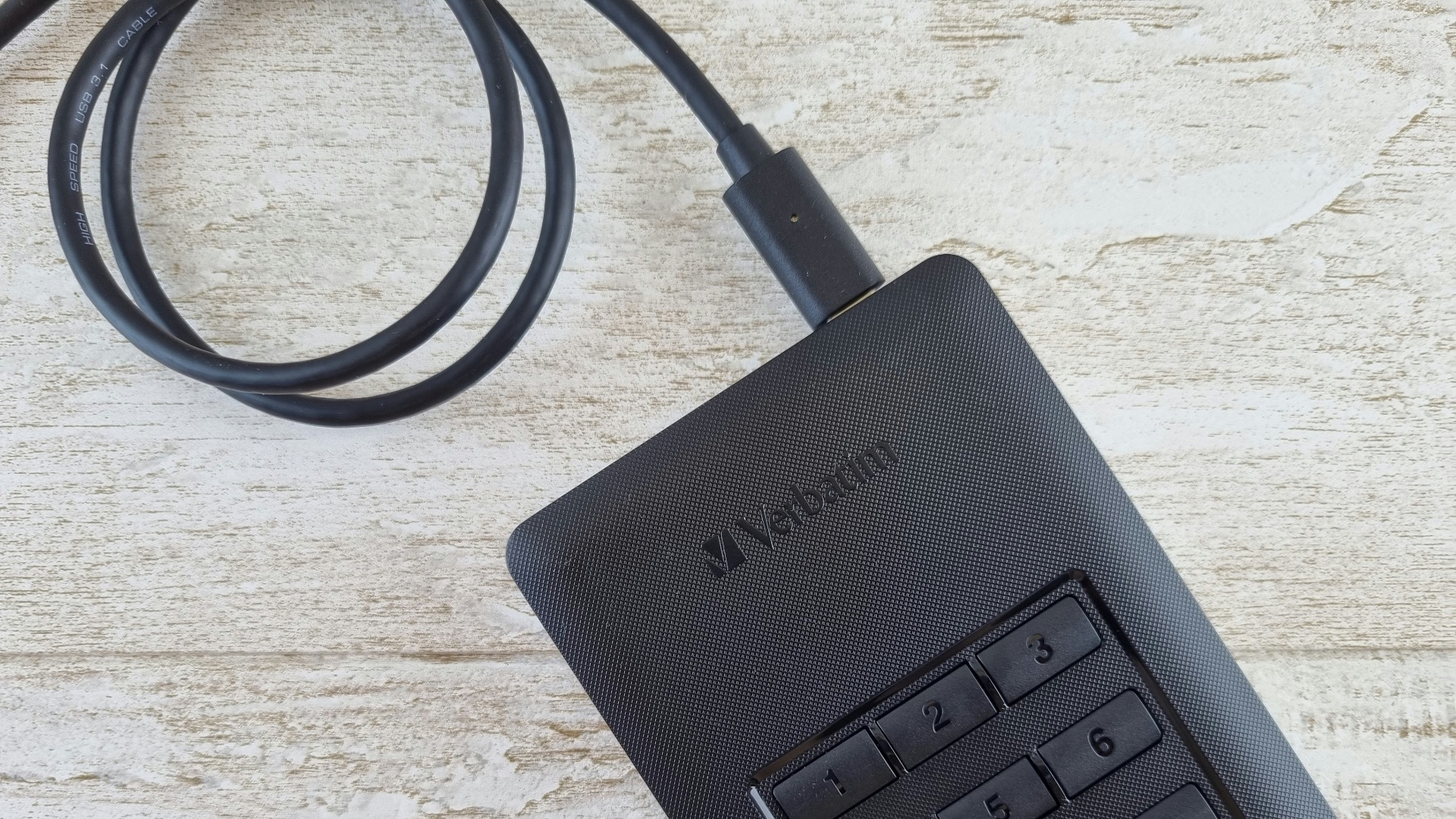
Never unplug the drive or shut down your computer while files are being copied or edited. Sudden power loss can interrupt file system updates and create inconsistencies that snowball later. If you’re working on something important, wait for transfers to finish and confirm activity has stopped.
 Jessica Lewis 🦋 thepaintedsquare on Pexels
5. Store It Safely and Protect It from Physical Stress
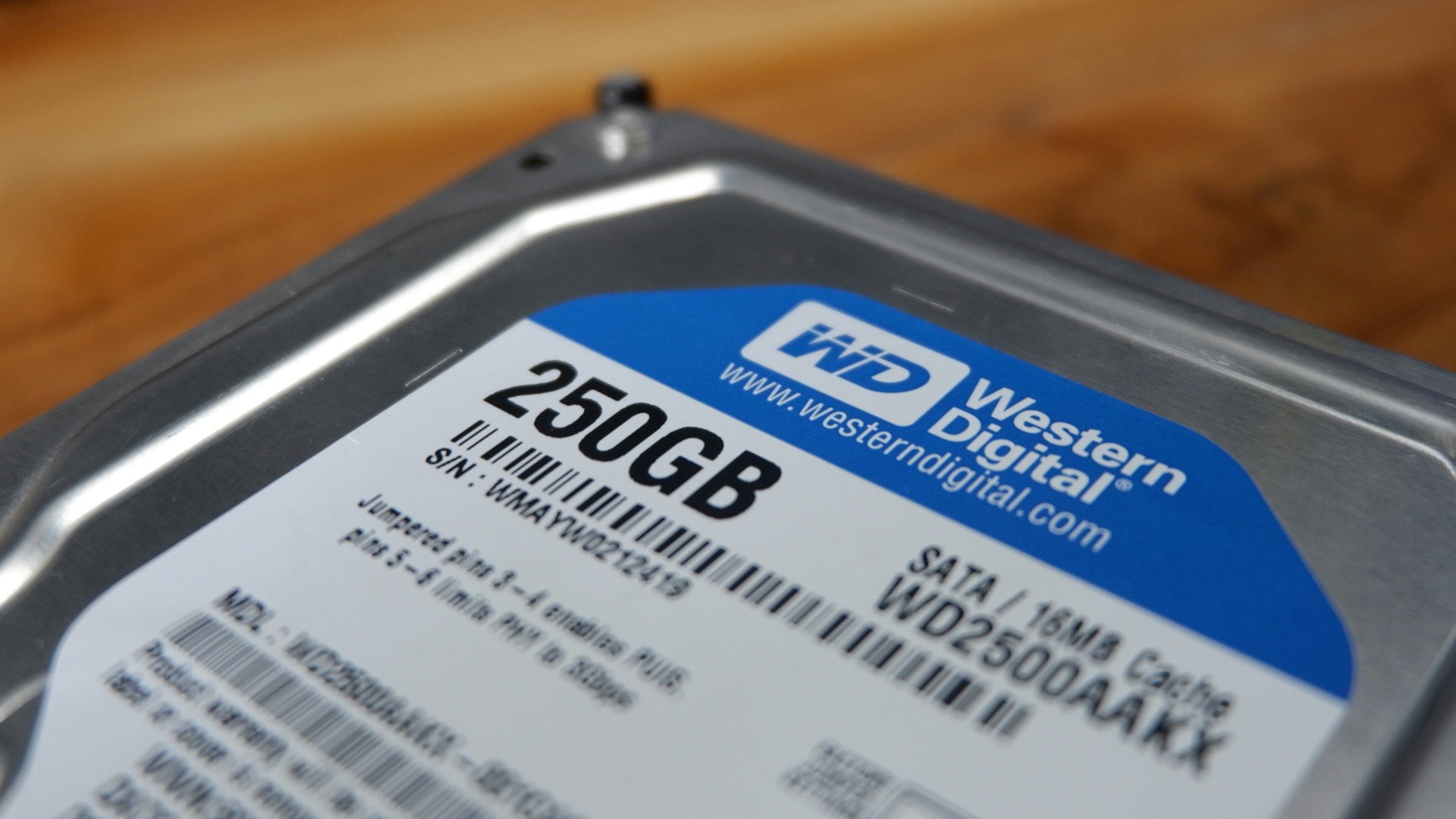
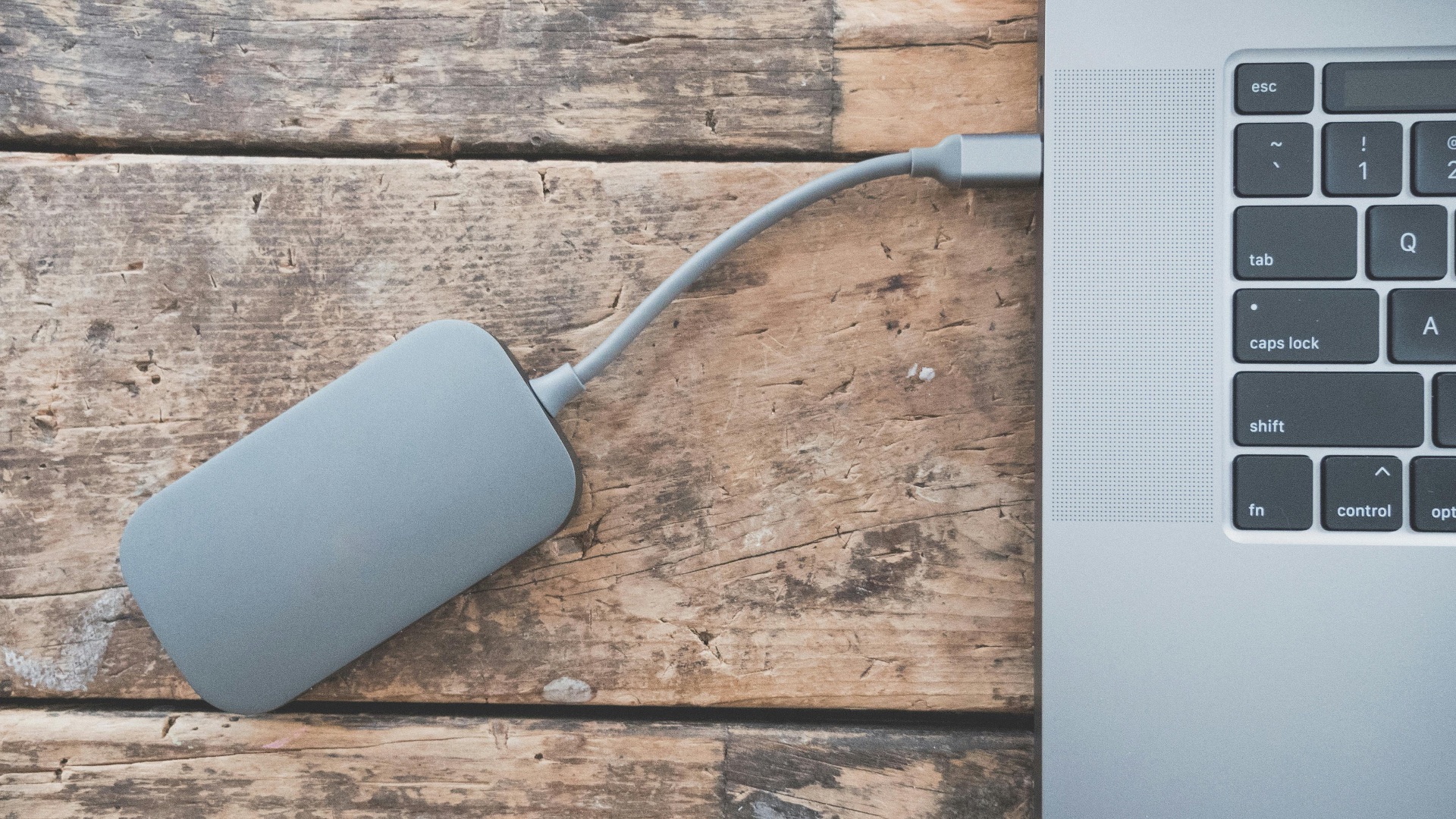
Make sure to keep the drive on a stable surface and avoid moving it while it’s running. Physical bumps can cause read/write problems, especially for spinning hard drives. Even small jolts during active transfers can create errors that increase the chance of corruption.

6. Give the Drive Some Breathing Room for Heat
Heat can worsen error rates and shorten the lifespan of storage hardware. Make sure the drive isn’t covered, pressed against other hot devices, or left in direct sunlight. If it feels unusually warm, disconnect it and let it cool before continuing heavy use.
7. Run Periodic Disk Checks
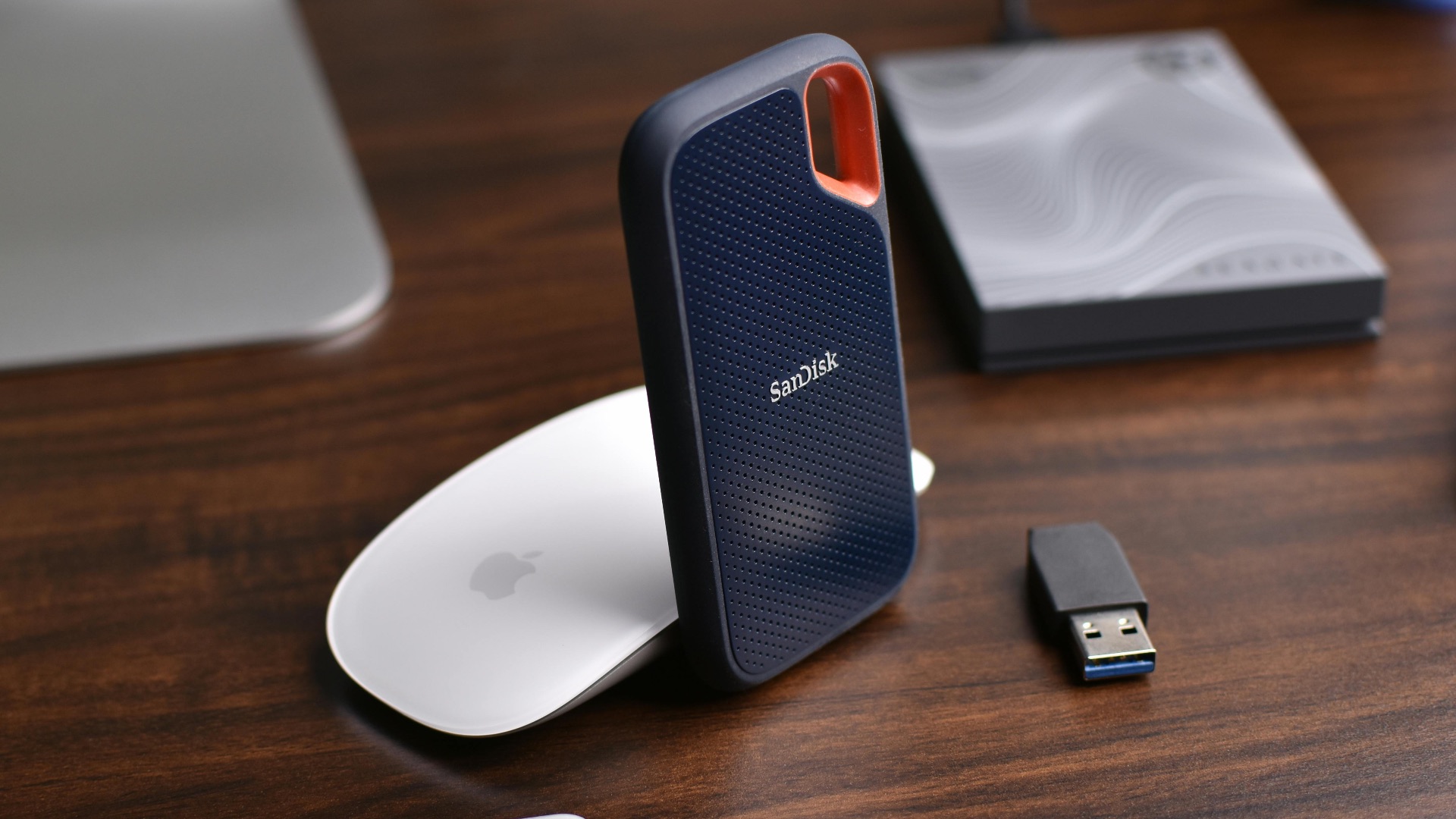
Schedule occasional scans using built-in tools to detect file system issues early. Regular checks can catch small problems before they turn into widespread corruption. You’ll also get a clearer sense of whether issues are stable or getting worse.

8. Monitor Drive Health with SMART When Available
Many drives expose SMART data, which can hint at trouble like reallocated sectors or rising error counts. Checking these indicators helps you decide whether you should retire the drive sooner rather than later. If the numbers trend in the wrong direction, treat that as a prompt to move your data.

9. Keep Your Operating System and Drivers Updated
Updates can improve USB stability, file system handling, and compatibility with newer hardware. Outdated drivers sometimes cause disconnects or transfer glitches that create messy write behavior. Staying current reduces preventable errors that can mimic or trigger corruption.

10. Don’t Mix Devices and Formats Without a Plan
Switching between systems can be fine, but frequent use across different operating systems increases the risk of file system conflicts if the format isn’t well-supported. Pick a file system that matches your real usage and stick with consistent handling practices. If you need cross-platform access, verify compatibility first and avoid interrupting transfers during the switch.