A Little Too Hot
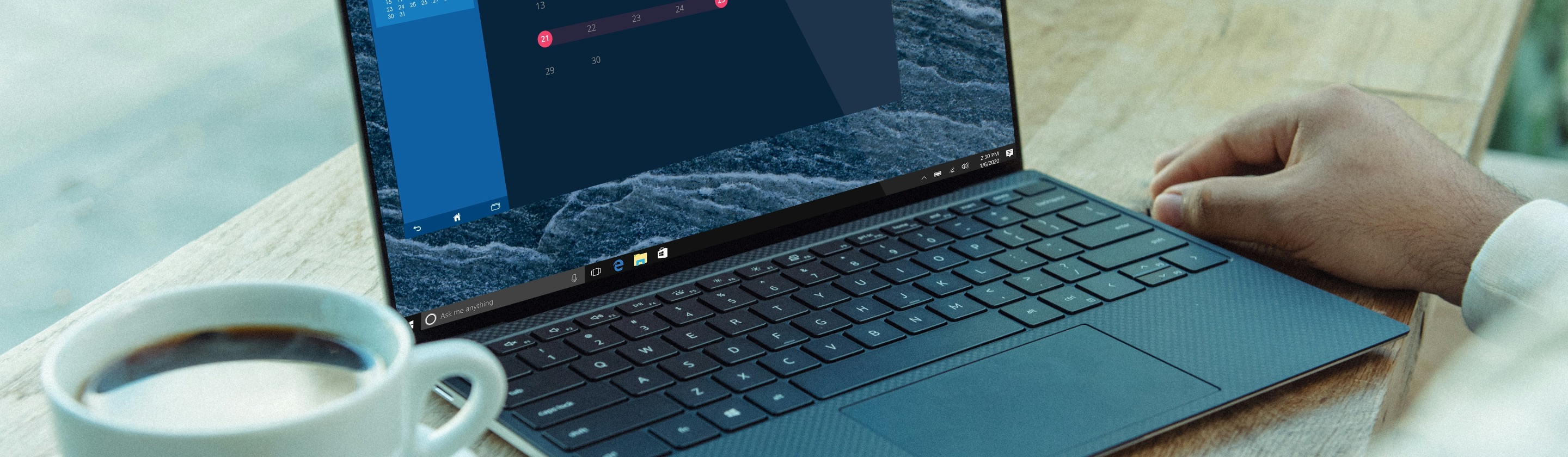
Does your laptop always sound like it's a jet that's 10 seconds away from taking off? Of course, no matter what tech you use, your devices will naturally produce heat while they're running, and even more so if you're using multiple applications at once. If they constantly feel scorching hot, though, you might have a problem in your hands. Here's why your machine always feels like a frying pan, along with how you can cool it down.

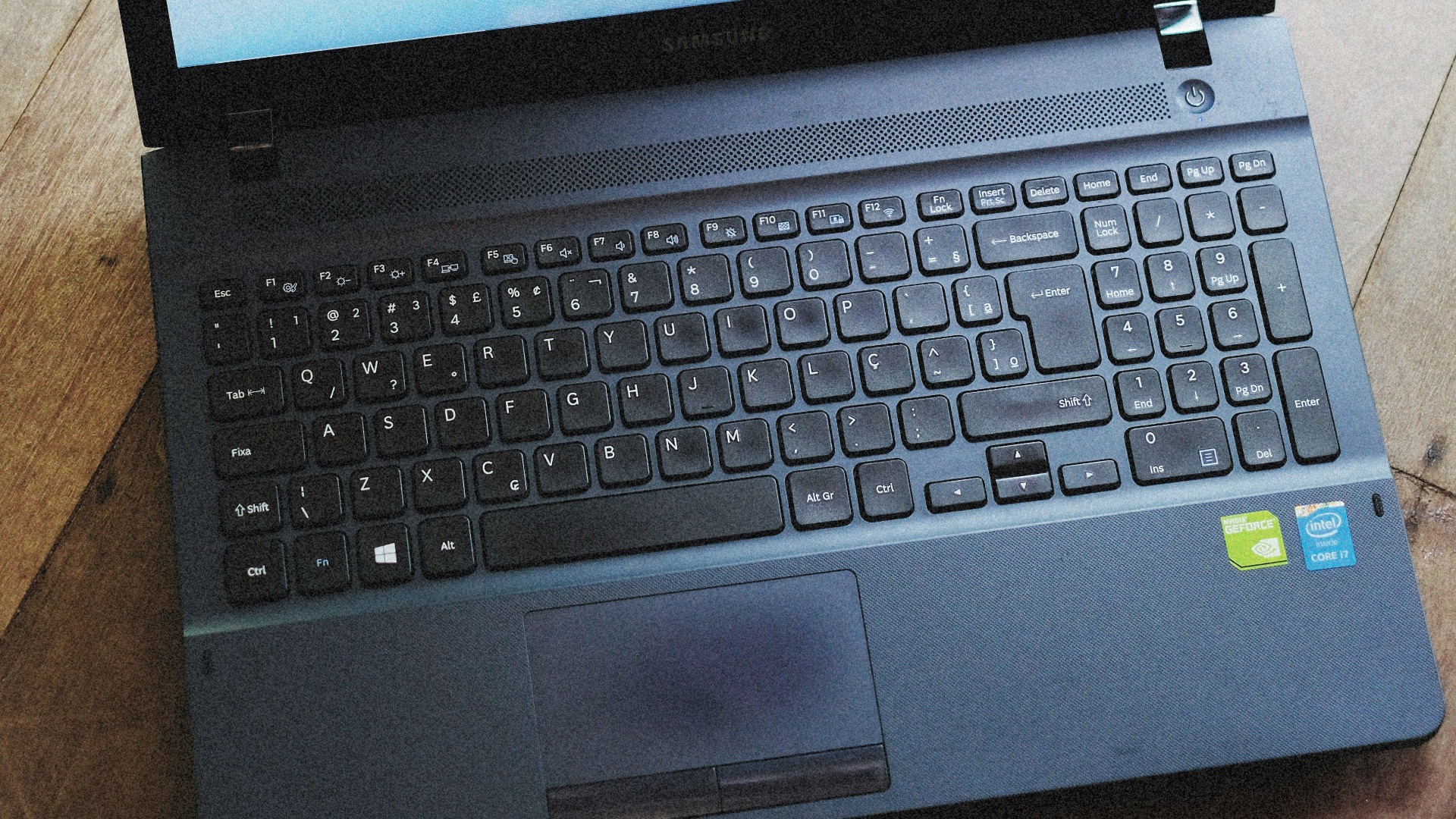
1. You're Blocking the Air Vents
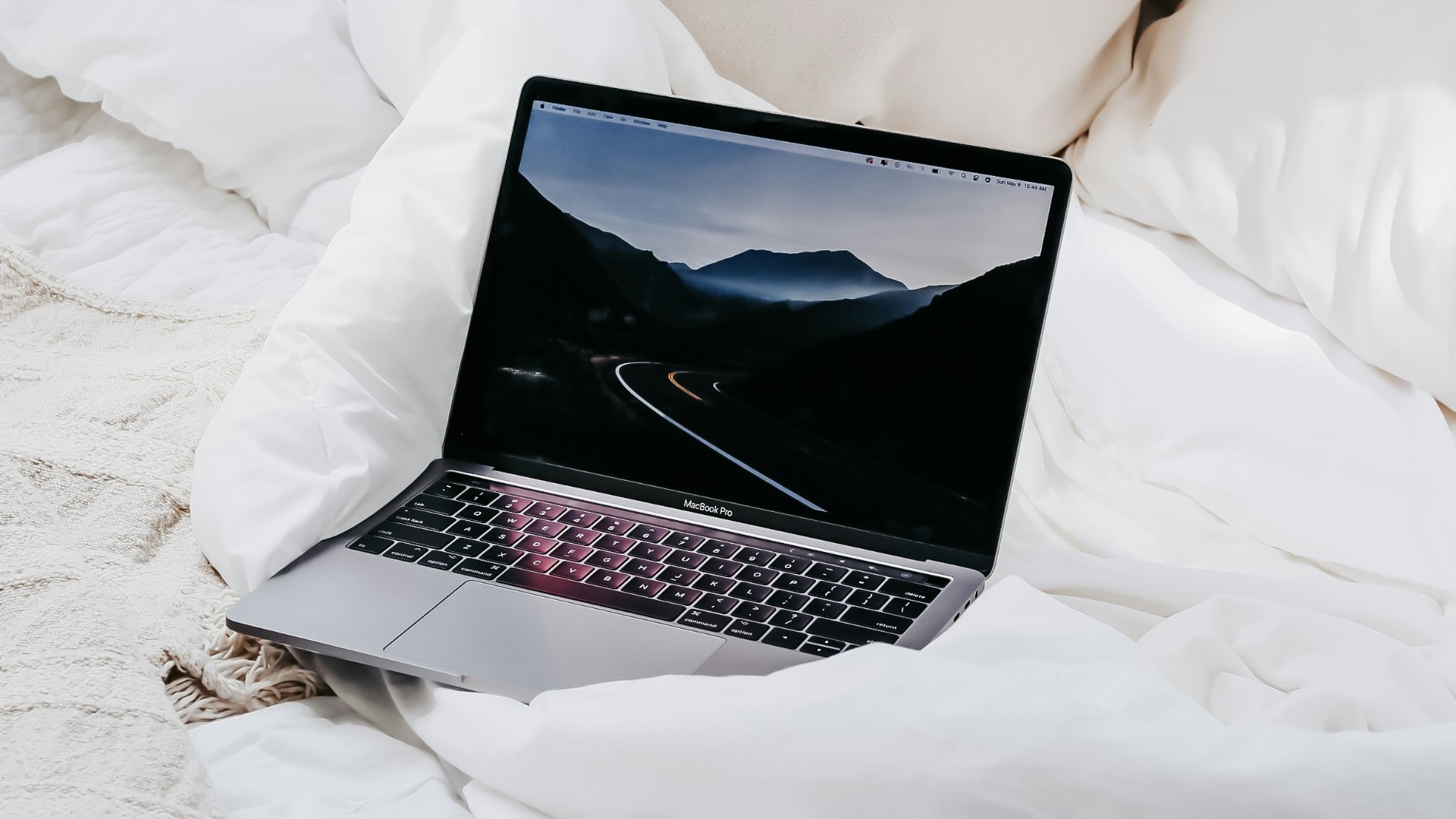
Got a hard case on your laptop? Even if you don't, just simply using your laptop on a bed or pillow can block the vents underneath or along the sides. Once airflow is restricted, all that hot air gets trapped, which causes the cooling system to struggle.
2. Dust Has Built Up Inside
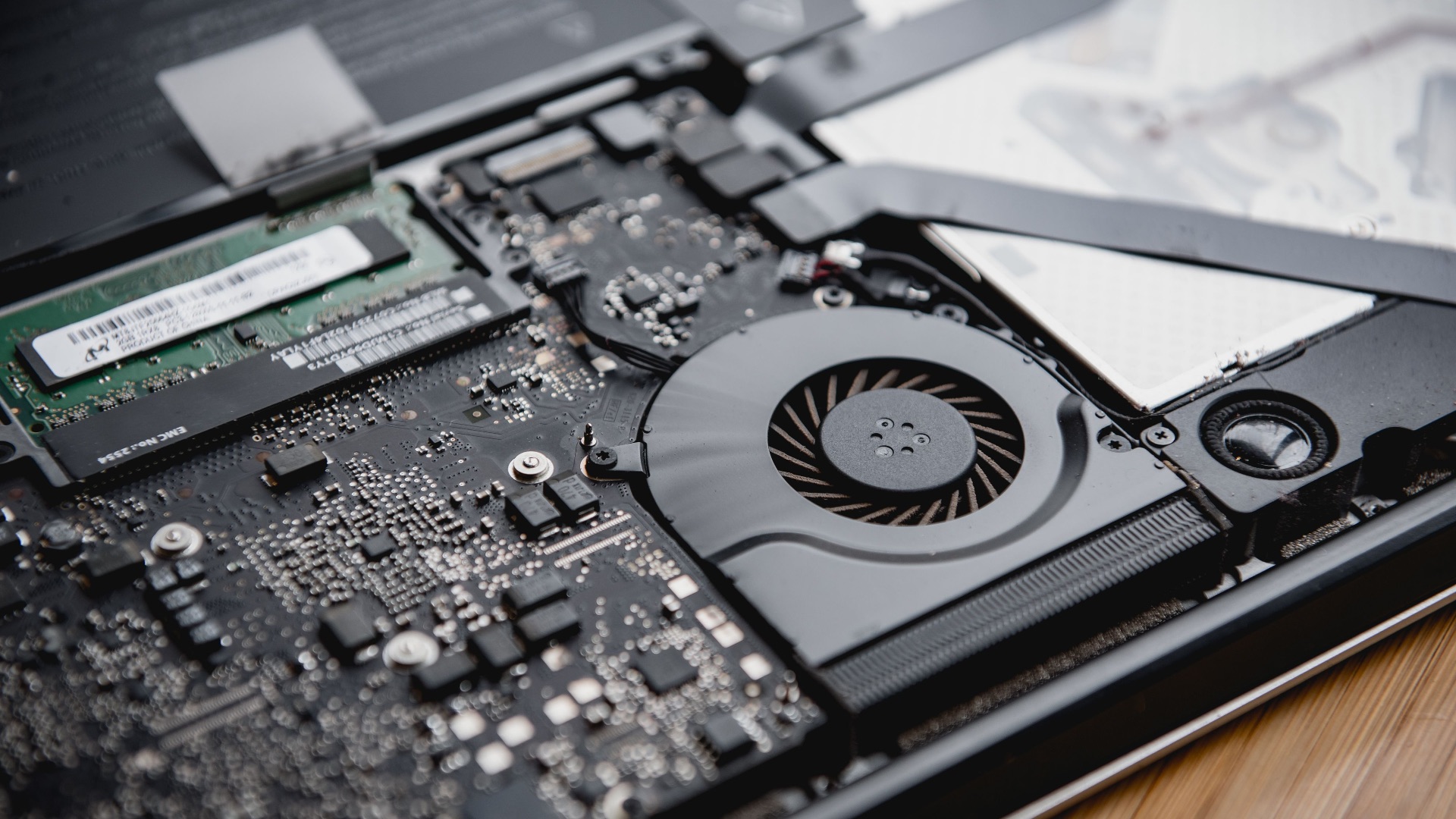
Depending on where you use your laptop, dust and debris can eventually collect around the vents and fans, which, again, can reduce airflow. This translates into the fans having to work much harder than they normally would. If you've owned your laptop for several years without ever cleaning it, you might want to get on top of that.

3. You're Running Demanding Programs
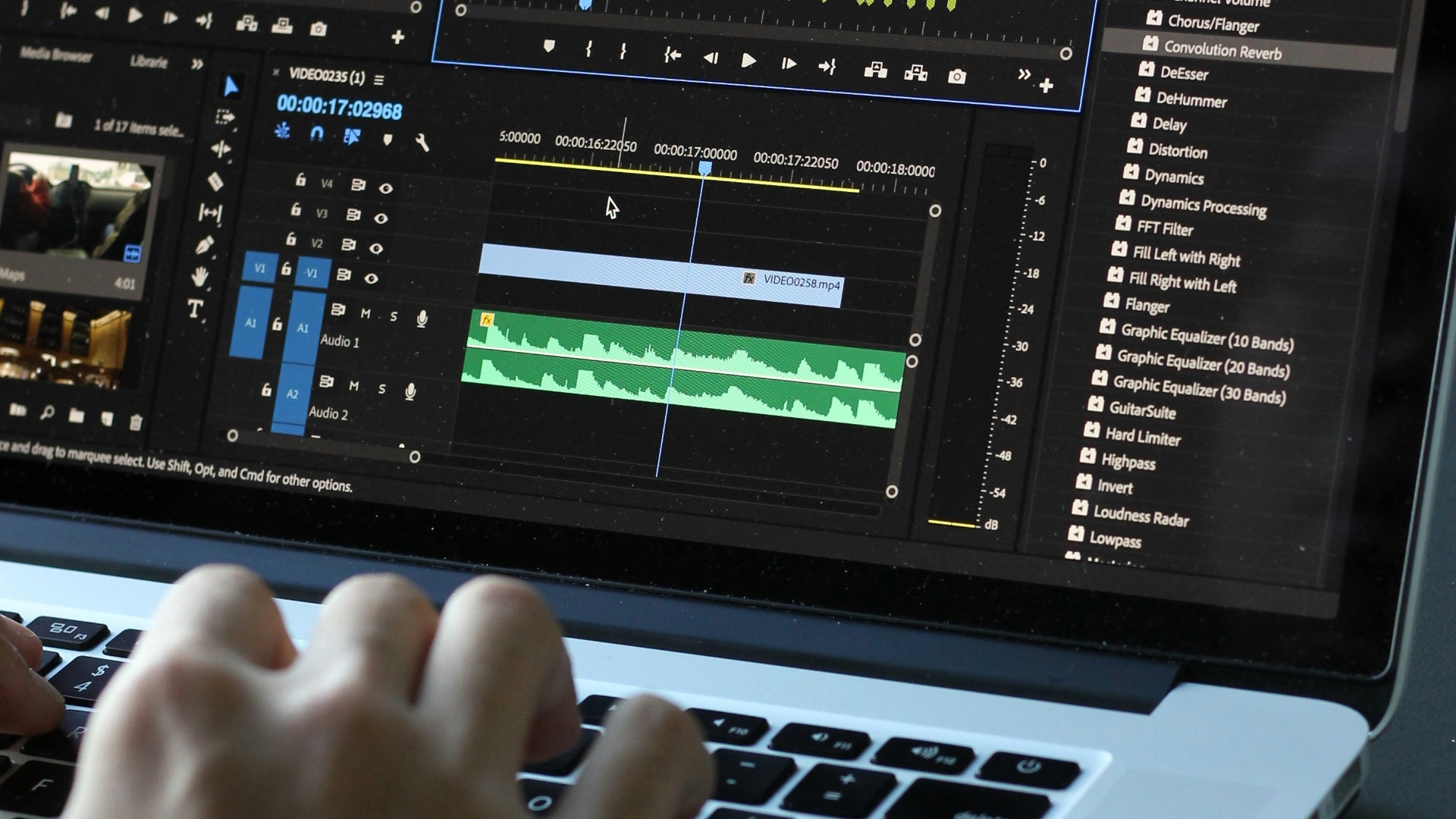
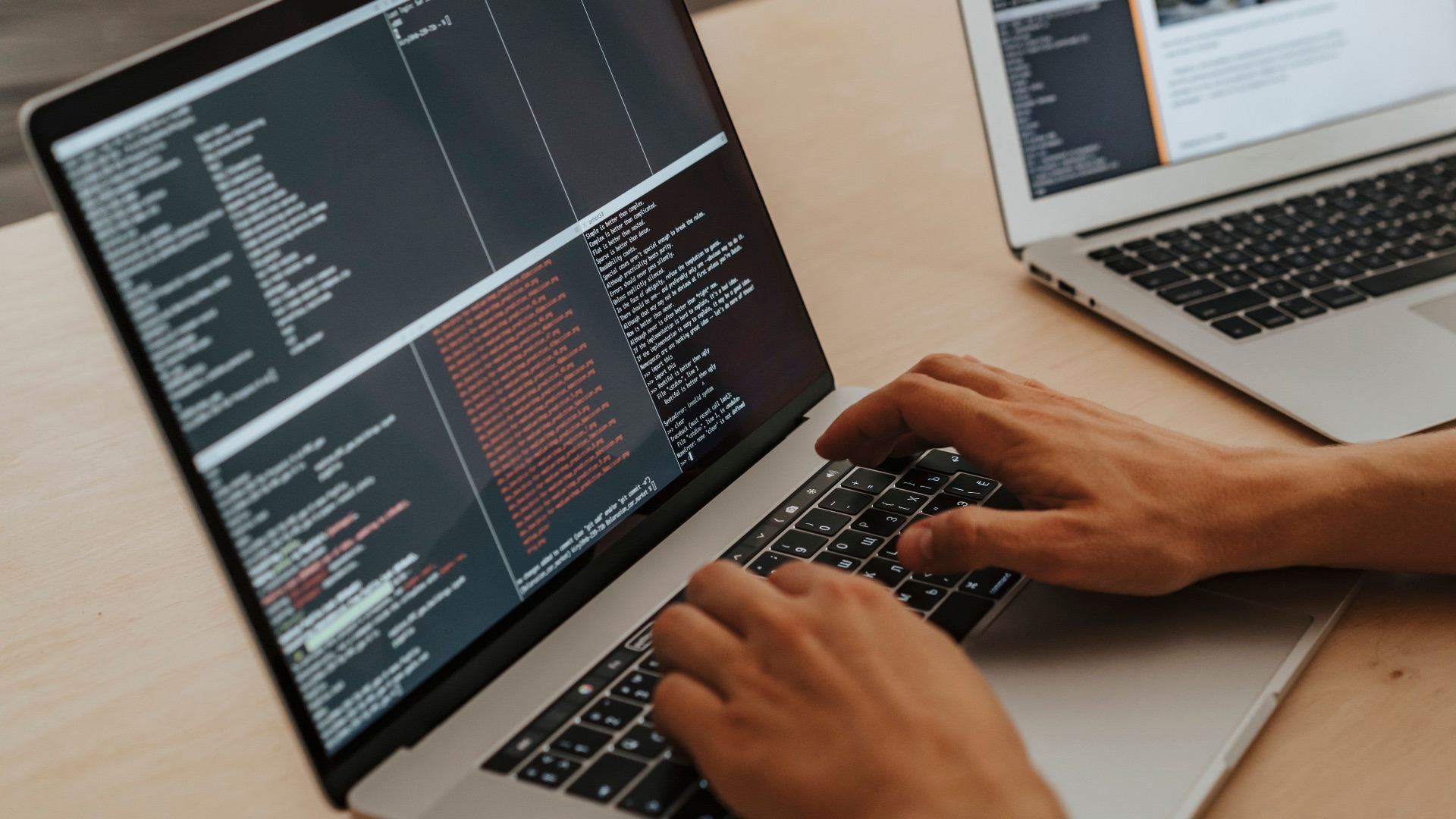
Are you a video editor? A designer? A game developer? In any case, if you use demanding software, that can put considerable strain on your processor and internal hardware. More effort means more heat, and that only shoots up more if you're running several applications at once.
4. Too Many Programs Are Running in the Background
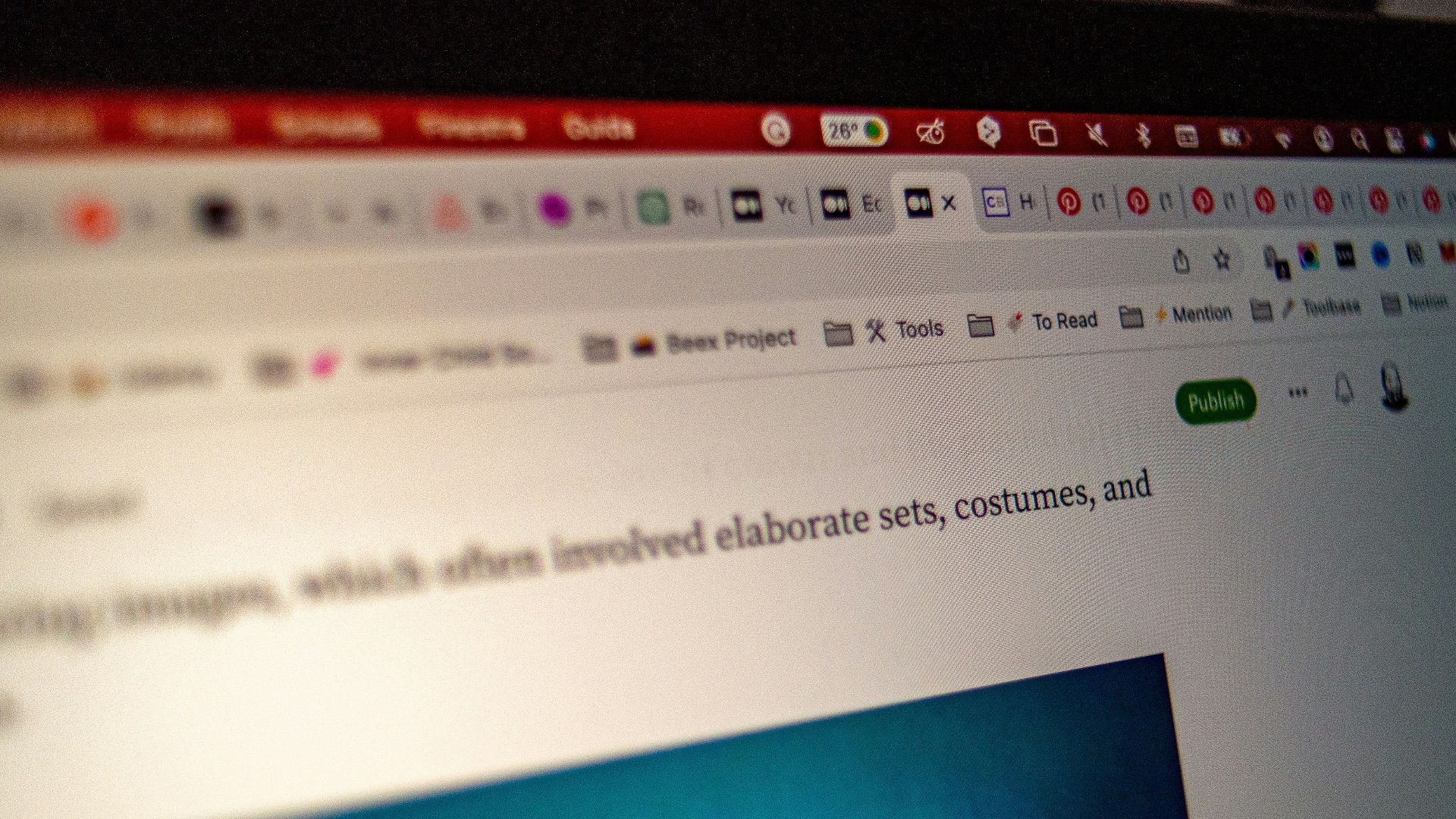
Even if you're not running demanding programs, you could simply just have too many windows or tabs open. When was the last time you closed your Chrome window, anyway? Dozens of background processes can still be operating behind the scenes, giving your laptop no chance to cool down.
 Emiliano Vittoriosi on Unsplash
5. Your Browser Has Too Many Tabs Open
Keeping dozens of browser tabs open might seem harmless, but it'll only eat up precious RAM space. Websites containing videos or animations are even more demanding. If you're someone who likes to keep everything loaded and ready, it could be why your laptop is always running a fever.

6. The Cooling Fan Isn't Working Properly
Sometimes, it could actually be your laptop's cooling system itself. If it's damaged or worn out, air can't move effectively enough to soothe internal temperatures. If you hear unusual grinding noises or complete silence even while the computer is running hot, that can indicate a problem.
7. Your Laptop Is Getting Older
Sadly, no matter how well you take care of them, computer components and cooling systems don't remain in perfect condition forever. Thermal paste can become less effective over time, fans can wear down, and accumulated debris can all ruin the efficiency of internal systems. If you have an aging laptop, it may be time to swap it out.
8. A Software Problem Is Using Too Much CPU
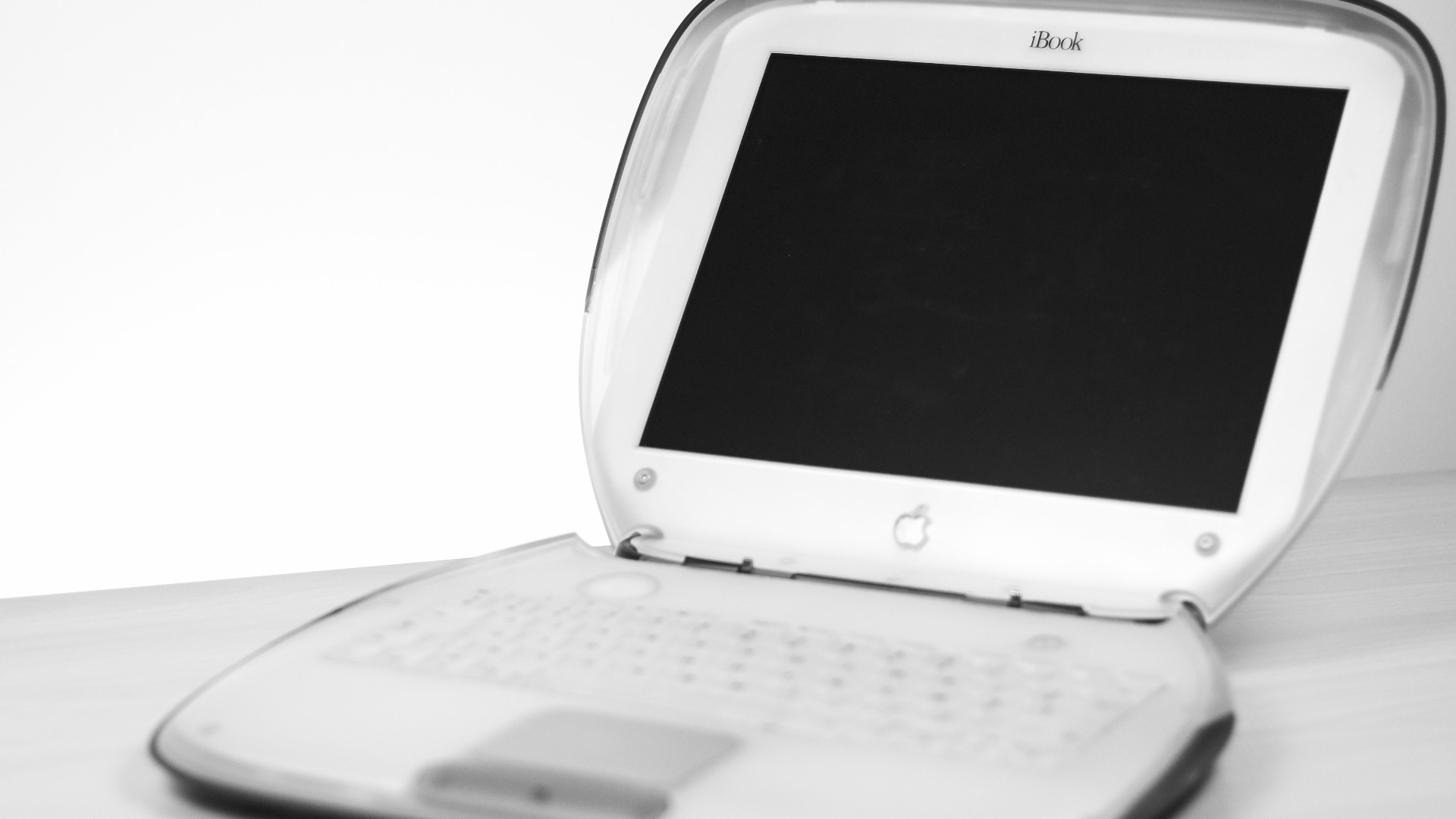
Sometimes, even a single misbehaving application can keep your processor from running smoothly. If you suspect this is the case, check for updates or developer notes—anything that may narrow down the issue. Malware can also be at fault.
9. You're Using It in a Hot Environment
Using your laptop in a hot car? If it's scorching outside (or in your home), chances are, your machine isn't going to fare much better in that environment. Make sure to keep your devices in well-ventilated rooms, or you might end up significantly shortening their lifespan.

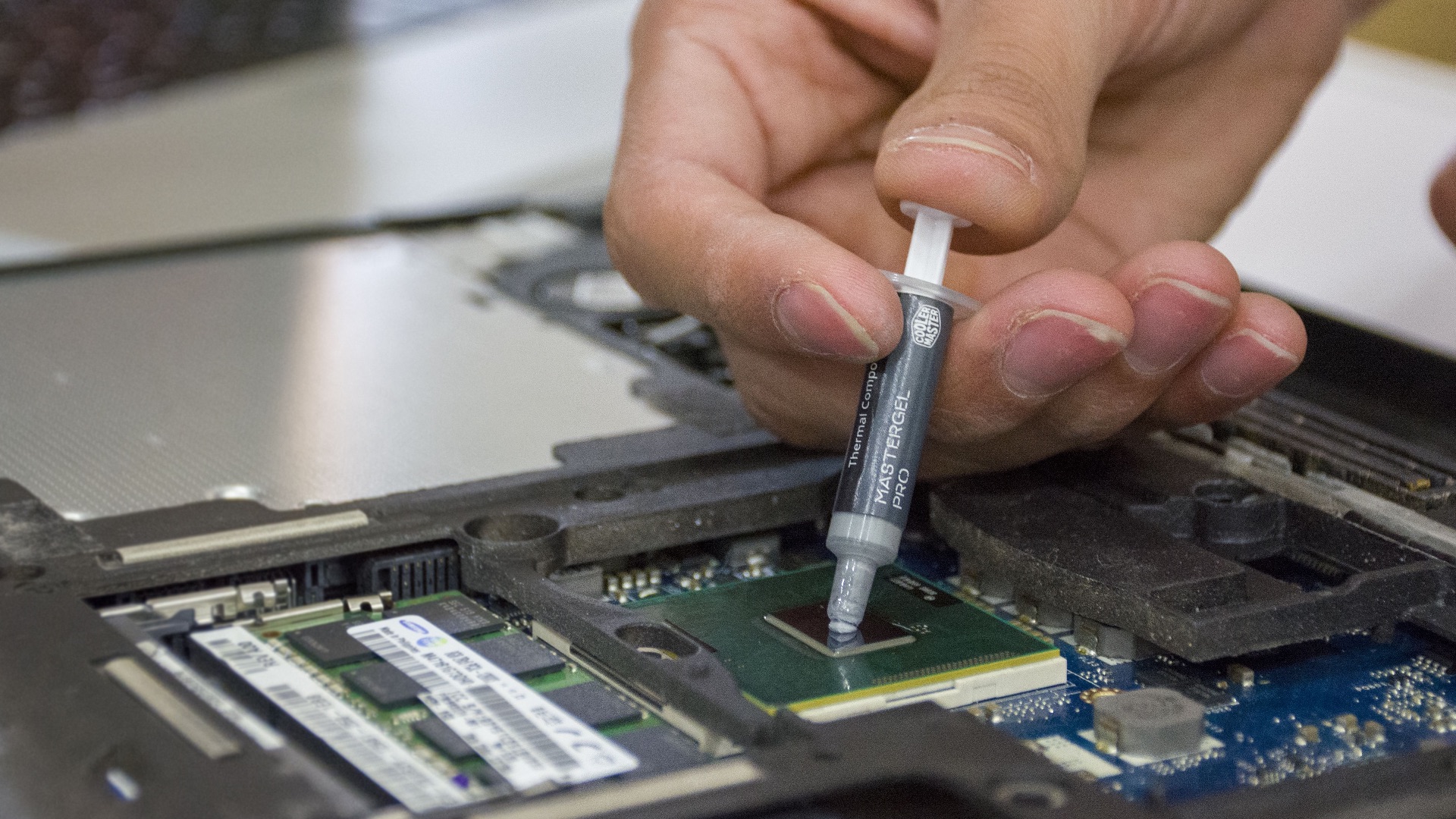
10. The Thermal Paste May Be Deteriorating
Thermal paste helps transfer heat from components such as the processor to the laptop's cooling system. Depending on how old your laptop is, that material can start to dry out and become less effective, which can potentially result in higher temperatures.
Now that you know what could potentially be heating up your laptop, let's take a look at some ways to keep it cool:
1. Use It on a Hard, Flat Surface
We know—it's tempting to bring your laptop to bed or use it on a couch. But those soft surfaces are not going to do you any favors. Opt for hard, flat surfaces instead, such as a desk or a laptop stand, which will give the vents far more clearance for proper airflow.

2. Clean the Vents Regularly
As we've mentioned, your vents can get clogged with dust and debris, so make sure to carefully remove visible buildup around vent openings whenever you can. For significant internal dust, professional cleaning might be a safer call.
3. Close Programs You Aren't Using
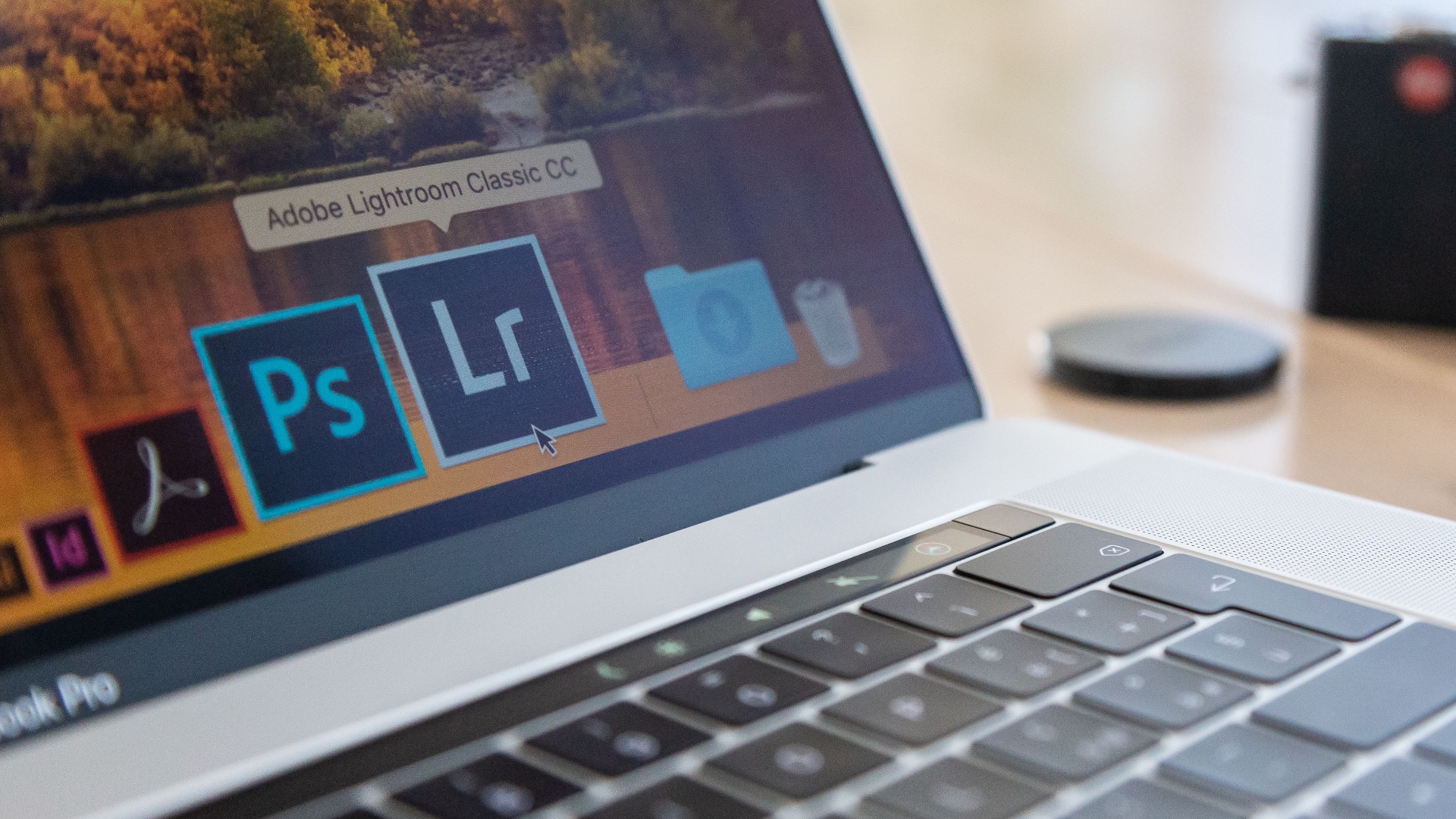
If you have resource-hungry software running when you don't need it, it'll do your laptop well to close them. Keeping them open will wear down the processor, and it'll also mean it'll take longer for you to load or perform normal tasks. Over time, your battery life can suffer as well!
4. Cut Down on Browser Tabs
Have several tabs open because you don't want to lose them? Instead of keeping them running in the background, bookmark them! That way, you can free up memory on your laptop (meaning things will run smoother), and you can always come back to them later with just a click.

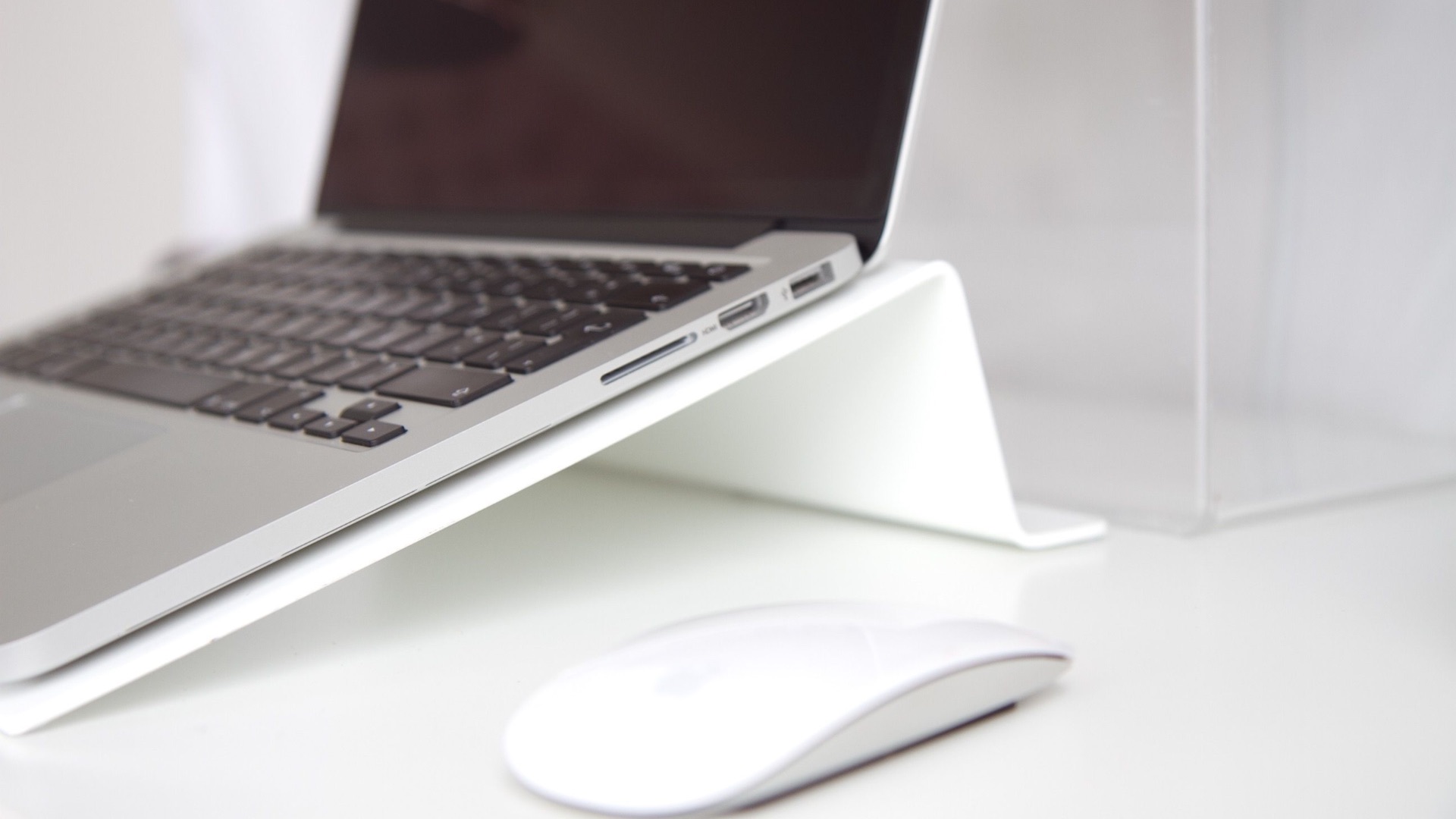
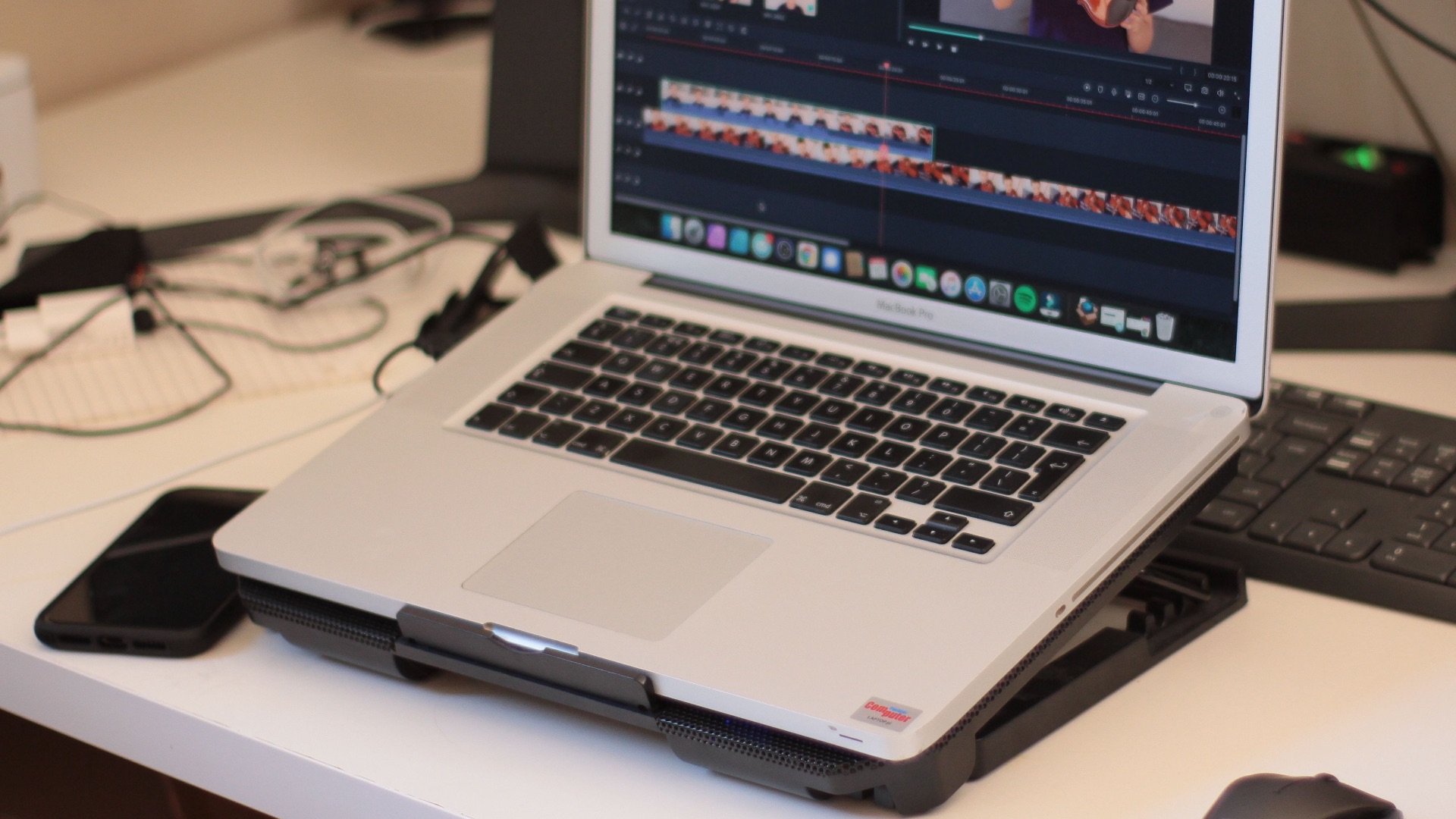
5. Try a Laptop Stand
As we've mentioned, a hard, flat surface is the best place to set your laptop on. But even better than a desk or table is a laptop stand, which can elevate the bottom of your computer and provide more space for air to circulate. Some models also position the screen higher, and that can prevent you from constantly hunching over it.
6. Consider a Cooling Pad
If your laptop simply isn't cooling as efficiently as you need it to, cooling pads might help. These contain additional fans designed to boost airflow; though, bear in mind, their effectiveness varies depending on where your computer's vents are specifically positioned and how its internal system is designed.
7. Keep Your Software Updated
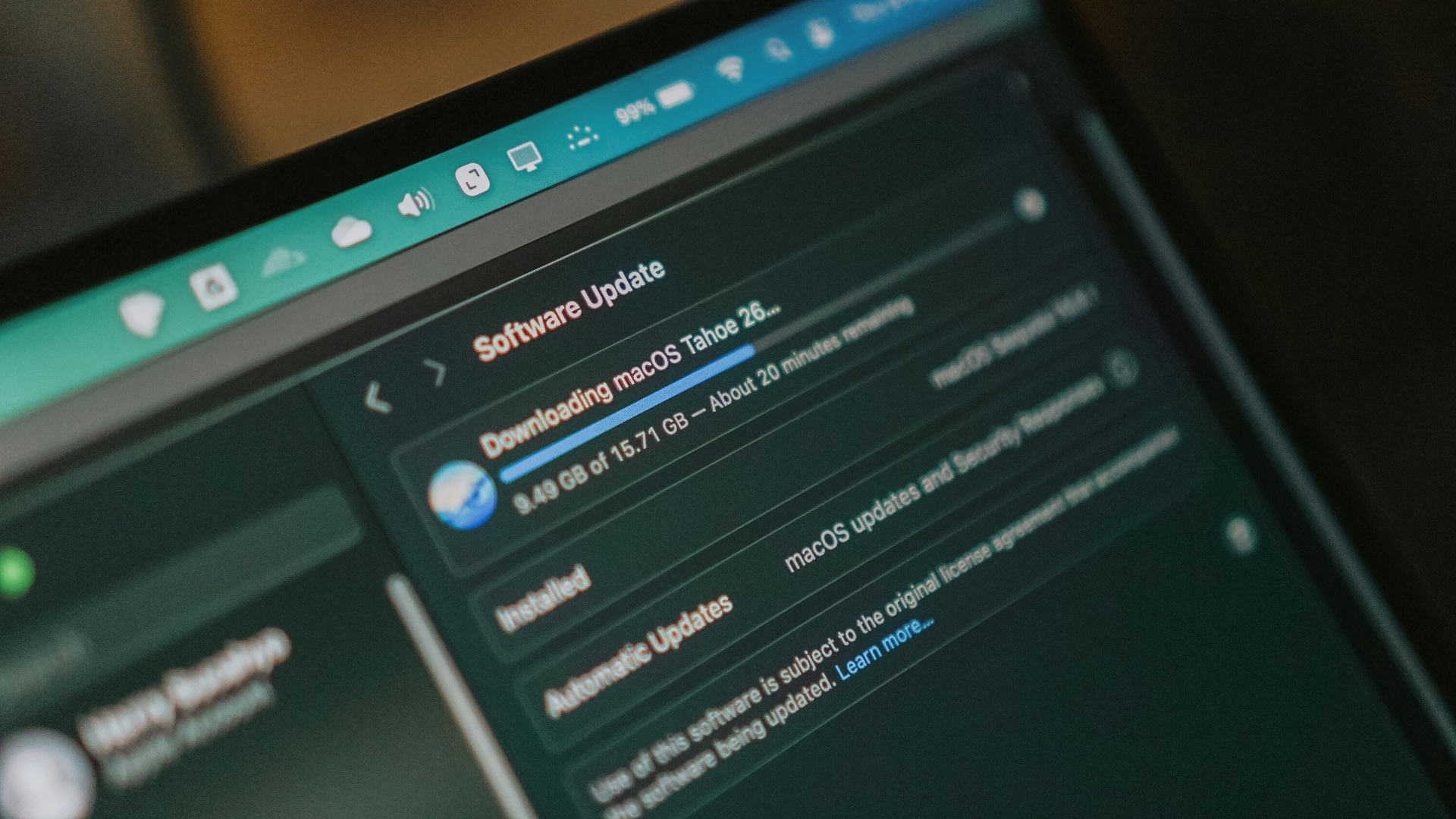
It might sound unrelated, but using outdated drivers or software can stress out your laptop as well, leading to performance issues. For example, old firmware may contain bugs that can cause unnecessary resource usage, so keeping everything updated to the latest version may therefore help your laptop operate more efficiently.
8. Check Which Programs Are Using Your CPU
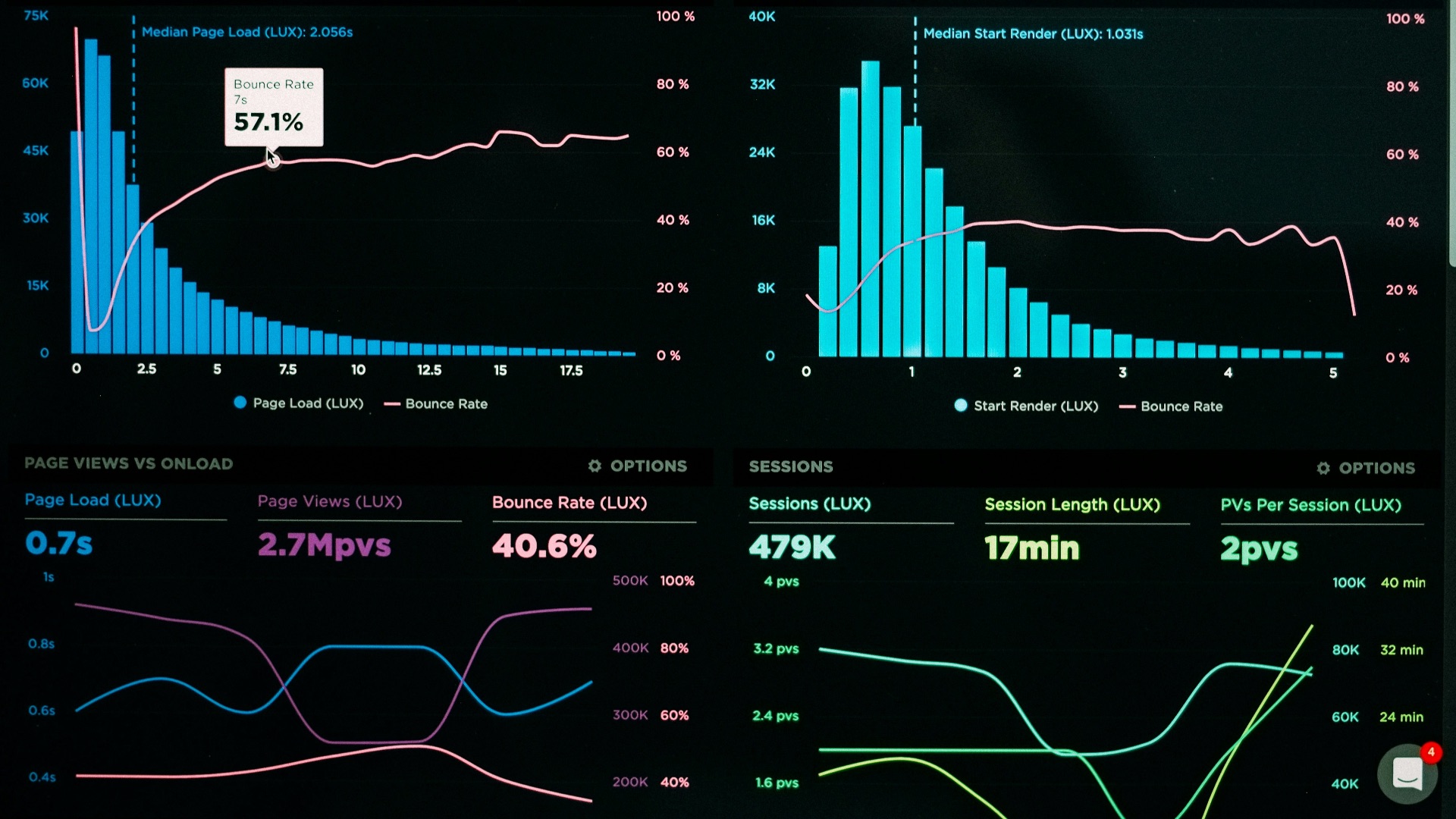
Windows Task Manager and macOS Activity Monitor can both show you which applications are consuming the most processing power. By narrowing it down this way, you can identify which programs you might need to close or troubleshoot. That said, you should never prematurely end a process if you're unsure what it does, and it may be best to ask someone who's more knowledgeable.
9. Avoid Hot Rooms and Direct Sunlight
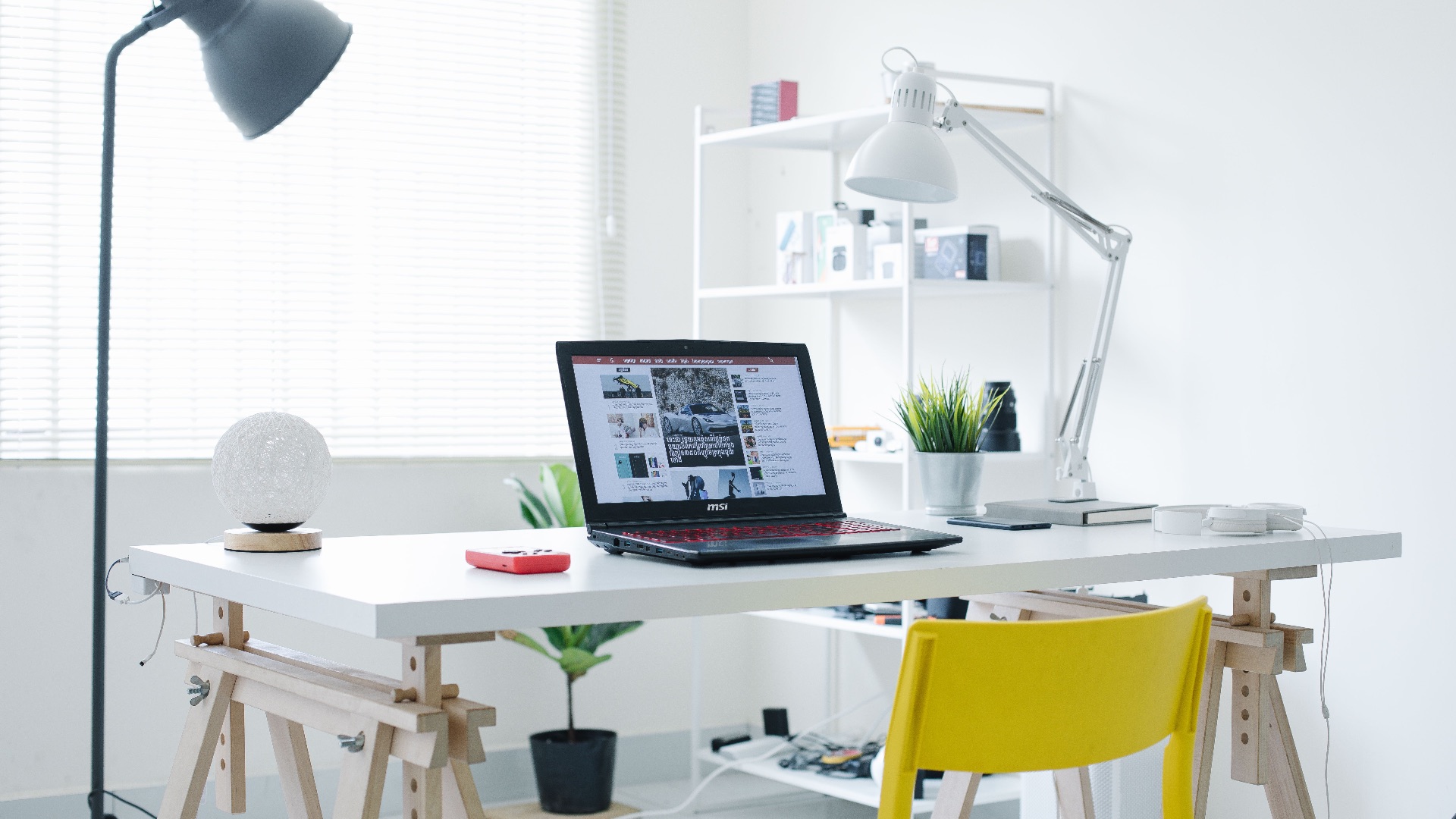
As we've said, don't use your laptop in a hot environment. Don't use it in freezing temperatures, either. Your computer likes the same temperatures as you do: not too cold, not too hot. Giving your laptop access to cooler surrounding air, however, will help its internal system work more effectively.
10. Get Persistent Overheating Checked Professionally
If your laptop repeatedly shuts down or overheats even while performing basic tasks, it's time to take it in. A technician can inspect the fans and heat sinks, as well as narrow down the problem. Sometimes, it might just mean you'll need a new machine.