
Is your phone perpetually low or out of battery? Do you feel like you can never make it through an entire day on a single charge? Don't worry—you're not alone. In fact, battery drain is a common frustration for smartphone users, especially iPhone owners.
The good news is that by disabling a few settings, you can stop your battery from draining so quickly. You might not even realize some of these features are running in the background, or how much they're impacting your battery life. From Always On Display to Keyboard Haptics, here are some of the biggest culprits to look for.
Always On Display and Raise to Wake
If you have an iPhone 14 Pro or newer, you have the Always On display feature, which enables your lock screen to stay on even if you're not currently using it. This also allows you to see notifications and widgets, like the weather and alarm clock, at a glance. However, with this feature on, you will inevitably experience battery drain. In tests conducted by 9to5Mac, the iPhone 14 Pro (when using a wallpaper) loses almost 1% battery per hour. This might seem like a negligible amount, but it can still quickly add up. To prevent battery drain from the Always On Display, head to Settings > Display & Brightness, then turn off Always On Display.
Raise to Wake is another convenient feature that allows you to see your lock screen at a glance when lifting your device, without tapping it awake or pressing the power button. This can also incrementally drain your battery throughout the day, especially if you pick it up often. To disable it, go to Settings > Display & Brightness, then toggle off Raise to Wake.
Background App Refresh
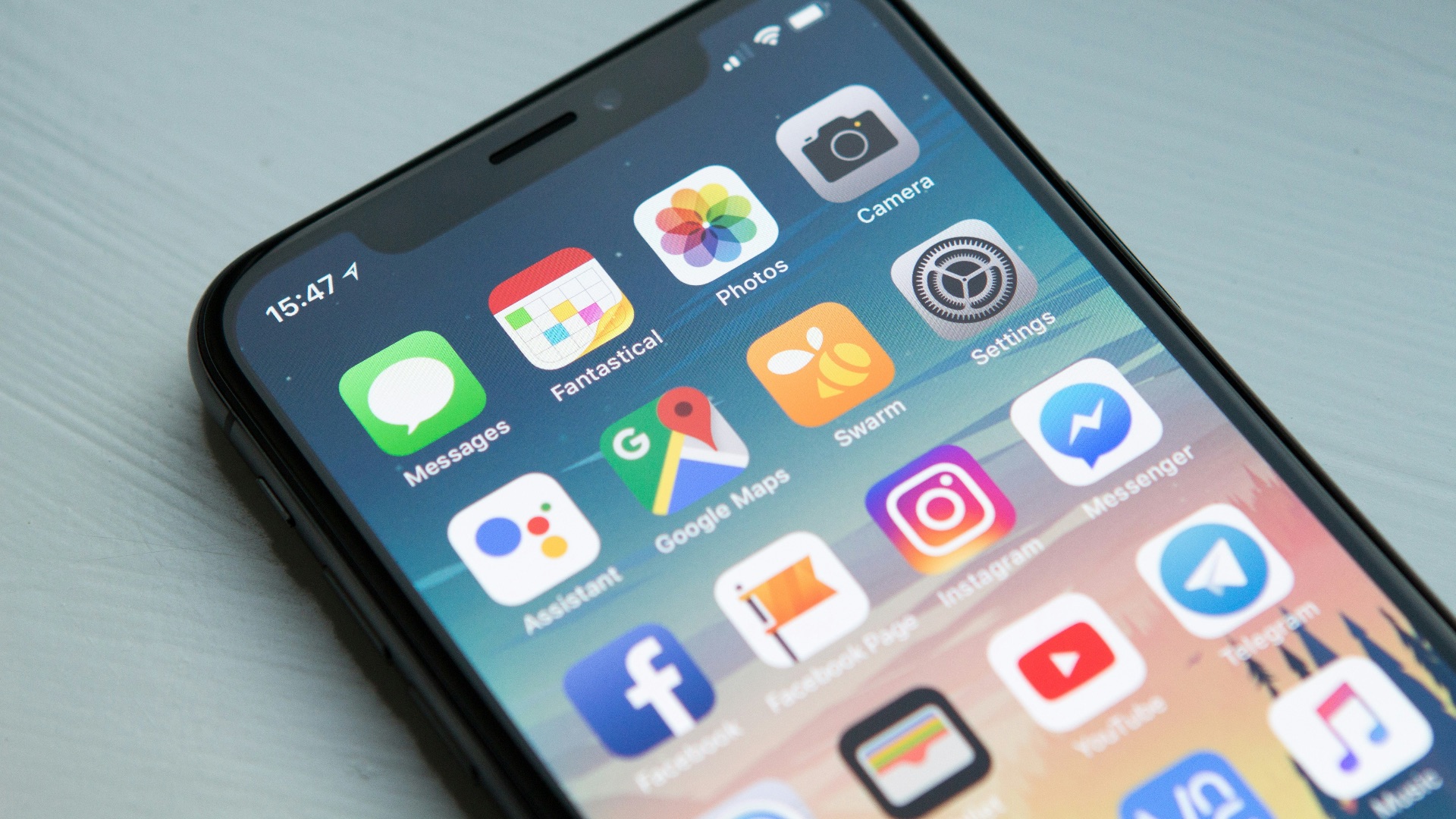
Background app refresh is a silent battery killer. As its name suggests, it runs entirely in the background and refreshes your apps to load new content for you—even if you're not currently using those apps. While the feature is helpful—you won't need to wait for new information to be retrieved every time you launch an app—you can see how this process can quickly drain your battery.
If you've already toggled off Raise to Wake and Always On Display, and still find that your battery isn't doing so great, switching off Background App Refresh might make a difference. To do so, head to Settings > General > Background App Refresh. You can manually select which apps you want to turn the feature off for, but if you'd rather keep it off altogether, tap Background App Refresh > Off.
Auto-Play
iPhone has several autoplay features: Auto-Play Animated Images, Auto-Play Video Previews, and Auto-Play Message Effects. When these are turned on, they enable apps and browsers to automatically play GIFs, videos, and text effects. While these features may be helpful for users who don't want to manually click these elements to play, constant animations and motion can drain your battery.
To turn them off, go to Settings > Accessibility > Motion, then toggle off either all of the autoplay features or whichever ones you prefer. You can also turn off excessive user interface motion, such as the parallax effect of icons, by switching off Reduce Motion.
Keyboard Haptics
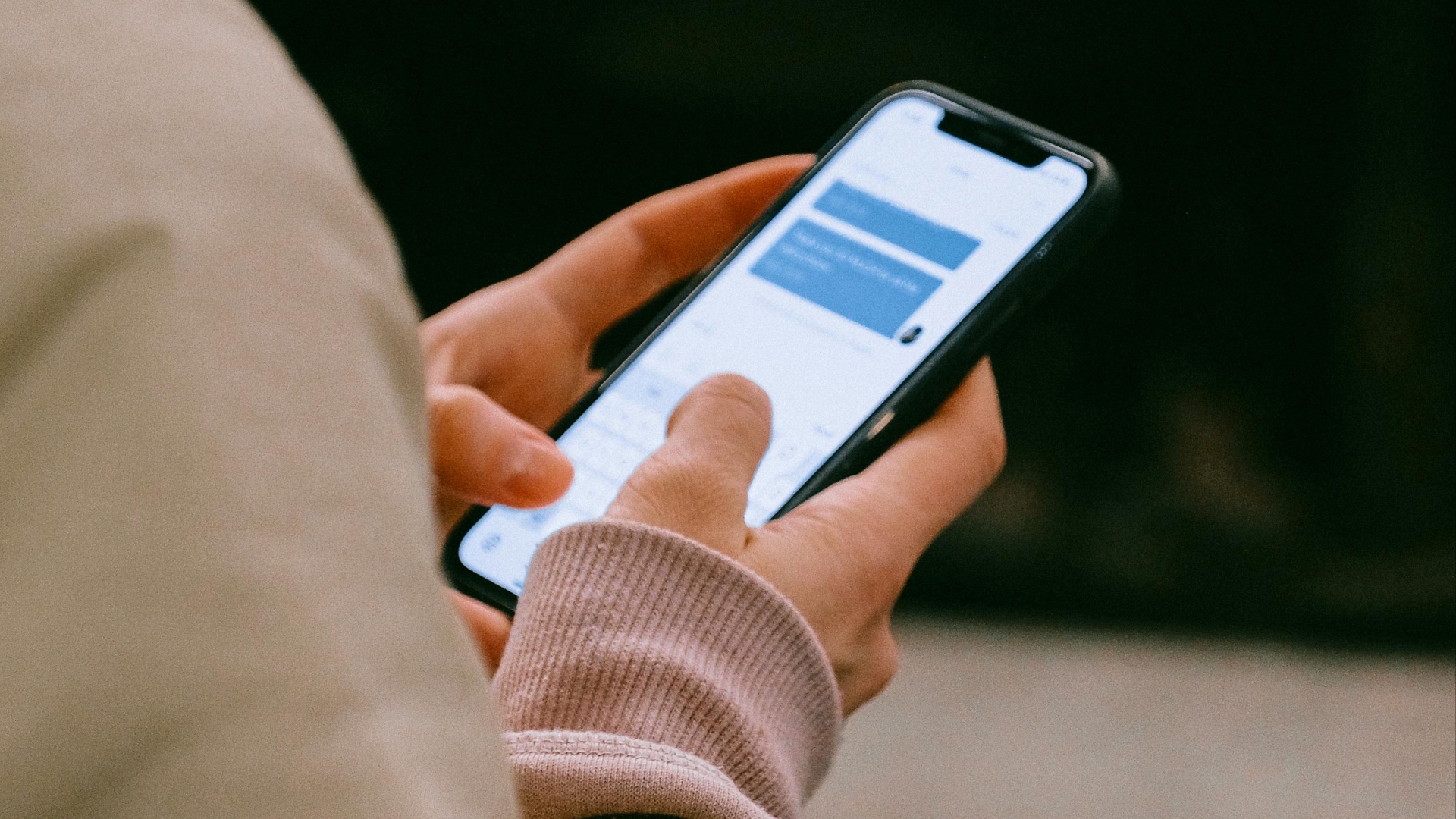
That click-clack sound you hear or vibration you feel every time you're typing a message? Those are keyboard haptics, and believe it or not, it's another feature that can quickly drain your battery. Apple even explicitly warns users that this feedback can affect battery life. To turn it off, head to Settings > Sounds & Haptics > Keyboard Feedback, then toggle off either one or both of Sound and Haptic.
If turning off iOS settings that affect battery performance doesn't make a difference for you, you may need servicing, and will need to contact Apple Support to replace your device's battery.